
Subscription tracker guide
This guide walks through every screen of the subscription tracker, from downloading a statement in your online banking to reminder emails, exports and deleting your data. If you are new, start with the quick start.
Open Subscription tracker How it works and plans
This guide shows 2 tasks step by step, as a short video and in pictures. Look for the sections marked “video”.
Quick start
- In your online banking, download the transactions of your business account or card for the last 3 to 13 months, as a CSV, CAMT.053 (XML) or OFX/QFX file. See Download your statement.
- Open the subscription tracker and click Upload a bank statement.
- Under Which account or card is this?, keep A new account or card and type a name under Name for a new account, such as “Business account”.
- Check Currency of this account, choose the file under Statement file, leave Work it out for me selected and click Upload and find subscriptions.
- Read the summary at the top of the list, for example “Read 214 payments, 214 of them new. Found 12 subscriptions, 12 new.”
- Answer anything under Check these, and open any subscription to correct it or to mark it with I cancelled it or Not a subscription.
- Click Reminders and accounts, check How many days before and Your time zone, and click Save.
- Add anything that is not in your statement yet, such as a free trial you just started, with Add one yourself.
Upload a newer statement about once a month. Payments you have already uploaded for the same account are skipped, so overlapping dates are fine.
Download your statement
The tracker works from a file of transactions that you download from your online banking or your card provider’s website. It does not connect to your bank.
Where to find the download
Every bank names it differently. On the account’s list of transactions, look for “Export”, “Download”, “Transactions” or “Statements”, choose a date range, then choose the file format. Some banks offer the download only on their website, not in the mobile app. Company credit cards often have their own website with their own download.
Which format to choose
- CSV
- Offered by almost every bank. The tracker finds the date, amount, payee and description columns by their headings, in English and several other European languages, even when the bank puts account details above the header row. Comma, semicolon or tab separators, decimal points or commas, and day-first or month-first dates all work. If the file has no currency column, you choose the currency when you upload.
- CAMT.053 (XML)
- The ISO 20022 statement format offered by many European banks. It states the currency and whether each entry is money in or out, so nothing needs guessing. CAMT.052 and CAMT.054 files are read too.
- OFX or QFX
- The format used by personal finance and accounting software. Some banks call it “Quicken”, “Money” or simply “OFX”. It includes the currency.
- Not supported
- PDF statements, Excel files (.xlsx), MT940 files (.sta) and screenshots cannot be read. If your bank only offers Excel, open the file and save it as CSV.
How far back to go
- Weekly and monthly payments: at least 3 months. Well-known services show up after two payments, other suppliers after three.
- Payments every 3 months: 7 months, so that three payments are in the file.
- Yearly payments: 13 months, so the same payment appears twice, about a year apart.
If your bank limits how many months you can download at once, download several shorter files and upload each one to the same account. Overlapping dates are not counted twice. Each file counts as one upload in your plan.
Use statements that run up to the last few days. The tracker decides whether a payment has stopped by comparing it with the newest payment in your files, not with today’s date.
Upload a statement
The same steps in pictures:
-
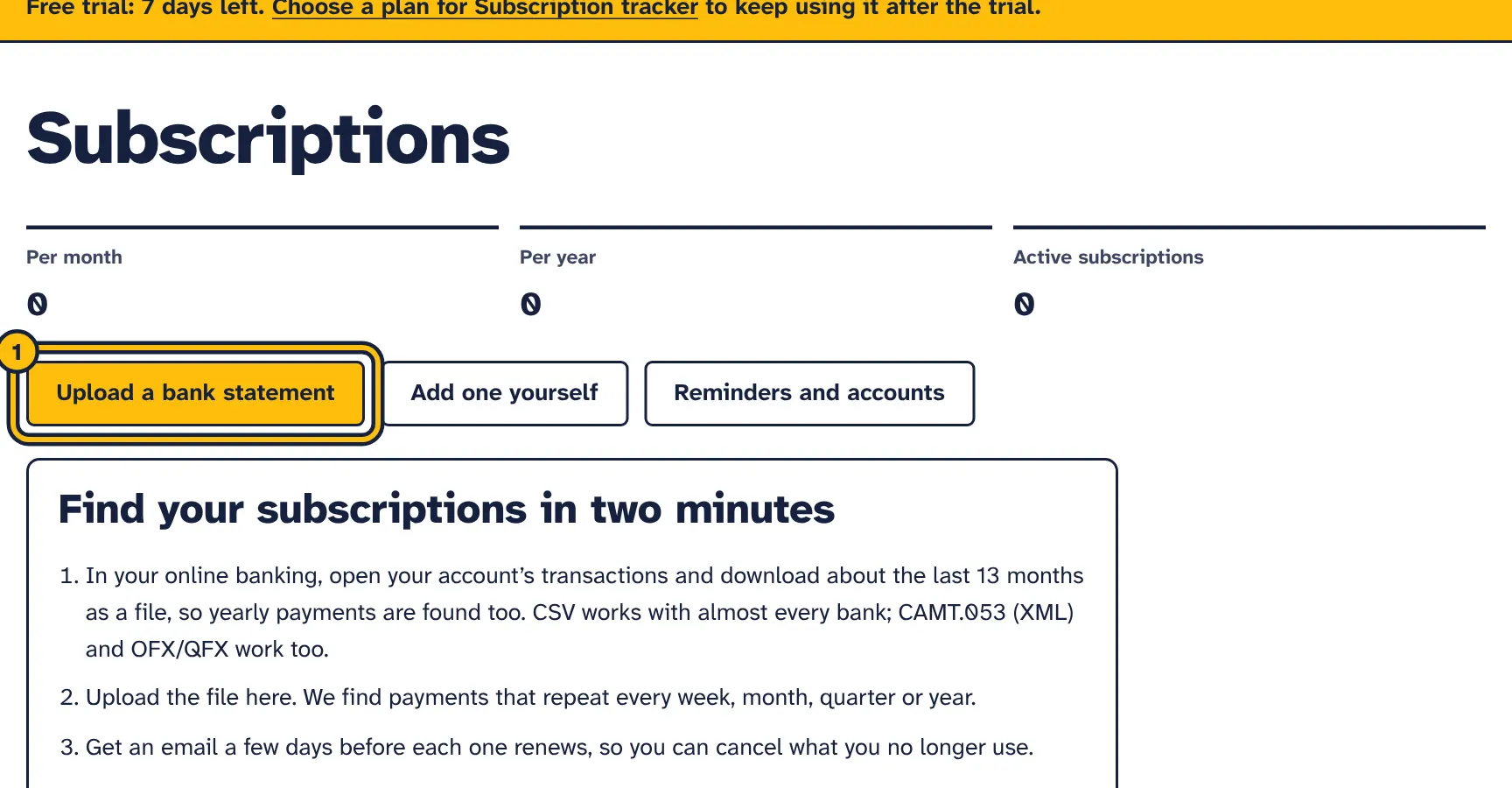
Step 1: Click Upload a bank statement. -
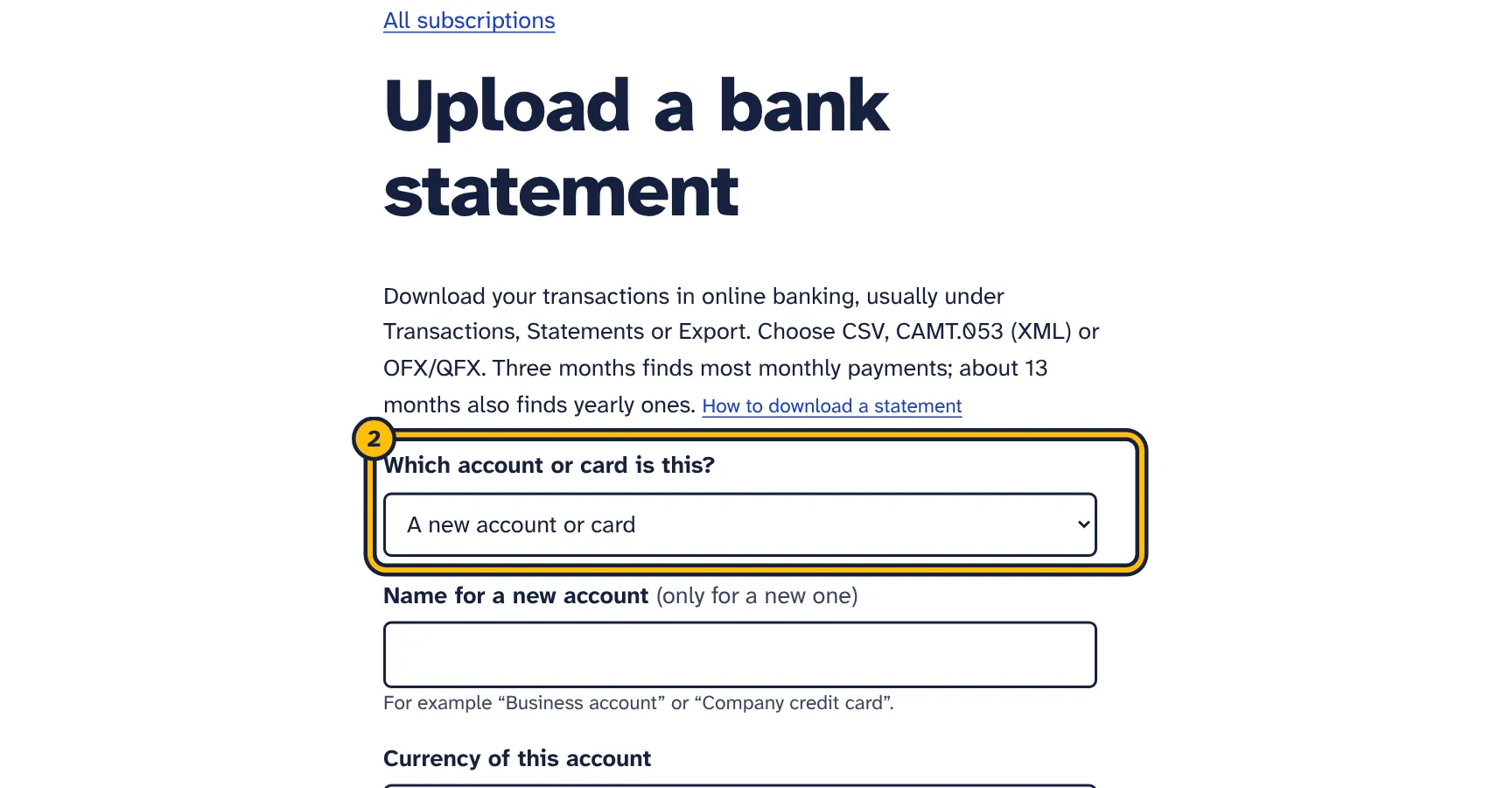
Step 2: Choose New account the first time. -
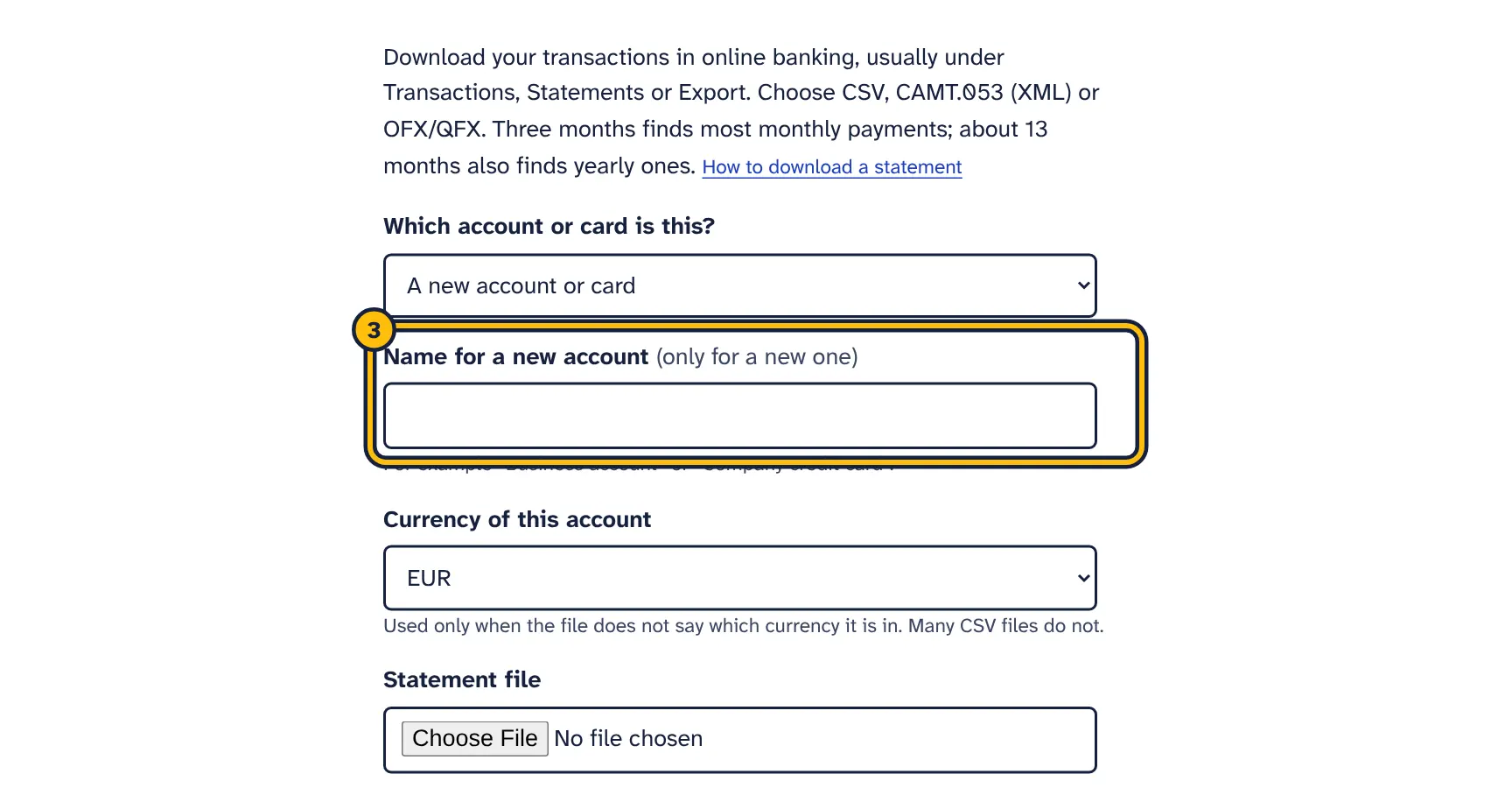
Step 3: Give the account a name you will recognise. -
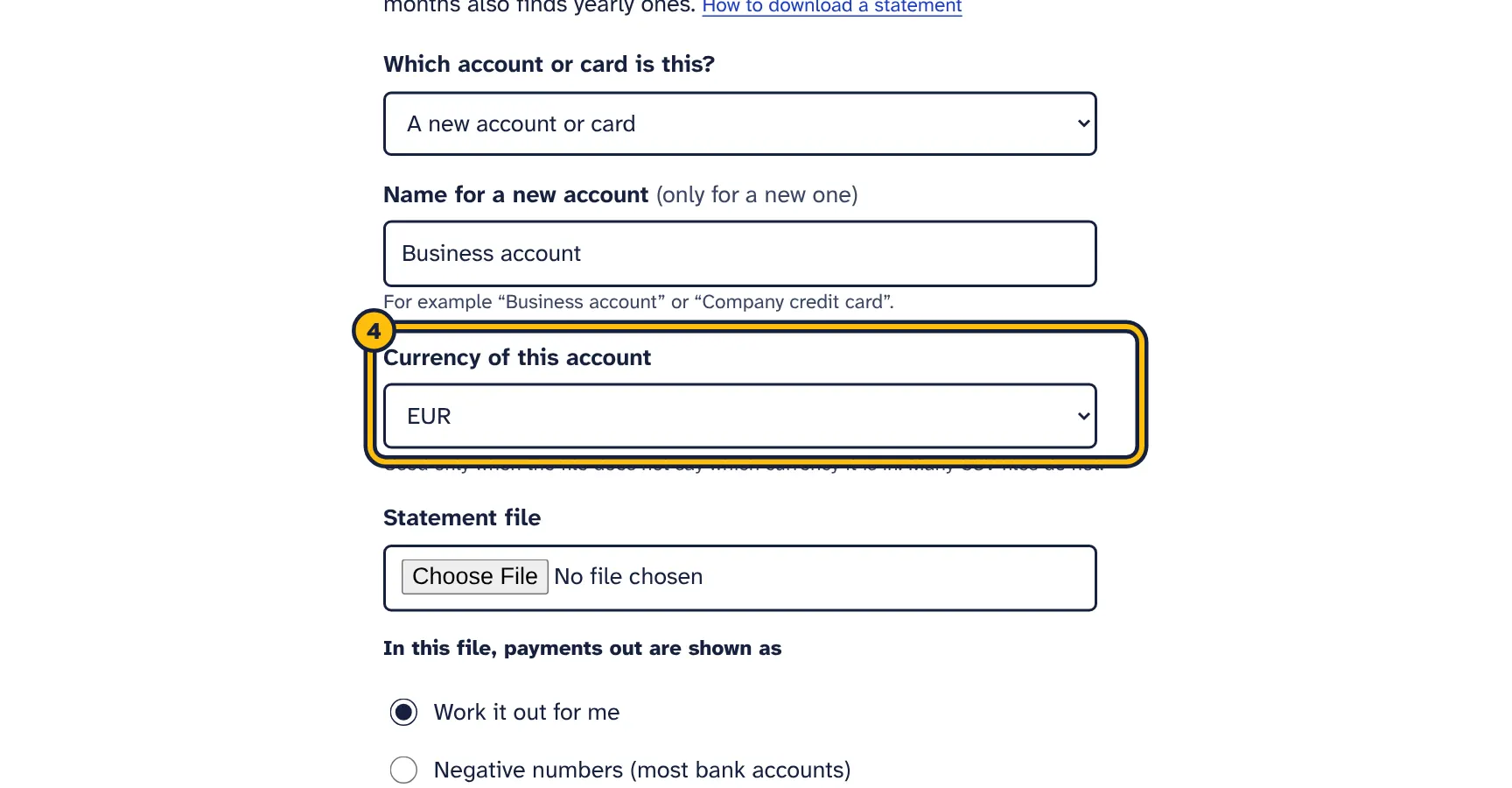
Step 4: Choose the currency of the account. -
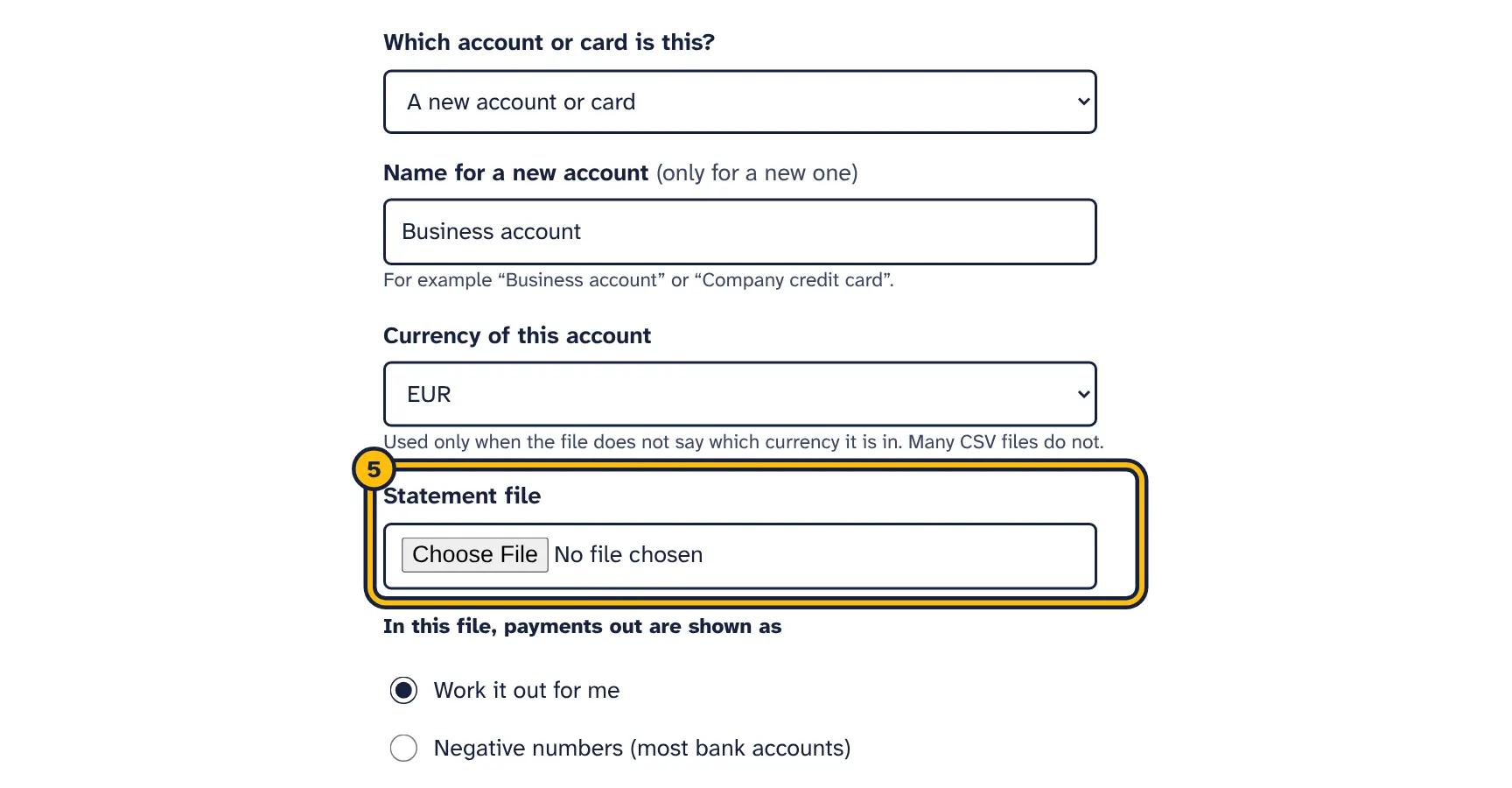
Step 5: Choose the CSV file you downloaded from your online banking. -
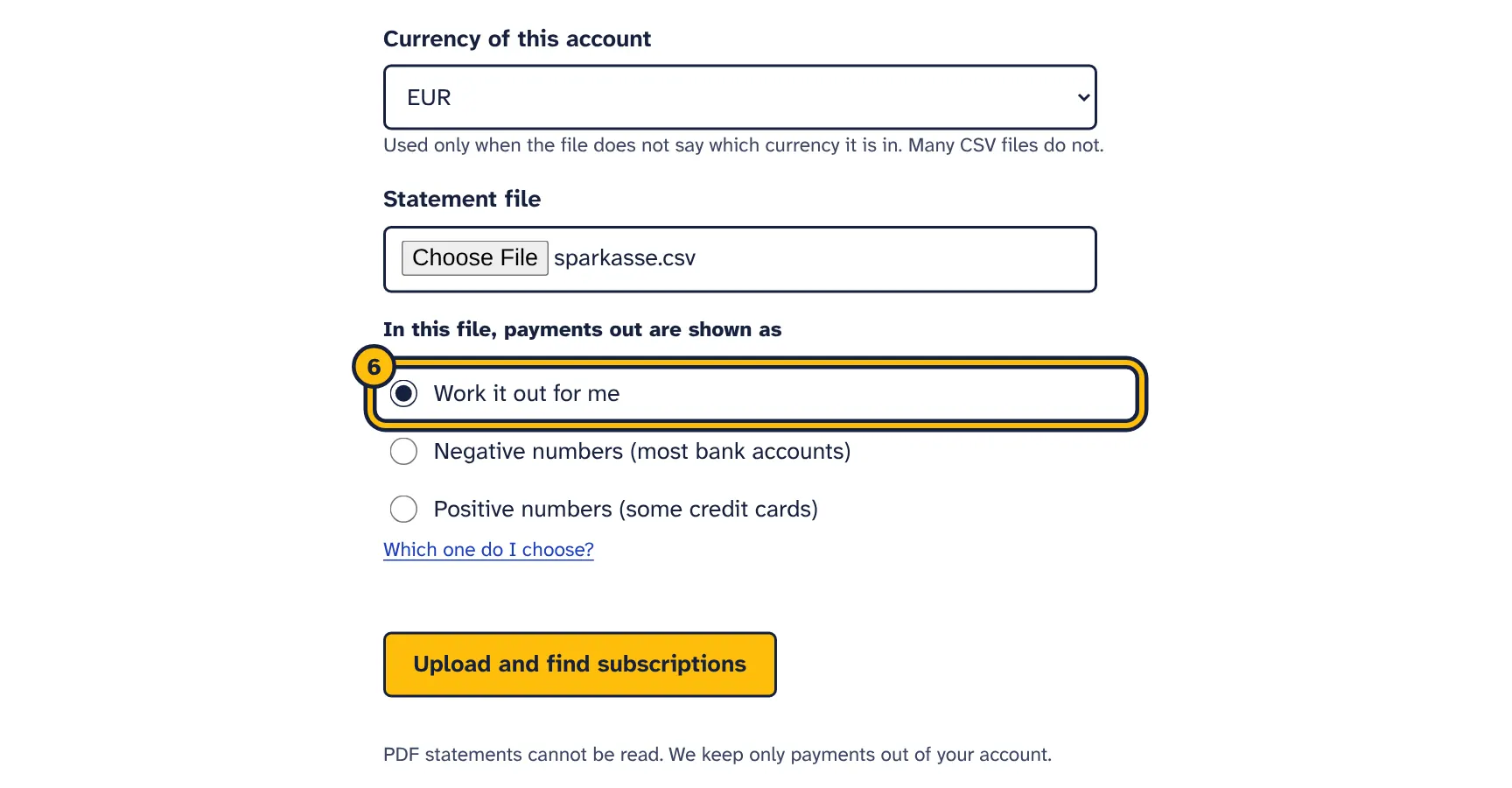
Step 6: Leave Work it out for me selected. -
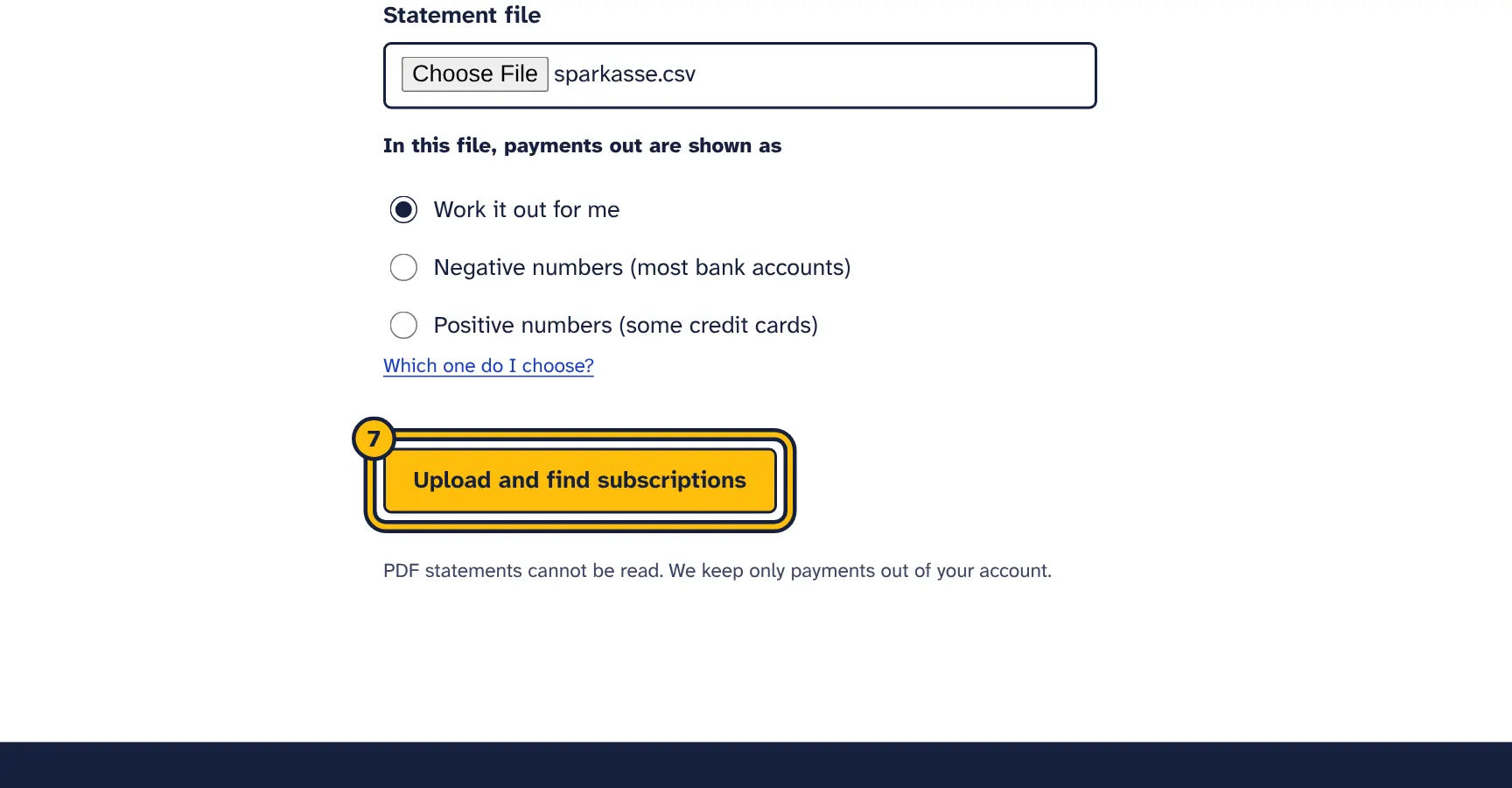
Step 7: Click Upload and find subscriptions. -
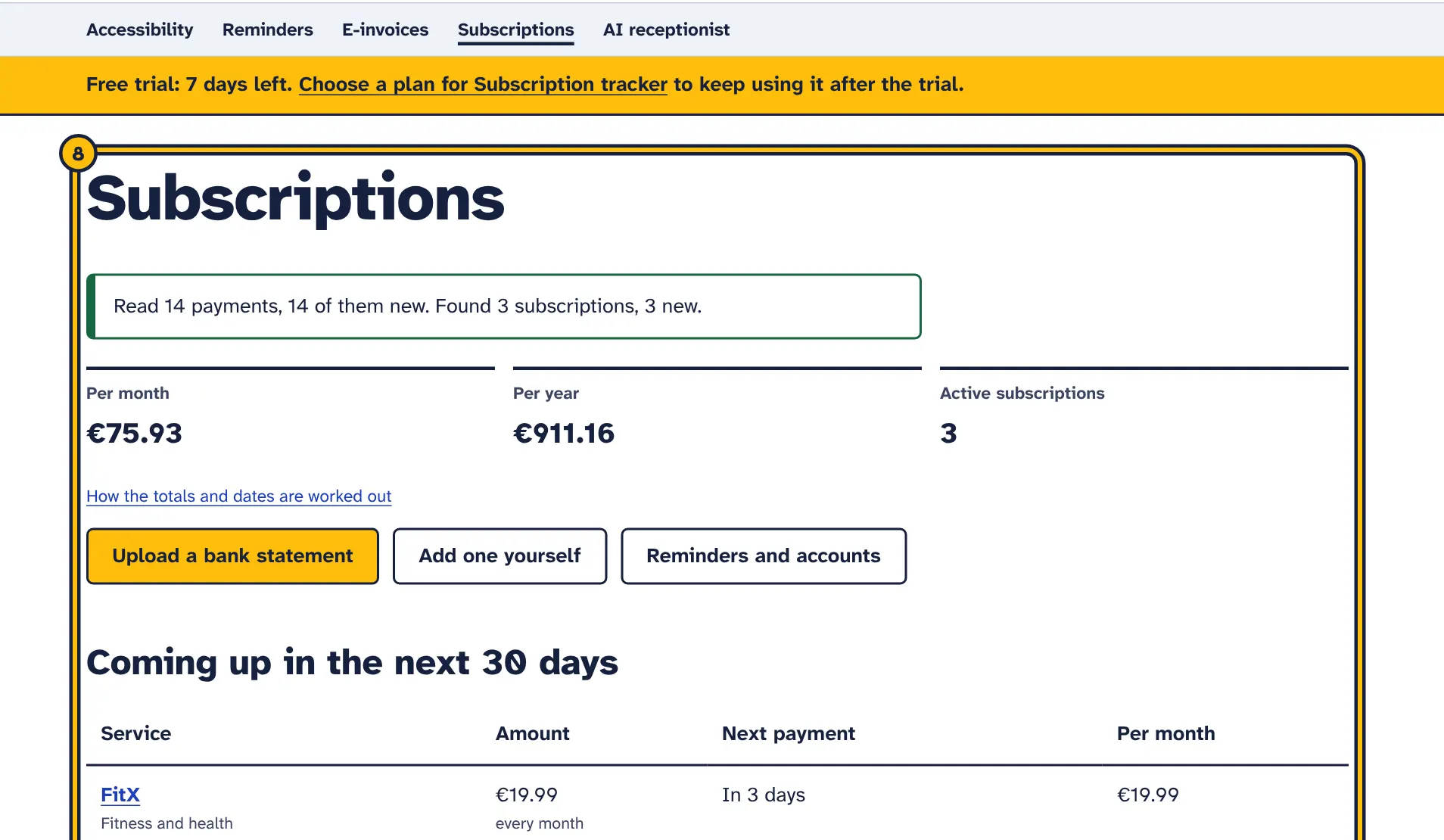
Step 8: Here are the repeating payments we found, with the monthly and yearly cost.
On the subscriptions page, click Upload a bank statement. You need a running free trial or a plan to upload.
- Which account or card is this?
- Choose the account or card the file comes from. For your first upload, or to add another account, choose A new account or card; this option is only shown while your plan has room for another account. Always upload a statement to the account it belongs to.
- Name for a new account
- Only used with A new account or card. For example “Business account” or “Company credit card”. If you leave it empty, the account is called “Account 1”, “Account 2” and so on. You can rename it later under Reminders and accounts.
- Currency of this account
- Used only when the file does not say which currency it is in, which is common in CSV files. OFX/QFX and CAMT.053 files, and CSV files with a currency column, always keep their own currency. See below for how it is chosen.
- Statement file
- The CSV, CAMT.053 (XML) or OFX/QFX file from your bank, up to 5 MB.
- In this file, payments out are shown as
- How the file marks money leaving the account. This only matters for CSV files; CAMT.053 and OFX files state the direction of every payment.
The three choices for In this file, payments out are shown as:
- Work it out for me
- Right for most files. Separate debit and credit columns, or a column that says “Debit/Credit” or “Af/Bij”, are used when the file has them. If the file has one amount column and every amount in it is positive, all of them are treated as payments out.
- Negative numbers (most bank accounts)
- Payments out have a minus sign, money in has none.
- Positive numbers (some credit cards)
- For files with one amount column in which purchases are positive and repayments or refunds are negative. Use it only for such files.
The currency of an account
For a new account, Currency of this account starts with the currency of your most recent upload. For your very first upload, it is a guess from Your time zone under Reminders and accounts (once you have saved it) or from your browser’s language, and otherwise euros. Check it before you upload.
After the first upload, each account remembers its currency. It is shown in brackets in the account list, such as “Business account (USD)”, and Same as before for this account is selected. Choose a currency from the list only if you want a different one for this upload.
Click Upload and find subscriptions. The tracker reads the file, keeps the payments out, checks everything you have uploaded so far, and takes you back to the list with a summary such as:
Read 214 payments, 12 of them new. Found 9 subscriptions, 1 new.- “Read” counts the payments out in this file, and “new” the ones that were not already stored for this account.
- “Found” counts the subscriptions found in everything you have uploaded, and “new” the ones that were not on your list yet.
- If nothing repeats yet, you see “No repeating payments found yet. A longer statement helps.”
Only payments out are stored. Money coming in and your balance are dropped while the file is read, and the file itself is not kept.
A failed upload, such as a file that cannot be read or one without payments out, does not count towards your upload limit and does not create a new account, so you can simply try again. If it fails, see Troubleshooting.
Your subscription list
The subscriptions page is your overview. At the top are three figures:
- Per month
- What your active subscriptions cost per month, one line per currency. A weekly payment counts 52 times a year, a payment every 3 months as a third of its amount, and a yearly payment as a twelfth. Currencies are never converted or added together.
- Per year
- What your active subscriptions cost per year, per currency: each payment times the number of times it is charged in a year (52, 12, 4 or 1). A yearly payment of €95 counts as exactly €95.
- Active subscriptions
- How many subscriptions have the status Active, including running free trials.
Only active subscriptions count in the totals. While a free trial is running, it is left out and the page says “Free trials are not counted in the monthly cost until they start charging.” Subscriptions under Check these, Probably stopped and Cancelled and not subscriptions are not counted.
Coming up in the next 30 days, and later
Active subscriptions are sorted by their next payment. Those due within 30 days are under Coming up in the next 30 days, the rest under Later. When nothing is due within 30 days, there is one list called Active subscriptions. Each list has four columns:
- Service
- The name and the category. “added by you” marks subscriptions you entered yourself. Click the name to open the subscription.
- Amount
- The amount of the last payment and how often it is charged: every week, every month, every 3 months or every year.
- Next payment
- “Today”, “Tomorrow” or “In 3 days” for the coming week, otherwise the date. During a free trial, it shows “Free trial ends” and the date.
- Per month
- What this subscription costs per month, as used in the totals.
The next payment is worked out from the last payment: one week, one month, 3 months or one year later. Real payments can move by a few days, for example around weekends, so treat it as a close estimate.
Probably stopped
A subscription moves to Probably stopped when its next payment was due but did not appear, and your newest uploaded payment is clearly later than that date. For a monthly payment, that means more than about two and a half weeks late. It is not counted in the totals and gets no reminders. If a newer statement shows another payment, it moves back to your active list.
If you know it has ended, open it and click I cancelled it. If it is still running, for example because it is now paid from another card, click It is active.
Cancelled and not subscriptions
Subscriptions you marked with I cancelled it or Not a subscription are folded away under Cancelled and not subscriptions at the bottom of the page. Open it to see them, and click a name to change your mind.
The last line on the page shows which accounts your statements come from, the date each one goes up to, and how many uploads you have used.
How subscriptions are found
Each time you upload, the tracker looks at the payments out from all your accounts and cards together.
- Payments are grouped by supplier and currency. About 80 well-known services, from Microsoft 365 and Google Workspace to phone companies and hosting providers, are recognised and get their proper name and a category.
- For other suppliers, the name comes from the payee or the payment text, without words such as “card payment” or “direct debit”, company forms such as “Ltd” or “GmbH”, reference numbers, and the prefixes of payment services such as PayPal, Stripe, SumUp or Square. Their category is Other.
- When PayPal is named as the payee, the shop’s name is taken from the payment text, for example “Ihr Einkauf bei Acme Tools”. If the text names no shop, the payment is listed as PayPal.
- The same payment stored twice counts once: payments with the same date, amount, currency and supplier are treated as one, even when they come from two accounts or from two files in different formats.
- The amounts must be similar: within about 25% of the usual amount, so price rises still count. If one supplier regularly charges two different amounts, such as two separate app subscriptions, they become two subscriptions.
- The dates must follow a rhythm: every week (6 to 8 days apart), every month (26 to 35 days), every 3 months (84 to 98 days) or every year (350 to 380 days). One missed or doubled payment is allowed.
- A well-known service needs two payments and any other supplier three. A yearly rhythm needs only two payments about a year apart, from any supplier.
- A well-known service paid only once goes to Check these. Other single payments are ignored, because most one-off payments are not subscriptions.
When you upload again, your list is updated: new subscriptions are added, and the amount, last payment and next payment are refreshed. Names and categories you changed, and your decisions such as I cancelled it or Not a subscription, are kept. A subscription whose payments are all gone, for example because you deleted the account they came from, is removed, unless you changed it.
The tracker cannot see payments from accounts or cards you have not uploaded, bills that change a lot from one month to the next (such as usage-based cloud or phone bills), or services billed through another platform’s invoice. Add those with Add one yourself.
Check these: payments seen once
When a well-known service such as Spotify, Adobe or Microsoft 365 appears only once in your files, the tracker cannot tell how often it is charged. It lists it under Check these, with the amount and the date it was last paid. It is not counted in the totals and gets no reminders until you answer.
- Every week, Every month, Every 3 months, Every year
- Click the one that matches how often it is charged. It moves to your active list, with the next payment worked out from the date it was last paid.
- Not a subscription
- It was a one-off purchase. It moves to Cancelled and not subscriptions and stays out of your totals.
Click the name to open the subscription, for example to check the payment or to set the next payment date yourself.
If you leave it, it stays under Check these. When a later statement shows a second payment with a clear rhythm, it moves to your active list by itself.
Change a subscription
Click a subscription’s name to open it. At the top you see its status, what it costs per payment and per year, the next payment and the date it was last paid.
Statuses
- Active
- A running subscription. Counted in the totals, listed by next payment and included in reminders.
- Seen once, needs checking
- Listed under Check these. Not counted until you say how often it is charged.
- Probably stopped
- A payment was due but did not appear in your newer statements. Not counted, no reminders.
- Cancelled
- You marked it as cancelled. Not counted, no reminders.
- Not a subscription
- You told the tracker it is not a subscription. Not counted, and it is not suggested again.
Status buttons
- I cancelled it
- Use it after you have cancelled with the provider. If a later statement shows another payment, the subscription comes back as active with a warning such as “Charged again on 3 November 2026 after you marked it as cancelled.” and a reminder to check with the provider that the cancellation went through. The warning is shown at the top of the subscription’s page, and your Note stays as it is. It goes away when you click Save changes or a status button.
- It is active
- Shown when the subscription is not active. Puts it back on your active list, for example a payment marked as probably stopped that is still running.
- Not a subscription
- Shown for subscriptions found in a statement. Use it for regular payments that are not subscriptions, such as transfers to your own savings account or a supplier you order from every month.
Subscriptions you added yourself have a Delete link at the bottom of the page. Subscriptions found in a statement cannot be deleted one by one; mark them with Not a subscription or I cancelled it instead.
Details
- Name
- How it is shown in your list and in reminder emails. Up to 80 characters.
- Amount
- The amount of one payment, for example
9.99. - Currency
- The currency of the payment. Totals are kept separate for each currency.
- How often
- Every week, Every month, Every 3 months or Every year.
- Next payment
- The date of the next payment. Reminders are based on it. When a newer statement shows a new payment, it is worked out again from that payment.
- Category
- Entertainment, Software and apps, Hosting and cloud, Phone and internet, Fitness and health, News and reading, Shopping, Insurance or Other. Shown under the name in your list and in the CSV export.
- Free trial ends
- Optional. Until this date has passed, the subscription shows “Free trial ends” with the date, is not counted in the totals, and you get a reminder before the trial ends. After that, it counts as a normal subscription with renewal reminders.
- Email me before it renews
- Tick it to get reminder emails for this subscription. It is ticked for every subscription found in a statement; untick it for payments you never want to be reminded about.
- Note
- Optional, up to 500 characters. For example who uses it, which login it belongs to, or how to cancel it.
Click Save changes. If something is missing or wrong, such as an amount that is not a number, the page says what to fix and keeps what you typed. Below the form, Payments found lists the payments to this supplier found in your statements, newest first, up to 60. A payment uploaded twice is listed once.
Once you have saved changes or used a status button, your choices come first. The tracker keeps your How often, and it no longer moves the subscription to Probably stopped by itself. A new payment in a later statement still updates the amount, the date last paid and the next payment.
Add a subscription yourself
Use Add one yourself for payments that are not in a statement yet: a free trial you just started, a new subscription, or one paid from a card you do not upload.
- On the subscriptions page, click Add one yourself.
- Fill in Name, Amount, Currency, How often and Next payment. For a free trial, enter the price you will pay after the trial and the date of the first payment.
- Choose a Category.
- For a free trial, enter the last day of the trial under Free trial ends.
- Leave Email me before it renews ticked if you want reminders, add a Note if you like, and click Add subscription.
The form starts with euros, Every month, today’s date, Software and apps and reminders on. Change whatever does not fit. The fields are the same as when you change a subscription.
Subscriptions you add are marked “added by you” in the list. When the free trial date has passed, the subscription counts in your totals and gets renewal reminders like any other.
When the same subscription is in a statement
The tracker matches a subscription you add with one found in a statement when the name is the same service, the currency is the same and the amount is about the same (within about a quarter). Use the service’s name as the tracker shows it, such as “Figma” or “Netflix”. Two plans from the same company at clearly different prices stay separate.
- If the statement already found it, your details are added to that subscription and you see “This subscription was already on your list from your statement, so your details were added to it.”
- If it shows up in a statement you upload later, the two are merged. Your name, category, note, free trial date and reminder choice stay; the amount, the date last paid and the next payment come from the statement.
After merging, it is treated like a subscription found in a statement: it shows Payments found, and instead of Delete you use I cancelled it or Not a subscription.
Reminder emails
The same steps in pictures:
-
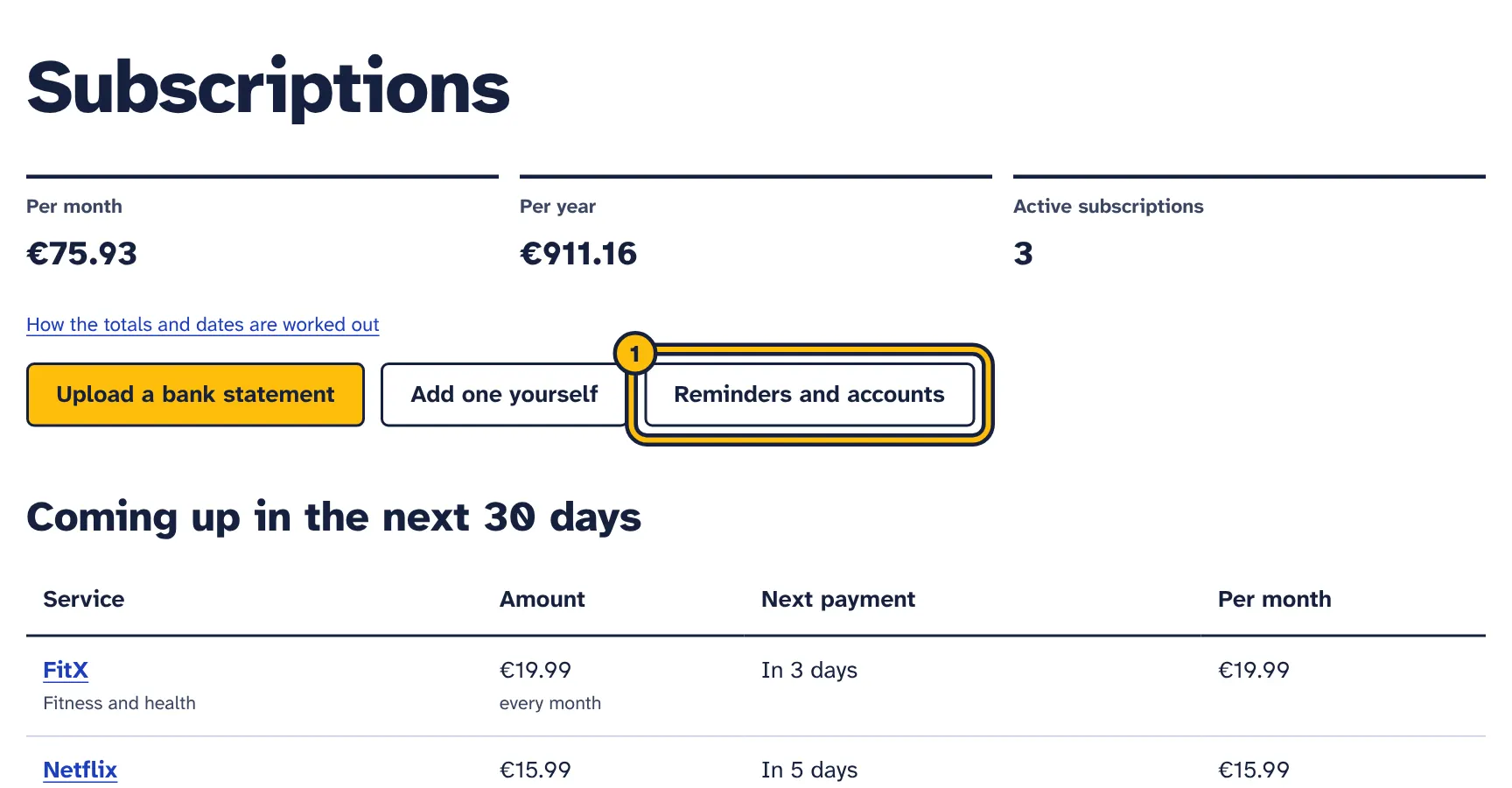
Step 1: Click Reminders and accounts. -
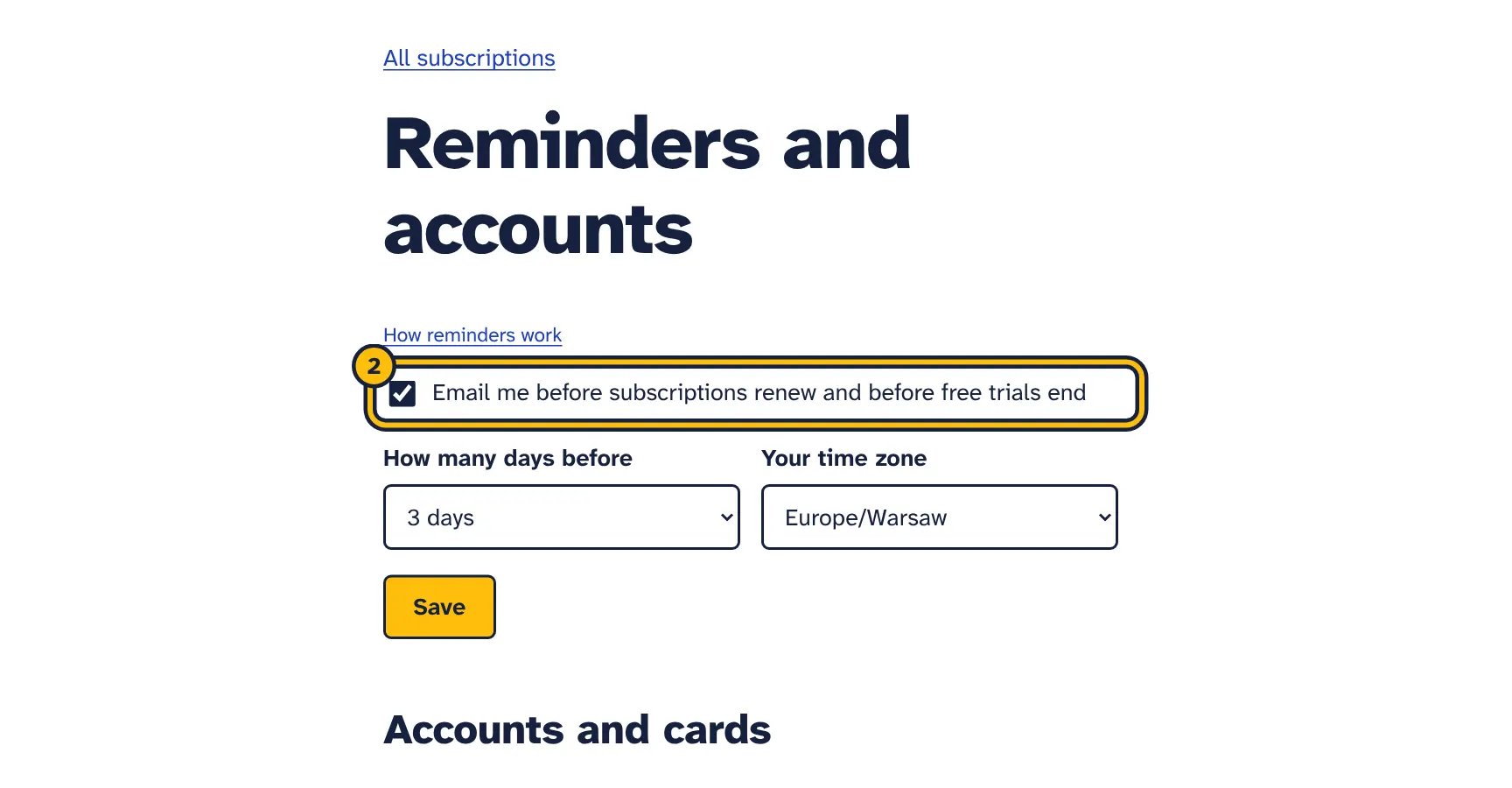
Step 2: Tick the box to get an email before subscriptions renew. -
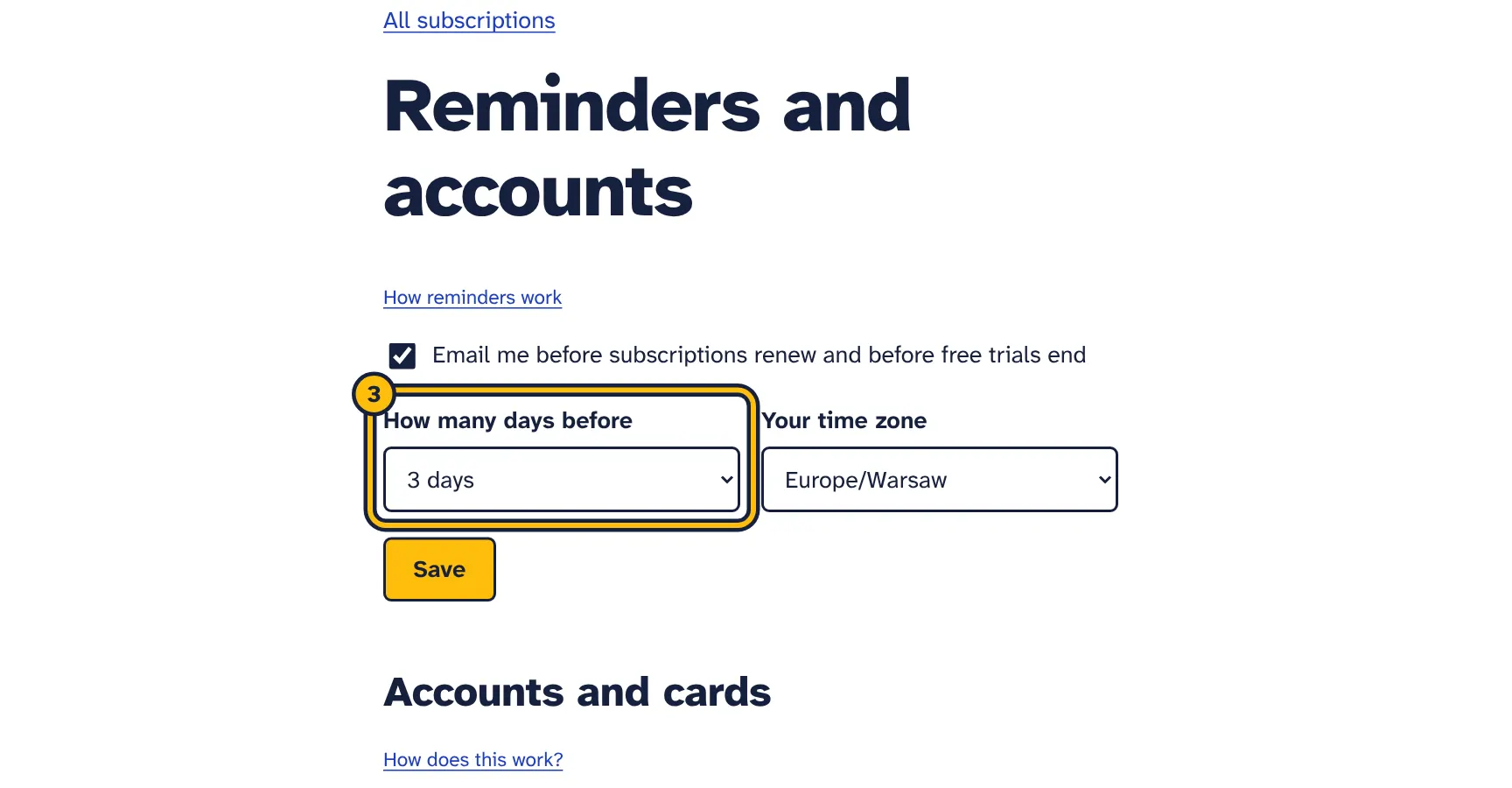
Step 3: Choose how many days before. -
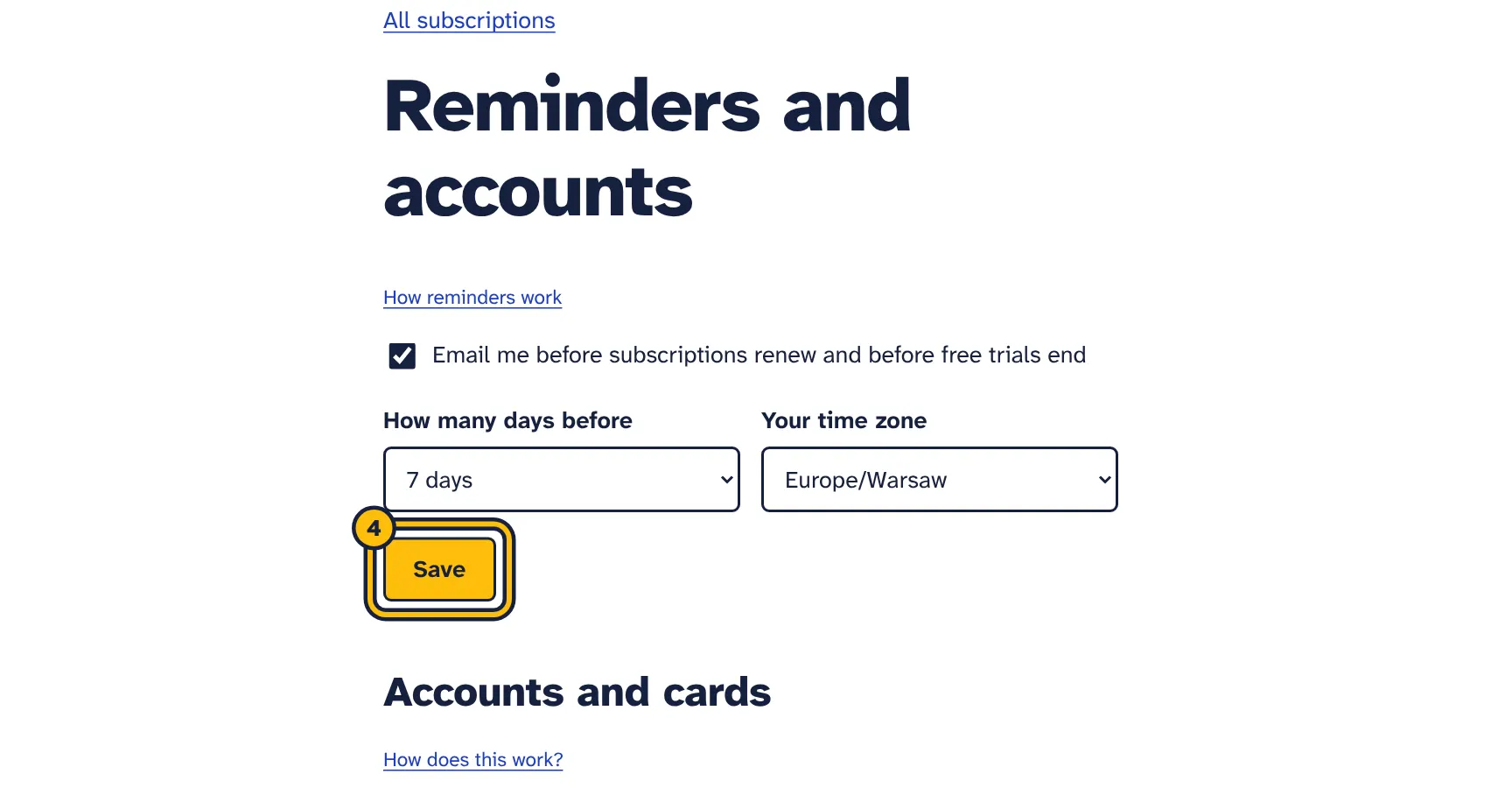
Step 4: Click Save.
On the subscriptions page, click Reminders and accounts. The settings are at the top:
- Email me before subscriptions renew and before free trials end
- Switches all reminder emails on or off. On by default.
- How many days before
- 1, 2, 3, 5, 7 or 14 days. The default is 3 days. Choose more if you need time to check with colleagues before cancelling, or if a provider wants notice.
- Your time zone
- Decides what “today” is, when a free trial has ended and when emails go out. The first time you open the page, your browser’s time zone is selected. Click Save to keep it; until you do, the tracker uses UTC.
Click Save.
What you are reminded about
- Only subscriptions with the status Active and Email me before it renews ticked are included.
- For a subscription with a running free trial, you get one email before the trial ends, with the price it costs after that.
- For all other subscriptions, including ones whose free trial has ended, you get one email before each next payment.
- Everything due at the same time comes in one email, for example “3 subscriptions renew soon”. Each payment date is only mentioned once.
- Emails are sent from 8:00 in the morning in your time zone. The tracker checks every hour, so a subscription you add later in the day is picked up at the next check.
- Emails go to the email address you sign in with, and link to your list and to these settings.
- Reminder emails need a running free trial or a plan. When the trial ends without a plan, they stop.
A reminder looks like this:
Subject: 2 subscriptions renew soon

These payments are coming up:

- Adobe: £21.98 on 1 November 2026 (every month).
- Design app: free trial ends on 31 October 2026. After that it costs €12.00 every month.

If you no longer use one, cancel it before then.
The next payment is worked out from the last payment, and real payments can move by a few days. If a cancellation has to happen well before the charge, choose 5 or 7 days.
Accounts and cards
Every statement belongs to an account or card. Keeping them apart lets the tracker recognise overlapping files from the same account and show how far each one goes. All accounts feed one list with combined totals.
You add an account when you upload its first statement: choose A new account or card under Which account or card is this? and enter a name. The free trial and Starter include one account or card, Pro up to 10. When your plan is full, the upload page says so and links to Upgrade.
Each account remembers its currency from its payments, and the upload page shows it in brackets, such as “Company credit card (GBP)”. See Upload a statement.
To manage them, click Reminders and accounts and go to Accounts and cards. Each account shows how many payments are stored and the date of the newest one.
- Rename
- Type a new name in the box next to the account and click Rename. Up to 60 characters.
- Delete
- Click Delete and confirm. The account or card, its stored payments and its upload history are removed, and its place on your plan is free again. Subscriptions found only in its payments are removed too. Subscriptions that also have payments in another account stay.
Subscriptions you changed, by saving their details or using a status button, stay after their account is deleted, with their last known details. Mark them with I cancelled it or Not a subscription if you no longer want them, or use Delete statement data to start again from scratch.
Recent uploads
Under Recent uploads, the last 10 uploads are listed with the date and time, the file name, the format (CSV, CAMT or OFX) and how many of its payments out were new.
Export to CSV
On the Pro plan, an Export CSV button appears on the subscriptions page as soon as you have at least one subscription. It downloads a file called subscriptions.csv with every subscription on your list, whatever its status. The export is not part of the free trial or Starter.
The file has these columns:
- Name
- The name as shown in your list.
- Category
- The category, such as Software and apps.
- Status
- Active, Seen once, needs checking (under Check these), Probably stopped, Cancelled, or Not a subscription.
- Amount
- The amount of one payment with a decimal point, for example
21.98. - Currency
- The three-letter currency code, such as
EUR,GBP,USDorAUD. - How often
- every week, every month, every 3 months or every year.
- Per month
- The cost per month, as used in the totals.
- Next payment and Last paid
- Dates written as year-month-day, for example
2026-11-03. Last paid is empty for subscriptions you added yourself.
Columns are separated by commas. If your spreadsheet puts everything in one column, open the file with its import option and choose comma as the separator.
Privacy and deleting your data
What is kept
- For each payment out: the date, amount, currency, payee name and payment text, each shortened to 140 characters.
- The names you give your accounts and cards, and a list of your uploads with file name, format and counts.
- Your subscriptions, with your changes, notes and reminder choices, and your reminder settings.
What is not kept
- Money coming into the account. It is dropped while the file is read.
- Your balance.
- The uploaded file itself. It is read once and not stored.
- Your bank login. The tracker never connects to your bank.
Your subscription data is only shown to you when you are signed in to your own account.
Deleting data
- One account or card
- Under Reminders and accounts, click Delete next to it and confirm. Its payments and upload history are removed, and so are the subscriptions found only in it, unless you changed them. See Accounts and cards.
- All statement data
- At the bottom of Reminders and accounts, under Delete your statement data, click Delete statement data and confirm. This removes every account and card, every uploaded payment, the upload history and every subscription found in statements, with your notes and decisions about them. Subscriptions you added yourself stay, and so do your reminder settings.
- A subscription you added yourself
- Open it, click Delete at the bottom and confirm.
Deleting cannot be undone. Uploads you have already used this month are not given back.
Plans and limits
- Free trial
- 3 statement uploads during the whole trial and 1 account or card. Totals, Check these, reminders and adding subscriptions by hand all work. No CSV export.
- Starter
- 10 statement uploads per calendar month and 1 account or card.
- Pro
- 60 statement uploads per calendar month, up to 10 accounts or cards, and Export CSV.
- Each successful upload counts once, even if all its payments had been uploaded before. Failed uploads do not count.
- Monthly upload counts start again on the first day of each calendar month.
- Files can be up to 5 MB.
- Subscription names can be up to 80 characters, account names up to 60 and notes up to 500.
When you reach the limit, the upload page says, for example, “You have used all 10 uploads in your plan this month. Upgrade for more.” The current plans and prices are on the subscription tracker page.
When your free trial ends without a plan, your subscriptions, accounts and settings stay. You can still open your list, but Upload a bank statement is no longer shown and reminder emails stop until you choose a plan.
If you move from Pro to Starter with several accounts, they all stay and you can keep uploading to them, but you cannot add a new one, and Export CSV is no longer shown.
Troubleshooting
“PDF statements cannot be read”
PDF statements are made for printing. Go back to your online banking and download the transactions as CSV, CAMT.053 or OFX instead.
“We could not find the date and amount columns in this file”
The tracker could not find a header row with a date column and an amount column, or separate debit and credit columns, in the first 30 lines of the file.
- Check that you downloaded a list of transactions, not an account summary.
- Excel files (.xlsx) and MT940 files (.sta) cannot be read. Download CSV instead, or open an Excel file and save it as CSV.
- If you opened and saved the CSV in a spreadsheet, check that the row with the column names is still there.
- If the column names are unusual, rename them in a spreadsheet to
Date,Payee,DescriptionandAmount, save as CSV and upload again.
“We found no payments out in this file”
The file contained no payments with a minus sign. If payments out are positive numbers in your file, choose Positive numbers (some credit cards) under In this file, payments out are shown as and upload again. If the file only covers money coming in, download the full list of transactions.
“The file is too large”
The limit is 5 MB. Download a shorter period and upload it in two parts. Overlapping dates are not counted twice.
Nothing found, or a subscription is missing
- “No repeating payments found yet. A longer statement helps.” means no supplier has enough regular payments yet. Upload at least 3 months, or 13 months for yearly payments.
- Suppliers that are not well known need three payments. Add them by hand if you do not want to wait.
- Amounts that change by more than about a quarter between payments are not treated as one subscription.
- For payments made through PayPal, the shop’s name is taken from the payment text. If your bank leaves it out, those payments are grouped under PayPal and may not form a regular pattern. Add them by hand.
- Payments from accounts or cards you have not uploaded cannot be found.
Income or card repayments show up as subscriptions
The file was read the wrong way round: money coming in was taken as money going out. This can happen with card exports that show purchases as positive numbers and repayments as negative ones.
- Under Reminders and accounts, click Delete next to that account. The wrong payments and the subscriptions found only in them are removed.
- Upload the file again, as a new account, and choose Positive numbers (some credit cards) under In this file, payments out are shown as.
- If anything wrong is still listed, for example one you had already changed, open it and click Not a subscription.
Uploading the same payments twice
Uploading the same file twice, or files with overlapping dates, to the same account is safe: payments already stored for that account are skipped, and the summary shows how many were new.
If the same payments end up in two accounts, or one account is uploaded once as CSV and once in another format, they are stored twice but counted once: payments with the same date, amount, currency and supplier are treated as one when subscriptions are found and in Payments found. If you uploaded a statement to the wrong account, delete that account under Reminders and accounts to tidy up; the other account keeps its payments.
Amounts show in the wrong currency
OFX/QFX and CAMT.053 files include the currency, and so do CSV files with a currency column. For a CSV file without one, the tracker uses what you chose under Currency of this account when you uploaded it.
- Delete the account under Reminders and accounts, then upload the file again as a new account and choose the right currency under Currency of this account. Do not upload it again into the old account, or the payments are stored in both currencies.
- Or keep the payments and change Currency on each subscription.
A subscription I cancelled is back
A later statement shows a new charge from something you marked with I cancelled it, so it is back on your active list with a warning. Check with the provider that the cancellation went through, and ask about a refund if you were charged after cancelling.
Reminder emails do not arrive
- Check that Email me before subscriptions renew and before free trials end is ticked under Reminders and accounts.
- Check that the subscription is active and that Email me before it renews is ticked on its page.
- Check Your time zone and click Save: emails go out from 8:00 in that time zone.
- Look in your spam folder for an email with a subject such as “Adobe renews on 1 November 2026”.
- Reminders need a running free trial or a plan.
The next payment date is wrong
Open the subscription, correct Next payment and click Save changes. Your date is kept until a newer statement shows another payment.
Still stuck? Email support@adminsmith.com and tell us what you tried. See also Connecting your own accounts and Your account, plans and billing.