
E-invoices guide
This guide walks through every screen of the e-invoices tool, from your business details to sending the finished file. Field and button names are written in bold exactly as they appear in the app. Where the guide mentions laws, it is general information, not legal or tax advice.
Open E-invoices How it works and plans
This guide shows 3 tasks step by step, as a short video and in pictures. Look for the sections marked “video”.
Quick start
Your first e-invoice takes about ten minutes, most of it for your business details, which you only enter once.
- Open E-invoices and choose Your invoice details. Fill in your legal name, address, country, VAT ID or tax number, contact details and bank details, then choose Save details. You cannot start an invoice until at least your legal name and country are saved.
- Choose New invoice. The invoice number, invoice date and due date are already filled in from your defaults.
- Under Customer, type the customer’s name, address and country, or choose a Saved customer.
- Under What you are invoicing, fill in one line per item: Item or service, Quantity, Unit, Price excl. VAT and VAT type. For standard VAT, enter the VAT %.
- Choose Save draft. The box Formats for this invoice shows which formats are ready and what the others still need. Fix what your customer’s format needs.
- Choose Check and issue. If something is missing, a list at the top says what to fix, with links to the fields. Fix it and choose Check and issue again.
- On the issued invoice, choose Download next to the format you need, or enter an Email address and choose Send invoice.
Issued invoices cannot be changed or deleted. Use the format box on the draft to make sure the format your customer needs is ready before you issue. If an issued invoice is wrong, correct it with a credit note.
Your business details
The same steps in pictures:
-
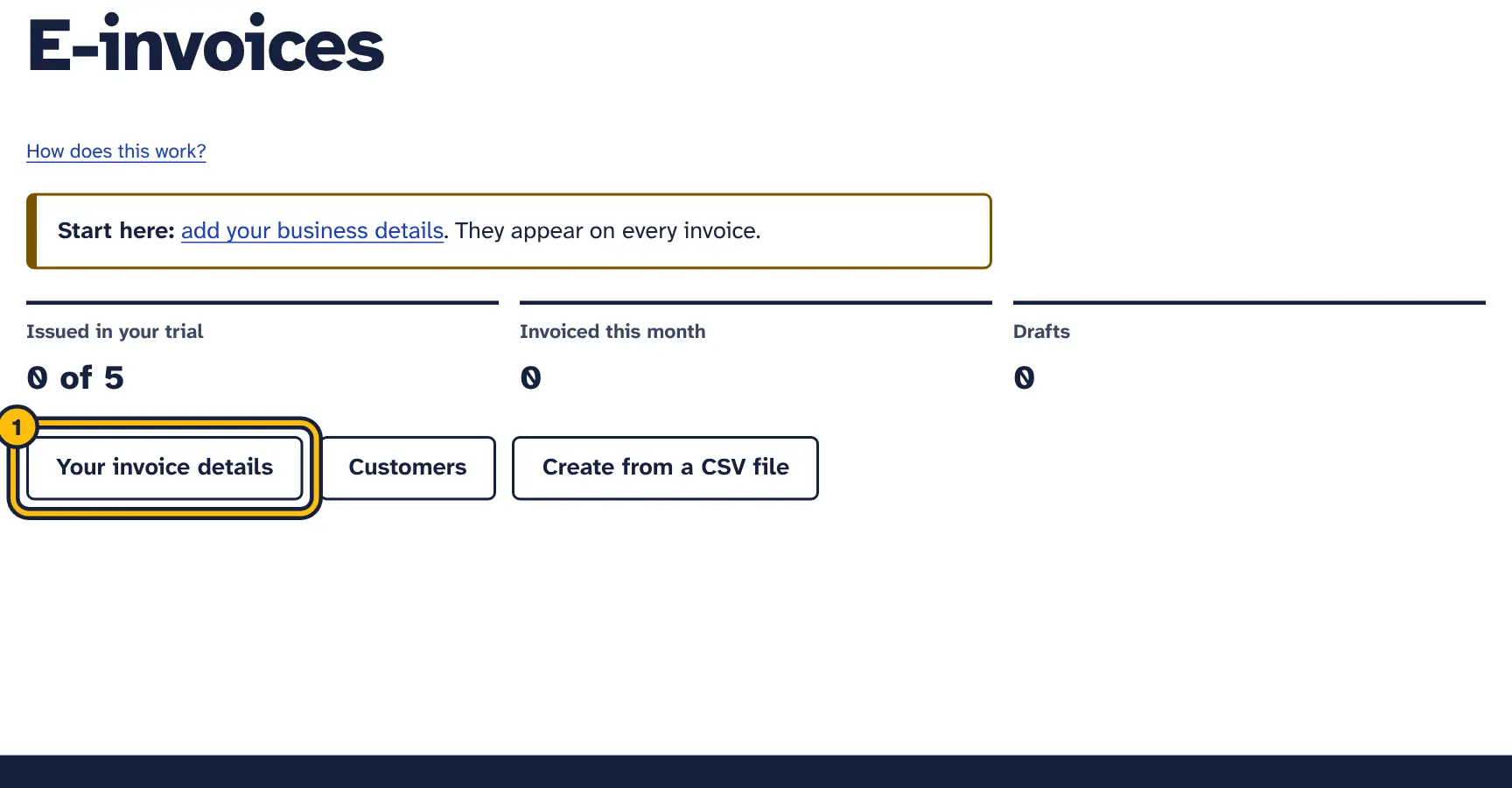
Step 1: Click Your invoice details. -
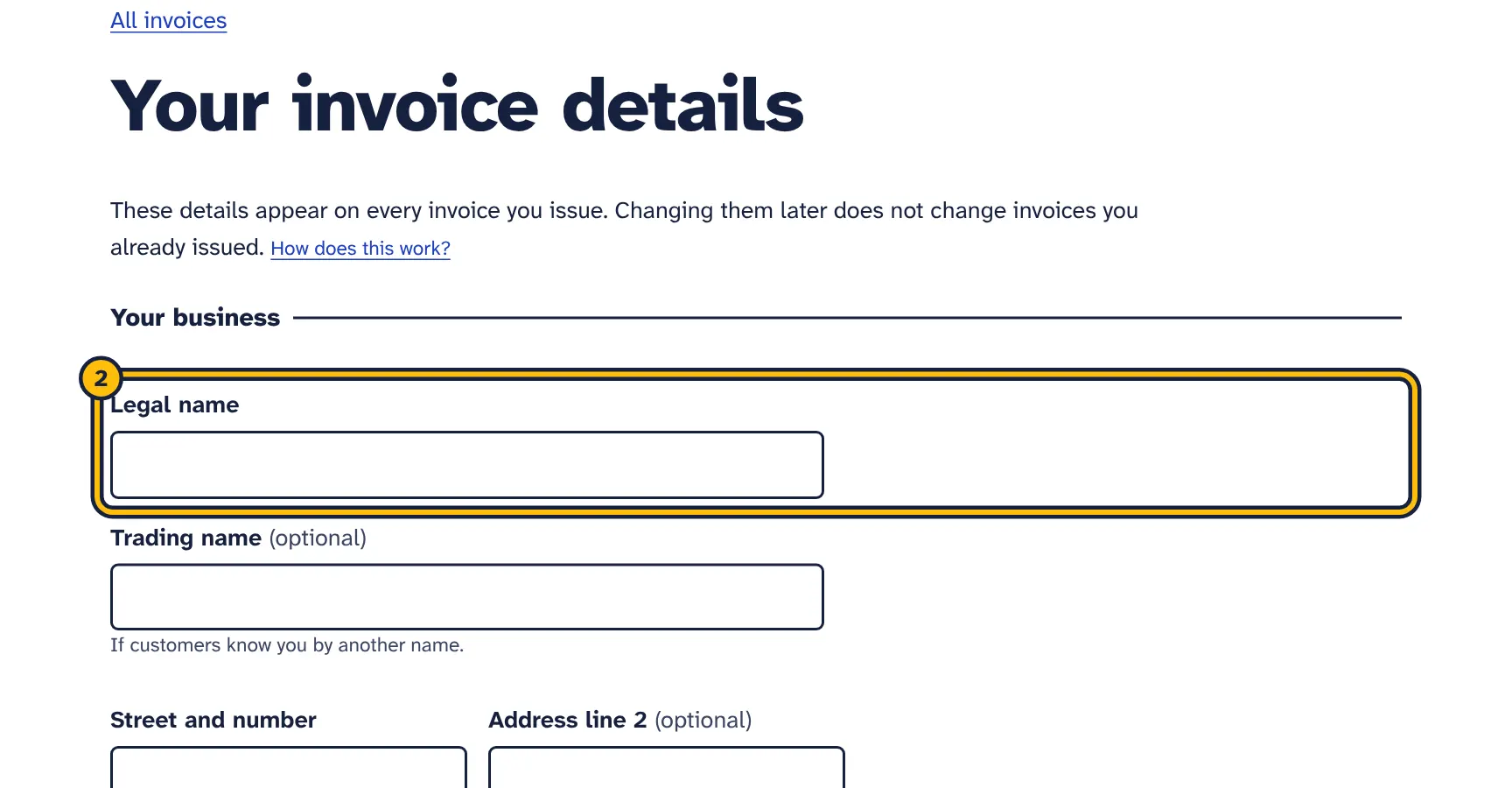
Step 2: Type your business’s legal name. -
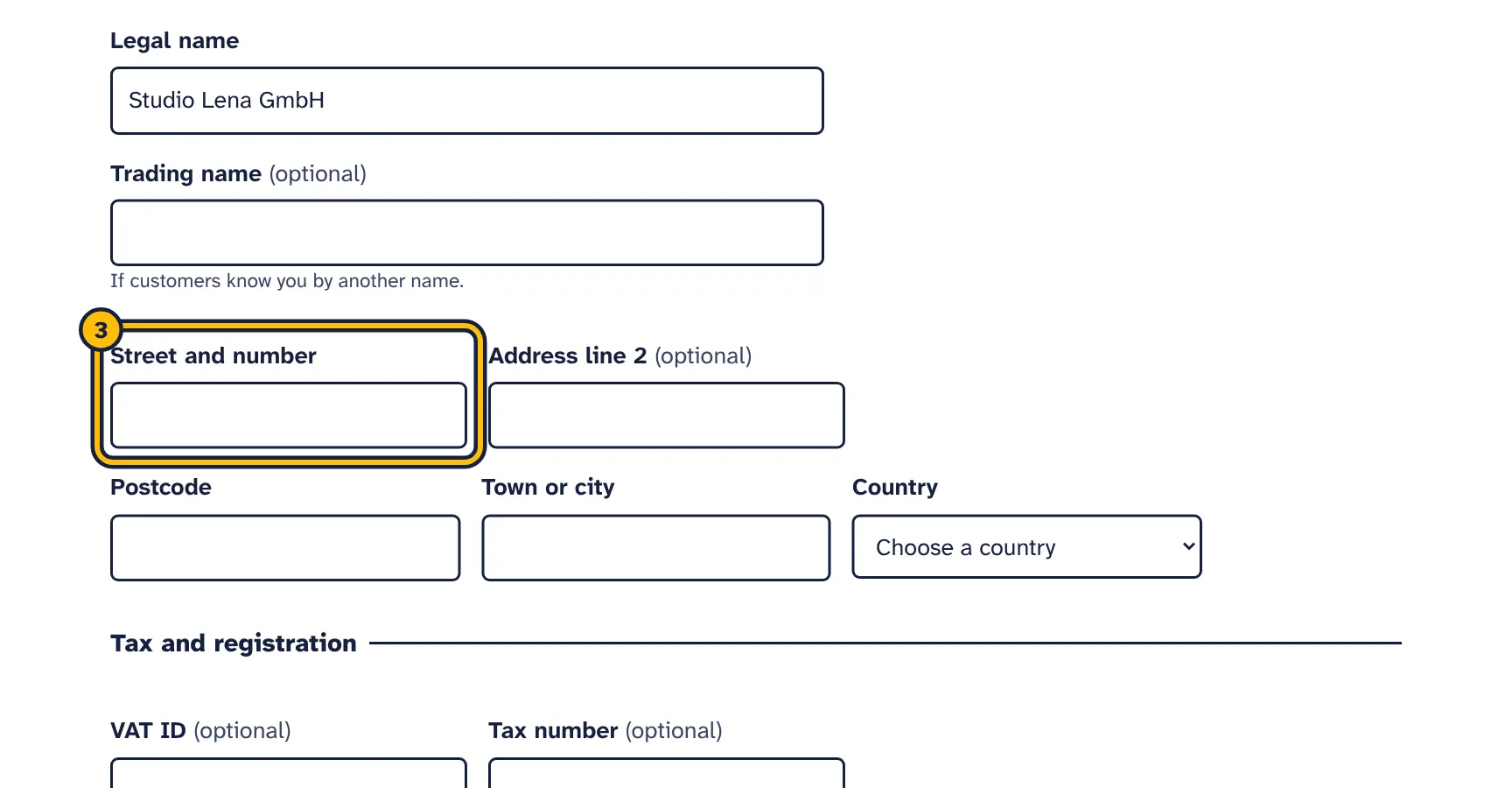
Step 3: Type your address… -
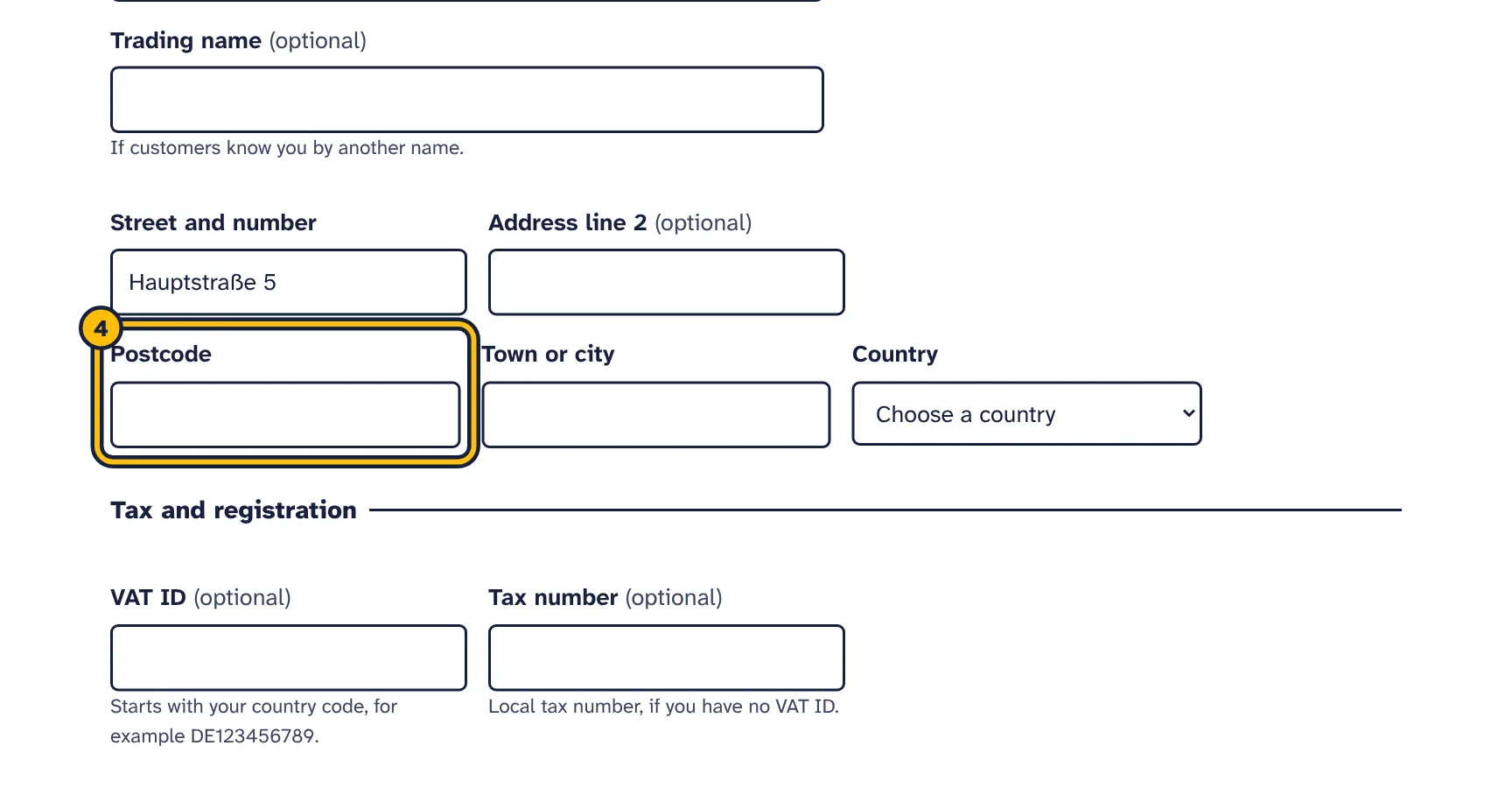
Step 4: …postcode… -
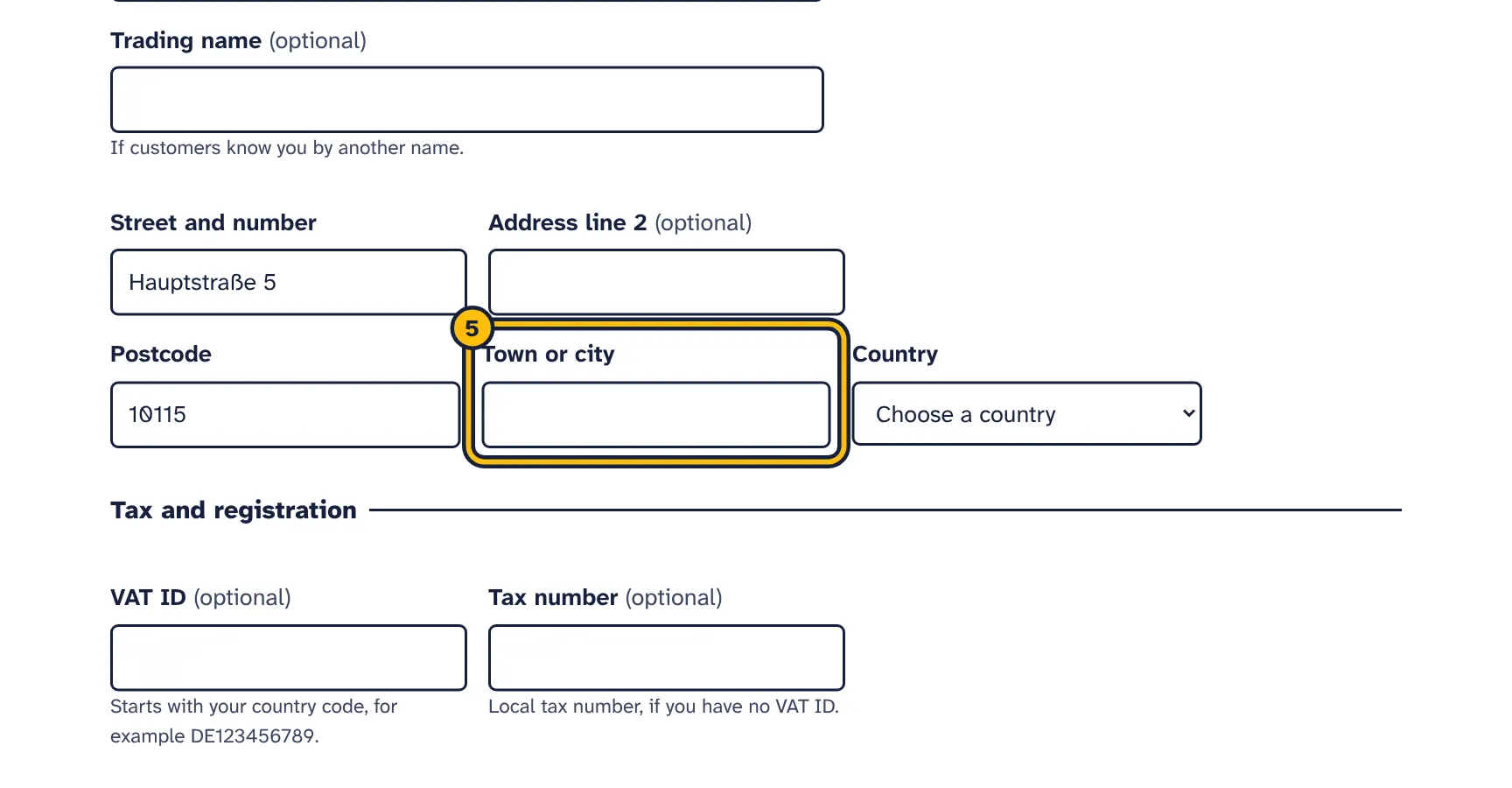
Step 5: …and town. -
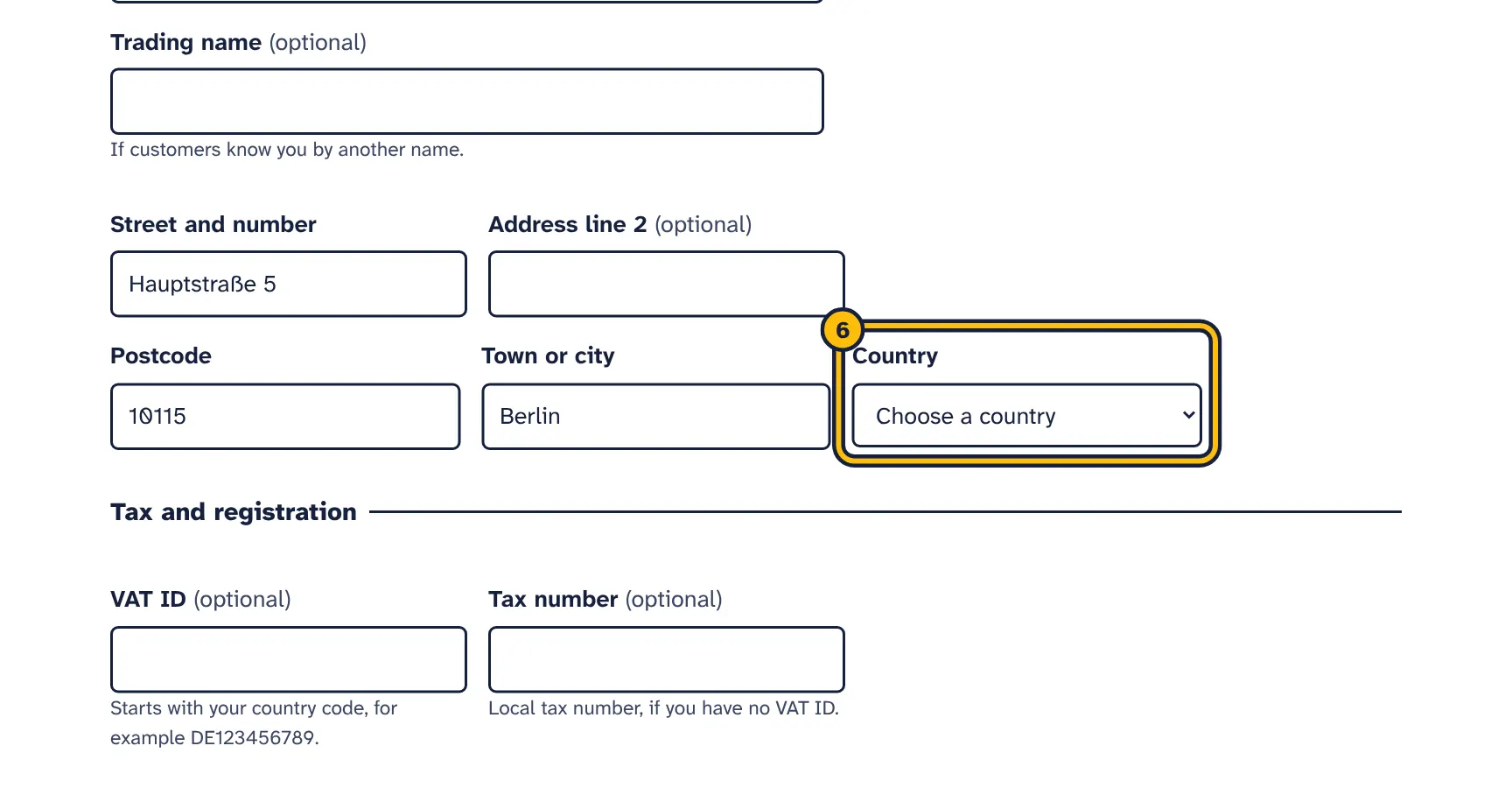
Step 6: Choose your country. -
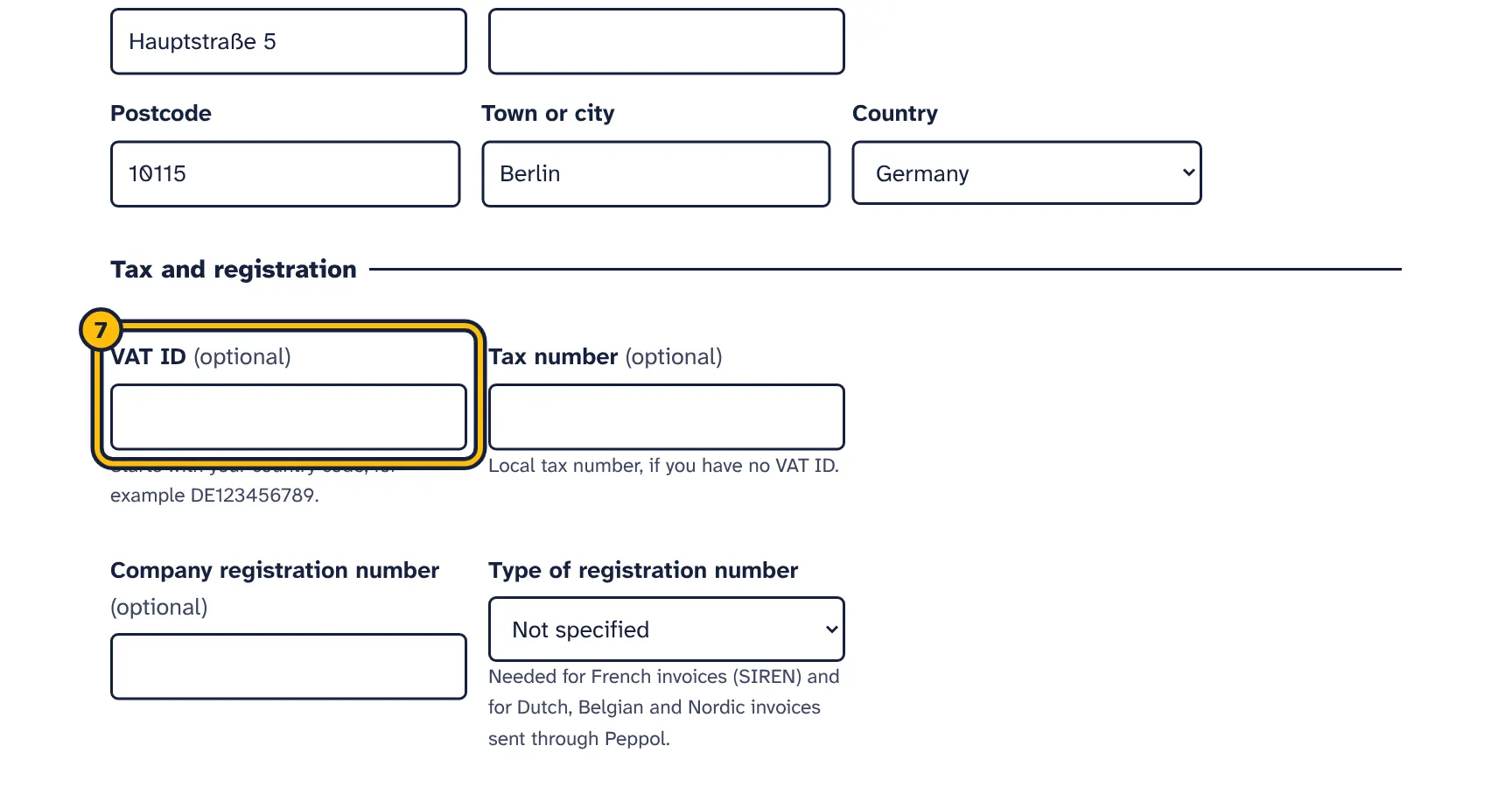
Step 7: Type your VAT ID. -
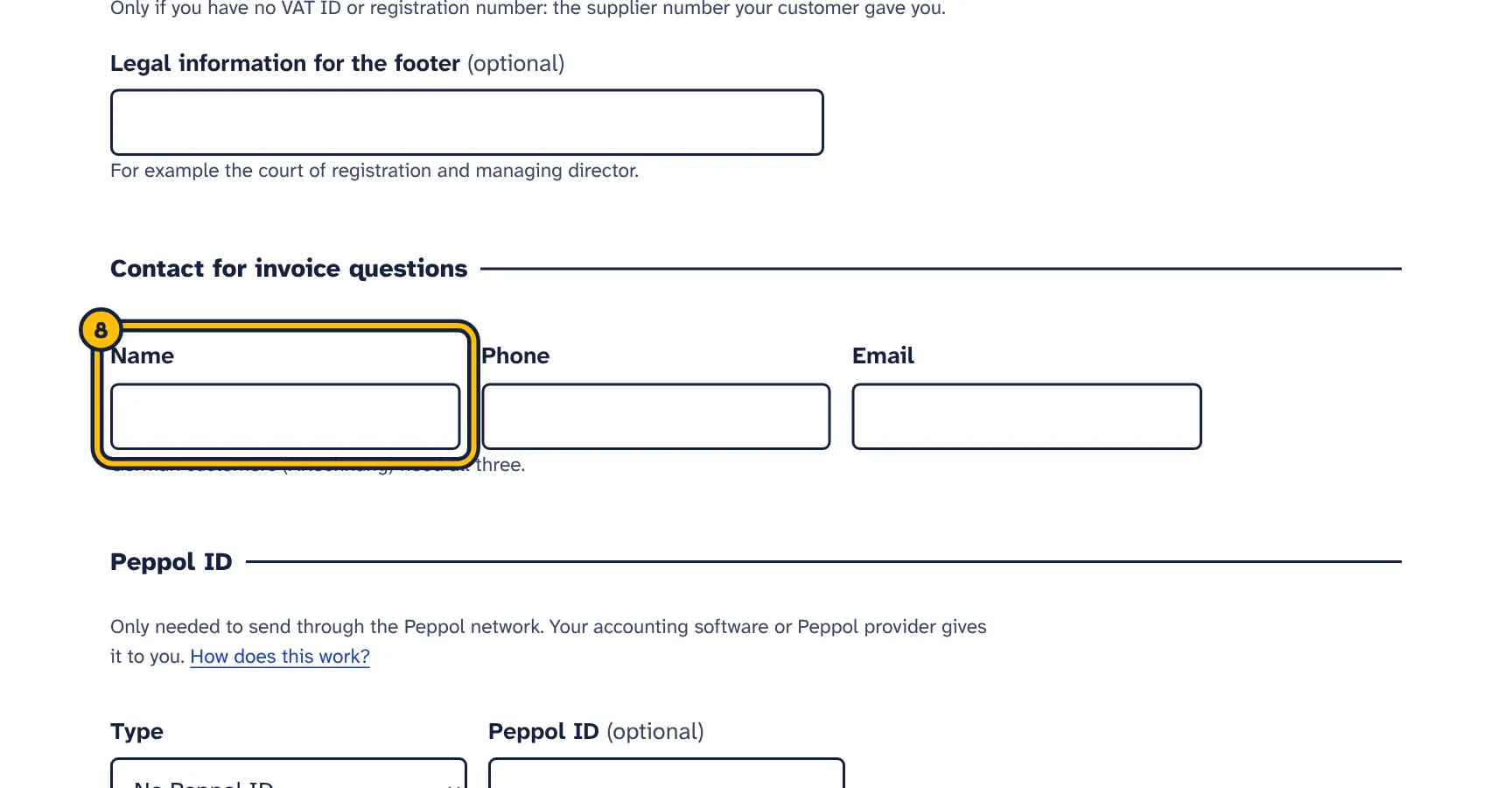
Step 8: Add a contact for invoice questions: name… -
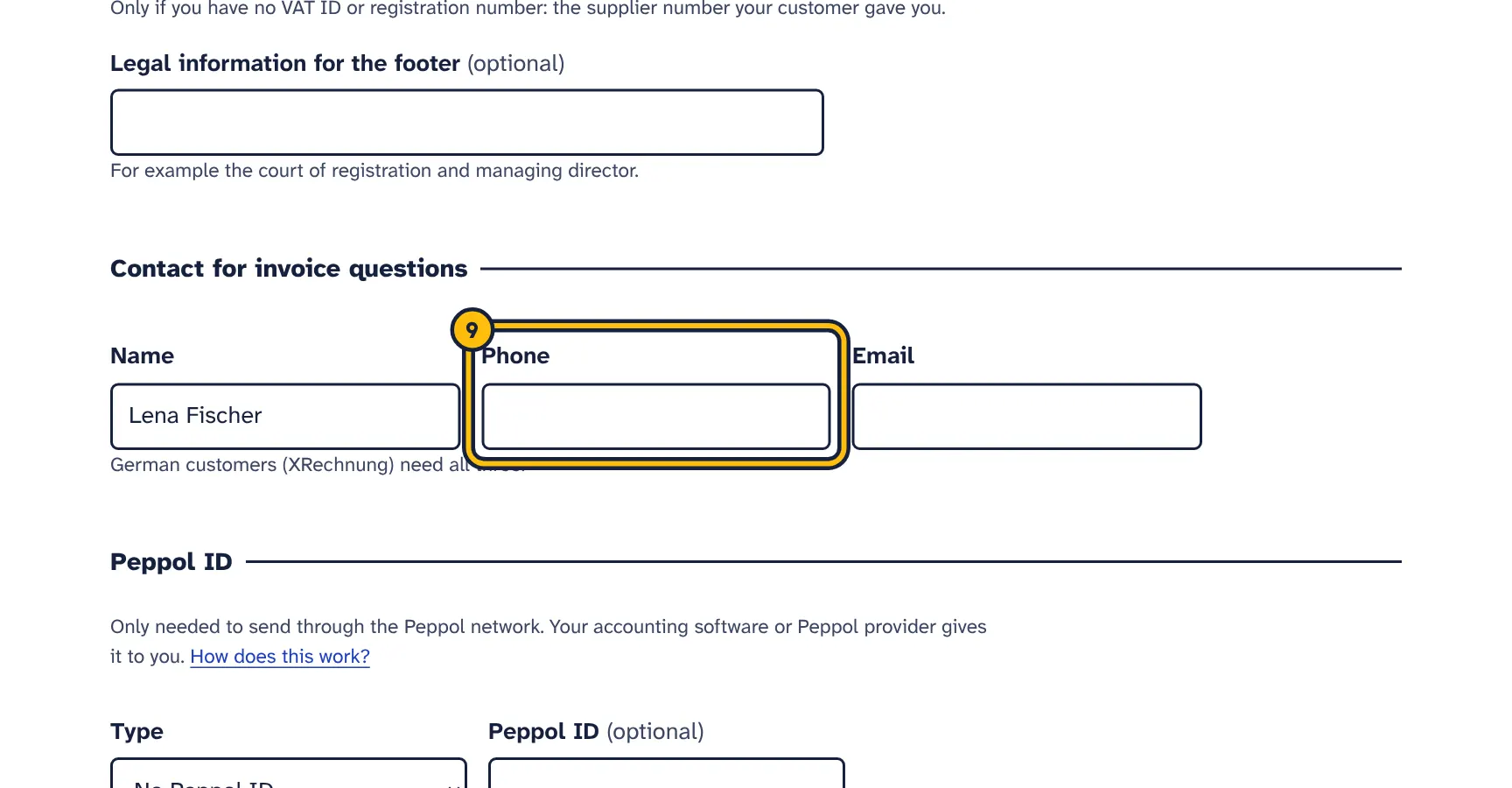
Step 9: …phone… -
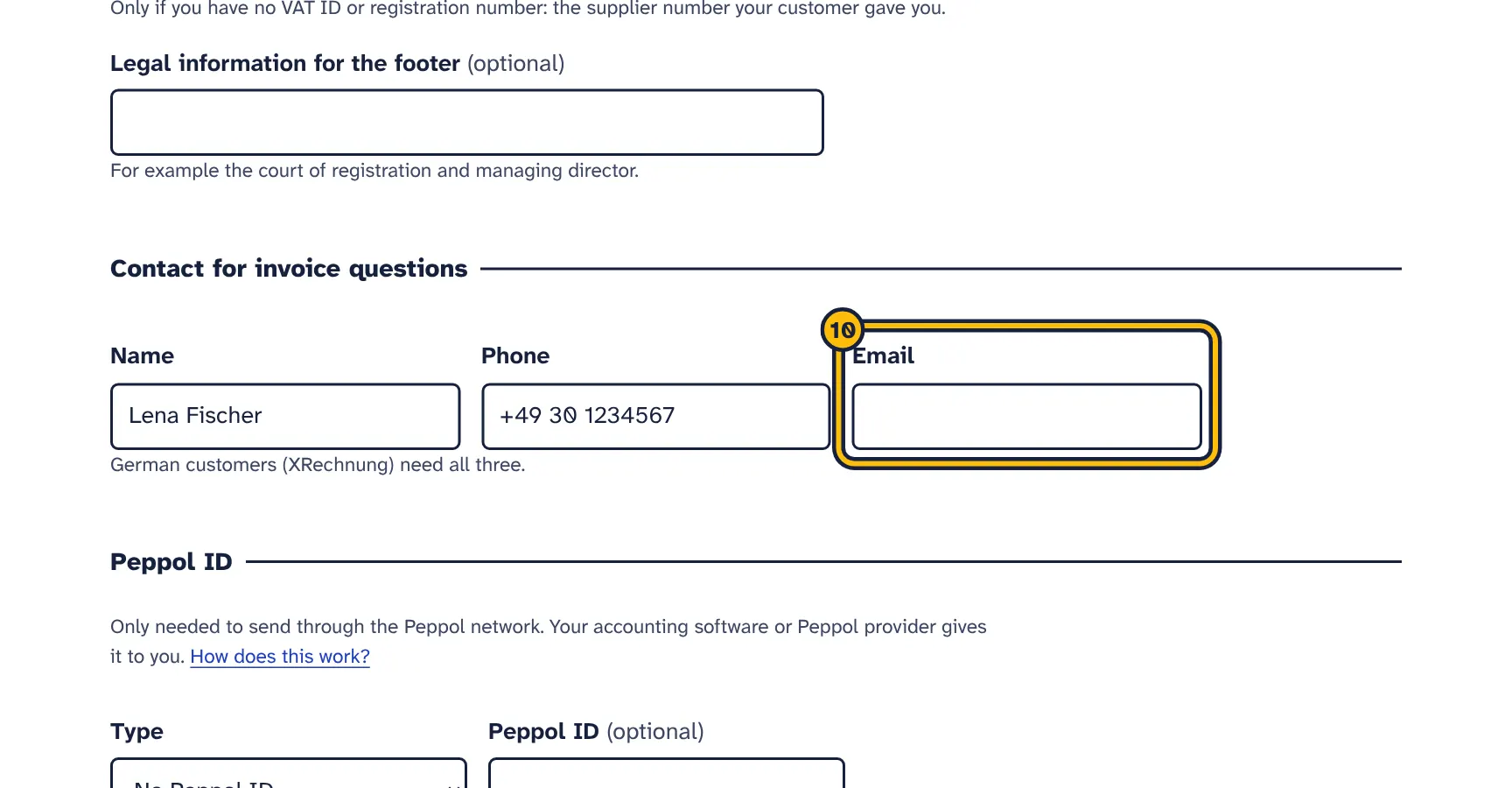
Step 10: …and email. -
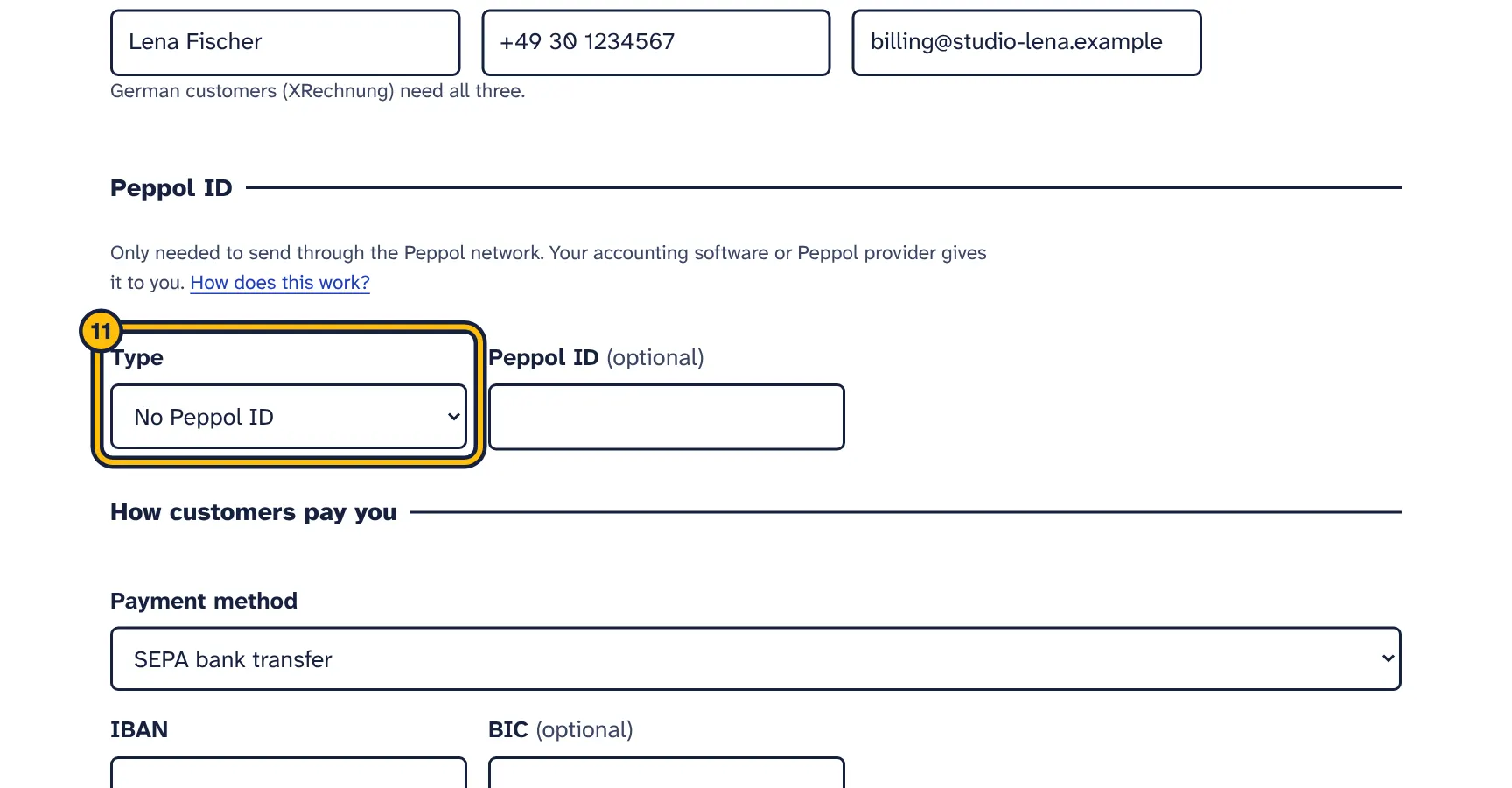
Step 11: If you send by Peppol, choose the type of your Peppol ID… -
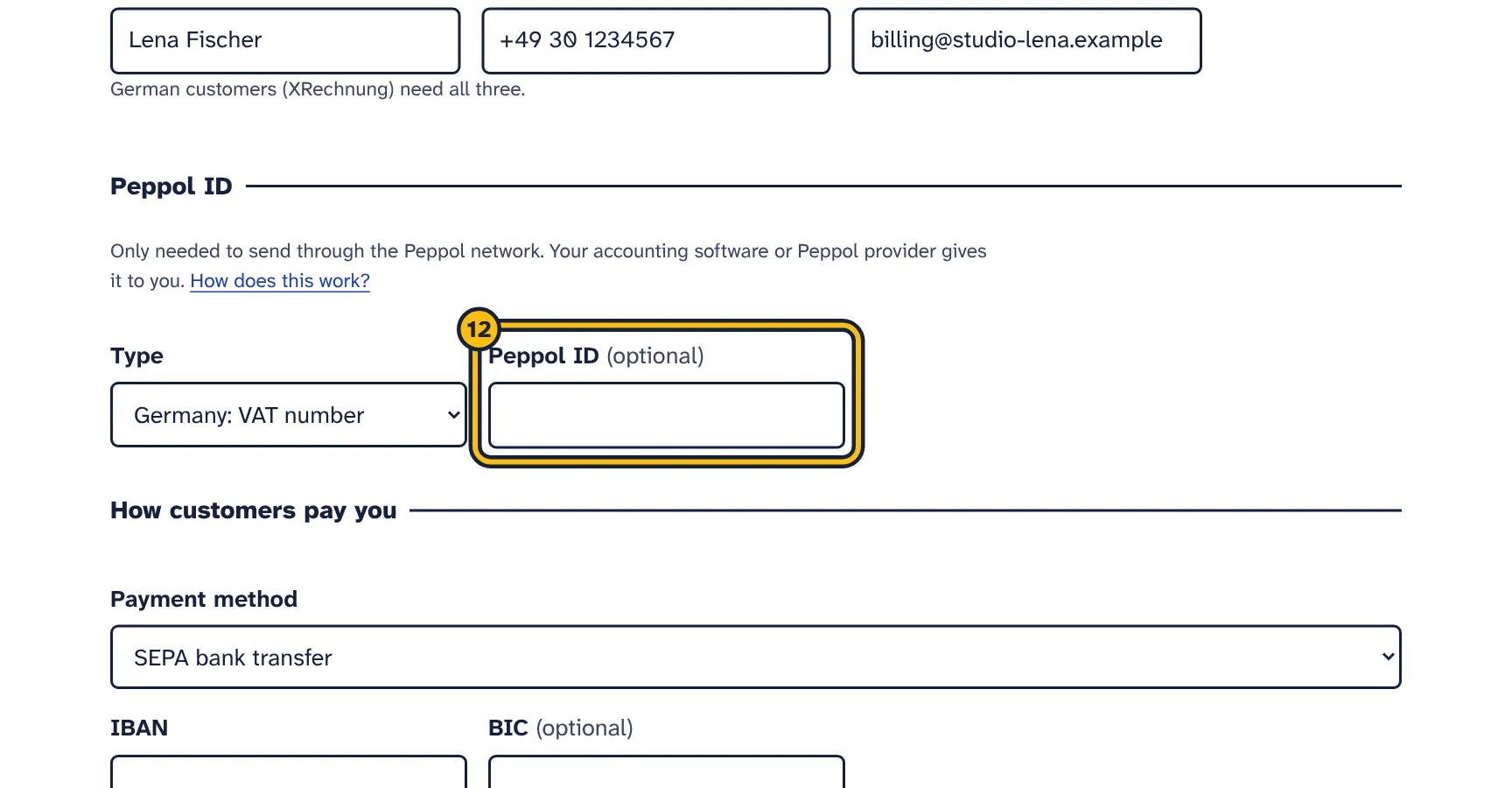
Step 12: …and type the ID. In Germany it is often your VAT ID. -
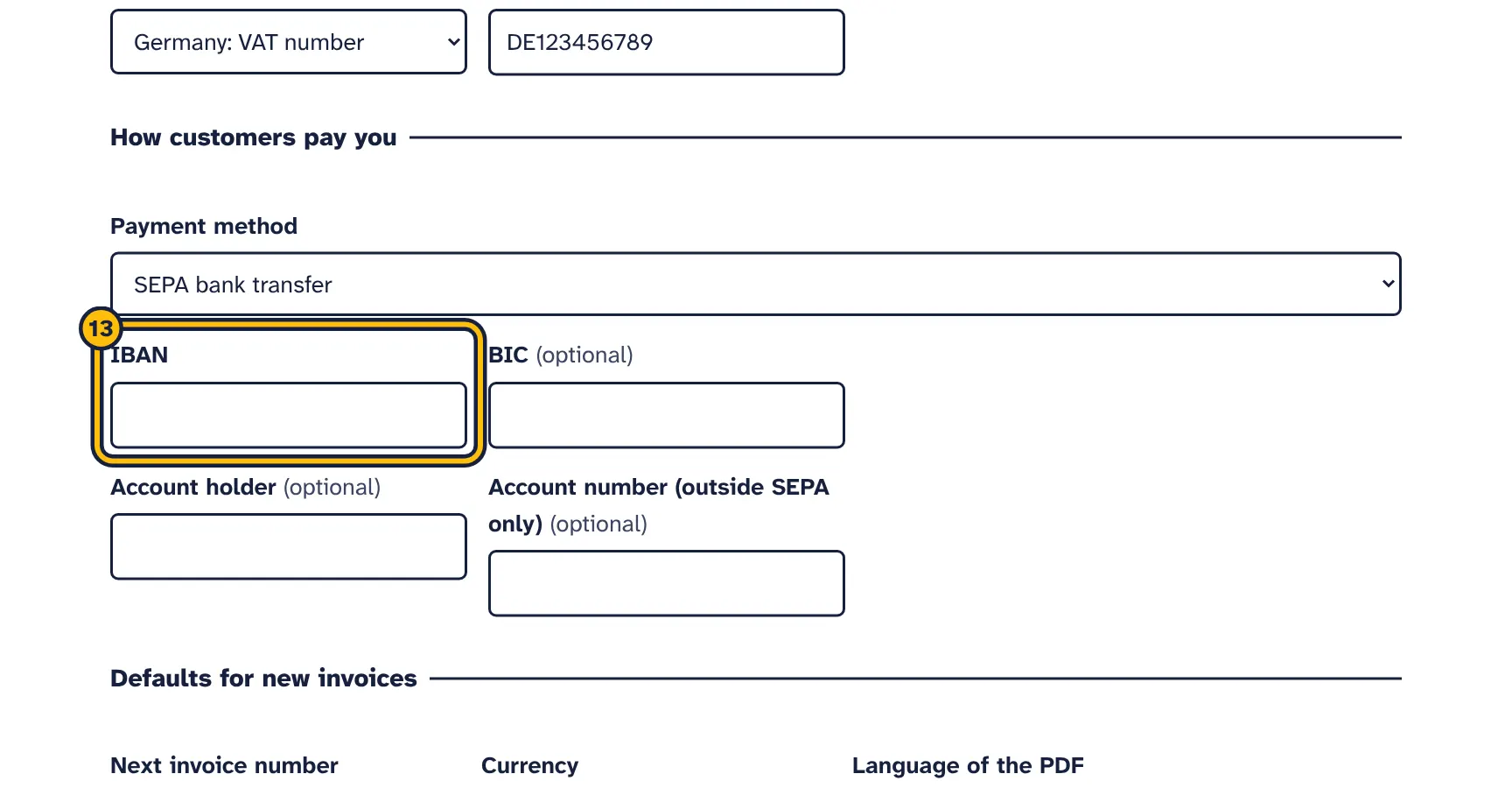
Step 13: Type your IBAN so customers can pay by bank transfer. -
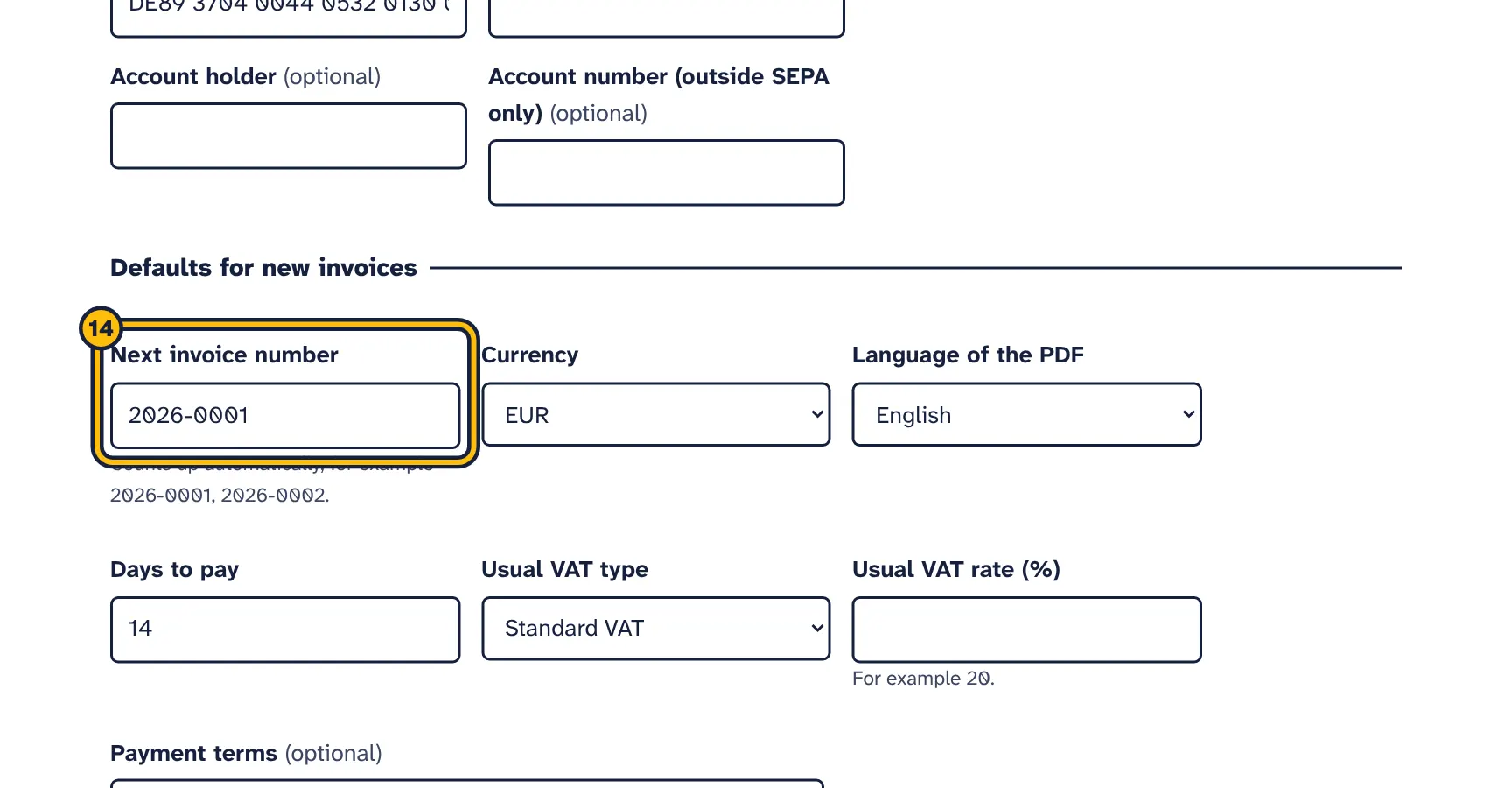
Step 14: Choose the number for your next invoice. -
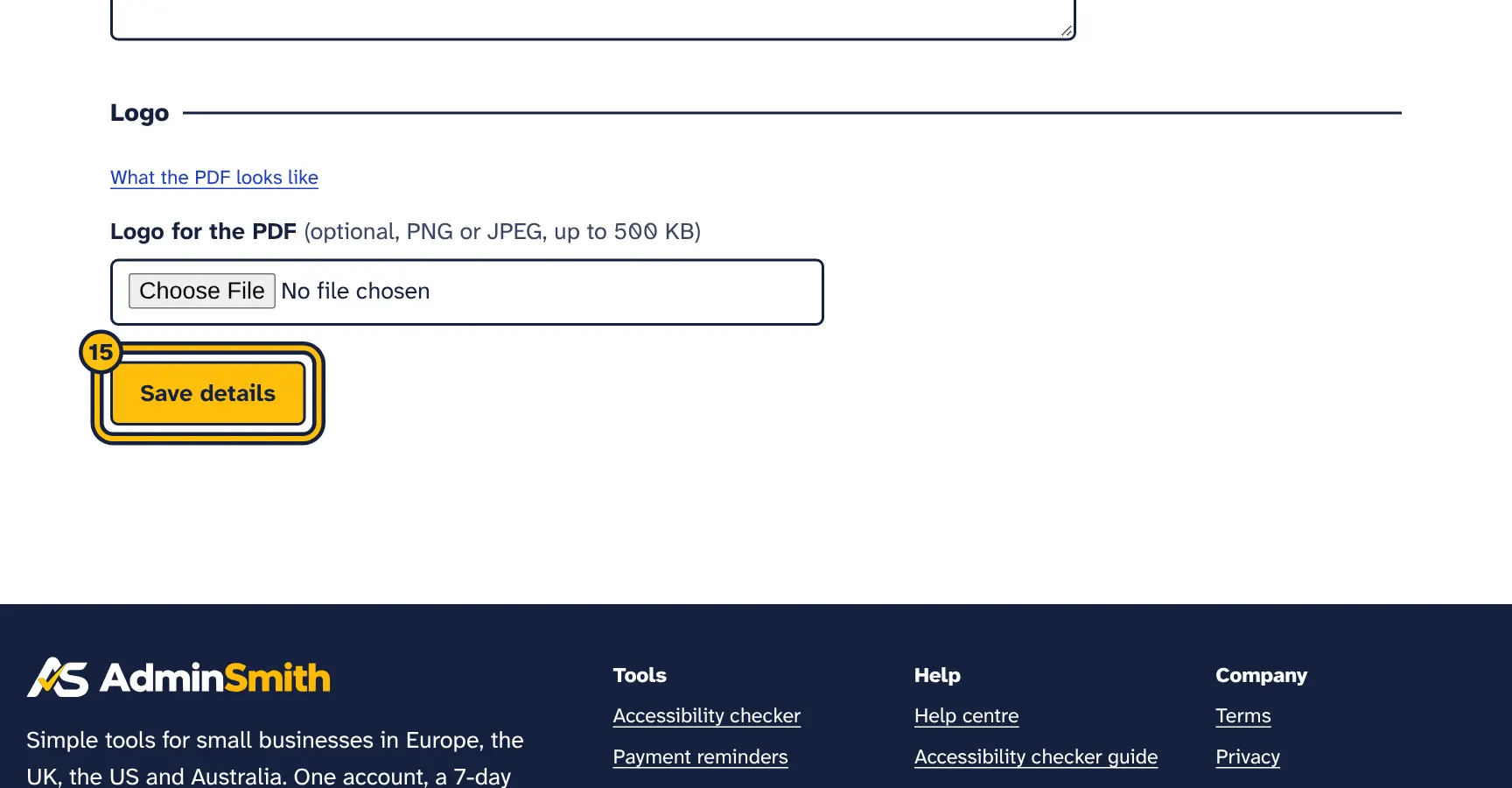
Step 15: Click Save details.
Open Your invoice details from the e-invoices start page. Everything here is copied into each invoice when you issue it, as the seller and payment details. Changing it later does not change invoices you already issued.
Your business
- Legal name
- Required. The registered name of your business, or your own name if you are a sole trader. It is the seller name in every file.
- Trading name
- Optional. The name customers know you by, if it differs. The PDF shows it at the top with the legal name underneath, and the XML files carry both.
- Street and number, Address line 2
- Your address. Dutch sellers need the full street address for Peppol files.
- Postcode, Town or city
- Needed for XRechnung files and good practice everywhere.
- Country
- Required. It decides which country code your VAT ID must start with. Northern Ireland has its own entry.
Tax and registration
- VAT ID
- Your VAT number with its country prefix, for example
DE123456789orBE0123456749. Greece usesEL. Needed for reverse charge, intra-EU supplies and exports. Leave it empty if you have none. - Tax number
- Your local tax number if you have no VAT ID, for example a German Steuernummer. Invoices that charge VAT, or are zero-rated or exempt, need either a VAT ID or a tax number.
- Company registration number
- For example your commercial register number. The European standard requires that your customer can identify you by a VAT ID, a registration number or a seller ID, so enter at least one of these.
- Type of registration number
- Says which register the number belongs to: France: SIREN, France: SIRET, Netherlands: KvK, Netherlands: OIN, Belgium: enterprise number, Sweden or Norway: organisation number, Denmark: CVR, or GLN. French businesses choose France: SIREN with their 9-digit SIREN. Dutch sellers sending through Peppol must choose KvK or OIN. Otherwise leave Not specified.
- Seller ID
- Only if you have neither a VAT ID nor a registration number: the supplier number your customer gave you. Without one of the three, invoices cannot be issued.
- Legal information for the footer
- Printed in the PDF footer, for example the court of registration and the managing director, which companies in some countries must show.
Contact for invoice questions
- Name, Phone, Email
- Who customers contact about invoices. XRechnung files need all three. The email is also used as your electronic address in XRechnung files when you have no Peppol ID, so it must be a working address.
Peppol ID
- Type, Peppol ID
- Only needed for Peppol files. See Peppol IDs. If you enter an ID without choosing its type, you see Choose the type of your Peppol ID. The Leitweg-ID type is not offered here, because it identifies German public bodies as customers.
How customers pay you
- Payment method
- SEPA bank transfer, Bank transfer (outside SEPA), Online payment (card, PayPal or payment link) or Cash. It is written into the e-invoice as a payment code, and the PDF shows payment instructions to match.
- IBAN
- Needed for SEPA transfers. It is checked for length and checksum; spaces are fine. The PDF prints it in groups of four, with the invoice number as payment reference.
- BIC
- Optional. 8 or 11 letters and numbers.
- Account holder
- Optional. Printed above the IBAN on the PDF.
- Account number (outside SEPA only)
- For bank transfers outside SEPA when you have no IBAN, for example a US or Australian account. Bank transfer (outside SEPA) needs either an IBAN or this number.
Defaults for new invoices
- Next invoice number
- Required. The number the next new invoice gets. It counts up each time you issue:
2026-0001becomes2026-0002, andINV-0099becomesINV-0100. Numbers already used are skipped. - Currency
- The usual currency of your invoices. You can change it on each invoice.
- Language of the PDF
- The usual language of the PDF and the covering email. A customer’s own language setting takes priority.
- Days to pay
- The due date of a new invoice is the invoice date plus this many days, from 0 to 365.
- Usual VAT type, Usual VAT rate (%)
- Pre-filled on new lines, for example Standard VAT and
20. - Payment terms
- Optional text copied into each new invoice, for example
Payable within 14 days without deduction. - Your time zone
- Decides which date counts as today for new invoices.
- Own VAT exemption text
- Optional, folded away. Your usual text or legal reference for each exempt VAT type, for example
Kleinunternehmer gemäß § 19 UStGfor Exempt from VAT. It is copied into new invoices; see Lines and VAT types.
France
Only for businesses established in France, for the e-invoicing reform.
- Usually you invoice
- Goods, services or goods and services. Copied into new invoices as What you invoice; French e-invoices must say which applies.
- I opted to pay VAT on debits (option pour le paiement de la taxe d’après les débits)
- Tick this only if you chose this option with the French tax office. Your invoices then carry the VAT-on-debits code in the files and the mention on the PDF. It has no effect for businesses outside France.
- Late-payment penalties
- Filled in with standard wording: penalties due without a reminder at three times the legal interest rate, the legal minimum. Change it to your own rate if it is higher. Written as coded note
PMD. - Fixed recovery fee
- Filled in with the €40 indemnité forfaitaire pour frais de recouvrement. Written as coded note
PMT. - Early-payment discount
- Filled in with “Escompte pour paiement anticipé : néant” (no discount). If you give a discount for early payment, describe its conditions instead. Written as coded note
AAB.
These three legal notes are added to every invoice and credit note from a business in France, in the files and on the PDF. An empty field uses the standard wording. See Factur-X and the French reform.
Logo
- Logo for the PDF
- Optional. A PNG or JPEG file up to 500 KB, shown at the top left of the PDF. Tick Remove the logo to remove it.
Choose Save details. If something is wrong, a list at the top names it, for example This IBAN is not valid. Check it for typing mistakes. When saved, you see Saved.
Peppol IDs
A Peppol ID is a business’s address on the Peppol network. It has two parts: a Type, which says what kind of number it is, and the Peppol ID itself. A Belgian company usually uses type Belgium: enterprise number with its enterprise number; a German company often uses Germany: VAT number with its VAT ID.
You only need Peppol IDs for the Peppol BIS Billing 3.0 (UBL) file, which needs both yours and your customer’s. XRechnung files use the email address when there is no Peppol ID, and the PDF and CII files do not need one.
The most common types are listed first:
- Germany: Leitweg-ID, Germany: VAT number
- Belgium: enterprise number, Belgium: VAT number
- Netherlands: KvK number, Netherlands: OIN, Netherlands: VAT number
- France: SIRET, France: SIREN, France: VAT number
- Italy: Partita IVA, Spain: VAT number, Austria: VAT number
- Sweden: organisation number, Norway: organisation number, Denmark: CVR number, Finland: OVT code
- United Kingdom: VAT number, Australia: ABN, GLN, DUNS
The list is the official Peppol list of address types. Finnish businesses use the OVT code: the older Finnish business ID type was withdrawn from Peppol on 17 August 2026.
All other types on the Peppol list follow, shown by number, for example Scheme 0216. To remove a Peppol ID, empty the Peppol ID field and choose No Peppol ID.
Where to get them: your Peppol access point or accounting software registers you on the network and tells you your Peppol ID. Ask customers for theirs, or look them up in the public Peppol Directory.
Germany: Leitweg-ID is the routing ID of a German public body, so it is only offered for customers. Use it as the customer’s Peppol ID only when the public body tells you to, and always enter the Leitweg-ID in Customer’s reference too.
Customers
The same steps in pictures:
-
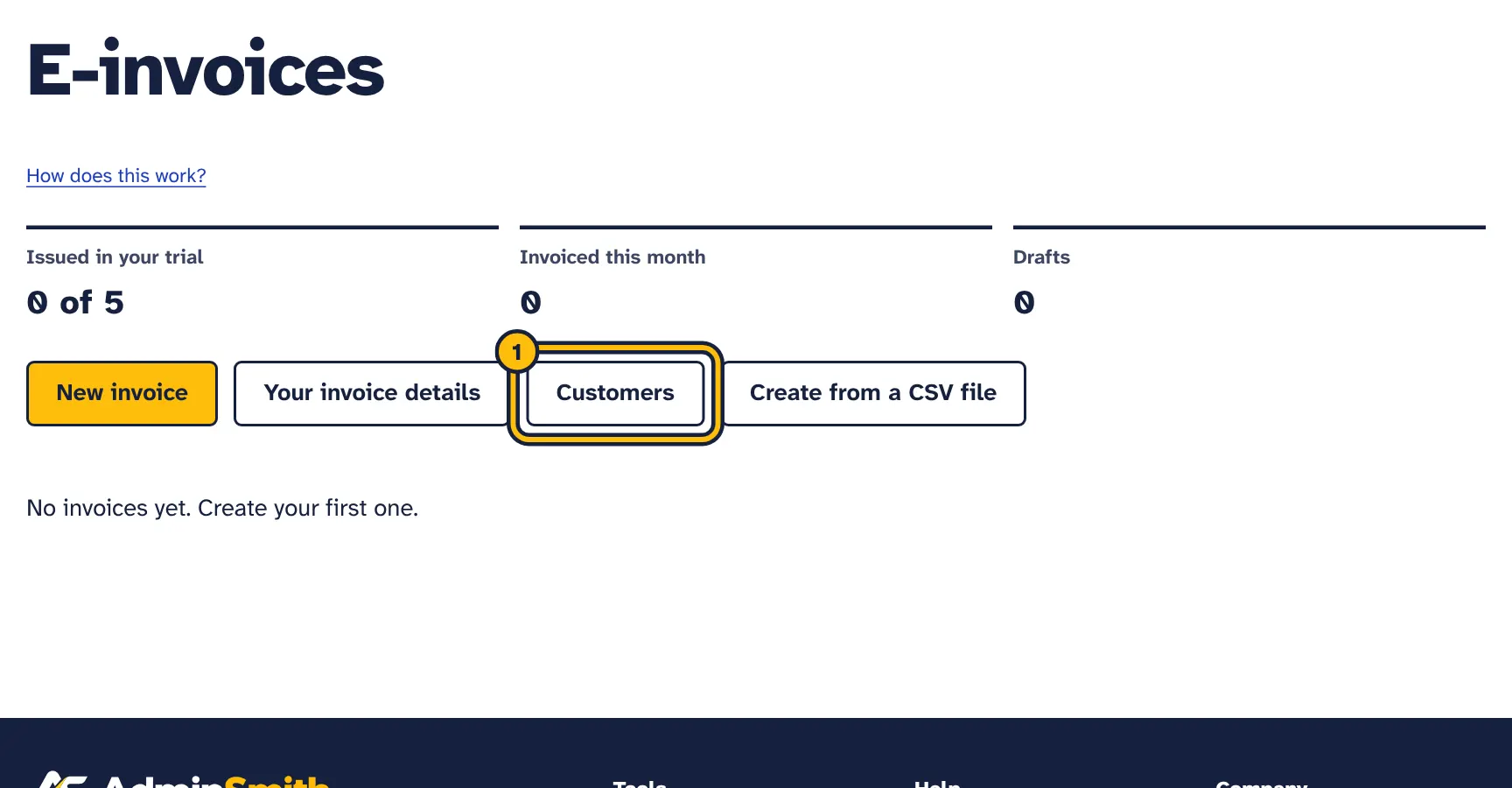
Step 1: Click Customers. -
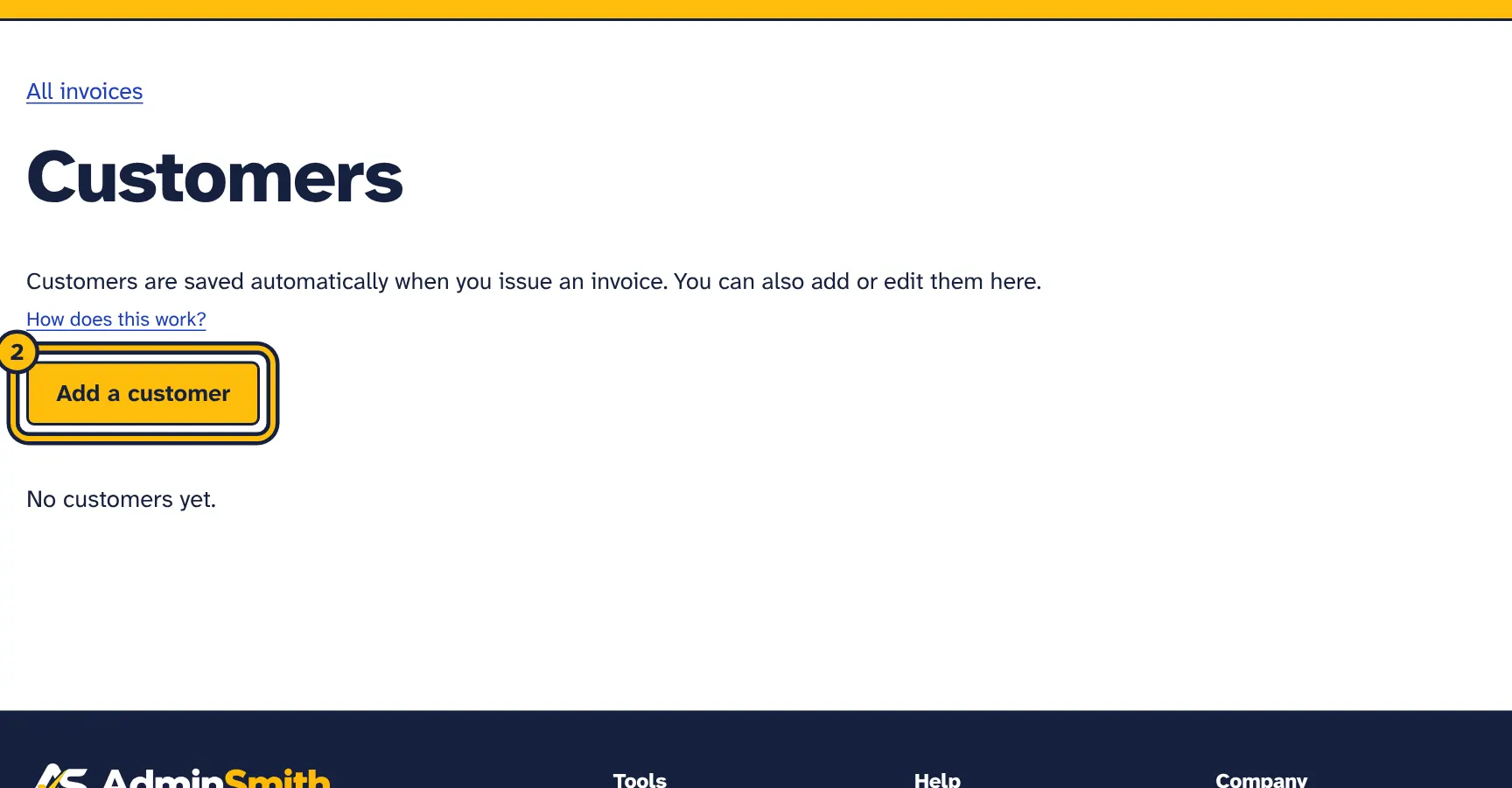
Step 2: Click Add a customer. -
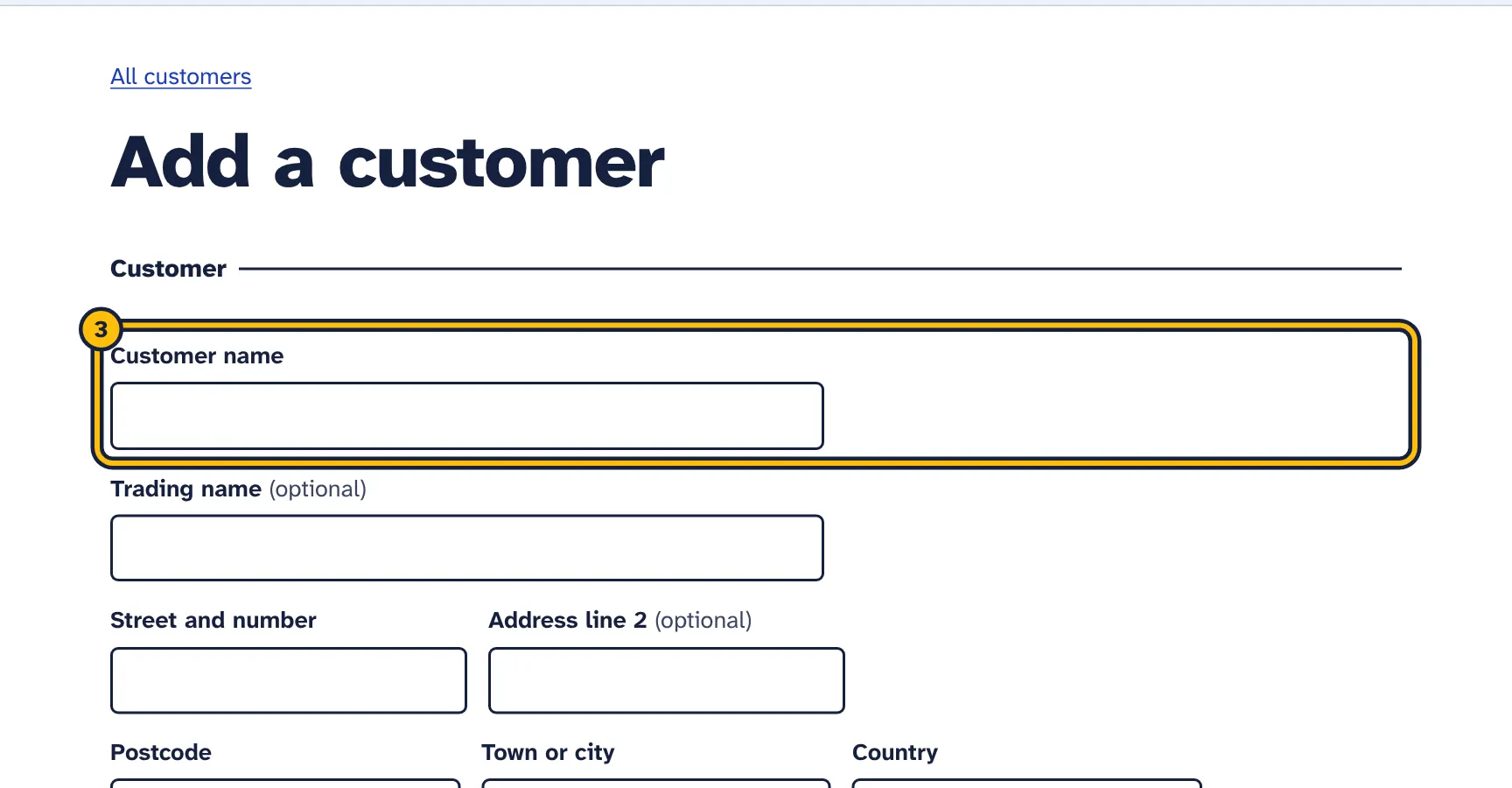
Step 3: Type the customer’s name and address. -
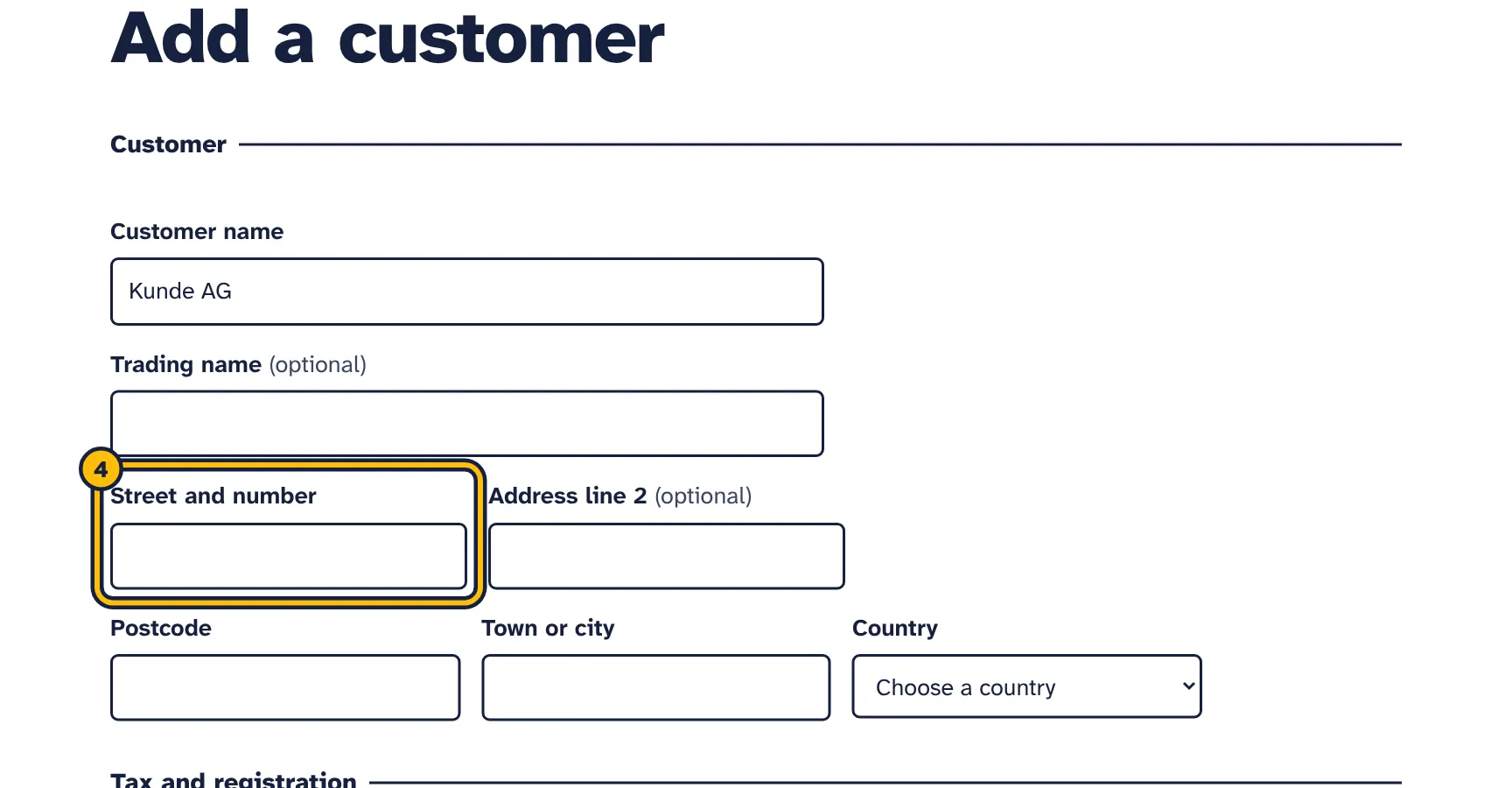
Step 4: Street… -
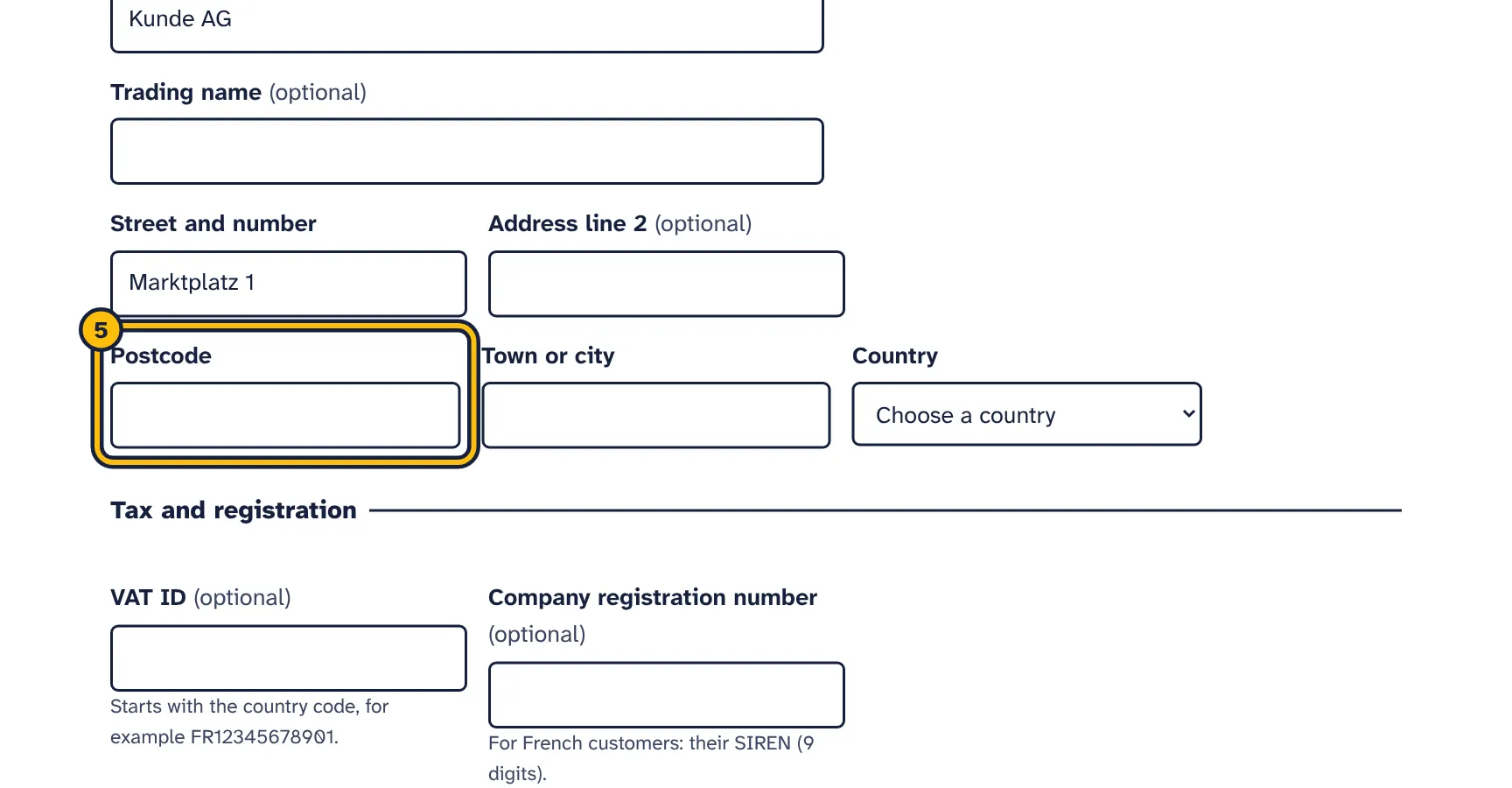
Step 5: Postcode… -
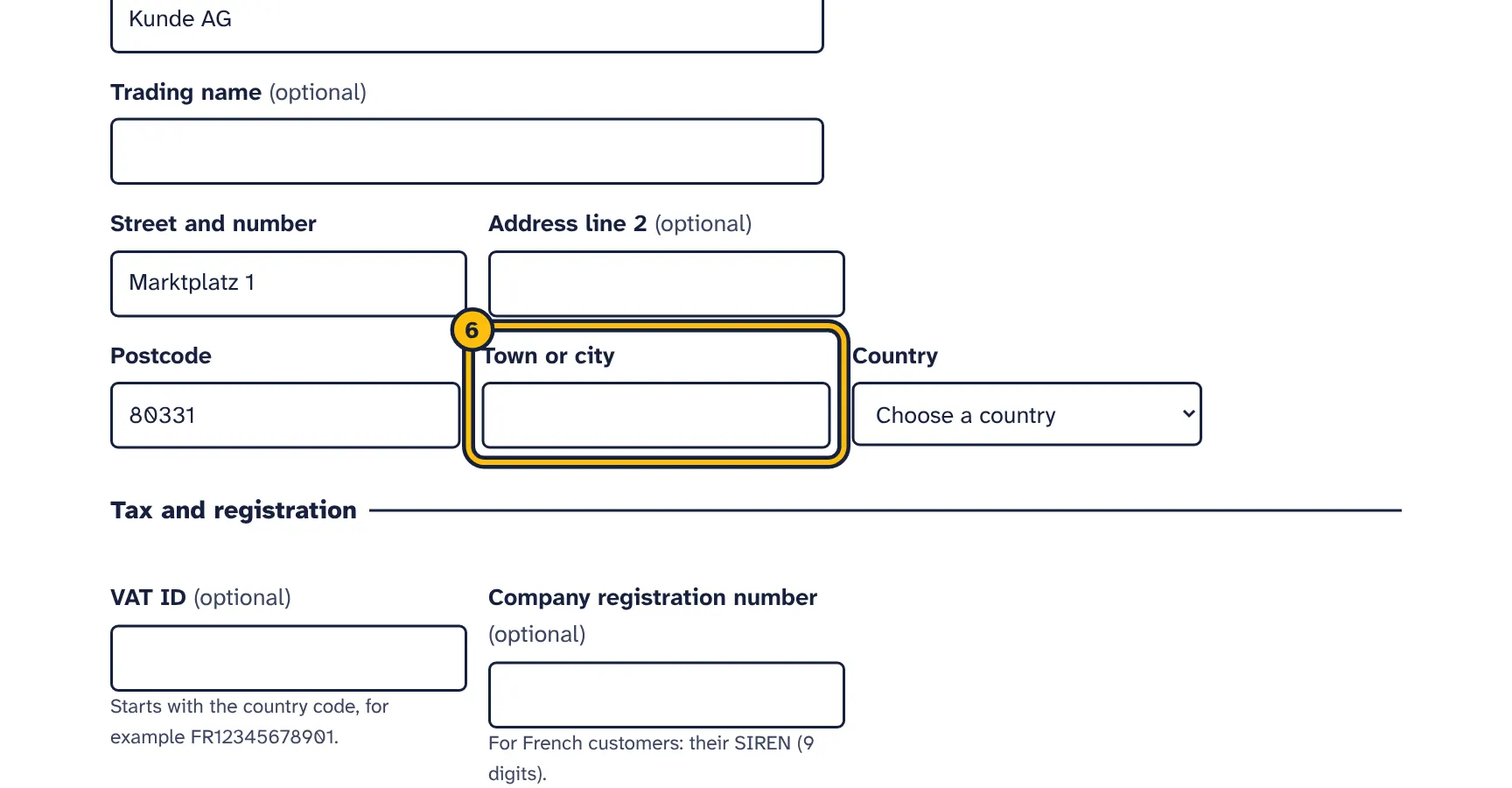
Step 6: Town. -
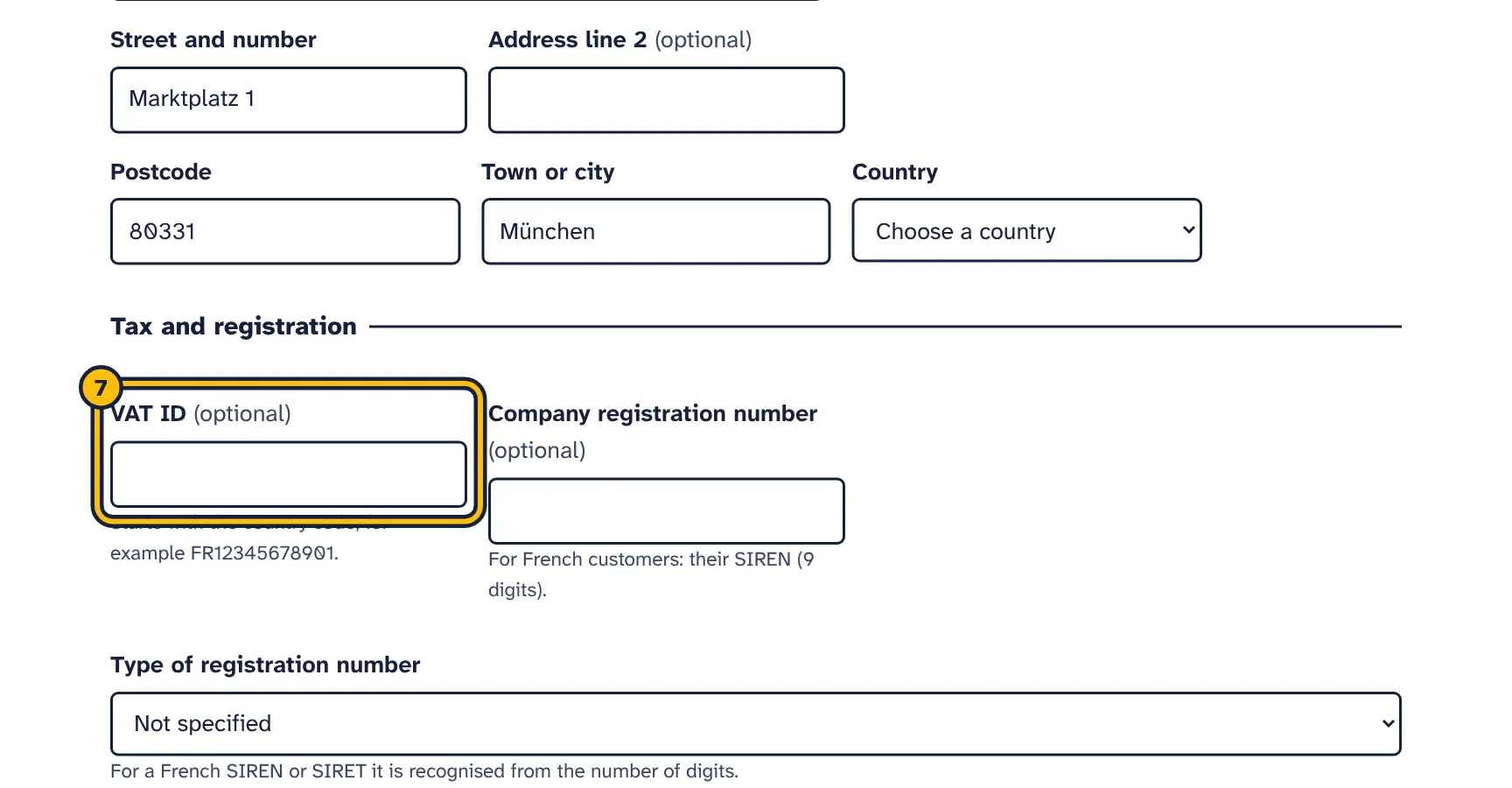
Step 7: Type their VAT ID. Business customers usually have one. -
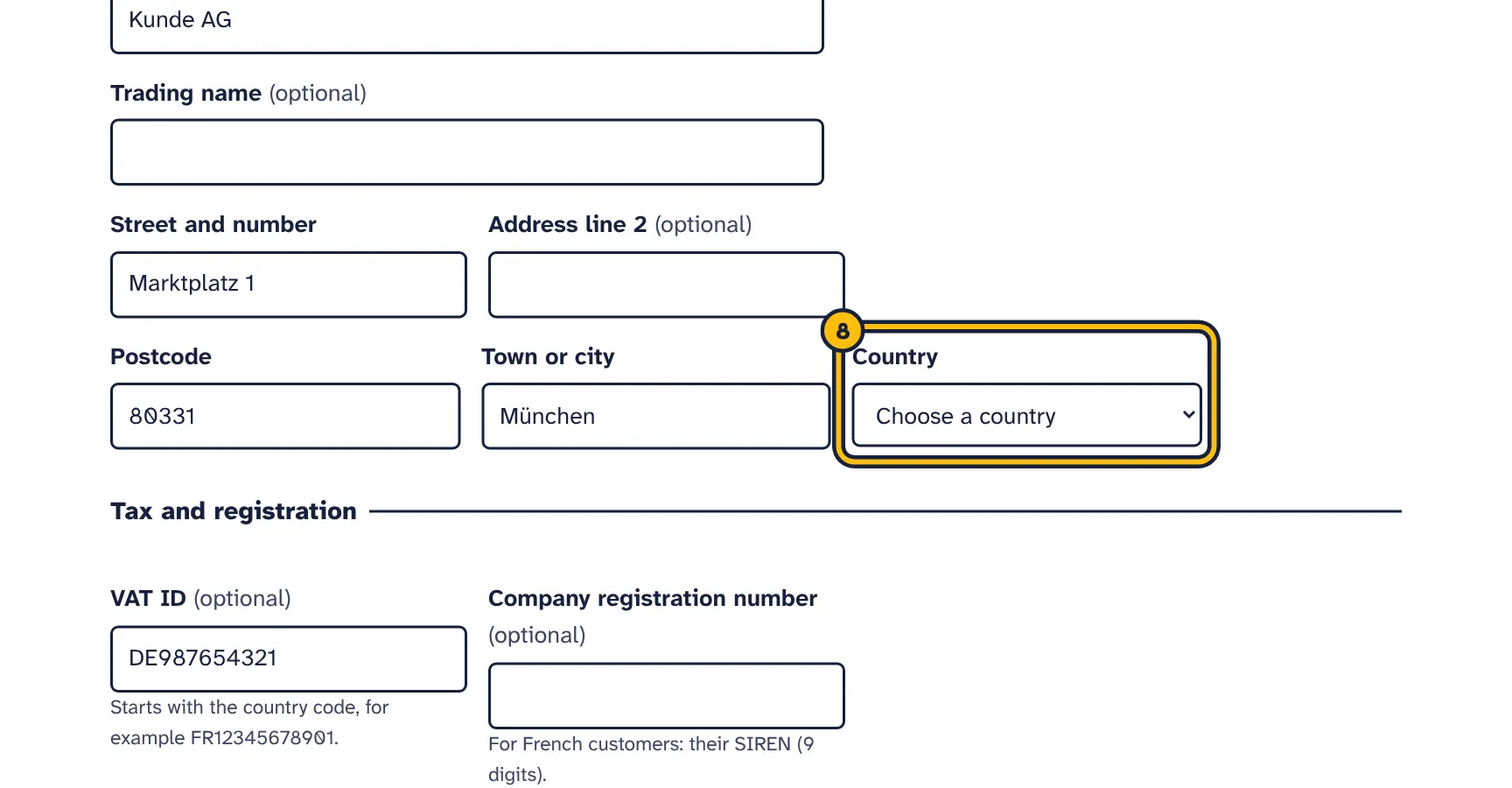
Step 8: Choose their country. -
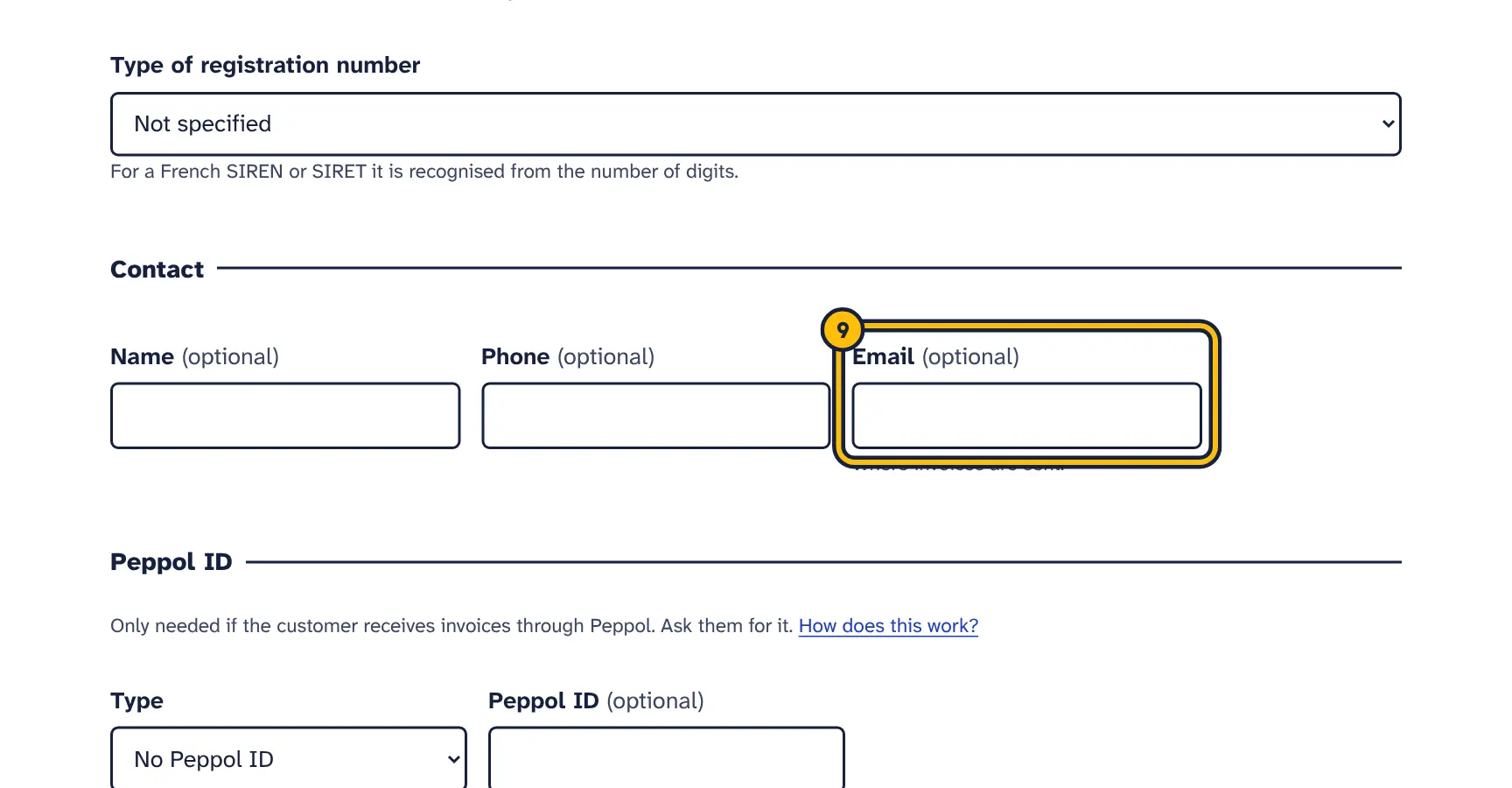
Step 9: Type the email address invoices go to. -
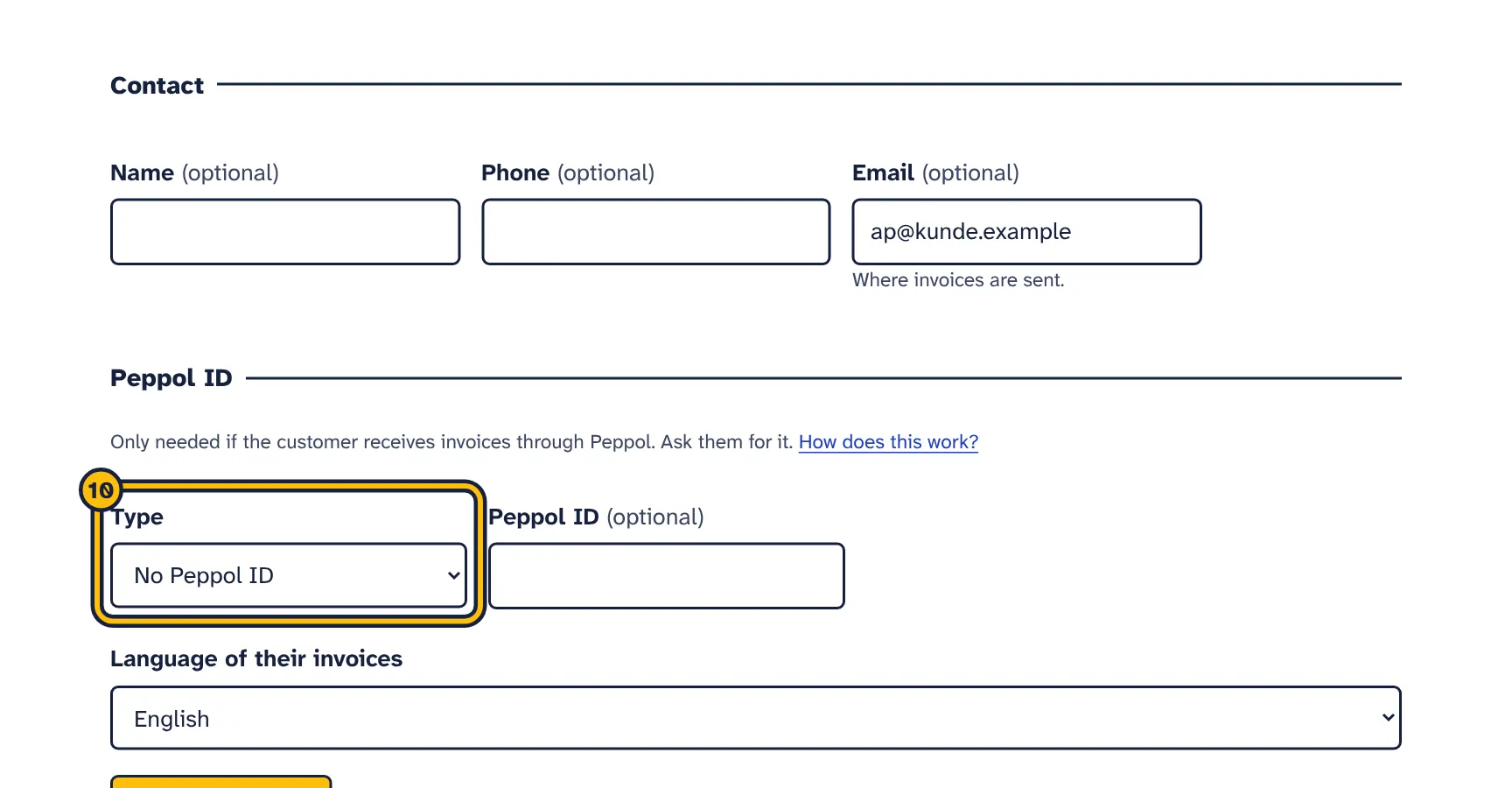
Step 10: Add their Peppol ID, if they gave you one: the type… -
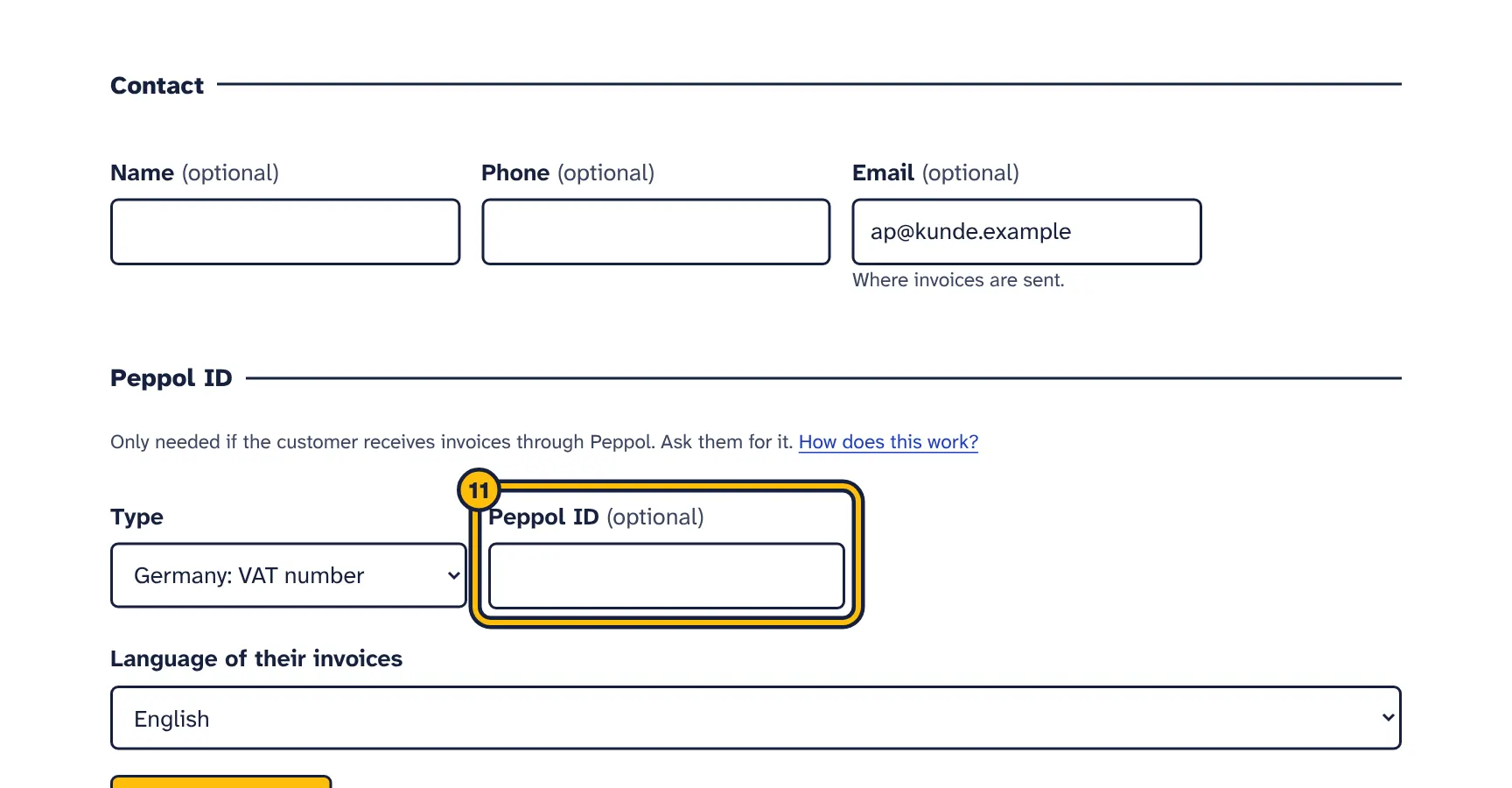
Step 11: …and the ID. -
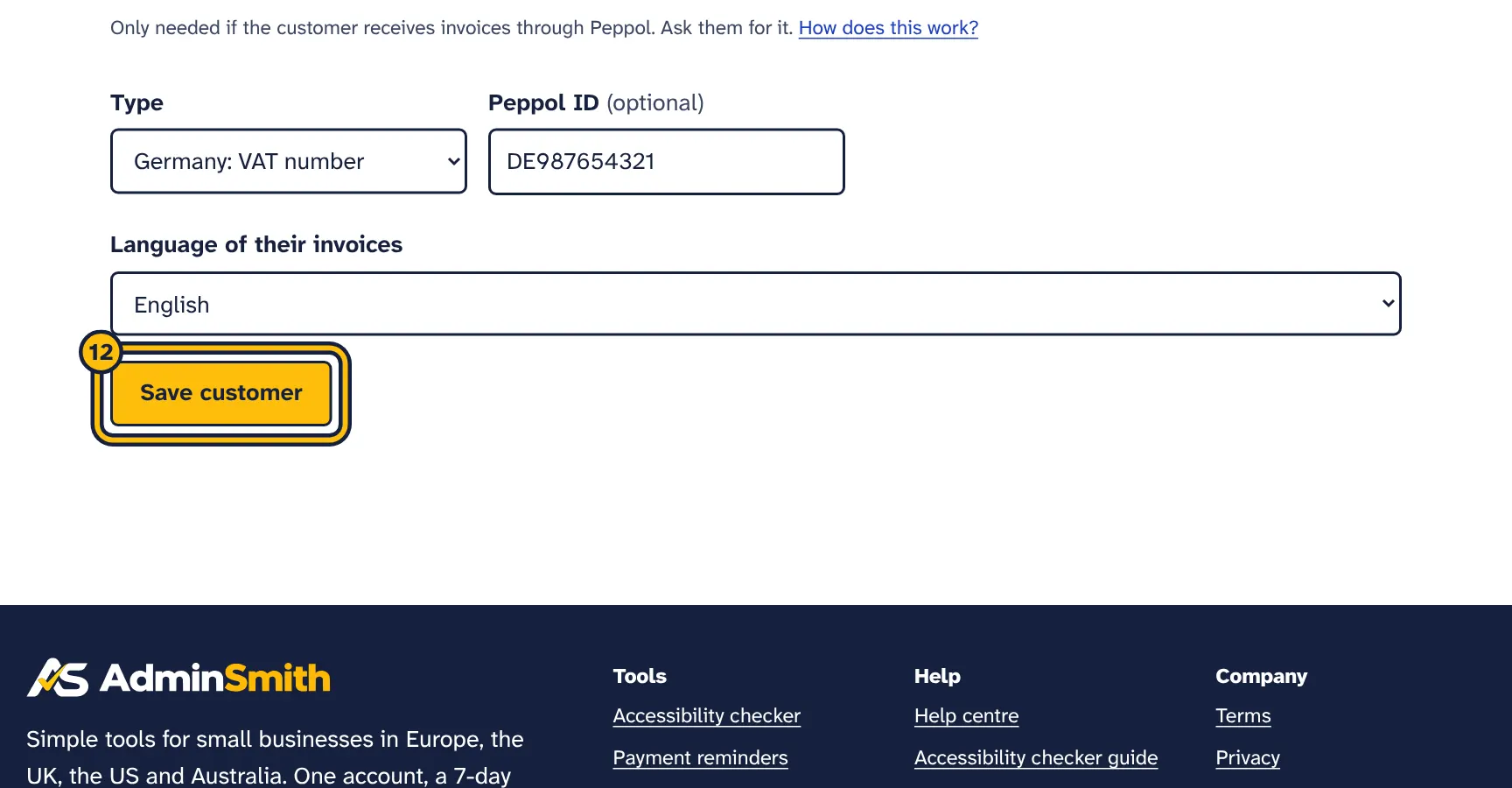
Step 12: Click Save customer.
Open Customers from the e-invoices start page. Customers are saved automatically when you issue an invoice, and you can add or edit them here.
- Choose Add a customer, or a customer’s name to edit it.
- Fill in the fields below.
- Choose Save customer.
- Customer name
- Required. The customer’s legal name.
- Trading name
- Optional. Another name the customer uses.
- Street and number, Address line 2, Postcode, Town or city
- The customer’s address. XRechnung needs the postcode and town. Intra-EU supplies use this address as the delivery address.
- Country
- Needed to issue an invoice. For intra-EU supplies it must be another EU country or Northern Ireland.
- VAT ID
- With the country prefix, for example
FR12345678901. Needed for reverse charge and intra-EU supplies. - Company registration number
- For French customers, their 9-digit SIREN. For reverse charge, a registration number is accepted when the customer has no VAT ID.
- Type of registration number
- Which register the number belongs to, for example France: SIREN. For French customers a 9-digit number is recognised as a SIREN and a 14-digit number as a SIRET, so you can leave Not specified.
- Name, Phone, Email
- Optional contact details. The email is where invoices are sent: it is filled in when you email an invoice, used as the customer’s electronic address in XRechnung when they have no Peppol ID, and needed for payment reminders.
- Type, Peppol ID
- Only if the customer receives invoices through Peppol. See Peppol IDs.
- Language of their invoices
- The language used for this customer’s PDF and email.
In the customer list, New invoice next to a customer starts an invoice for them.
When you issue an invoice, the customer details on it update the saved customer. The tool matches the saved customer you chose, or else a customer with the same name and email. Delete this customer removes the customer from the list; issued invoices keep their details.
Create an invoice
The same steps in pictures:
-
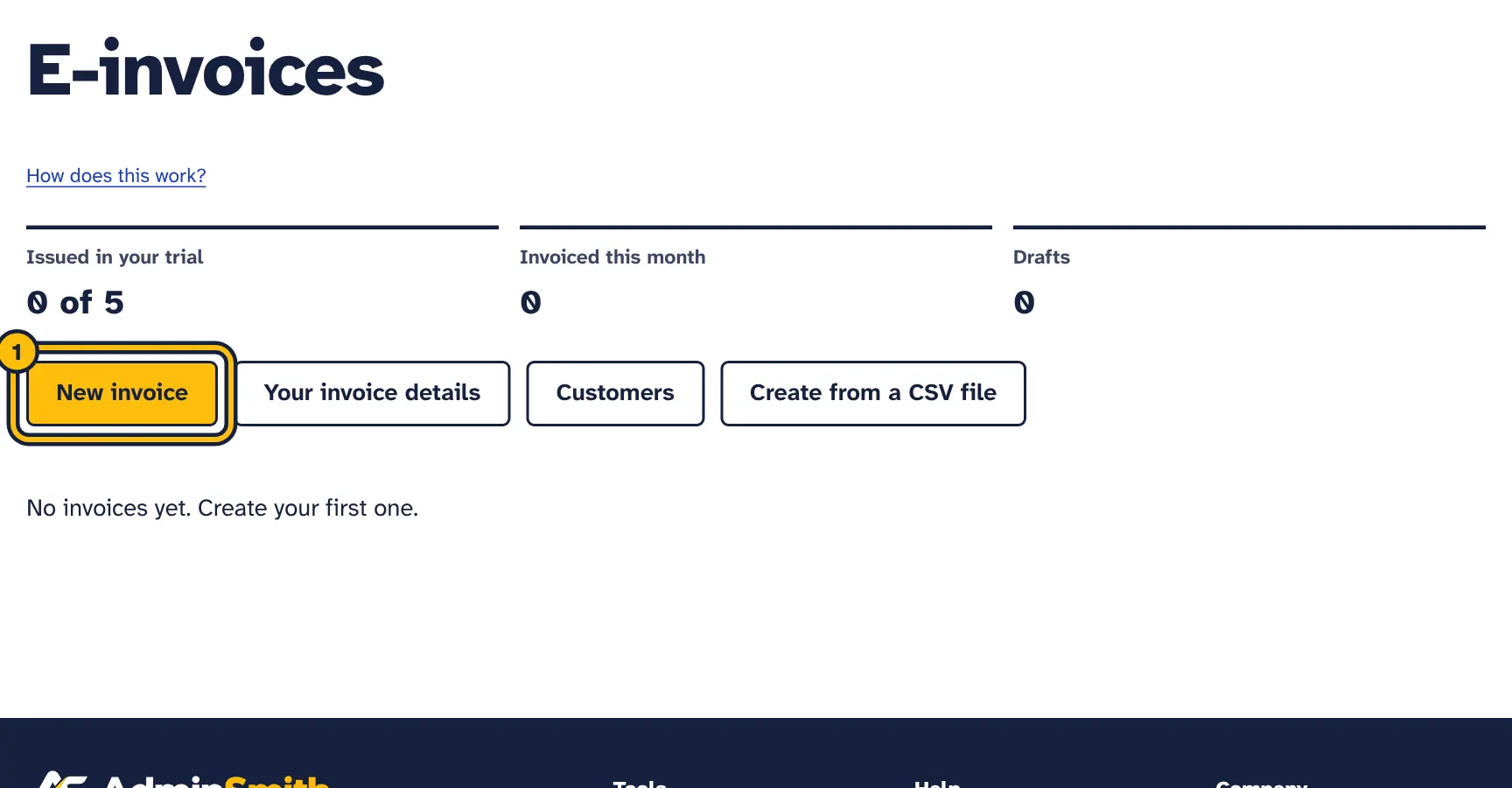
Step 1: Click New invoice. -
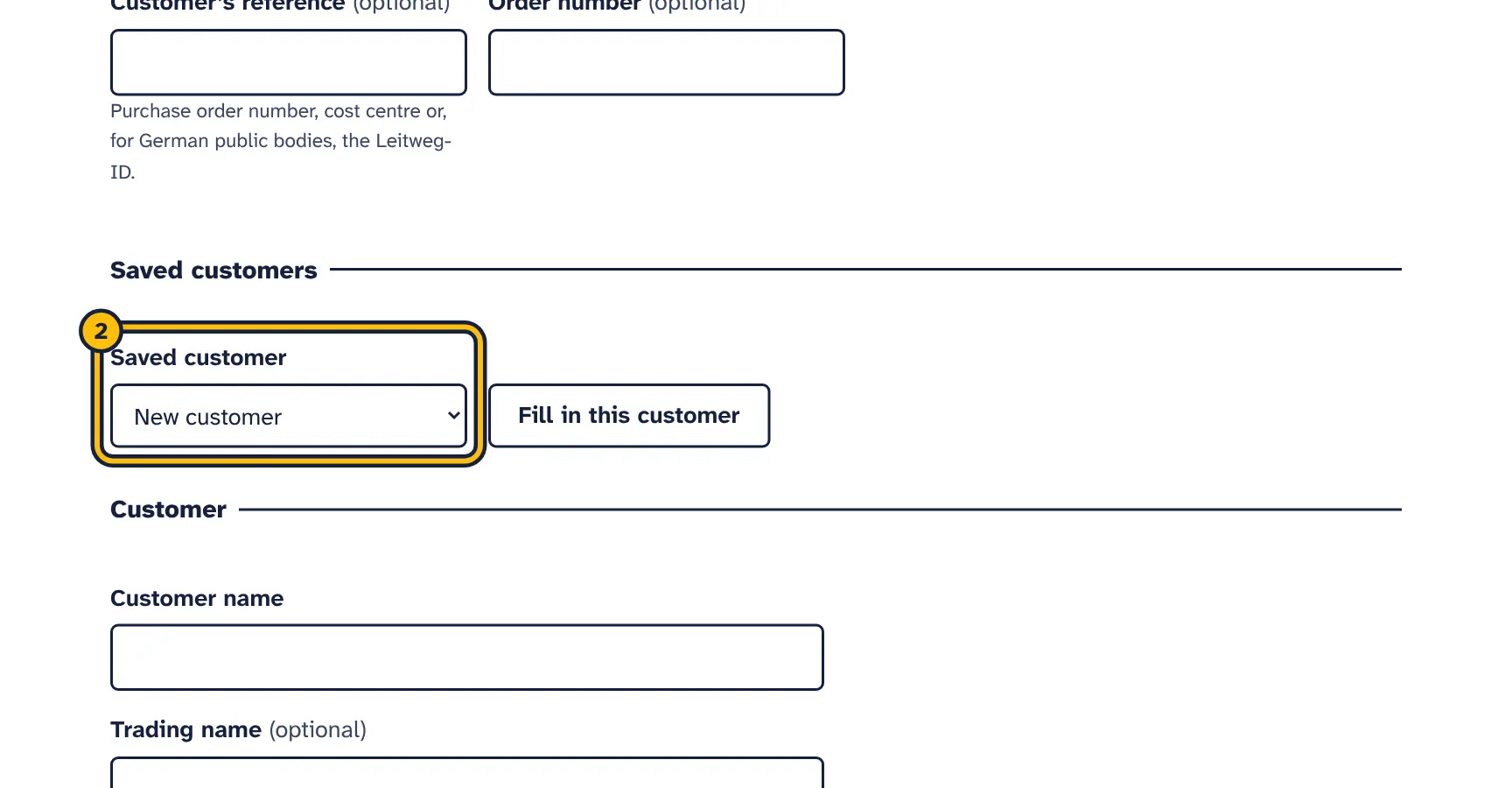
Step 2: Choose a saved customer. Their details are filled in for you. -
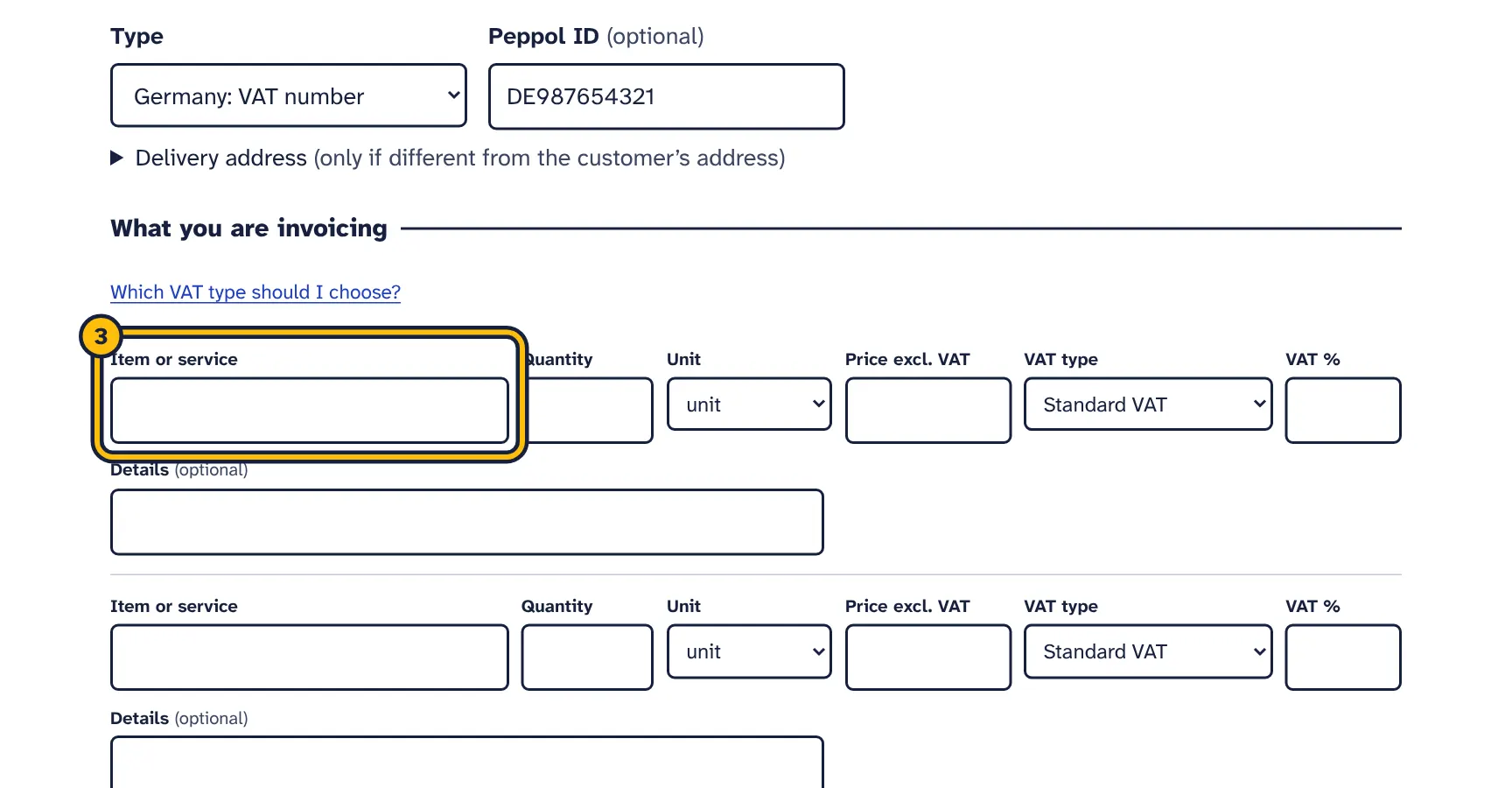
Step 3: Describe what you are invoicing. -
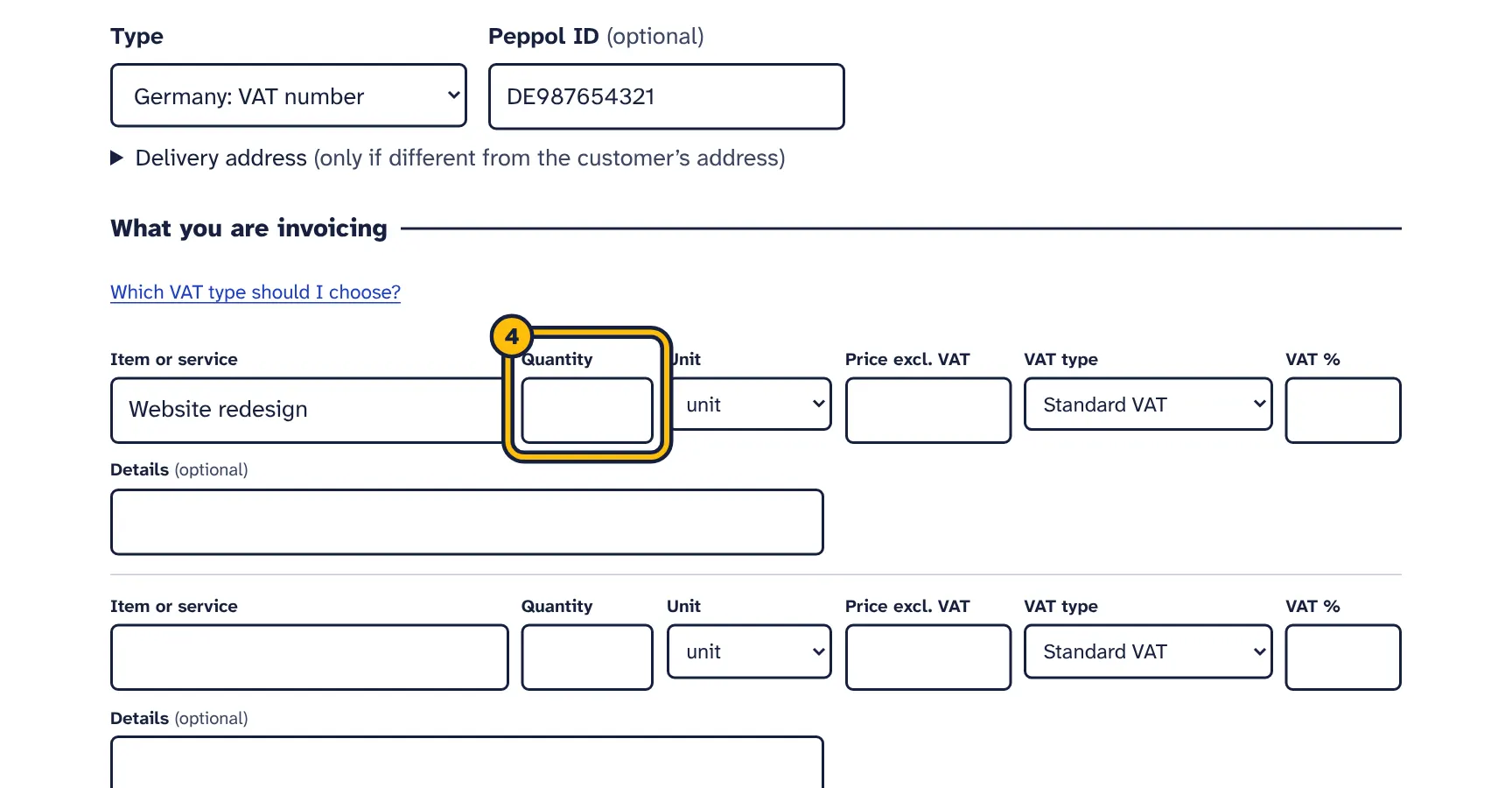
Step 4: Type the quantity… -
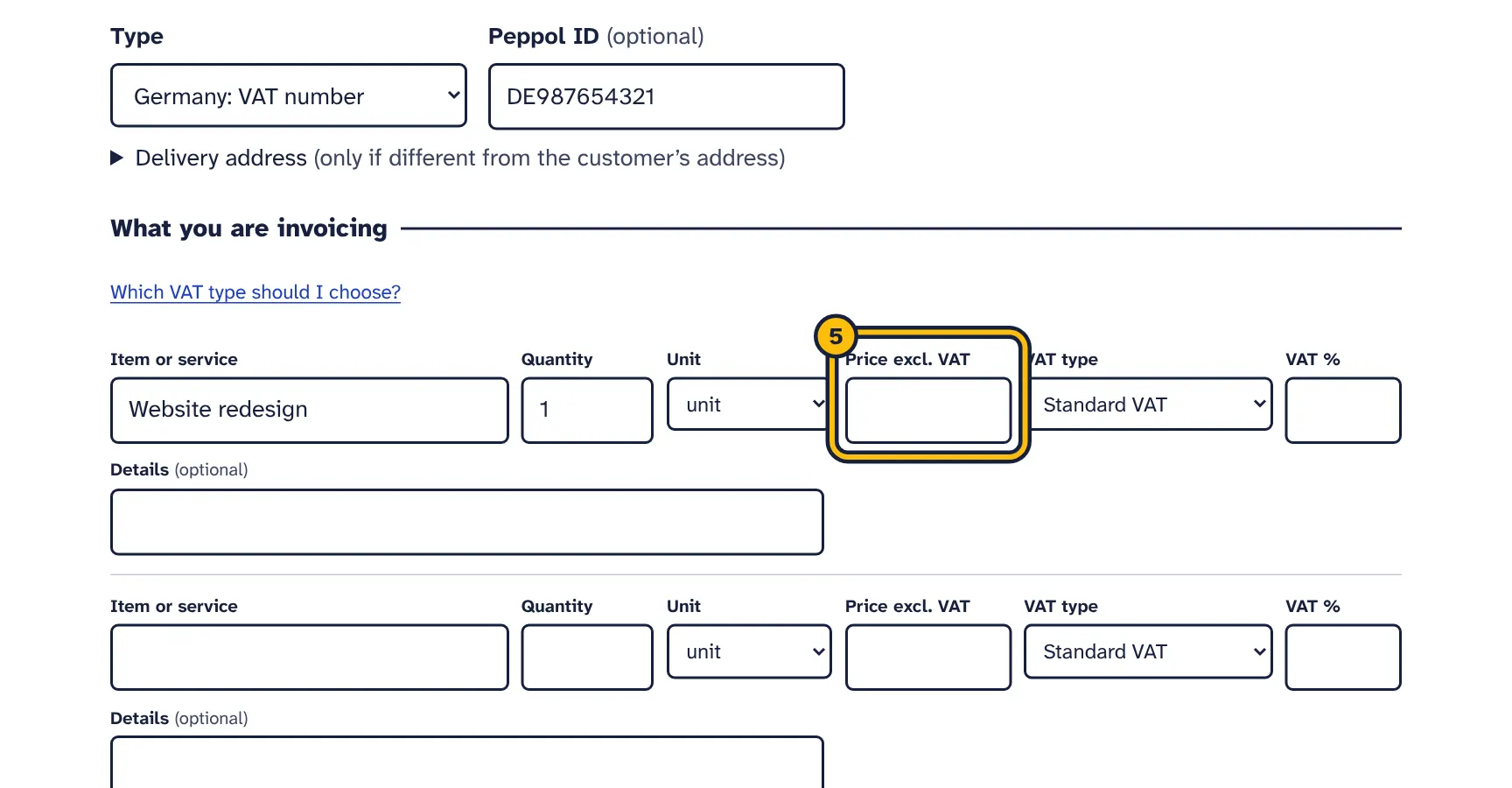
Step 5: …and the price without VAT. -
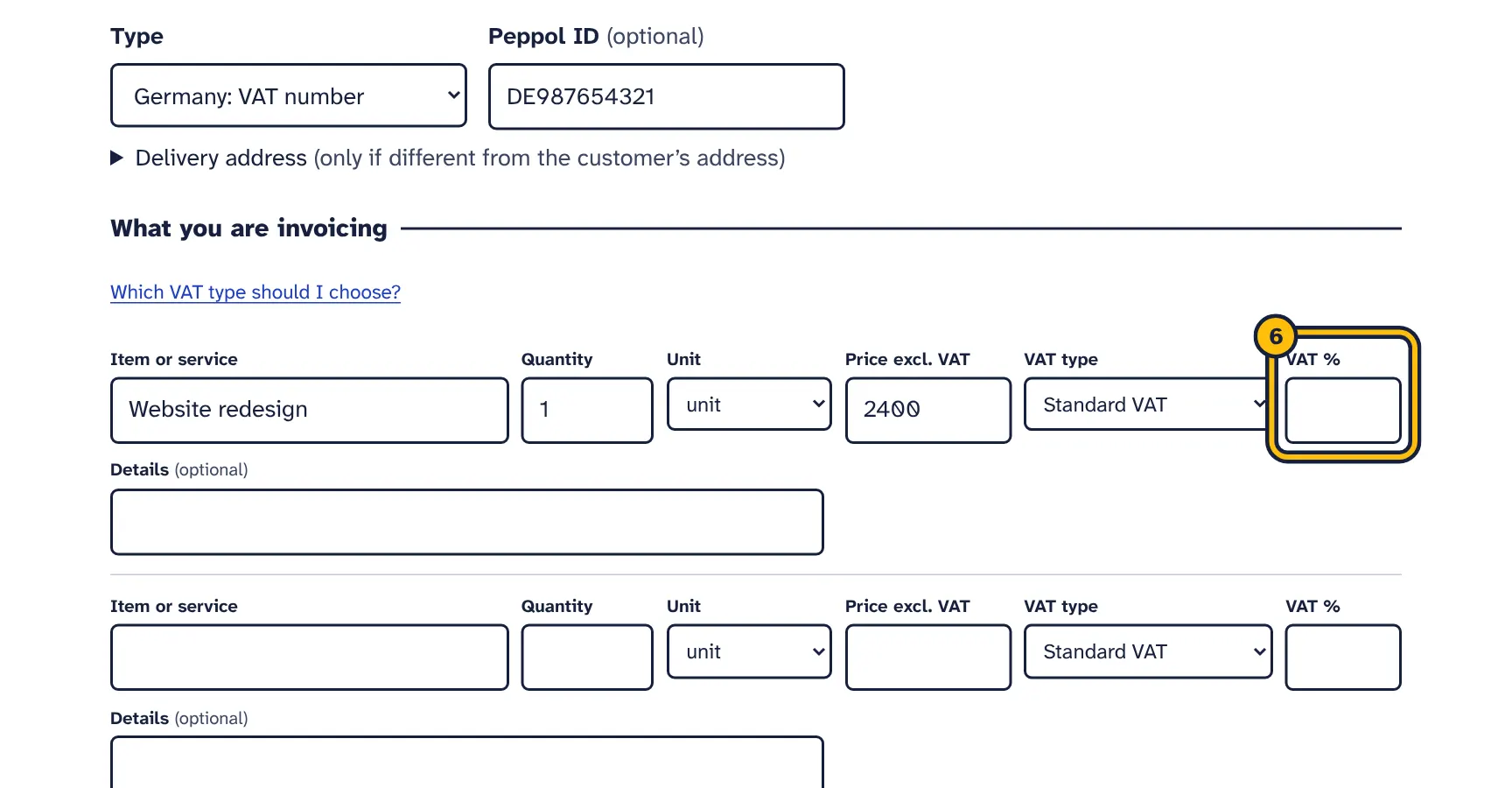
Step 6: Check the VAT rate. -
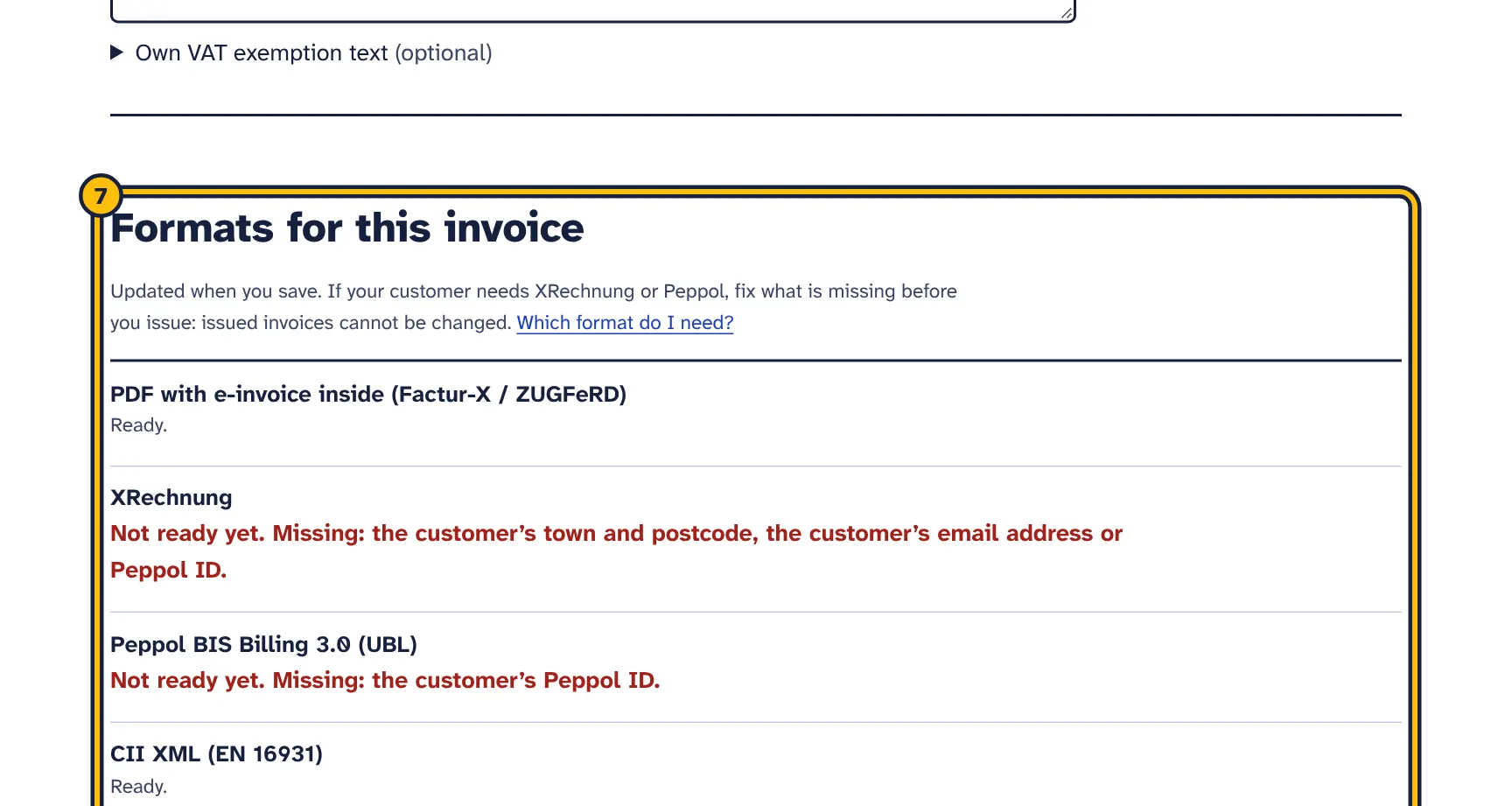
Step 7: This box shows which e-invoice formats the invoice is ready for, and what is missing. -
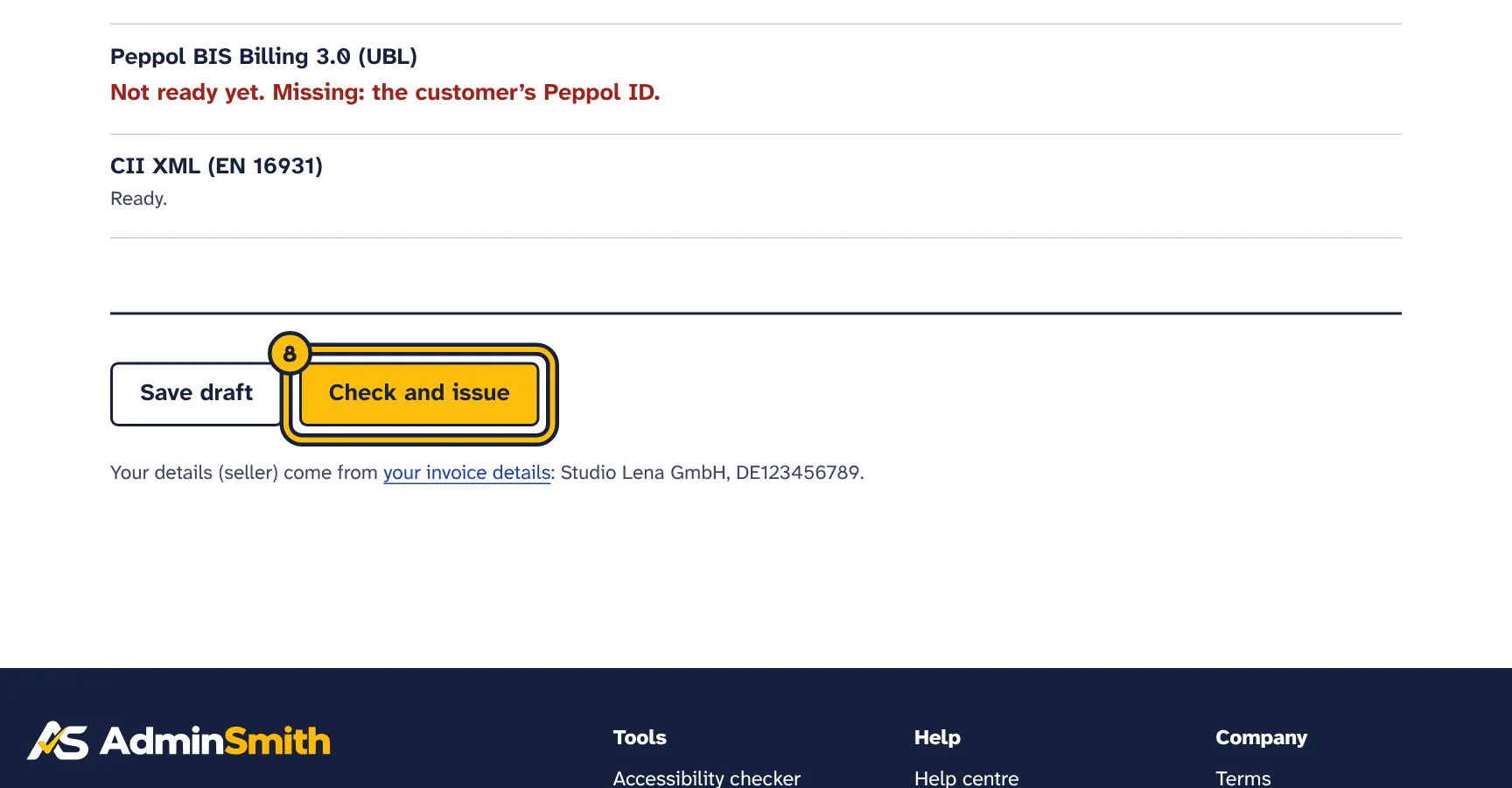
Step 8: Click Check and issue. After issuing, the invoice cannot be changed. -
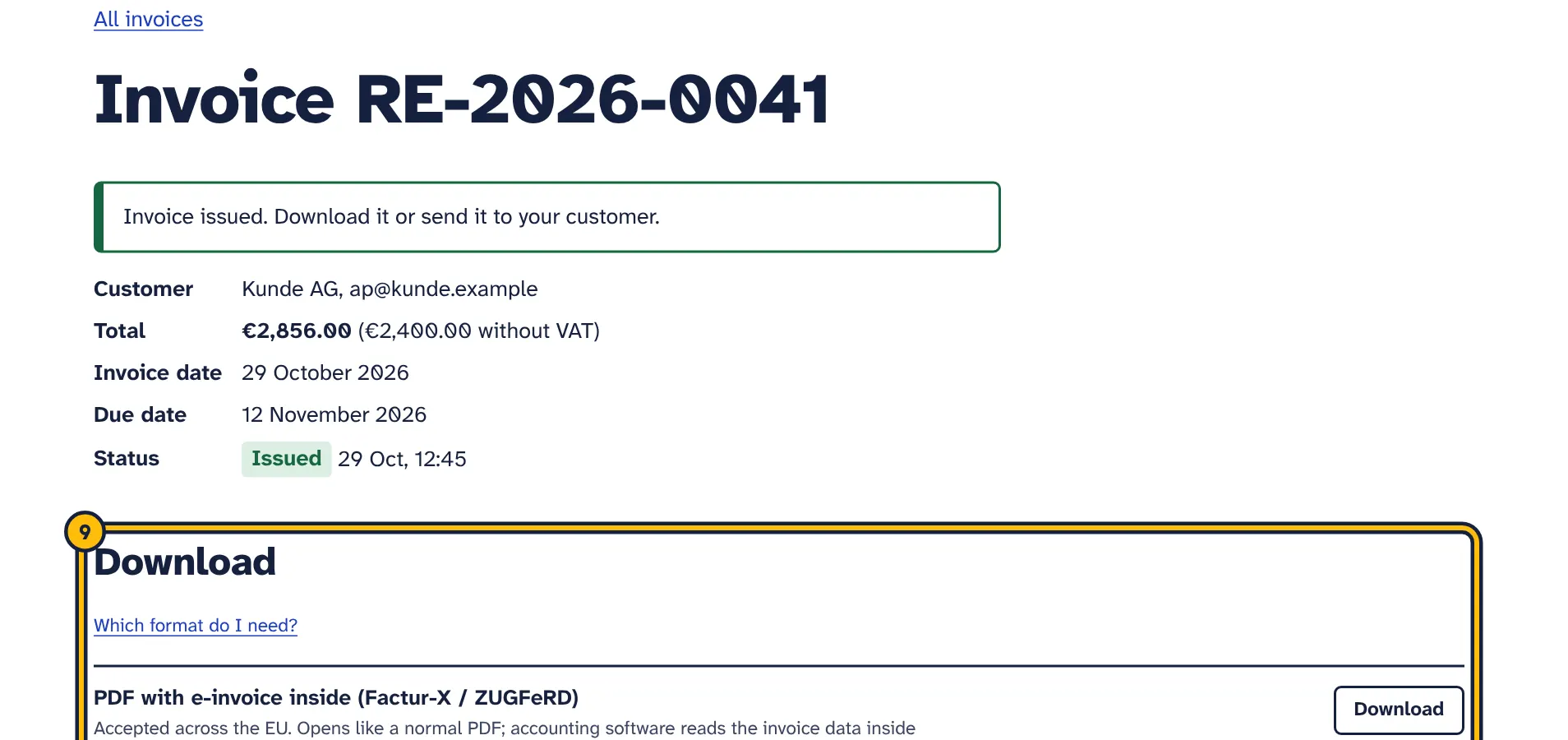
Step 9: Download the format your customer asked for, or send it by email.
Choose New invoice on the e-invoices start page, or New invoice next to a customer. The button appears once your business details are saved and you have a free trial or plan.
Invoice
- Invoice number
- Required. Suggested from Next invoice number. Every number can only be used once, drafts included; if it is taken you see Invoice number … is already used. The next free number is … If you leave it empty, the next free number is used.
- Invoice date
- Required. Today’s date in your time zone, unless you change it.
- Due date
- Filled in from Days to pay. An invoice needs a due date or payment terms, and the due date cannot be before the invoice date.
- Delivery or service date
- Optional, but required for intra-EU supplies. Printed on the PDF and included in the files.
- Currency
- For example EUR, GBP, USD, AUD, CHF, SEK, PLN or CZK.
- Language of the PDF
- English, German, French, Spanish, Italian, Dutch, Polish or Portuguese. Also used for the covering email.
- Customer’s reference
- Optional. The customer’s purchase order number, cost centre or, for German public bodies, the Leitweg-ID, which is required here for them. XRechnung and Peppol files need a buyer reference. When this field is empty, the tool uses the invoice number instead; Peppol files use the Order number when there is one.
- Order number
- Optional. The customer’s order number, if they gave one.
- What you invoice
- Only shown to businesses in France: goods, services or goods and services. French e-invoices must say which applies. Filled in from Usually you invoice.
Saved customers
If you have saved customers, choose one in Saved customer and the customer fields fill in at once. If they do not (for example with JavaScript turned off), choose Fill in this customer. Choose New customer to type a new one.
Customer
The same fields as on the Customers page. What you enter here is saved to the customer when you issue the invoice.
Delivery address
Folded away under Delivery address. Fill it in only when the goods or services go to another address than the customer’s, for example a branch or warehouse: Name (optional), Street and number, Postcode, Town or city and Country. It is written into the files as the delivery address and printed on the PDF next to the customer’s address. A delivery address needs a country.
What you are invoicing
One row per item or service. See Lines and VAT types.
Notes
- Payment terms
- Optional. Copied from your defaults. Printed on the PDF and included in the files.
- Note on the invoice
- Optional, up to 2,000 characters. Printed under the payment details and included in the files as an invoice note. Use it for anything your country requires on the invoice that has no field of its own.
- Own VAT exemption text
- Optional, folded away and opened when a line uses an exempt VAT type. See Lines and VAT types.
Formats for this invoice
Above the buttons, a box lists the four formats. Each says Ready. or Not ready yet. Missing: … with what that format still needs, for example the customer’s Peppol ID. It is updated each time you save. Fix what your customer’s format needs before you issue, because issued invoices cannot be changed. For businesses in France, the box also lists the details French business customers need.
Saving and issuing
- Save draft keeps the draft as it is. Drafts can be changed at any time, do not count towards your plan, and can be removed with Delete this draft.
- When a saved draft passes all checks, a totals box shows Total without VAT, the VAT for each rate and Total.
- Check and issue asks you to confirm; the question also names any format that is not ready. Then it checks the invoice. If it passes, it is issued. If not, the problems are listed at the top and the draft is saved.
- Without a free trial or plan, the button is replaced by the link Choose a plan to issue invoices.
The line under the buttons shows which business details will be used, taken from Your invoice details. To change them, edit your details before you issue.
Lines and VAT types
- Item or service
- Required. What you are invoicing, up to 300 characters.
- Quantity
- Above zero, up to four decimals.
6,5and6.5both work. - Unit
- unit, piece, hour, day, week, month, year, minute, lump sum, set, pair, kg, g, tonne, metre, km, m², m³ or litre. The PDF shows the unit in the invoice’s language.
- Price excl. VAT
- The price of one unit without VAT, zero or more, up to four decimals.
- VAT type
- See the list below.
- VAT %
- Only for Standard VAT: above 0 and below 100, up to two decimals. For other VAT types the field is greyed out.
- Details
- Optional, up to 1,000 characters. Printed under the item on the PDF.
Empty rows are ignored. A new invoice shows three rows; Add more lines saves the draft and adds five more. One invoice can have up to 200 lines.
While you type, a line under the rows shows an estimate of the totals. The exact amounts are calculated when you save: each line is quantity times price, rounded to the cent, and VAT is calculated for each rate on the total of the lines with that rate, rounded half up.
There is no separate discount field, and prices cannot be negative. Enter the discounted price in Price excl. VAT and mention the discount in Details.
VAT types
- Standard VAT
- The normal case. Enter the rate in VAT %, for example
19,20or21. Several rates can be on one invoice. Needs your VAT ID or tax number. - Zero-rated (0 %)
- Goods or services your country taxes at a 0 % rate. Needs your VAT ID or tax number.
- Exempt from VAT
- Supplies exempt under your country’s VAT law, for example some medical or educational services, or a small business under a national exemption scheme. Needs your VAT ID or tax number. Add the exact legal reason under Own VAT exemption text, for example the article of your VAT law.
- Reverse charge
- The customer pays the VAT instead of you, typically a business customer in another EU country buying services. Needs your VAT ID and the customer’s VAT ID or registration number. The files carry the reason
Reverse chargeand the codeVATEX-EU-AE. - Intra-EU supply (VAT-free)
- Goods sent to a VAT-registered business in another EU country or Northern Ireland. Needs both VAT IDs, the Delivery or service date and a customer in another EU country. The customer’s address is used as delivery address. Code
VATEX-EU-IC. - Export outside the EU
- Goods exported to a customer outside the EU. Needs your VAT ID. Code
VATEX-EU-G. - Not subject to VAT
- Supplies outside the scope of VAT, or a seller who is not registered for VAT. It cannot be mixed with other VAT types on one invoice. The European standard does not allow VAT IDs on these invoices (rule BR-O-02): your own VAT ID is left out of that invoice automatically, and you remove the customer’s. You need a company registration number or Seller ID instead. Code
VATEX-EU-O.
Which VAT type applies depends on your country’s VAT law and on what you sell. As a general rule in the EU, services to a business customer in another EU country usually use Reverse charge, and goods shipped to a business customer in another EU country use Intra-EU supply (VAT-free). Ask your accountant if you are unsure. This is general information, not tax advice.
Exemption reasons and your own text
For every type except standard and zero-rated VAT, the files and the PDF carry a reason in the invoice’s language. For reverse charge this is the wording of the EU VAT Directive in that language, for example Steuerschuldnerschaft des Leistungsempfängers in German or Autoliquidation in French.
Under Own VAT exemption text you can add a legal reference for each of Exempt from VAT, Reverse charge, Intra-EU supply (VAT-free), Export outside the EU and Not subject to VAT, for example Article 138 Directive 2006/112/EC or the article of your national VAT law. It is added after the standard wording, for example Steuerfreie innergemeinschaftliche Lieferung: Artikel 138 Richtlinie 2006/112/EG, and printed on the PDF with the notes. Your usual texts can be saved in Your invoice details.
On the PDF, standard VAT is shown per rate, for example VAT 19 % on €2,400.00; other types show their reason, for example VAT: Reverse charge.
Formats: which file for which customer
Every issued invoice and credit note can be downloaded in four formats. They all hold the same data, following the European standard EN 16931. The draft shows which ones are ready before you issue.
- PDF with e-invoice inside (Factur-X / ZUGFeRD)
- A PDF/A-3 file that people read like any invoice, with the invoice data attached as
factur-x.xmlin the EN 16931 profile. Accepted as ZUGFeRD in Germany and as Factur-X in France. Always available. - XRechnung
- An XML file following XRechnung 3.0, the German standard, in UBL syntax. Required by German public bodies and accepted by German businesses. Needs contact details and addresses; see checks.
- Peppol BIS Billing 3.0 (UBL)
- An XML file for the Peppol network. Needs your Peppol ID and the customer’s. Dutch sellers also need a KvK or OIN number and their full address.
- CII XML (EN 16931)
- The same data as inside the PDF, as a separate XML file in UN/CEFACT CII syntax, for accounting software that imports CII. Always available.
Which one to use
- German business customer: the PDF (ZUGFeRD) is usually easiest, because people can read it and software can import it. Use XRechnung if the customer asks for it.
- German public body: XRechnung, with the Leitweg-ID in Customer’s reference. Send it the way the public body asks, usually by uploading it to its invoice portal or through Peppol.
- French business customer: the PDF (Factur-X). Once the French reform applies to you, upload it to your plateforme agréée instead of emailing it. See Factur-X and the French reform.
- Belgian business customer, if you are VAT-registered in Belgium: the Peppol BIS Billing 3.0 (UBL) file, uploaded to your Peppol access point. See Peppol e-invoicing.
- Customers in the Netherlands, the Nordic countries and others who receive through Peppol: the Peppol file.
- Accounting software that imports CII files: the CII XML (EN 16931) file.
- Everyone else, including customers outside the EU: the PDF.
The tool creates files. It does not connect to the Peppol network or to French approved platforms, so it cannot deliver invoices through them. Download the file and upload it to your access point, accounting software or platform.
Not sure? Ask your customer’s accounts team which format and route they want. For the rules in each country, see XRechnung, Factur-X and Peppol.
Checks and what the messages mean
Checks run when you choose Check and issue. There are two kinds:
- Problems that block issuing appear in a box at the top: Fix … things before this invoice can be issued. Each message links to the field, and the draft is saved, so nothing is lost. Messages about your own details or bank details link straight to that field on Your invoice details; save there, then come back to the draft.
- Format notes appear in the box Formats for this invoice on the draft (Not ready yet. Missing: …), and on the issued invoice next to a format that is not ready (Not ready. This invoice is missing …). They never affect the PDF and CII files.
The checks follow the EN 16931 business rules plus the extra rules of XRechnung 3.0 and Peppol BIS Billing 3.0. During development, sample invoices for each VAT type were run through the official validators for these three, and the tool’s verdict matched theirs. The tool checks that numbers are well formed, such as a VAT ID’s country prefix or an IBAN’s checksum, but it cannot check that a VAT ID is really registered. You can check that in the EU’s VIES service.
Common messages and how to fix them
- Add your VAT ID or company registration number in your invoice details. …
- The European standard requires that the customer can identify you. Add a VAT ID, a Company registration number or, if you have neither, a Seller ID in Your invoice details. A tax number alone is not enough here.
- Add your VAT ID or tax number in your invoice details. …
- Invoices with Standard VAT, Zero-rated (0 %) or Exempt from VAT must show your VAT ID or tax number. Add one in Your invoice details.
- Reverse charge invoices need the customer’s VAT ID.
- Enter the customer’s VAT ID (or Company registration number). Also check that your own VAT ID is saved.
- Intra-EU supplies need the delivery date.
- Fill in Delivery or service date. Intra-EU supplies also need both VAT IDs and a customer in another EU country.
- Intra-EU supplies go to a customer in another EU country.
- For customers outside the EU use Export outside the EU. For services to EU businesses, Reverse charge is usually the right type. If you entered a delivery address, it must be in an EU country too.
- “Not subject to VAT” cannot be mixed with other VAT types on one invoice. …
- Put those lines on a separate invoice.
- Invoices that are not subject to VAT must not show the customer’s VAT ID. …
- Remove the customer’s VAT ID on this invoice. Your own VAT ID is left out automatically; the draft says so under Formats for this invoice.
- This credit note (…) is higher than invoice …
- A credit note cannot credit more than the invoice it corrects. Lower the quantities or prices.
- A SIREN has exactly 9 digits.
- Check the customer’s Company registration number, or your own in Your invoice details. A 14-digit number is a SIRET; for the French reform use the 9-digit SIREN.
- Choose the country of the delivery address.
- Choose a Country under Delivery address, or empty all delivery address fields if the delivery goes to the customer’s address.
- A Leitweg-ID identifies a German public body as a customer. …
- Choose another Type for your own Peppol ID in Your invoice details.
- Line 1: enter the VAT rate, for example 20.
- Fill in VAT % for that line, or choose another VAT type.
- Line 1: enter a quantity above zero.
- Quantities must be above zero, also on credit notes: a credit note lists what it credits with positive amounts. Negative lines are not supported; to give money back, create a credit note from the issued invoice.
- Enter a valid IBAN for SEPA transfers.
- Your IBAN is missing or has a typing mistake. Correct it in Your invoice details, or choose another Payment method there.
- Enter the bank account number for transfers.
- For Bank transfer (outside SEPA), enter an IBAN or Account number (outside SEPA only) in Your invoice details.
- Your VAT ID must start with your country code, for example DE123456789.
- Add the two-letter prefix, for example
DE,FRorBE. Greece usesEL. The same applies to the customer’s VAT ID. - Enter a due date or payment terms.
- Fill in Due date or Payment terms.
- Invoice number … is already used. The next free number is …
- Use the suggested number, or another one you have not used.
Format notes
- XRechnung
- Needs a contact name, phone number and email address in your details; the postcode and town for you and the customer; and an email address or Peppol ID for you and for the customer.
- Peppol BIS Billing 3.0 (UBL)
- Needs your Peppol ID and the customer’s. Dutch sellers also need Type of registration number set to KvK or OIN with the number, and a full street address; for Dutch customers of Dutch sellers, the customer’s full address too.
Fix format notes while the invoice is still a draft. If you already issued an invoice and the customer needs a format that was not ready, do not simply issue a second invoice for the same sale: correct the first one with a credit note, then issue a new invoice with the missing details.
Plan limit
You have issued all … invoices and credit notes in your trial (or plan this month) means the limit is reached. The draft is kept. Upgrade, or wait for the next calendar month on a paid plan. See Limits.
The PDF (Factur-X / ZUGFeRD)
The PDF is both a normal invoice and an e-invoice. It is built as PDF/A-3, the archive format that Factur-X and ZUGFeRD use: fonts are embedded, colours use an sRGB profile, and the invoice data is attached as factur-x.xml in CII syntax with the EN 16931 profile. PDF readers show it like any PDF; accounting software reads the attached data. The PDF and the XML are made from the same data, so they always match.
What is on the PDF
- Your logo, trading or legal name, address and contact details.
- The title, invoice number, invoice date, due date, delivery date, customer’s reference, order number and, for French businesses, the type of supply.
- The customer’s name, address, VAT ID and registration number, and the delivery address next to it when there is one.
- A table of lines with description, quantity and unit, unit price, VAT rate and amount.
- The total without VAT, VAT per rate or the exemption reason, the total and the amount due.
- Payment instructions: amount and due date, account holder, IBAN, BIC and the invoice number as payment reference, or the payment method; then payment terms, your own exemption texts, the VAT-on-debits mention and the French legal notes if they apply, and your note.
- A footer on every page with your legal name, VAT ID, tax number, registration number, legal information, page numbers and a line saying the PDF contains a machine-readable e-invoice.
Long invoices continue on more pages, with the table header repeated.
A credit note PDF has its own title in the PDF’s language: Credit note, Rechnungskorrektur, Avoir, Factura rectificativa, Nota di credito, Creditnota, Faktura korygująca or Nota de crédito. Under the facts it says which invoice it corrects, it shows the Amount credited instead of the amount due, and it has no payment instructions.
Languages
Choose Language of the PDF on the invoice: English, German, French, Spanish, Italian, Dutch, Polish or Portuguese. Labels, dates, numbers, amounts, units, country names and VAT exemption reasons follow that language, and the covering email uses it too. Item names, details, notes, payment terms and your own exemption texts are printed as you typed them.
Set each customer’s language with Language of their invoices, and your default with Language of the PDF in Your invoice details.
Factur-X and ZUGFeRD profiles
Factur-X (France) and ZUGFeRD (Germany) are the same standard. The tool creates the EN 16931 profile, which carries the full invoice data. Germany does not accept the smaller MINIMUM and BASIC WL profiles as e-invoices, so the EN 16931 profile is the safe choice.
Download or send
Download
On the issued invoice, under Download, choose Download next to a format. Files are named after the invoice number: RE-2026-0001.pdf, RE-2026-0001-xrechnung.xml, RE-2026-0001-peppol.xml and RE-2026-0001-cii.xml.
Email from your own address
- Connect your mailbox once: open Connections and fill in Your email for sending with Sender name, Sender email address, SMTP server, Port, Username and Password or app password from your email provider. Until you do, the invoice shows Connect your email instead of the form.
- On the issued invoice, under Send to the customer, check the Email address. It is filled in from the customer.
- If the customer wants them, tick Also attach the XRechnung file or Also attach the Peppol UBL file. A box is greyed out when that format is not ready for this invoice.
- Choose Send invoice (on a credit note: Send credit note).
The email goes out from your own mailbox, so the customer sees your name and replies come to you. Subject and text are in the invoice’s language, for example Invoice 2026-0001 from Your Business, and name the amount and due date. A credit note’s email names the invoice it corrects, for example Rechnungskorrektur 2026-0007 von Your Business. The PDF is always attached. The CII file can only be downloaded.
After sending you see Invoice sent. (or Credit note sent.) The invoice shows who it was emailed to and when, and the start page shows Emailed with the date. If sending fails, a message explains why, for example that your email provider did not accept the password; many providers need an app password. You can send up to 10 emails a minute.
Peppol and French platforms
The tool does not send through Peppol or French approved platforms. Download the Peppol BIS Billing 3.0 (UBL) file or the PDF and upload it in your Peppol access point, Peppol-connected accounting software or plateforme agréée. Your provider delivers it and shows you the delivery status.
- Germany: email is an accepted route for e-invoices, so Send invoice works for ZUGFeRD PDFs and XRechnung files.
- Belgium: between Belgian businesses the default is the Peppol network. Use your access point unless your customer agreed otherwise.
- France: once the reform applies to you, invoices to French businesses go through your plateforme agréée.
Keep copies
Issued invoices stay in your account. Tax rules require you to keep invoices for several years, and in Germany the structured data must be kept in its original form, so also store the downloaded files in your own accounting archive.
Correct an invoice with a credit note
Issued invoices cannot be changed or deleted, because tax rules expect you to keep them unchanged. To correct one, create a credit note that refers to it.
- Open the issued invoice and choose Create a credit note.
- A draft credit note opens with the same customer, currency, language and lines. A line at the top says which invoice it corrects.
- To credit only part of the invoice, lower the quantities or prices, or remove lines. Amounts stay positive: a credit note credits what it lists.
- Check Credit note date and Due date, add a note if you like, and save.
- Choose Check and issue. The credit note is checked like an invoice and gets the next free number from the same series.
- Download it or send it with Send credit note. If the sale needs a corrected invoice, open the original invoice and choose Copy into a new draft.
In the files, a credit note is a UBL CreditNote, or type code 381 in CII and Factur-X, with the number and date of the corrected invoice (BT-25 and BT-26). During development, credit notes for every VAT type were run through the official EN 16931, Peppol BIS Billing 3.0 and XRechnung validators and passed.
- A credit note cannot credit more than the invoice it corrects, and it uses the invoice’s currency.
- The invoice it corrects cannot be changed on the draft.
- The original invoice lists its credit notes, and the start page shows credit notes with a minus sign; they are subtracted from Invoiced this month.
- Credit notes count towards your plan’s monthly limit, like invoices.
- In German, the PDF is titled Rechnungskorrektur, not Gutschrift, because in German VAT law Gutschrift means an invoice issued by the customer (self-billing).
Whether a credit note, a cancelling invoice or a corrected invoice is the right correction depends on your country’s rules. Ask your accountant if you are unsure. This is general information, not tax advice.
After issuing: copies and reminders
- Copy into a new draft
- Creates a new draft with the same customer, language, currency, customer’s reference, type of supply, delivery address and lines, with the next free number and today’s dates. Useful for repeat work and for corrected invoices. Not offered on credit notes.
- Send payment reminders for this invoice
- Shown on invoices when you also have a trial or plan for payment reminders. It adds the invoice, with its PDF, to payment reminders, which can then send reminders from your own email. The customer needs an email address on the invoice. Afterwards the button becomes See its payment reminders.
- Issue all drafts that pass the checks
- On the start page when you have two or more drafts, credit notes included. Issues every draft that passes the checks, oldest first, and leaves the others as drafts. It stops issuing when your plan limit is reached.
Changes to Your invoice details or to a customer only affect invoices you issue afterwards.
Create invoices from a CSV file
Available on the Pro plan and in the free trial. On the start page choose Create from a CSV file.
- Choose Download an example file and use it as a template, or export a CSV from your shop or spreadsheet.
- Use one row per invoice line. Rows with the same invoice number become one invoice. Without an invoice number column, every row becomes its own invoice.
- Under CSV file, choose your file, then Check the file.
- Read the preview: how many invoices and lines will be created, invoices that are skipped, problems with your own details, and the problems of each invoice with the row of your file.
- Choose Create … drafts, or Choose another file to start again.
- Open the drafts from the start page, fix what the preview listed, and issue them one by one or with Issue all drafts that pass the checks.
Columns
- Customer name
- Needed.
- Customer country
- Needed. A two-letter code such as
DE, or the English country name, such asGermany. - Item
- Needed. What you are invoicing.
- Unit price
- Needed. The price of one unit without VAT.
- Invoice number
- Optional. Groups rows into invoices. A number that is already used in your account is never changed for you: that invoice is skipped and listed in the preview and afterwards. Rows without a number get the next free number.
- Customer email, Street, Postcode, City, VAT ID, Customer reference
- Optional customer details.
- Invoice date, Due date
- Optional. Without them, the invoice date is today and the due date follows Days to pay. Dates such as
2026-10-28or28.10.2026are recognised; the date order is worked out from the whole file. - Currency
- Optional. A three-letter code such as
EUR. Otherwise your usual currency. - Quantity
- Optional. Defaults to 1.
- Unit
- Optional. A unit code such as
HURor a name such ashourorhours. Defaults to unit. - VAT rate
- Optional. A rate above 0 means Standard VAT at that rate,
0means Zero-rated (0 %), and an empty cell uses your Usual VAT type and Usual VAT rate (%). - VAT category
- Optional.
S,Z,E,AE,K,GorOfor standard, zero-rated, exempt, reverse charge, intra-EU supply, export or not subject to VAT. Overrides the guess from the VAT rate.
Column names are recognised in several languages, for example Rechnungsnummer, Kunde, Menge or Prix unitaire. If needed columns are missing you see their names, for example We could not find these columns: Customer country, Unit price.
The preview runs the same checks as Check and issue: countries, currencies, dates, units and VAT categories, and the EN 16931 rules, such as a missing VAT ID for reverse charge. Problems are shown with the row of your file, for example Row 3: Reverse charge invoices need the customer’s VAT ID. Problems with your own details are listed once, with a link to Your invoice details. Drafts are created even when they have problems, so you can fix them in the app.
Imported drafts use the business details, payment details, language, payment terms, type of supply and exemption texts from Your invoice details.
A file can be up to 2 MB. The first 5,000 rows and up to 500 invoices per file are read; if your file has more, the preview says how many rows or invoices were skipped, so you can upload the rest in a second file.
There is no direct connection to online shops or accounting software. Export your orders or invoices as CSV and match the column names to the example file.
Limits and what the tool does not do
Plan limits
- Free trial: up to 5 issued invoices for the whole trial, with CSV import.
- Starter: up to 50 issued invoices per calendar month, without CSV import.
- Pro: up to 500 issued invoices per calendar month, with CSV import.
Only issuing counts, and credit notes count like invoices. Drafts, downloads, emails and copies are not counted. The start page shows Issued this month (or Issued in your trial) as used of allowed. Prices are on the plans page.
When your trial ends without a plan, your drafts, issued invoices and customers stay in your account, and you can still open and download issued invoices. Issuing new invoices needs a plan.
Other limits
- Up to 200 lines per invoice.
- Logo: PNG or JPEG up to 500 KB.
- CSV files: up to 2 MB, 5,000 rows and 500 invoices.
- Email: up to 10 invoices a minute.
What the tool does not do
- It does not connect to the Peppol network or to French approved platforms. It creates files that you upload there.
- It has no discount or surcharge fields, and quantities and prices cannot be negative; corrections are made with credit notes.
- It does not receive or read incoming e-invoices.
- It does not check VAT IDs against official registers.
- The Peppol file allows only one note, so French legal notes are joined into it without their codes; French customers should get the Factur-X, which carries them as coded notes.
- XRechnung is created in UBL syntax only, and the Peppol file follows the European BIS Billing 3.0 specification, not the Australian and New Zealand one.
Troubleshooting
- There is no New invoice button
- Your business details are not saved yet (the start page says Start here), or you have no free trial or plan for e-invoices.
- New invoice takes me to Your invoice details
- Save at least your Legal name and Country first, with Save details.
- My IBAN is rejected
- The checksum does not match, usually because of a typing mistake. Copy it from a bank statement. Spaces are fine.
- XRechnung or Peppol shows Not ready
- The message lists what is missing. Add it to Your invoice details or the customer and save the draft again; see Format notes.
- The attach boxes are greyed out
- That format is not ready for this invoice. The PDF is still attached.
- I see Connect your email instead of the send form
- Connect your mailbox under Connections.
- Your email provider did not accept the username or password
- Many providers need an app password instead of your normal password. Create one in your email account’s security settings and enter it in Connections.
- The totals box does not appear
- It appears when a saved draft passes all checks. Choose Save draft or Check and issue to see what is missing.
- The VAT % field is greyed out
- It only applies to Standard VAT. Other VAT types have no rate.
- There is no Create from a CSV file button
- CSV import is part of the Pro plan and the free trial.
- Some invoices from my CSV file were not created
- Their number was already used in your account, drafts included. The preview and the start page list them. Give them new numbers in the file and import it again.
- An XRechnung or Peppol file is not ready on an issued invoice
- Correct the invoice with a credit note, add the missing details, and issue a new invoice. Next time, check Formats for this invoice on the draft.
- My customer’s software rejected a file
- Ask for the exact error message and rule code. Most rejections come from details that are well formed but wrong, such as a mistyped VAT ID, Peppol ID or Leitweg-ID. Correct the details, then correct the rejected invoice with a credit note if your accountant advises it.
Still stuck? Email support@adminsmith.com and tell us what you tried. See also Connecting your own accounts and Your account, plans and billing.