
AI receptionist guide
Everything you need to set up the AI receptionist and use every option, from your first test chat to WhatsApp and missed calls.
Open AI receptionist How it works and plans
This guide shows 7 tasks step by step, as a short video and in pictures. Look for the sections marked “video”.
Set up in four steps
The same steps in pictures:
-
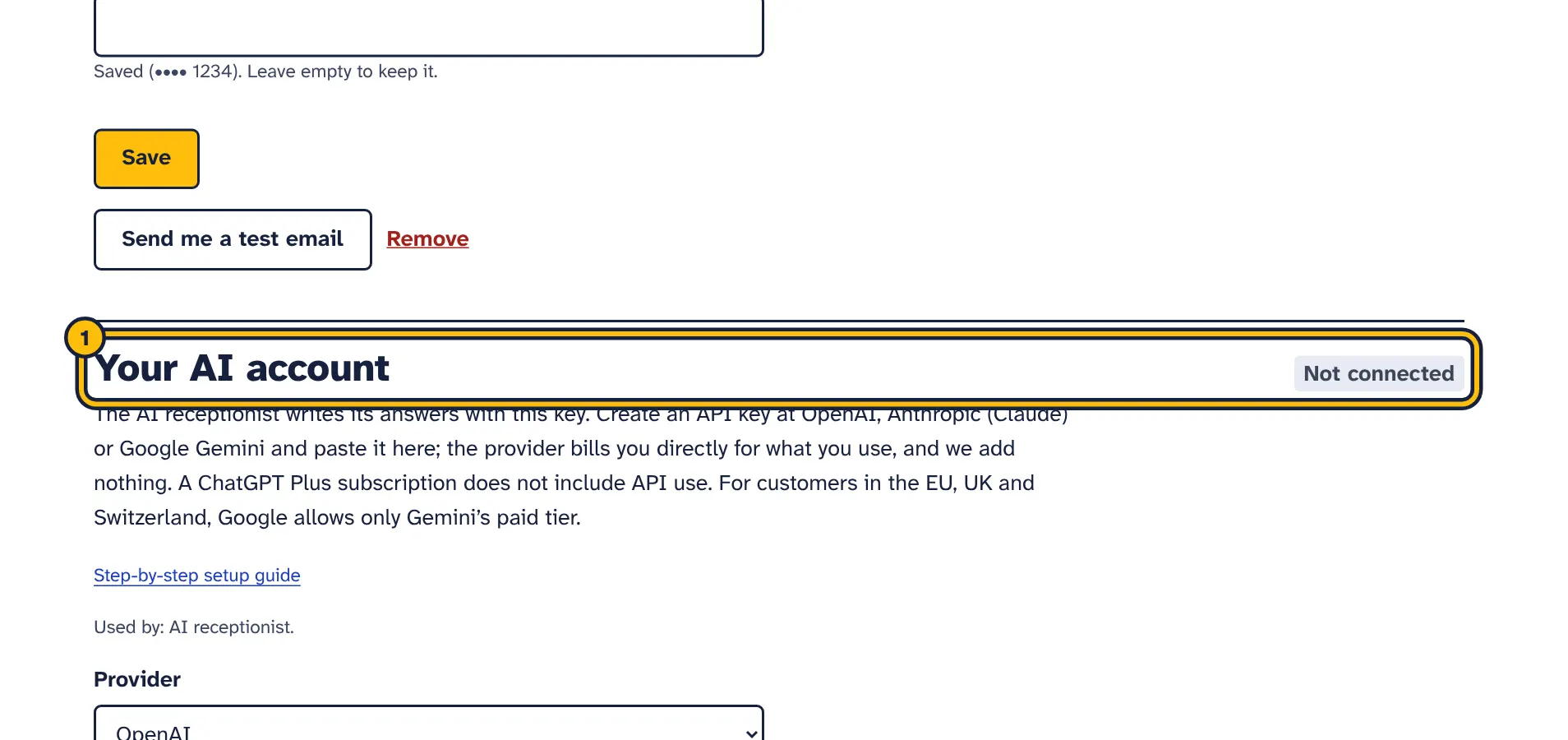
Step 1: First create an API key at OpenAI, Anthropic or Google Gemini. The guide shows where. -
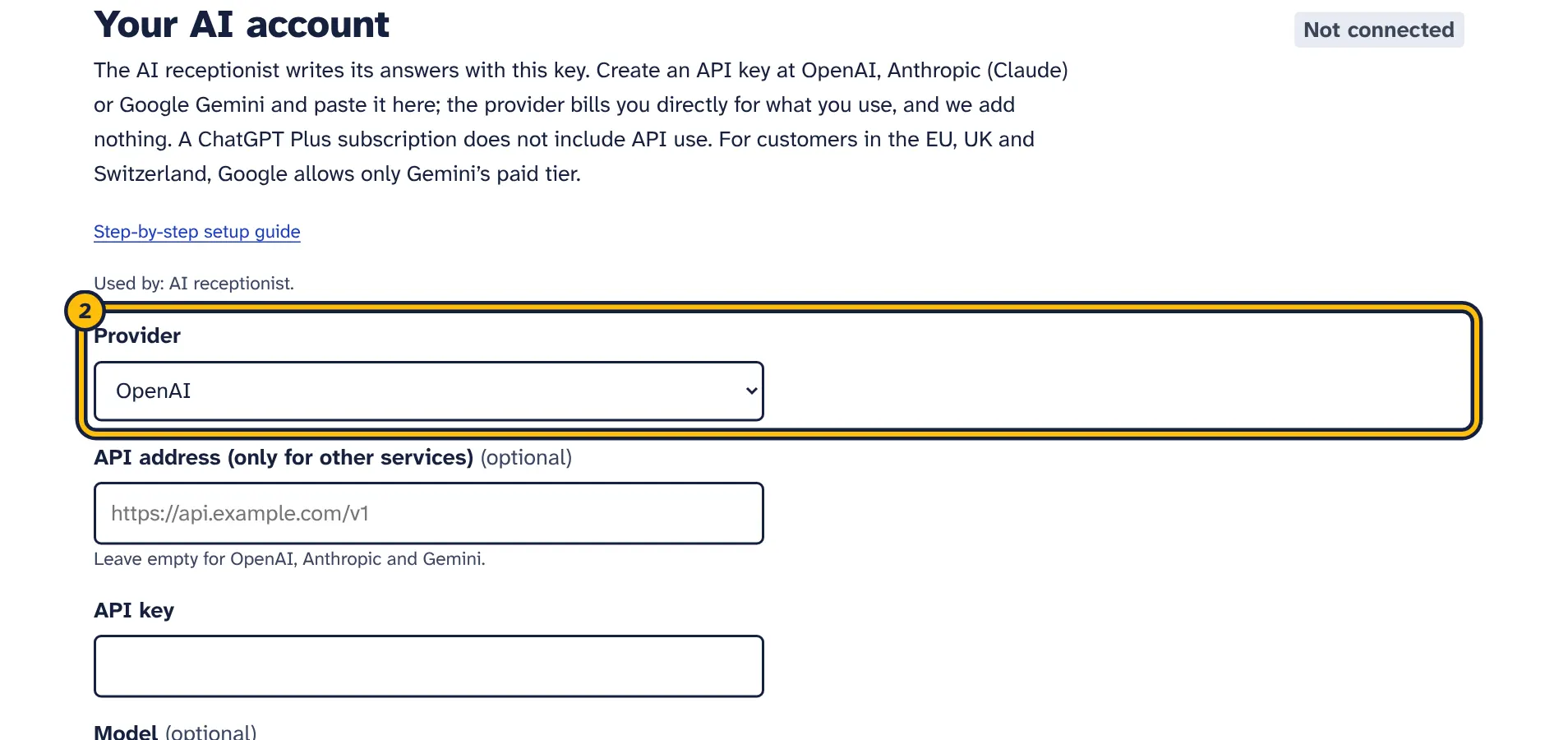
Step 2: Choose your AI provider, for example OpenAI. -
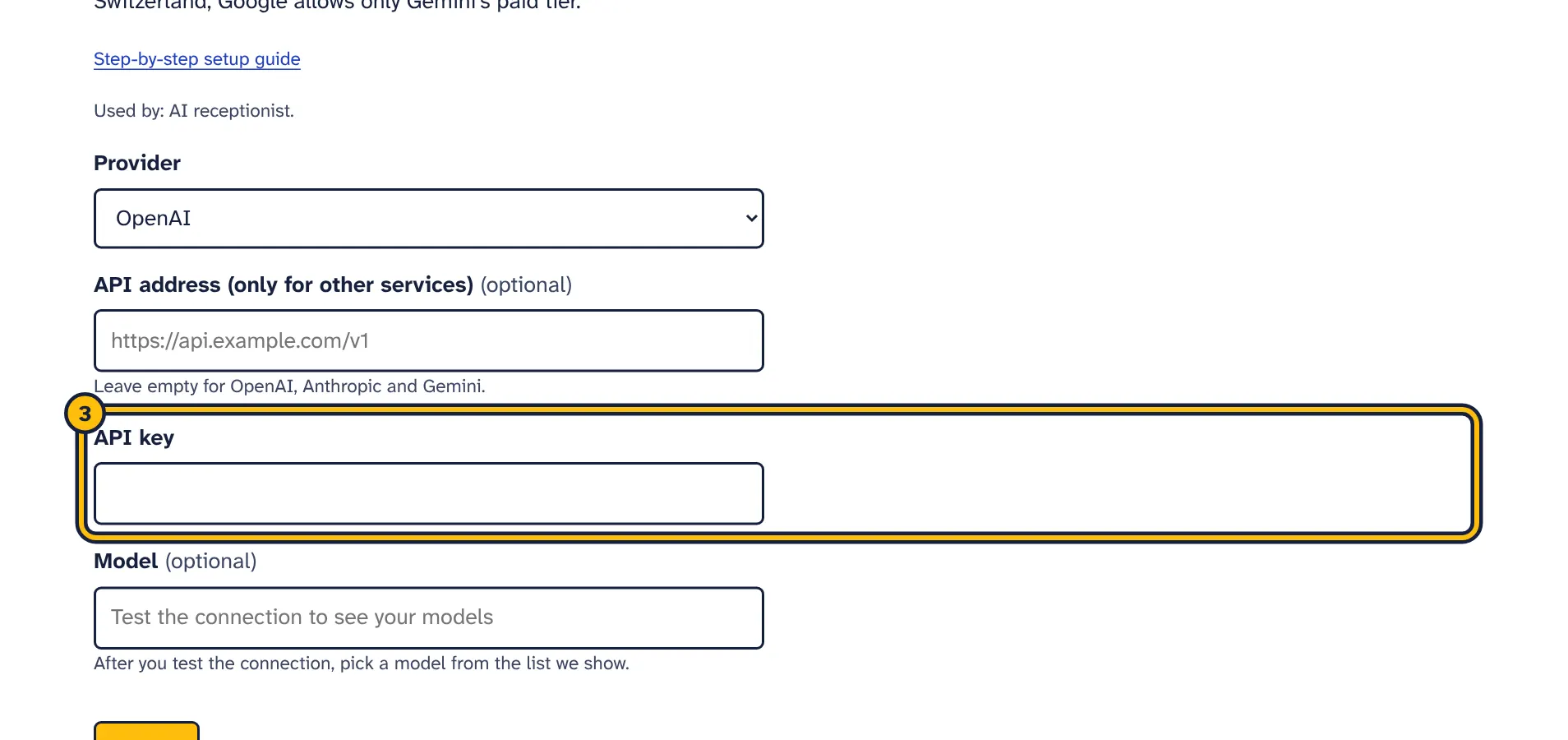
Step 3: Paste the API key you created at your provider. -
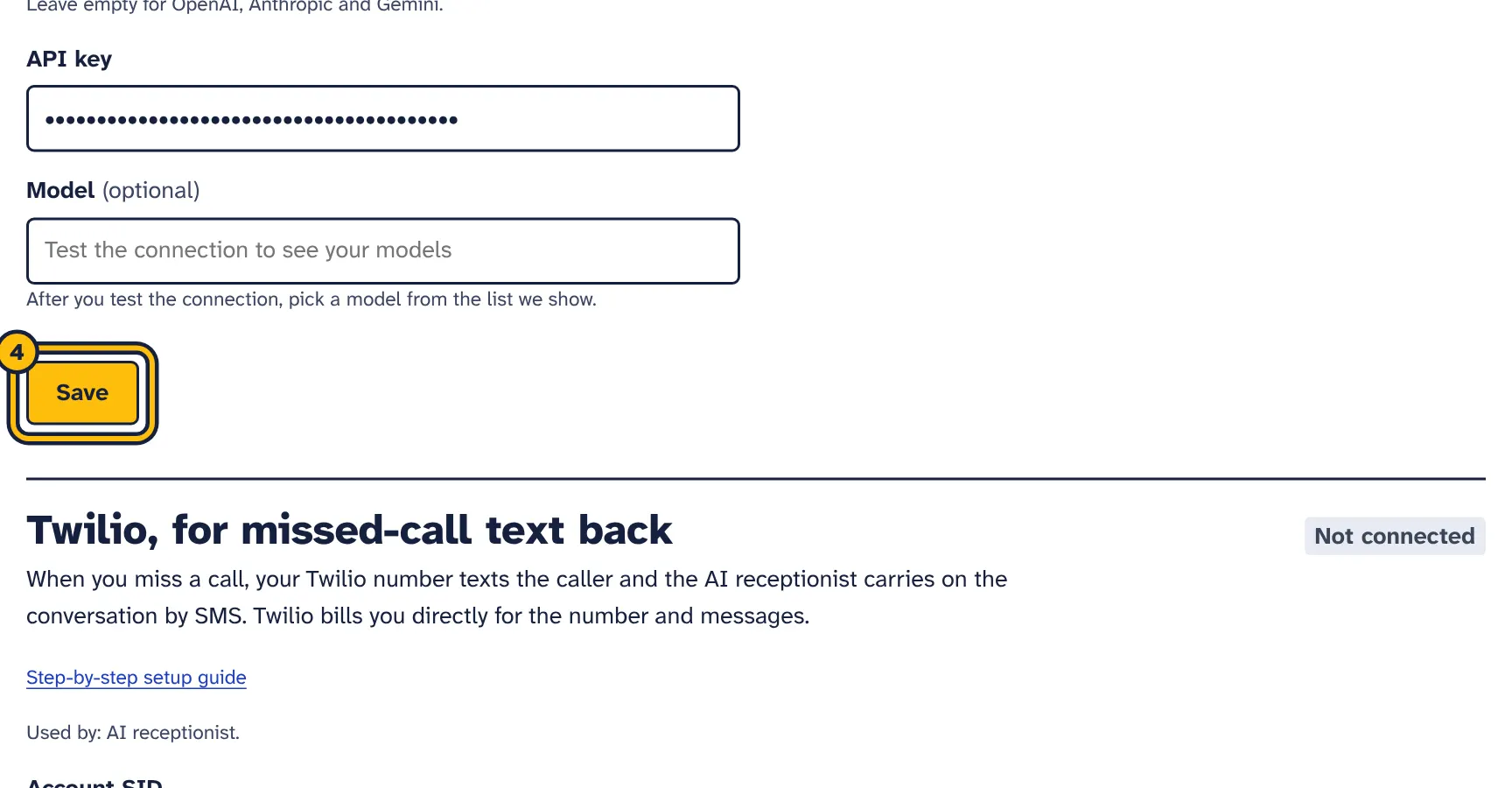
Step 4: Click Save. -
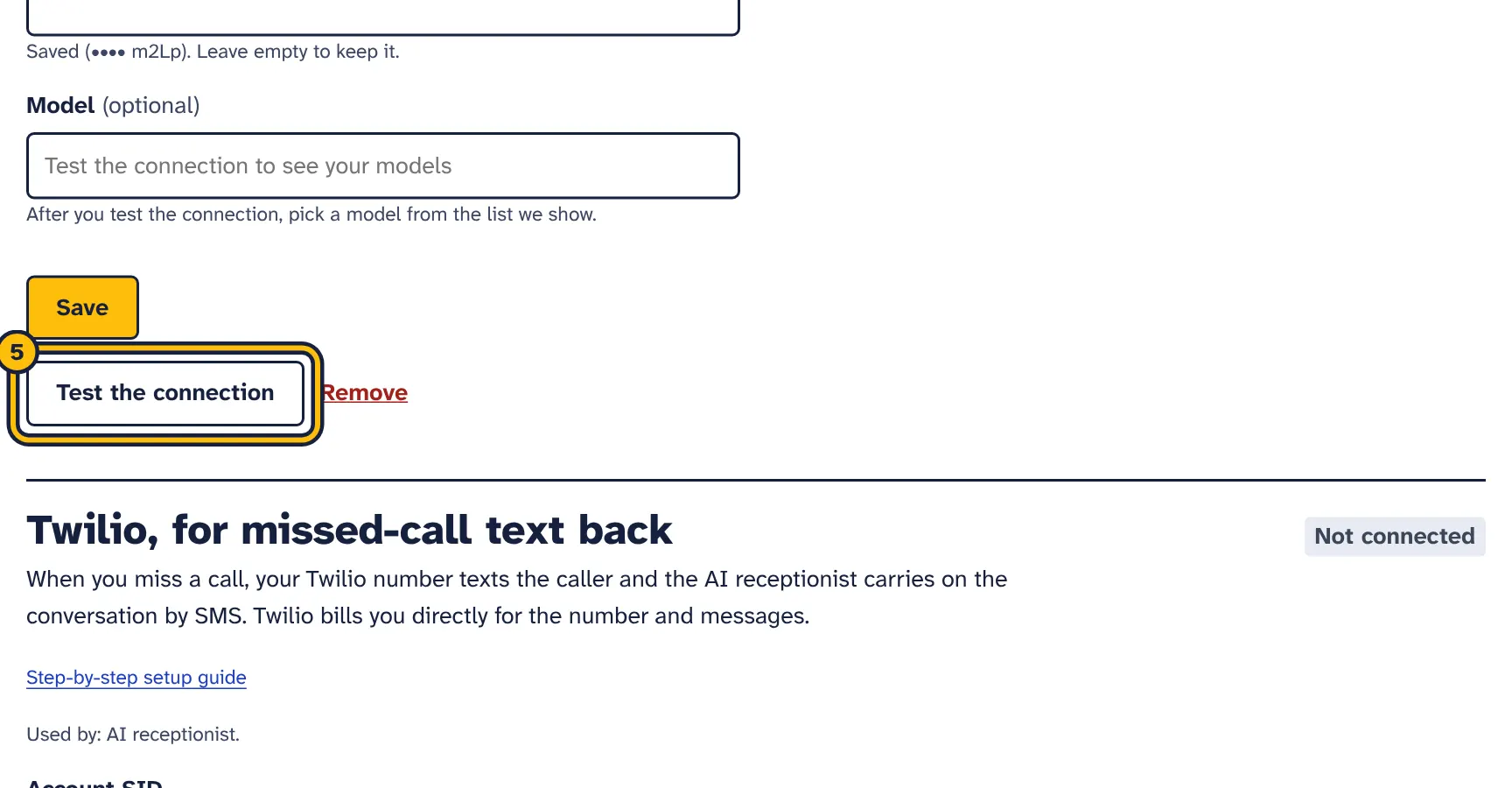
Step 5: Click Test the connection. -
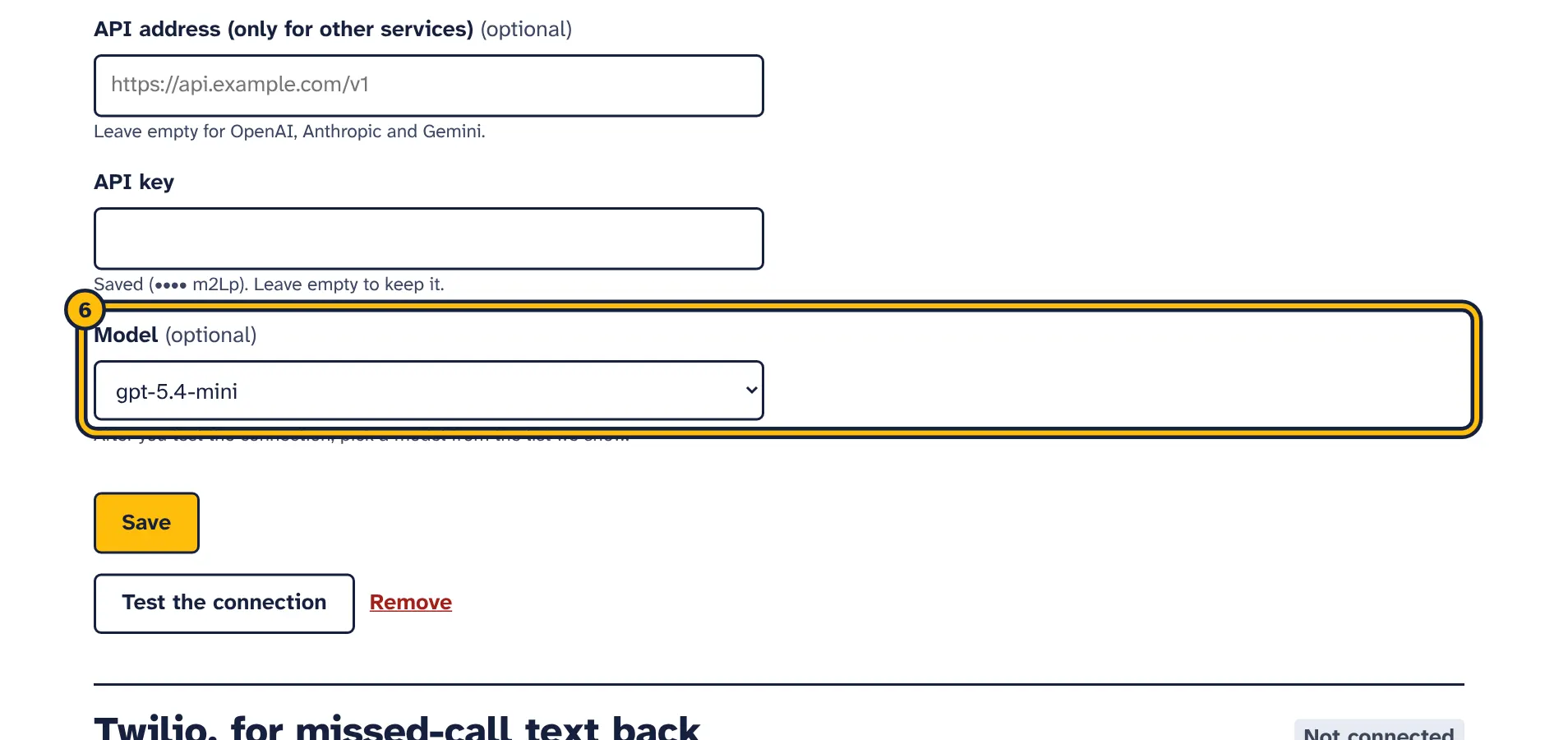
Step 6: Your key works. A small, fast model is picked for you; you can choose another one here.
- Connect your AI key: create an API key at OpenAI, Anthropic (Claude) or Google Gemini and add it under Connections. The guide shows every click and has a short video.
- Open AI receptionist and click Add your business information. Fill in the form and click Save and test it.
- On Test the assistant, ask the questions your customers ask and improve your information until the answers are right.
- On Look and install, copy the line of code and paste it on your website.
The overview page shows a checklist until these steps are done, then your numbers: conversations this month (or in your trial) out of your plan’s allowance, enquiries in the last 30 days, and conversations you have not read yet.
Business information
The same steps in pictures:
-
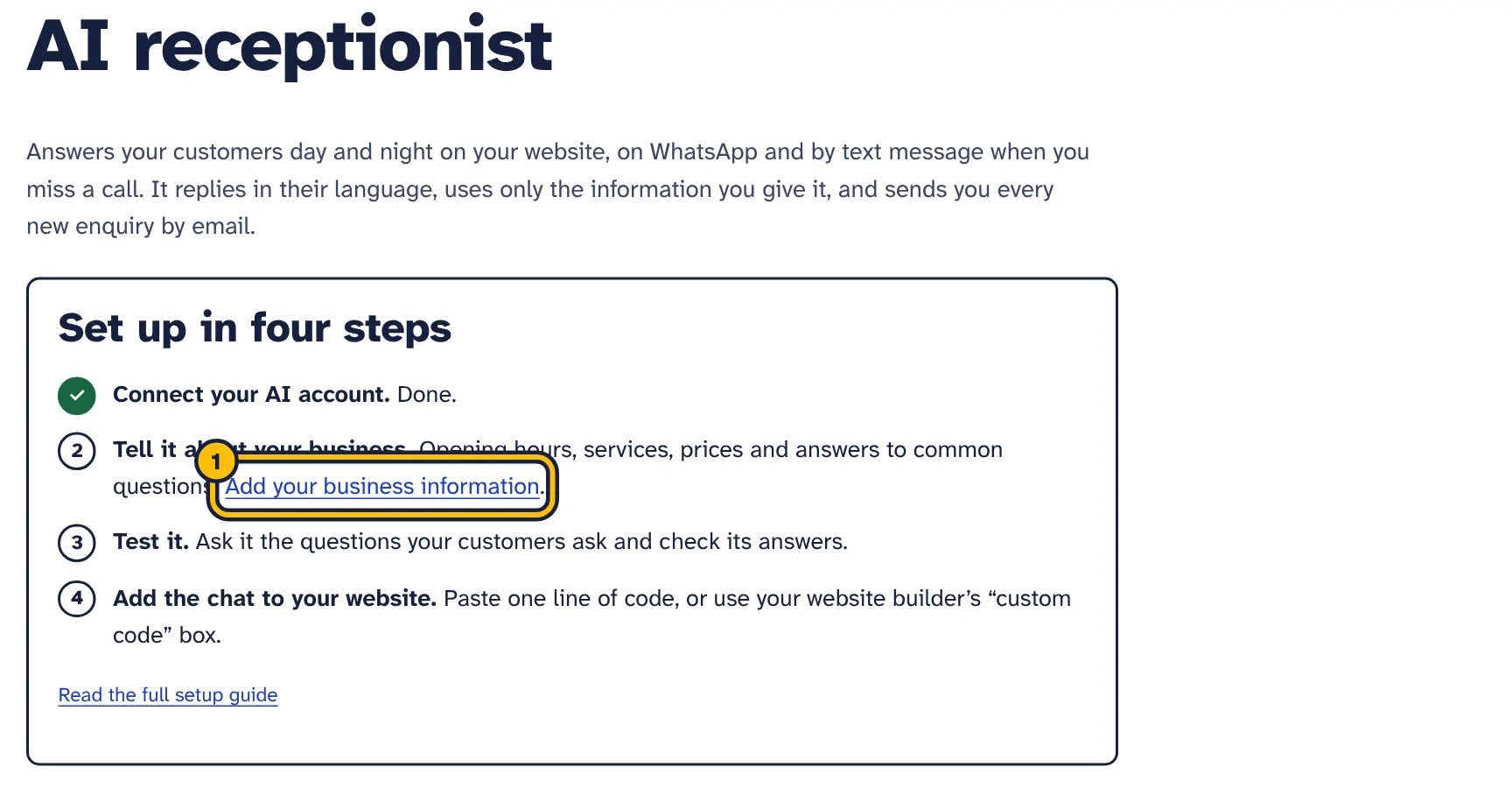
Step 1: Click Add your business information. -
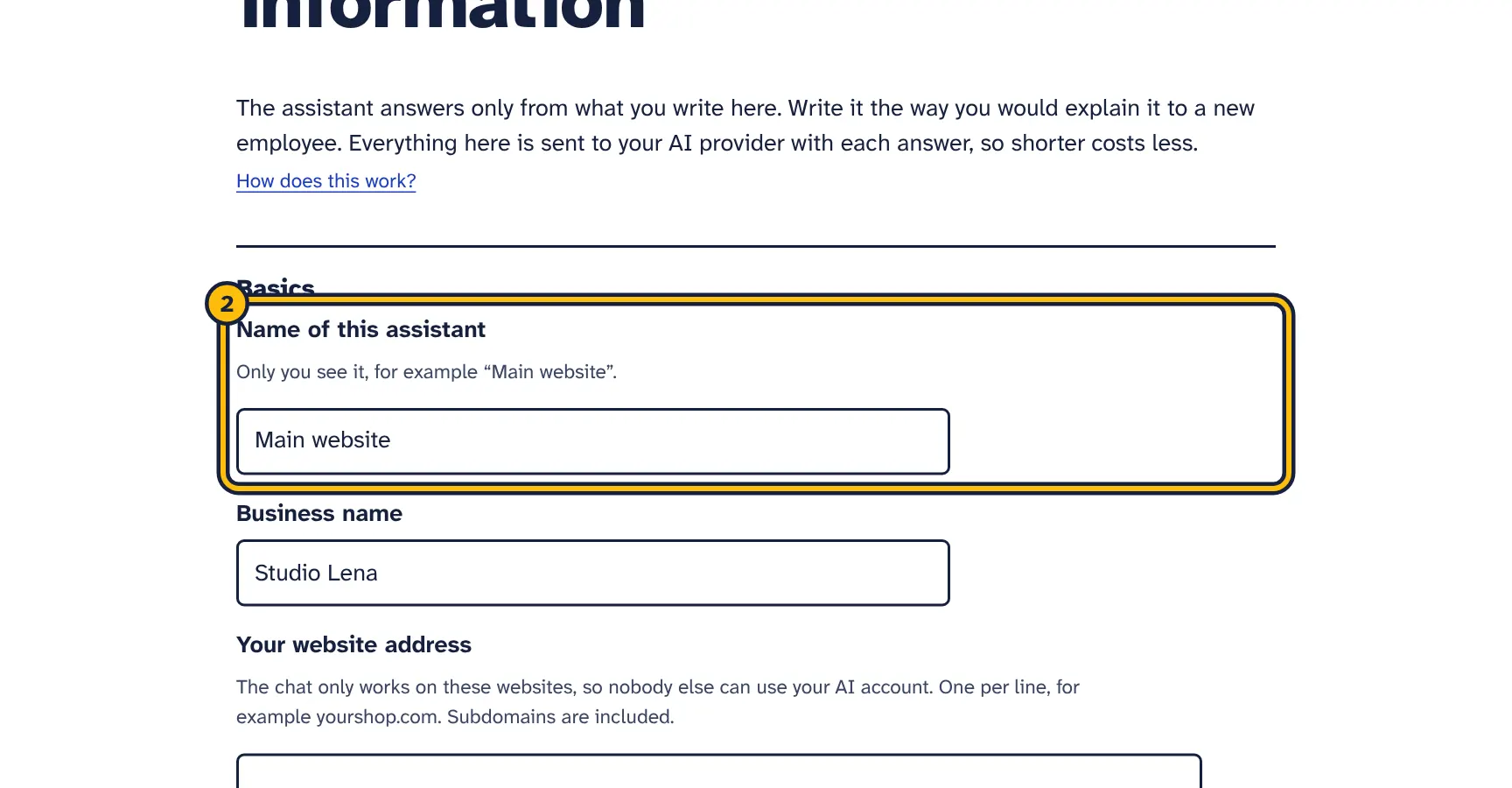
Step 2: Give the assistant a name, for example your website’s name. -
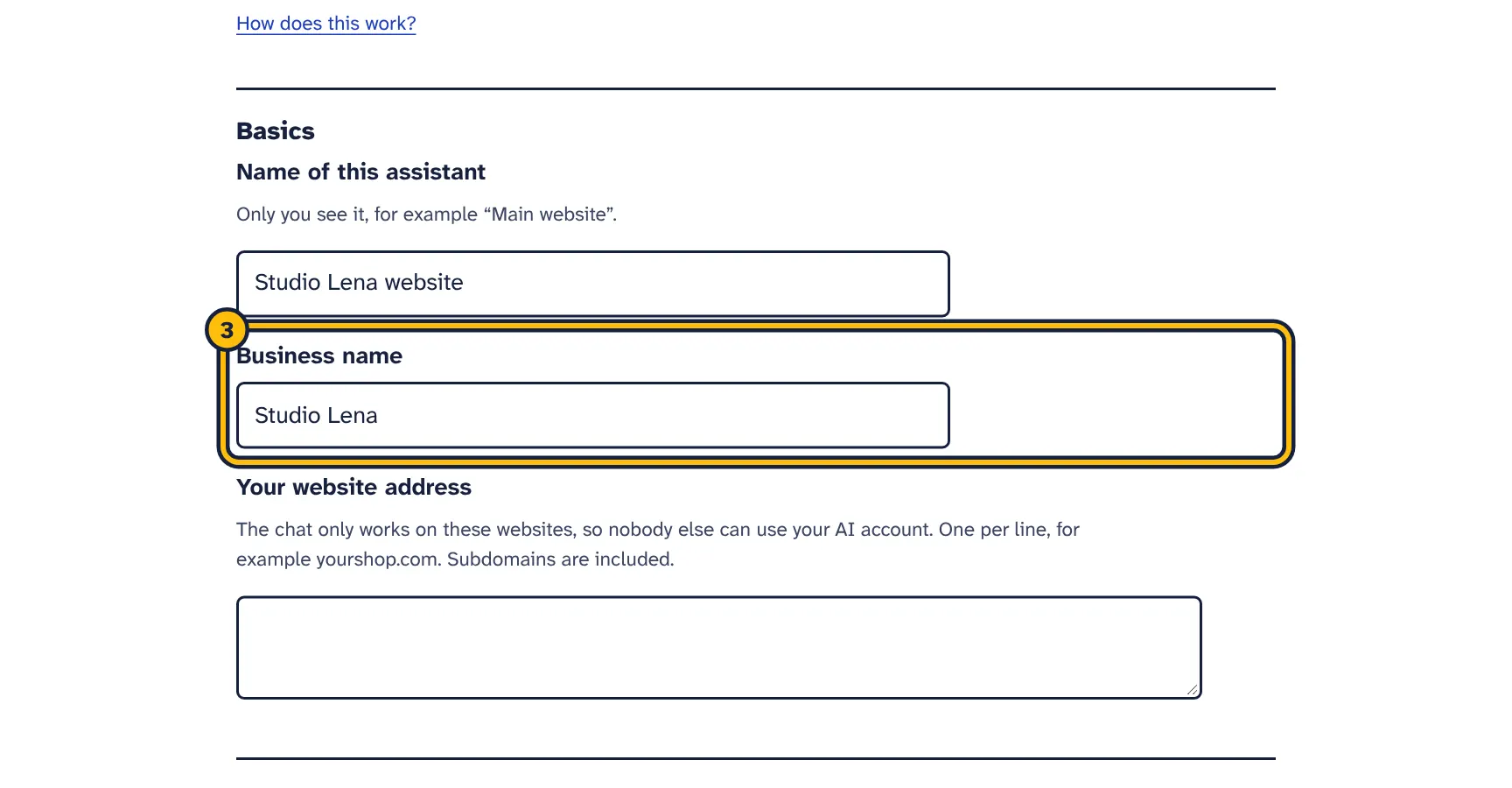
Step 3: Type your business name. -
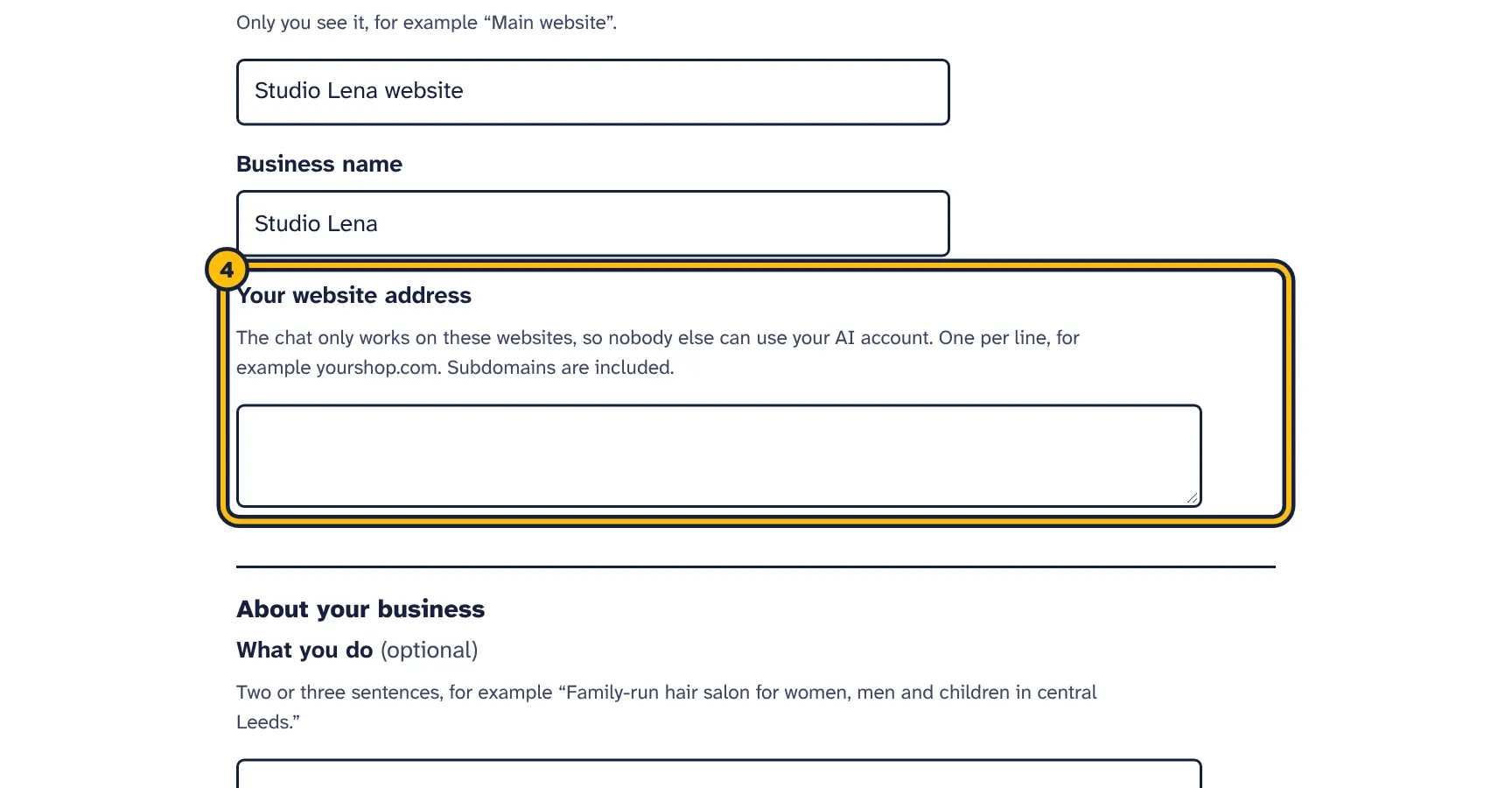
Step 4: Type the website the chat will be on. -
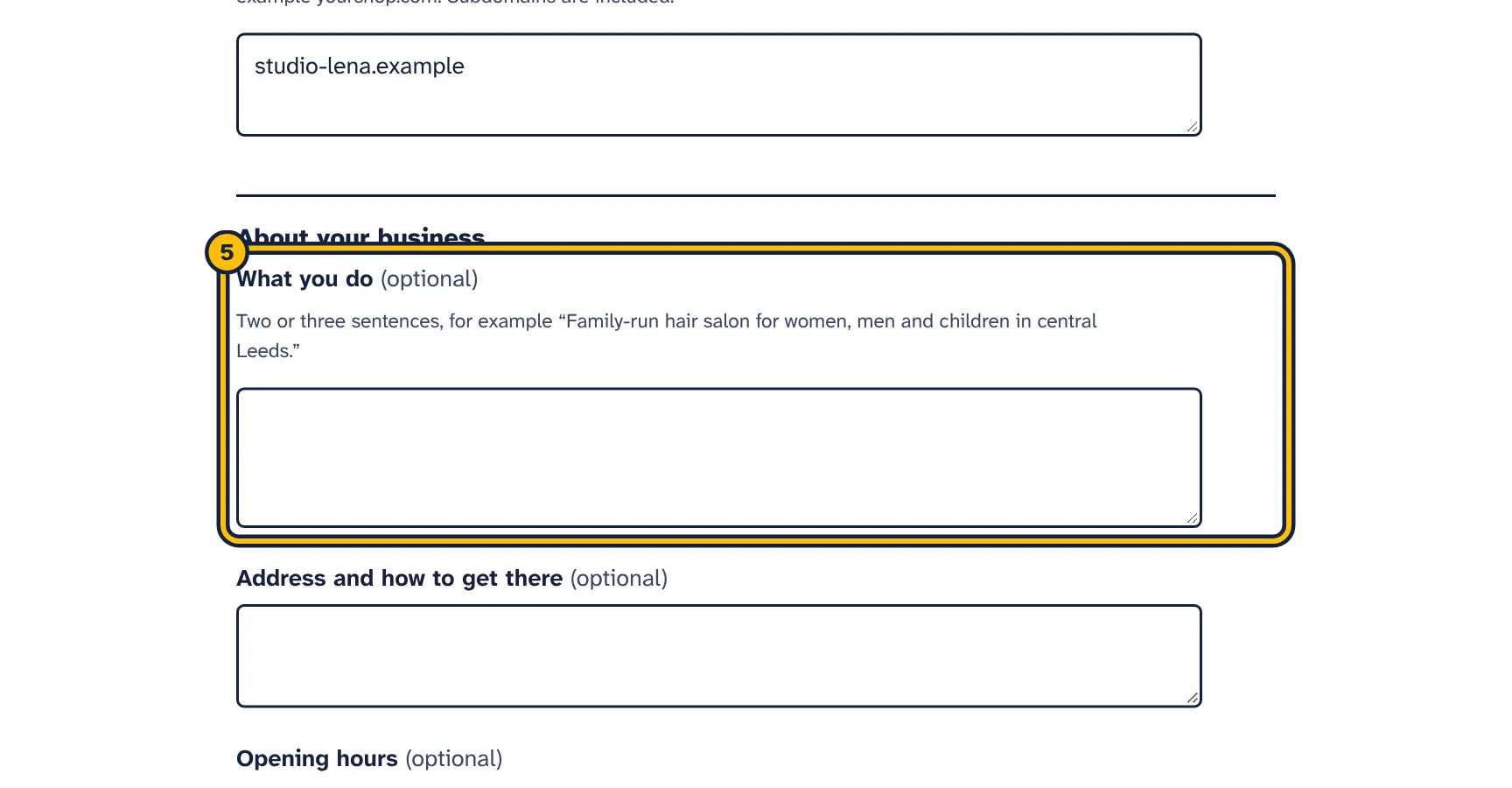
Step 5: Say what you do in a sentence or two. -
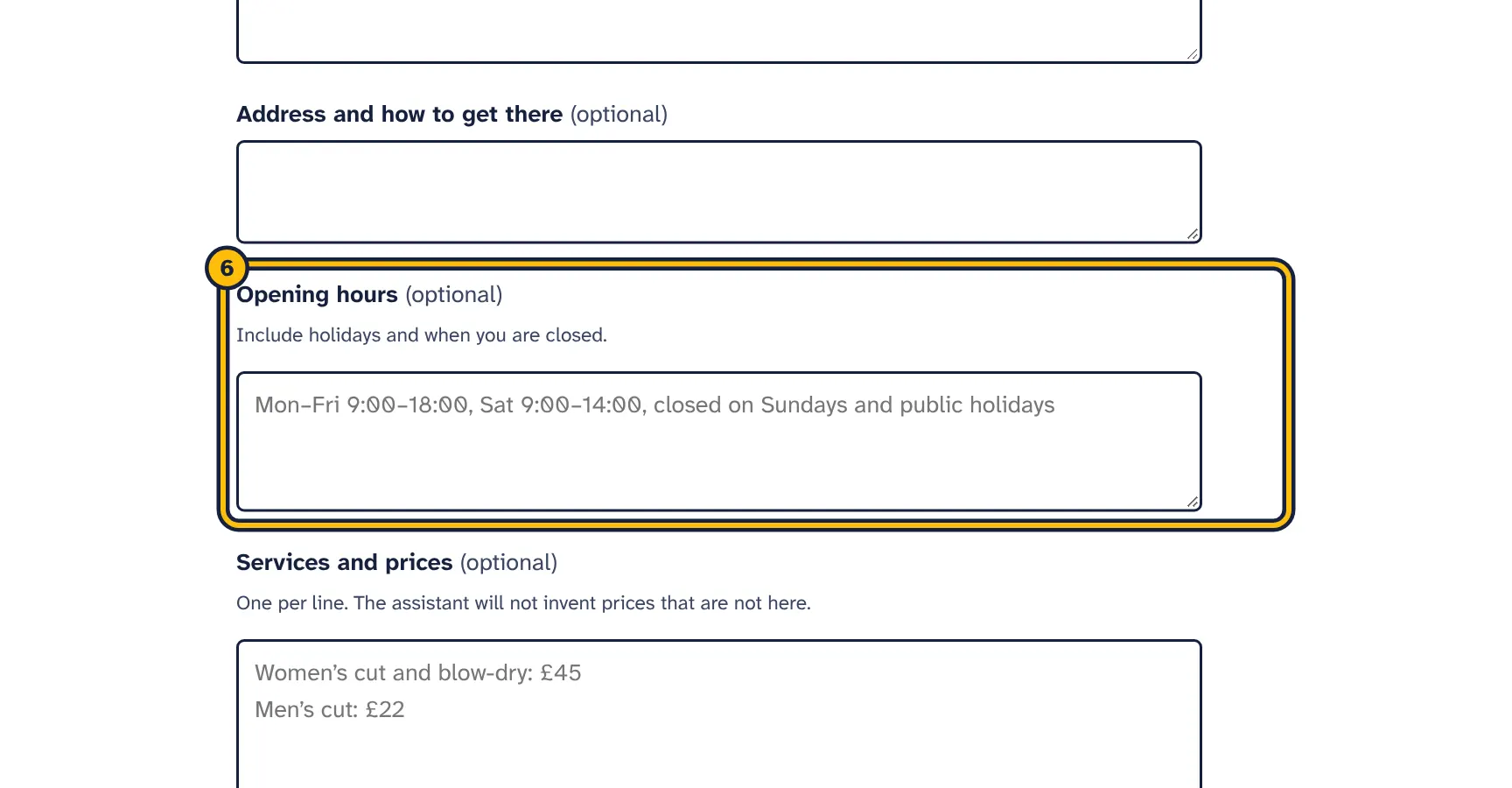
Step 6: Add your opening hours. -
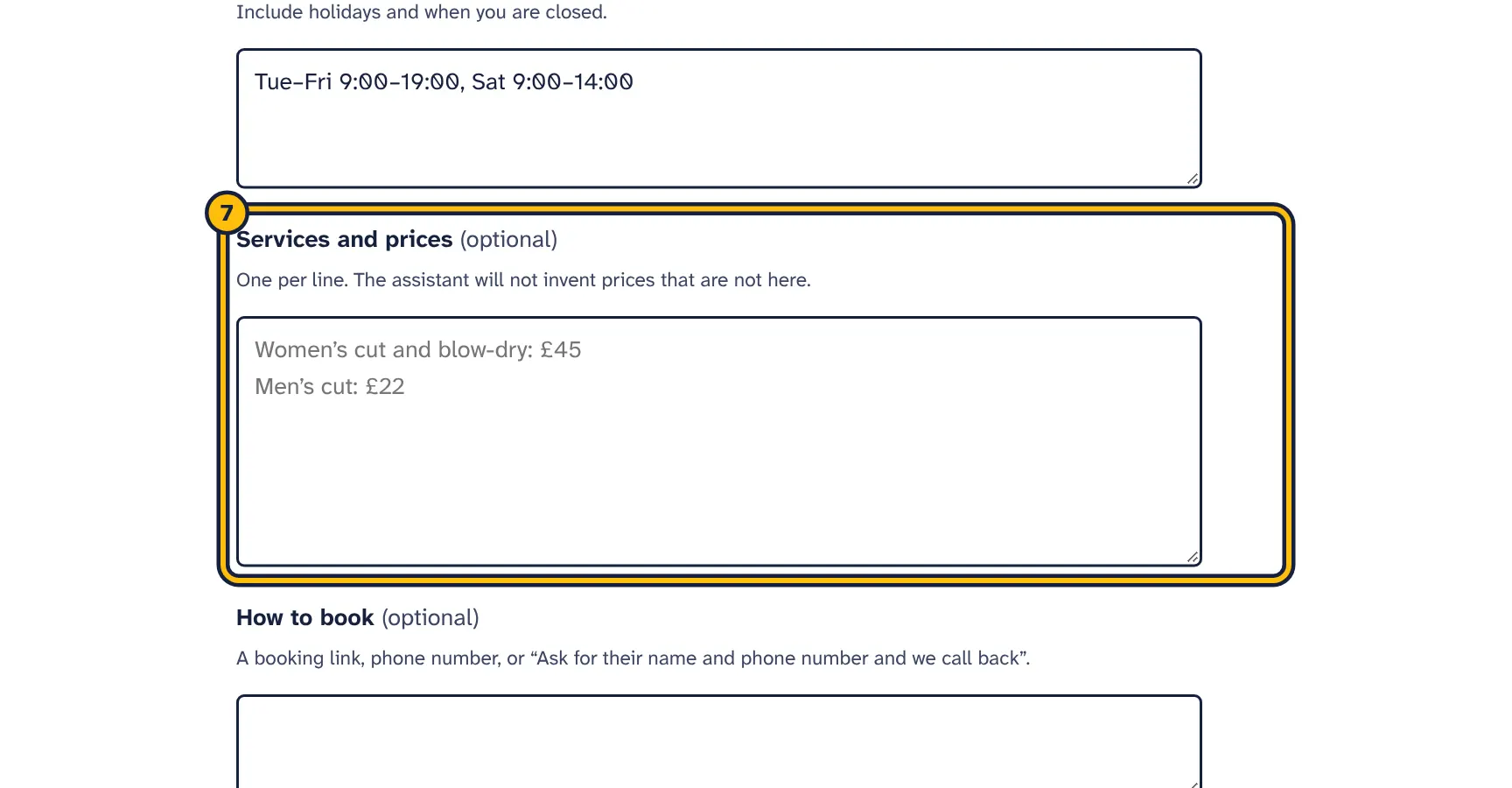
Step 7: Add your services and prices. The assistant only answers from what you write here. -
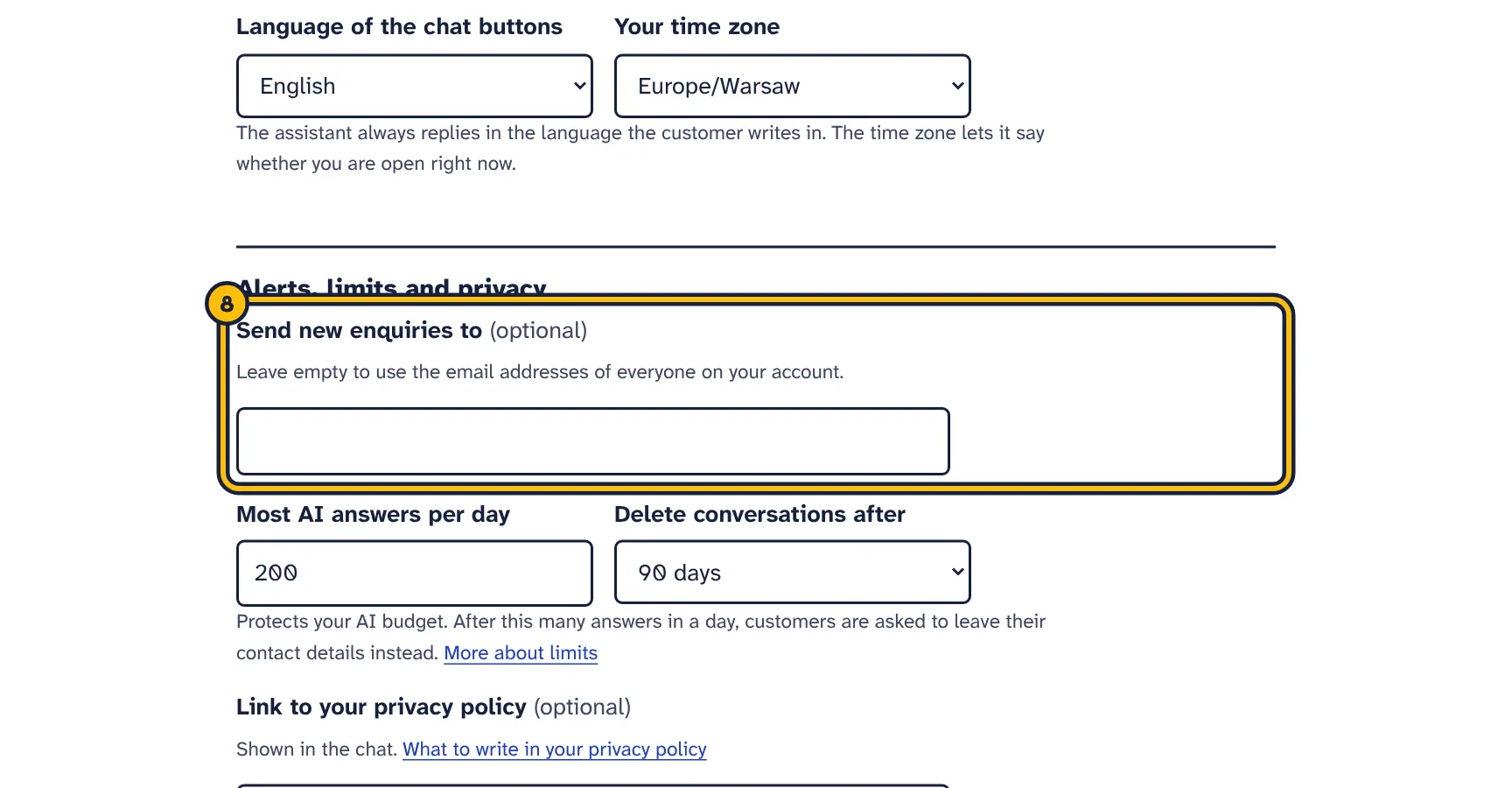
Step 8: Choose where new enquiries are emailed. -
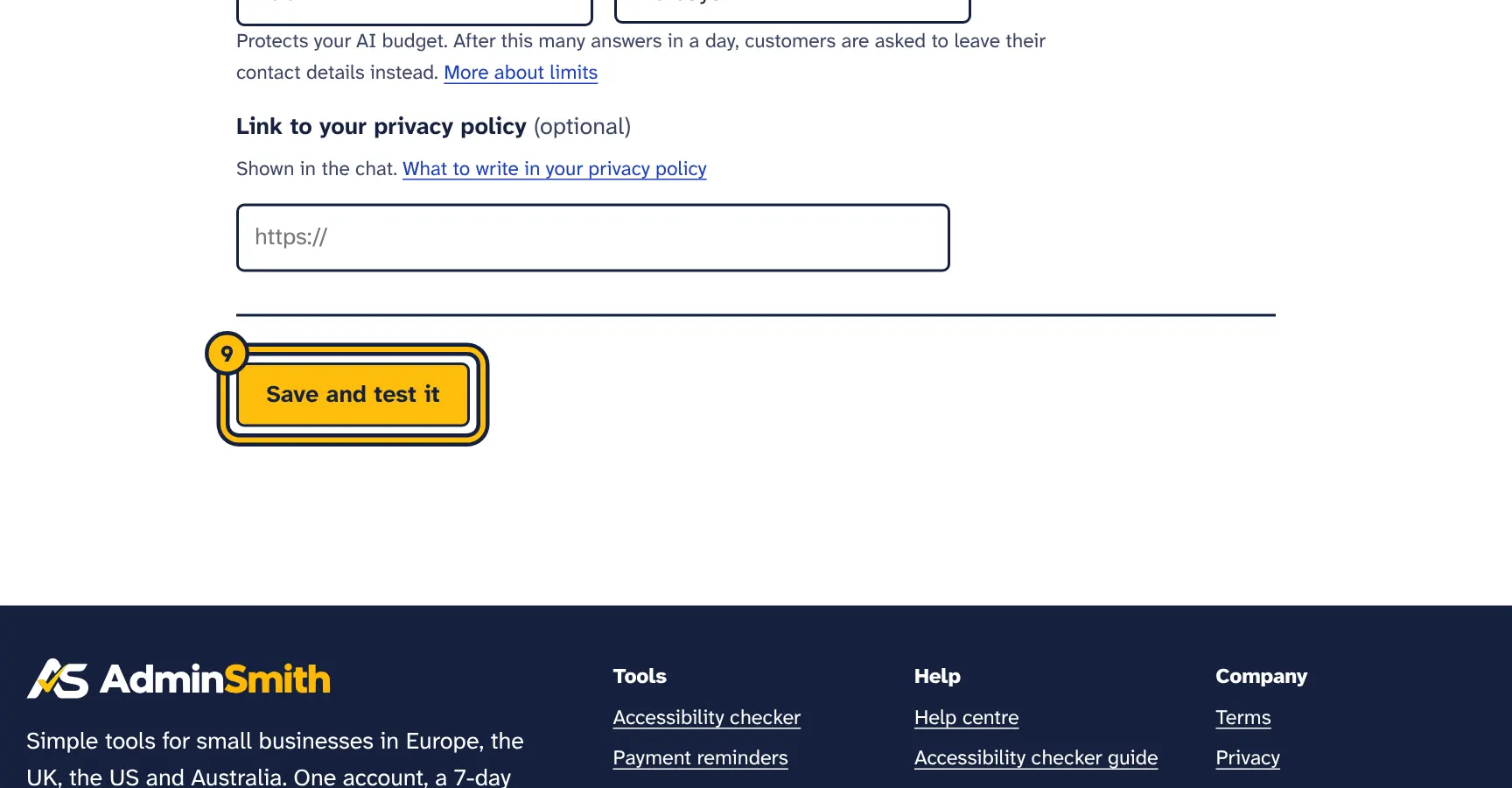
Step 9: Click Save and test it.
The assistant answers only from this page. Everything here is sent to your AI provider with each answer, so write clearly and keep it to what customers need. Shorter costs less.
Basics
- Name of this assistant
- Only you see it, for example “Main website”. Useful when you have more than one.
- Business name
- Used in the chat header, in the fallback message and in the missed-call text.
- Your website address
- One per line, for example
yourshop.com. The chat only works on these websites and their subdomains, so nobody else can put your chat on their site and use your AI account. Up to five.
About your business
- What you do
- Two or three sentences about your business and who you serve.
- Address and how to get there
- Street address, landmarks, public transport.
- Opening hours
- Include holidays and when you are closed. Combined with your time zone, the assistant can say whether you are open right now.
- Services and prices
- One per line. The assistant will not invent prices that are not here.
- How to book
- A booking link, a phone number, or an instruction such as “Ask for their name and phone number and we call back”. The assistant never confirms a booking itself.
- Contact details to share
- Phone, email or other ways to reach you that the assistant may give out.
- Anything else it should know
- Parking, payment methods, cancellation policy, and what you do not offer, so it can say so.
Common questions
Add questions customers ask often, each with your answer. Leave rows empty if you do not need them; save to get more empty rows, up to 20. Each row needs both a question and an answer: if one of them is missing, the form tells you and saves nothing until you fill it in or clear the row.
How it talks
- Tone
- Warm and friendly or Polite and formal.
- Language of the chat buttons
- The language of the chat’s buttons, notices and the fallback message. The assistant always replies in the language the customer writes in.
- Your time zone
- Lets the assistant know the local date and time, and shows conversation times in your time zone.
Do not ask customers for health details, card numbers or other sensitive data through the assistant. It is told never to ask for card numbers or passwords.
Test the assistant
The same steps in pictures:
-
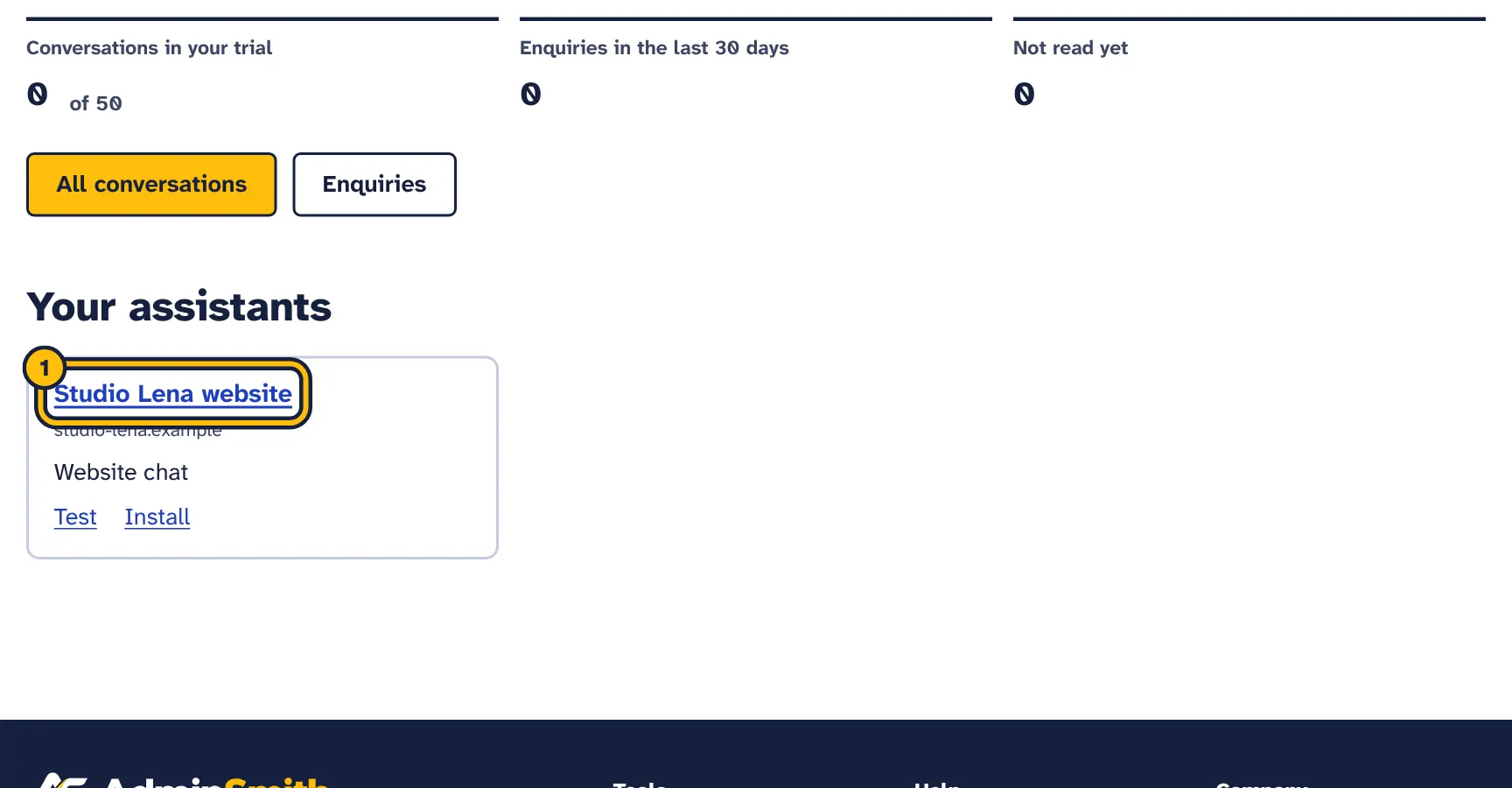
Step 1: Open your assistant. -
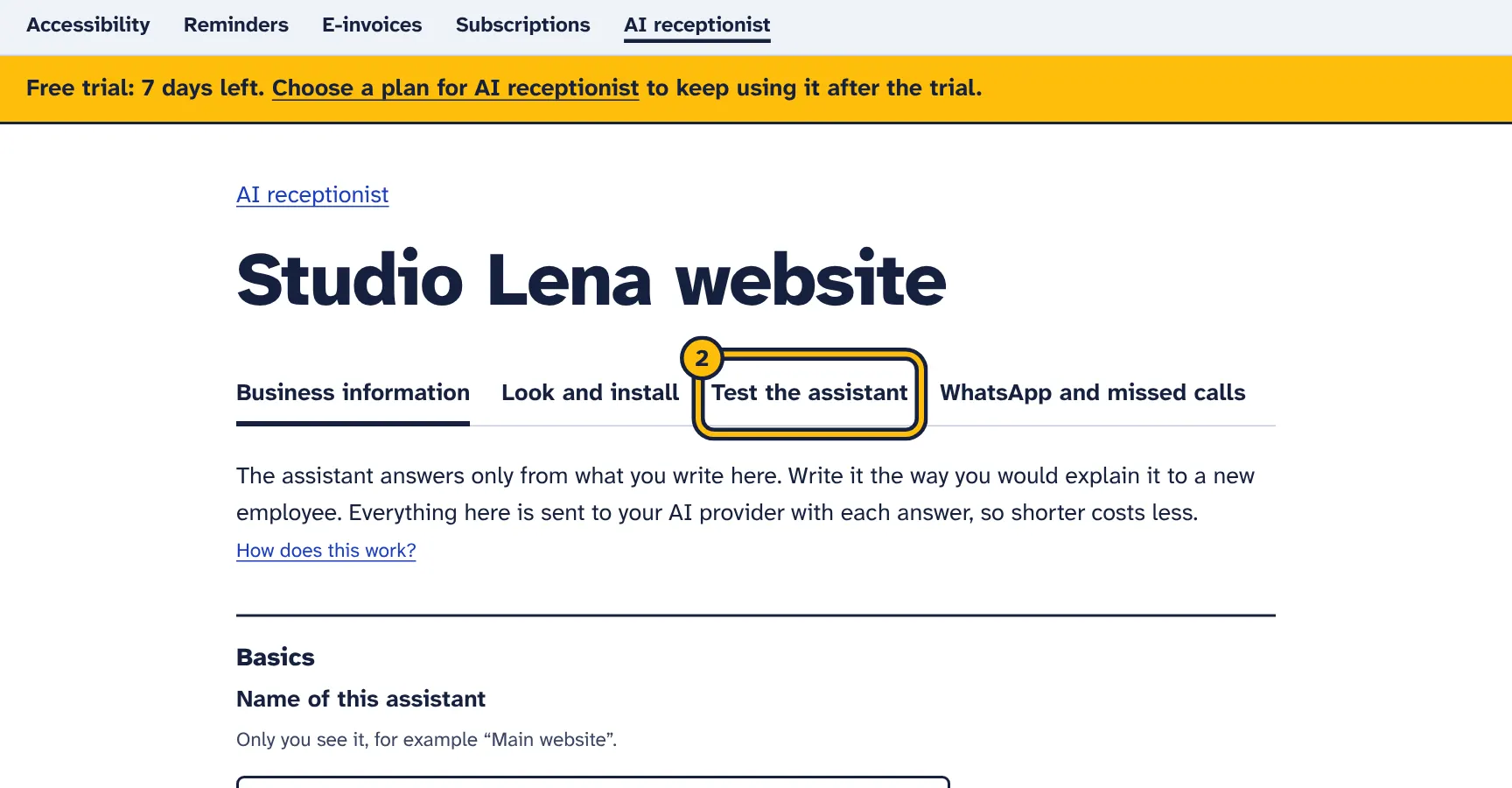
Step 2: Click Test the assistant. -
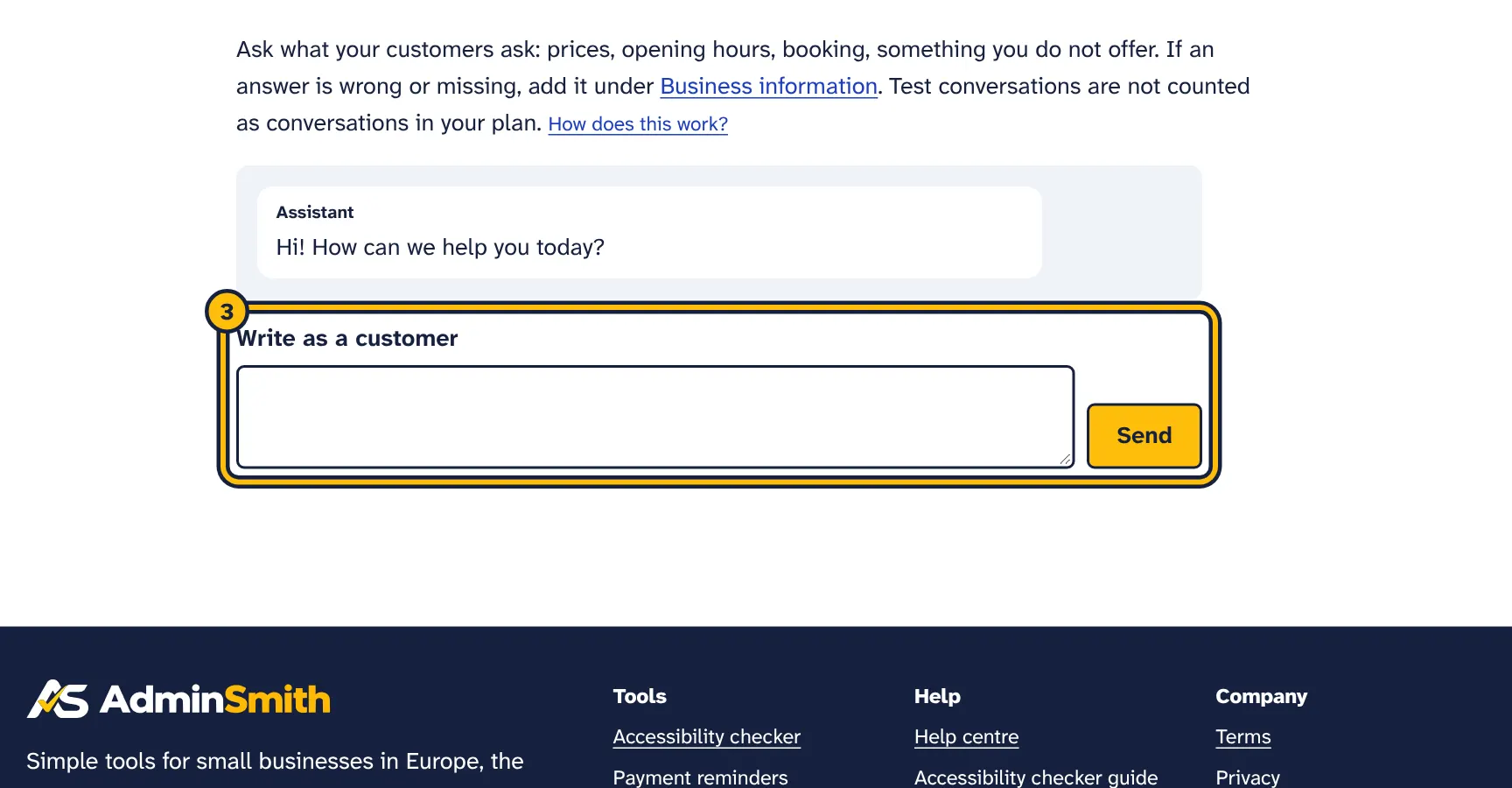
Step 3: Write a question the way a customer would. -
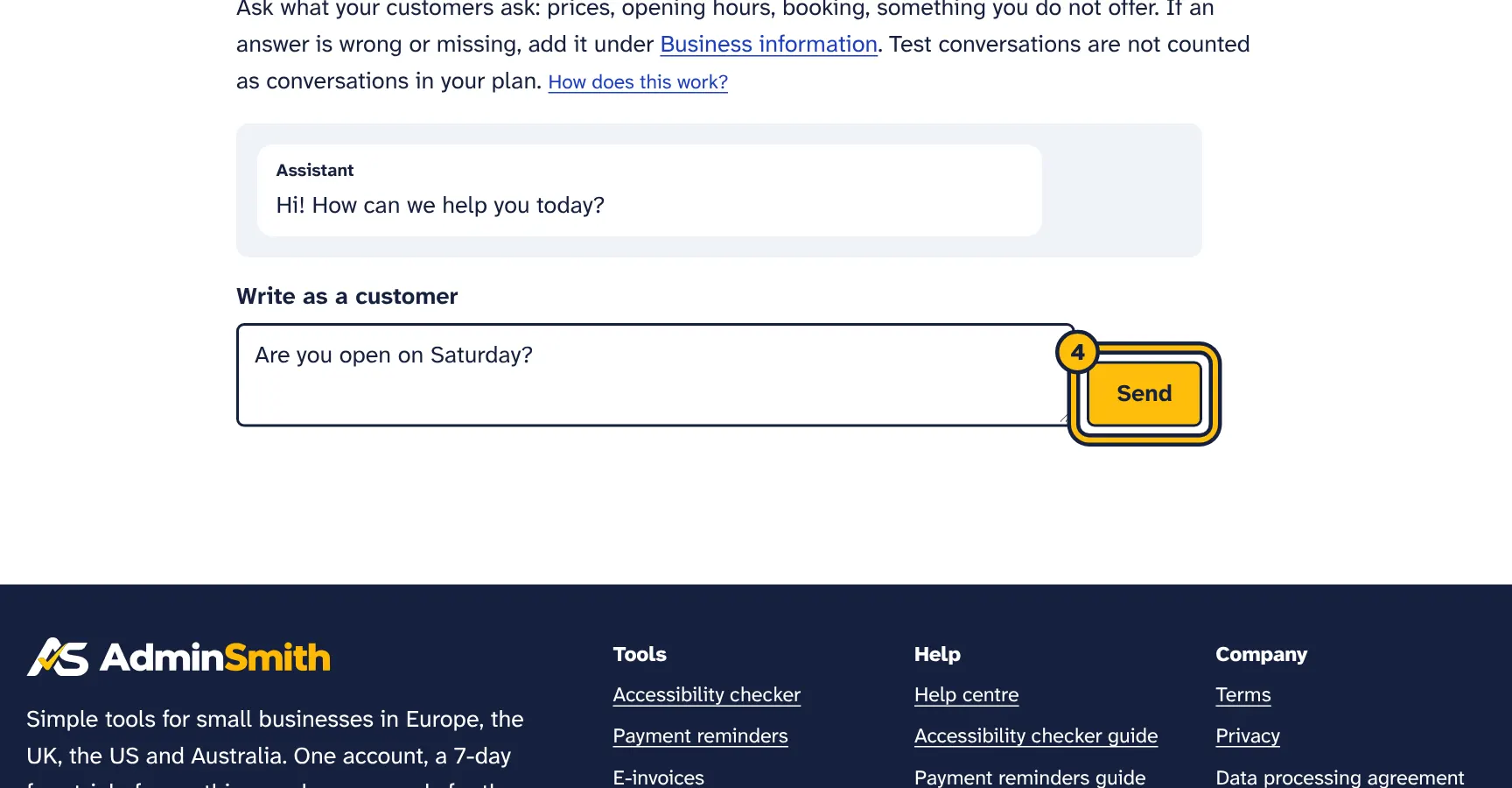
Step 4: Click Send. -
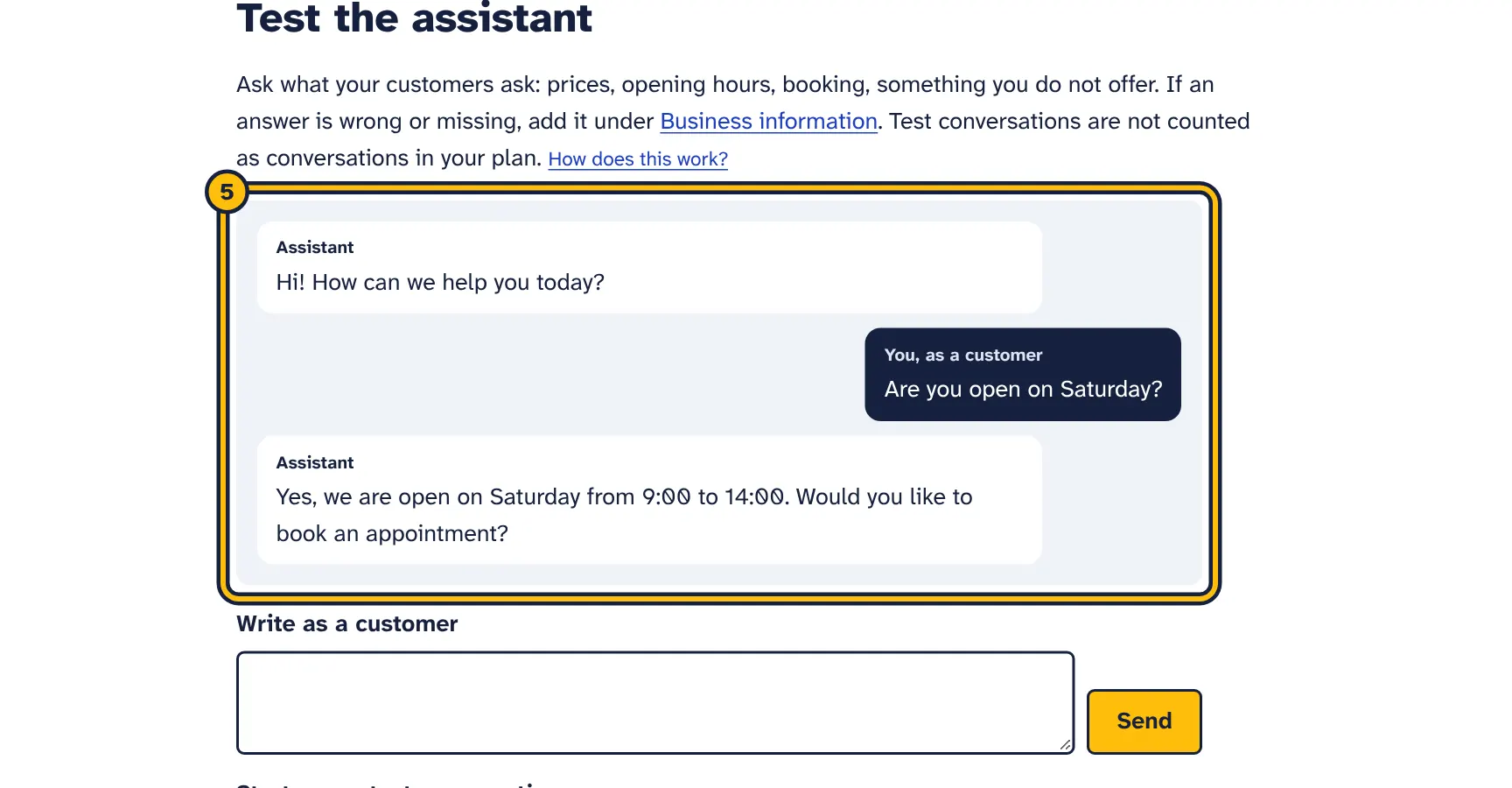
Step 5: The answer comes only from your business information. Change it there if something is wrong.
The test page gives real AI answers, exactly as customers would get them on the website. Test conversations are not counted as conversations in your plan and are deleted after two days. Each test answer is written with your AI key, so your provider bills it like any other answer.
- Type a question in Write as a customer and click Send.
- Read the answer. If it is wrong or incomplete, go to Business information, fix or add the information and save.
- Ask again. The assistant uses the new information from the next message.
- Click Start a new test conversation to begin fresh.
Try questions it should not answer too, such as a price you have not listed or something unrelated to your business. It should say it is not sure and offer to pass the question on.
Add the chat to your website
The same steps in pictures:
-
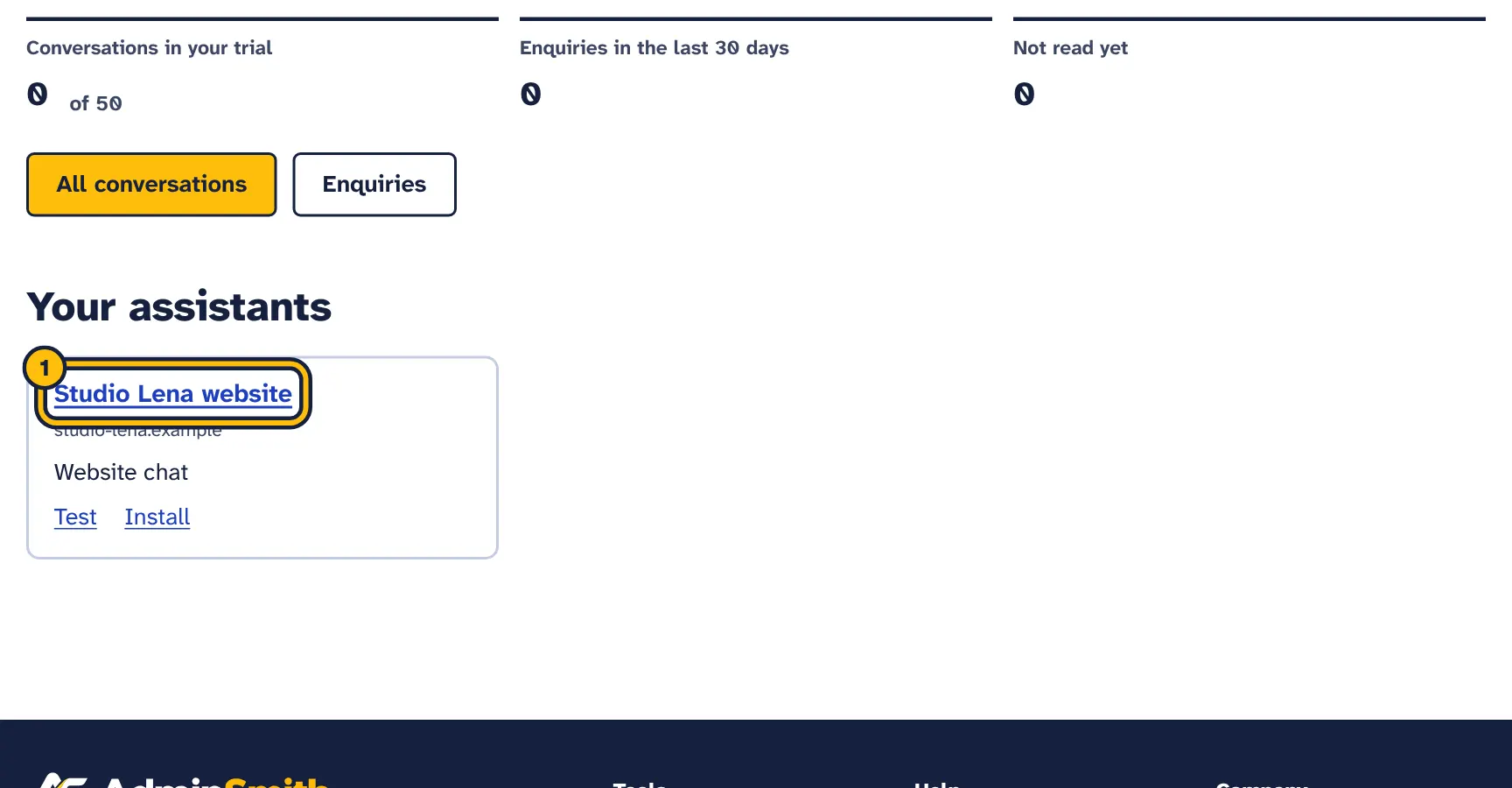
Step 1: Open your assistant. -
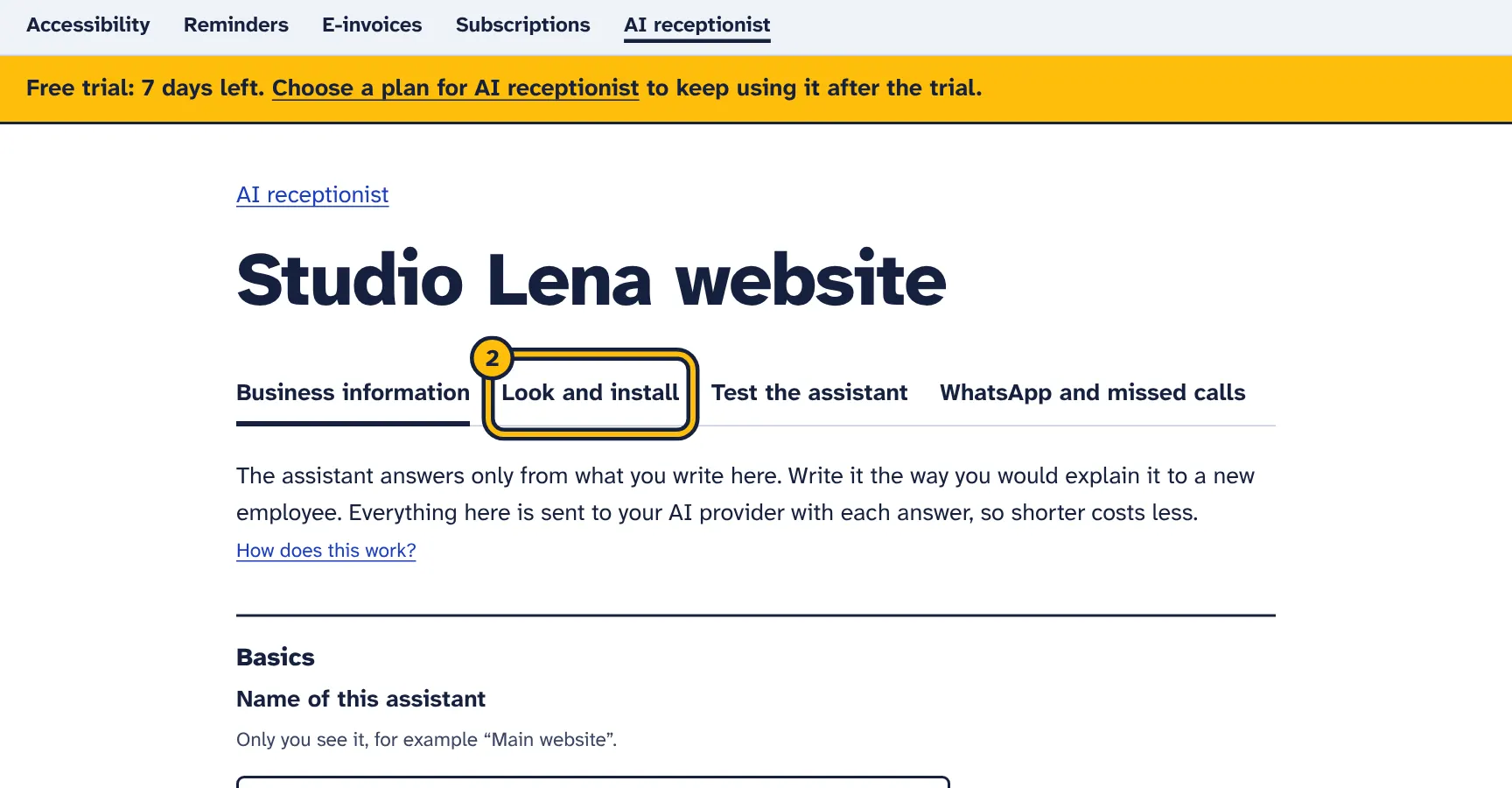
Step 2: Click Look and install. -
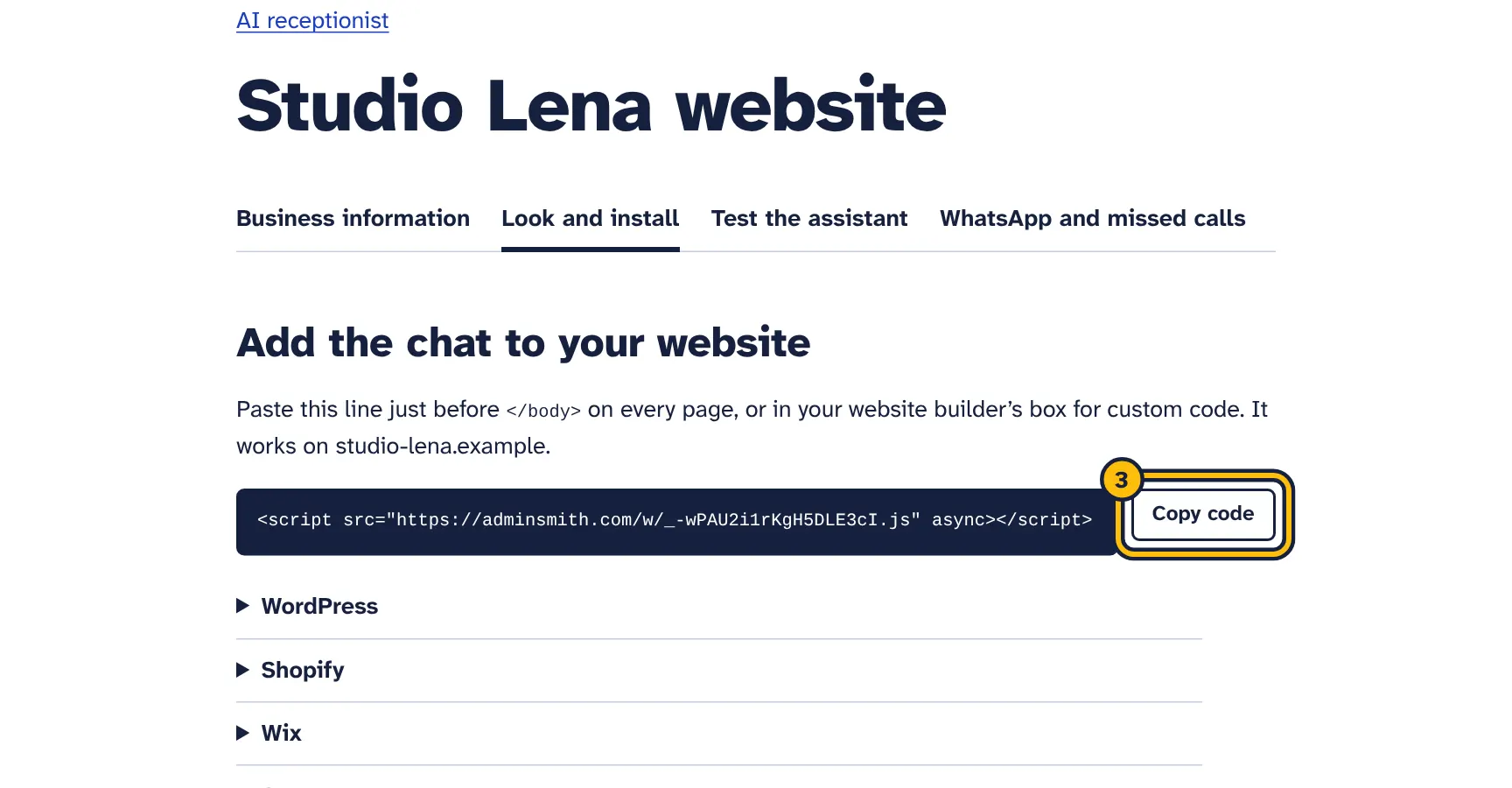
Step 3: Click Copy code. -
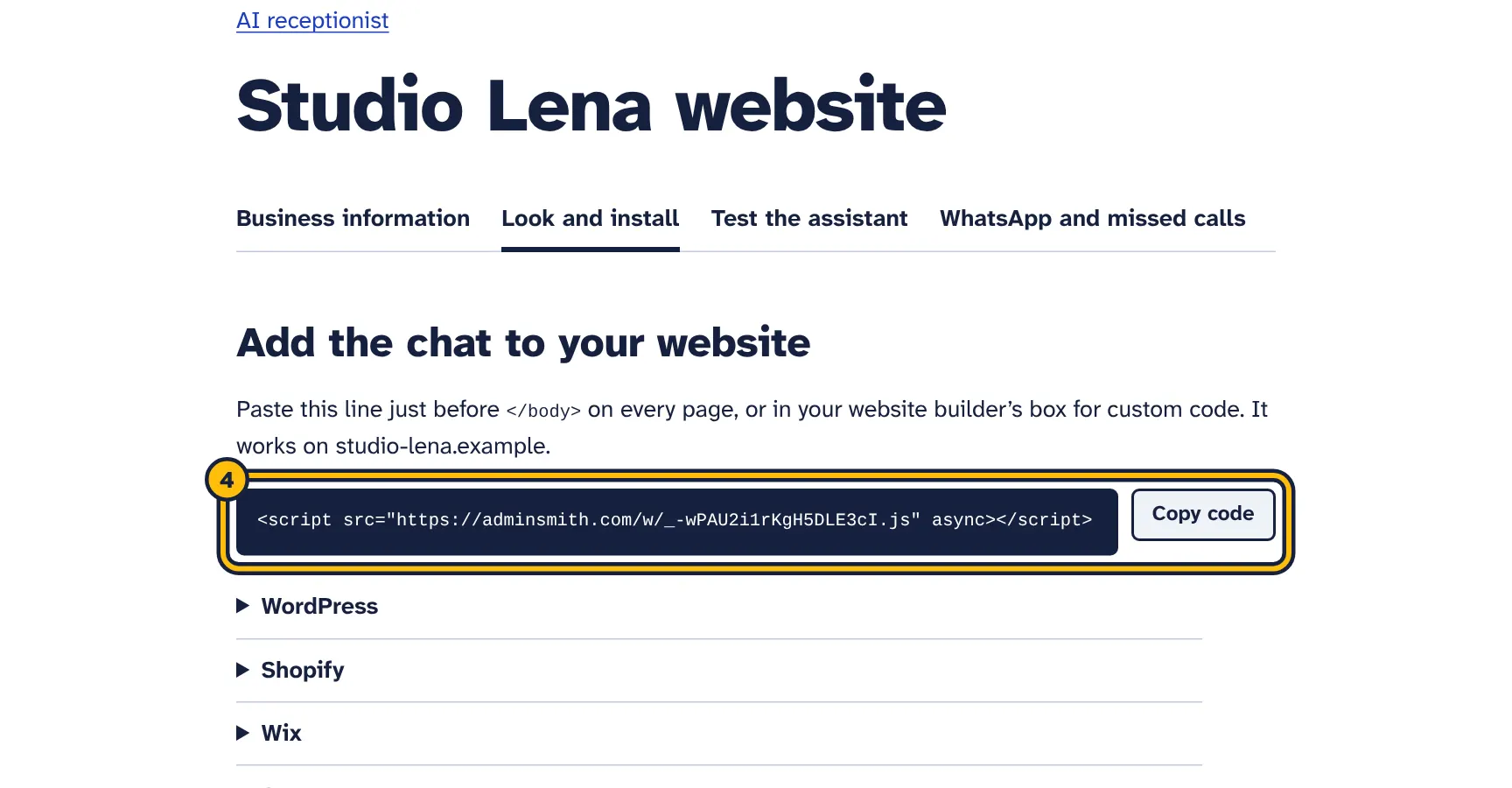
Step 4: Paste the code into your website, just before the closing body tag, or in your site builder’s custom code box. -
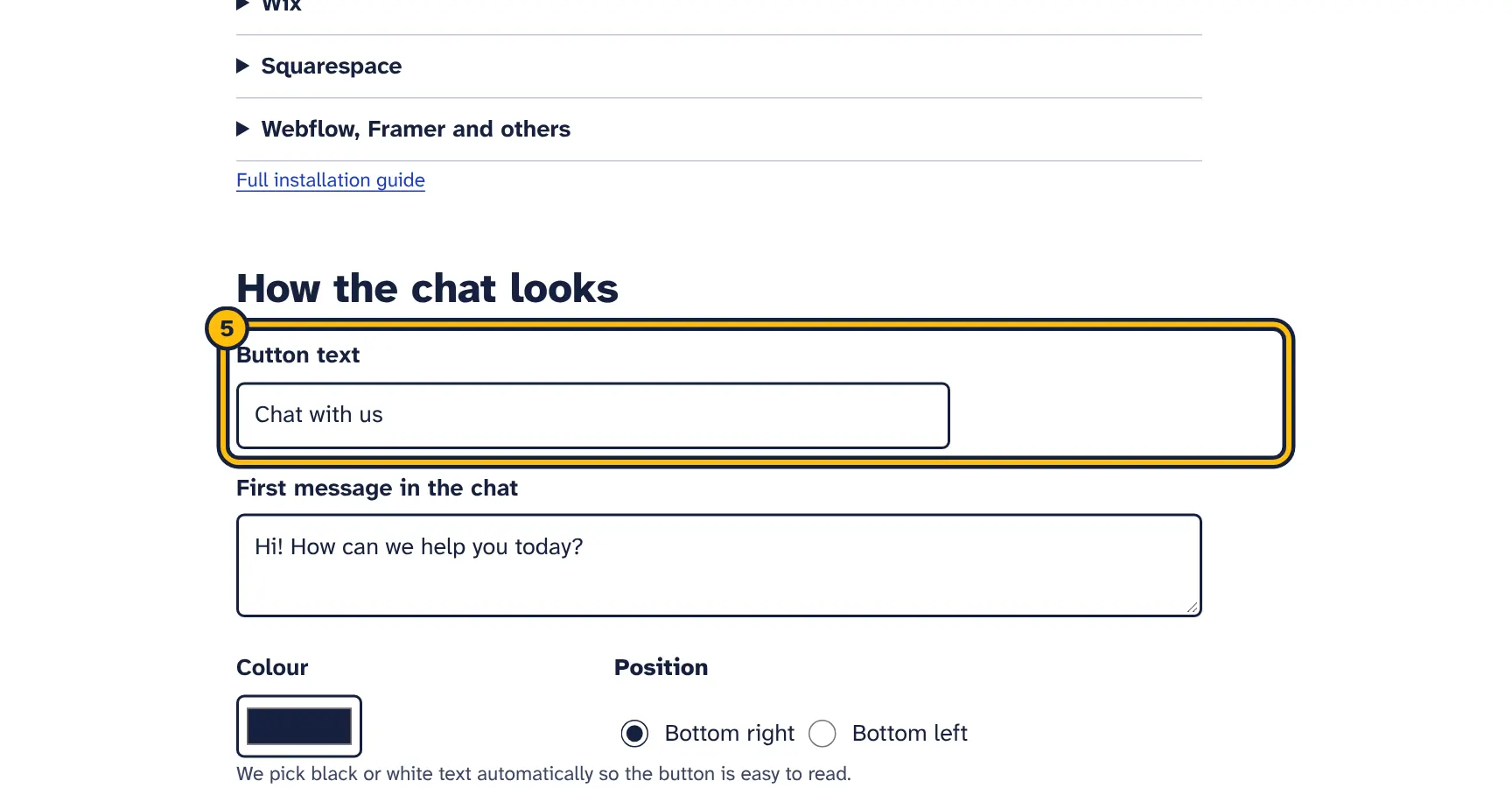
Step 5: Change the button text and colour if you like, then click Save.
On Look and install, copy the line of code with Copy code. It looks like this:
<script src="https://…/w/your-key.js" async></script>Paste it just before </body> on every page, or in your website builder’s custom-code box:
- WordPress
- Install a header and footer code plugin such as WPCode, add a new snippet, choose “Site wide footer”, paste the line and save.
- Shopify
- Online Store, Themes, then the three dots and Edit code. Open
theme.liquid, paste the line just before</body>and save. - Wix
- Settings, Custom code, Add custom code. Paste the line, choose “All pages” and “Body – end”, and apply.
- Squarespace
- Settings, Advanced, Code injection. Paste the line in the Footer box and save.
- Others
- Look for “custom code”, “footer code” or “code injection” in your site settings.
How the chat looks
- Button text
- The text on the chat button, up to 40 characters.
- First message in the chat
- The greeting customers see when they open the chat. It is shown by the chat itself and costs nothing.
- Colour
- The colour of the button and the chat header. Black or white text is chosen automatically so it is easy to read.
- Position
- Bottom right or Bottom left.
The button works with a keyboard and screen readers. The chat opens in a panel; Escape or the close button closes it and returns focus to the button. On phones the chat fills the screen.
If the chat does not appear, check that the website address in your business information matches the site, without https://. The browser console shows a message when the site is not on the list. If your site has a strict Content Security Policy, allow our address for scripts and frames.
The same steps in pictures:
-
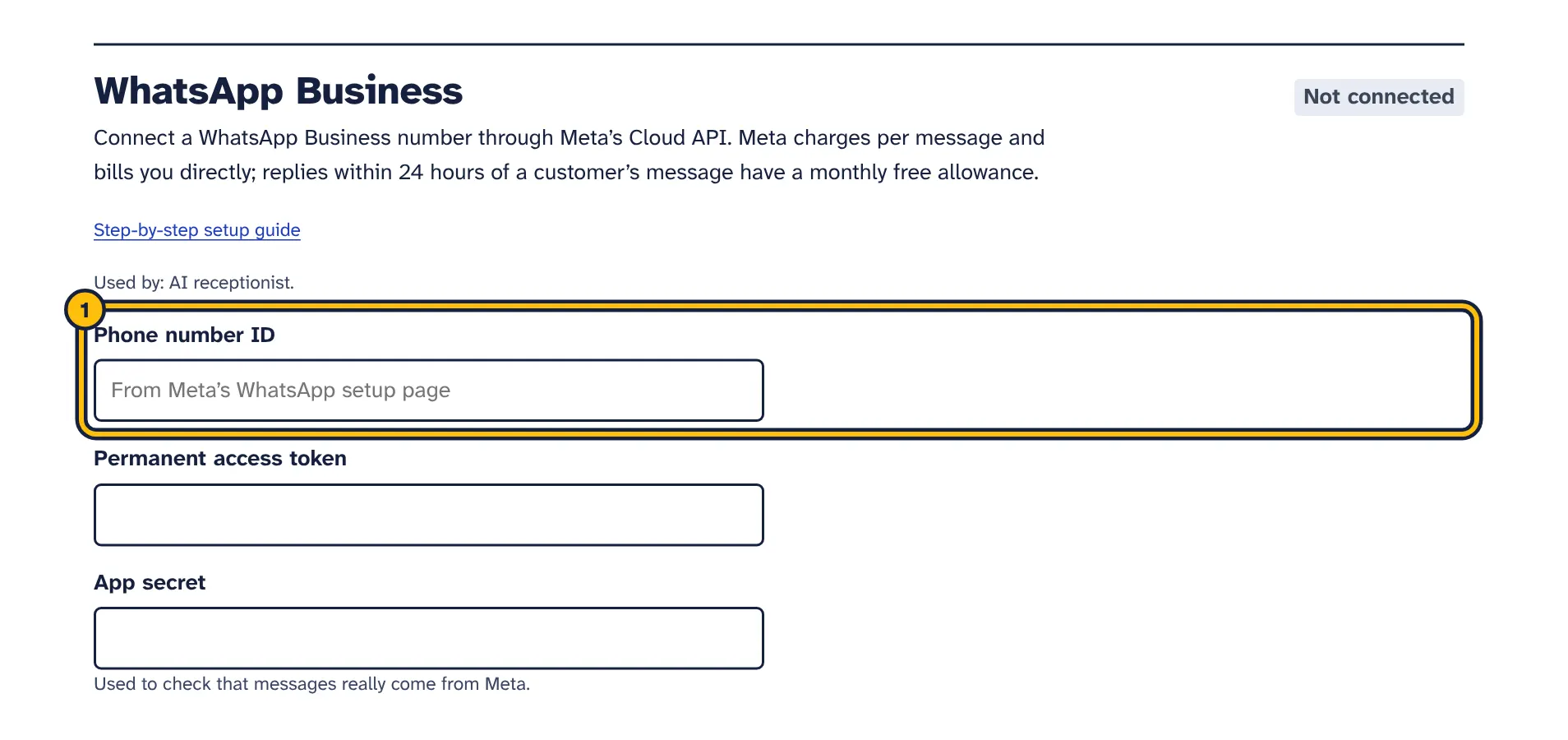
Step 1: Paste the Phone number ID from your Meta app, under WhatsApp, API setup. -
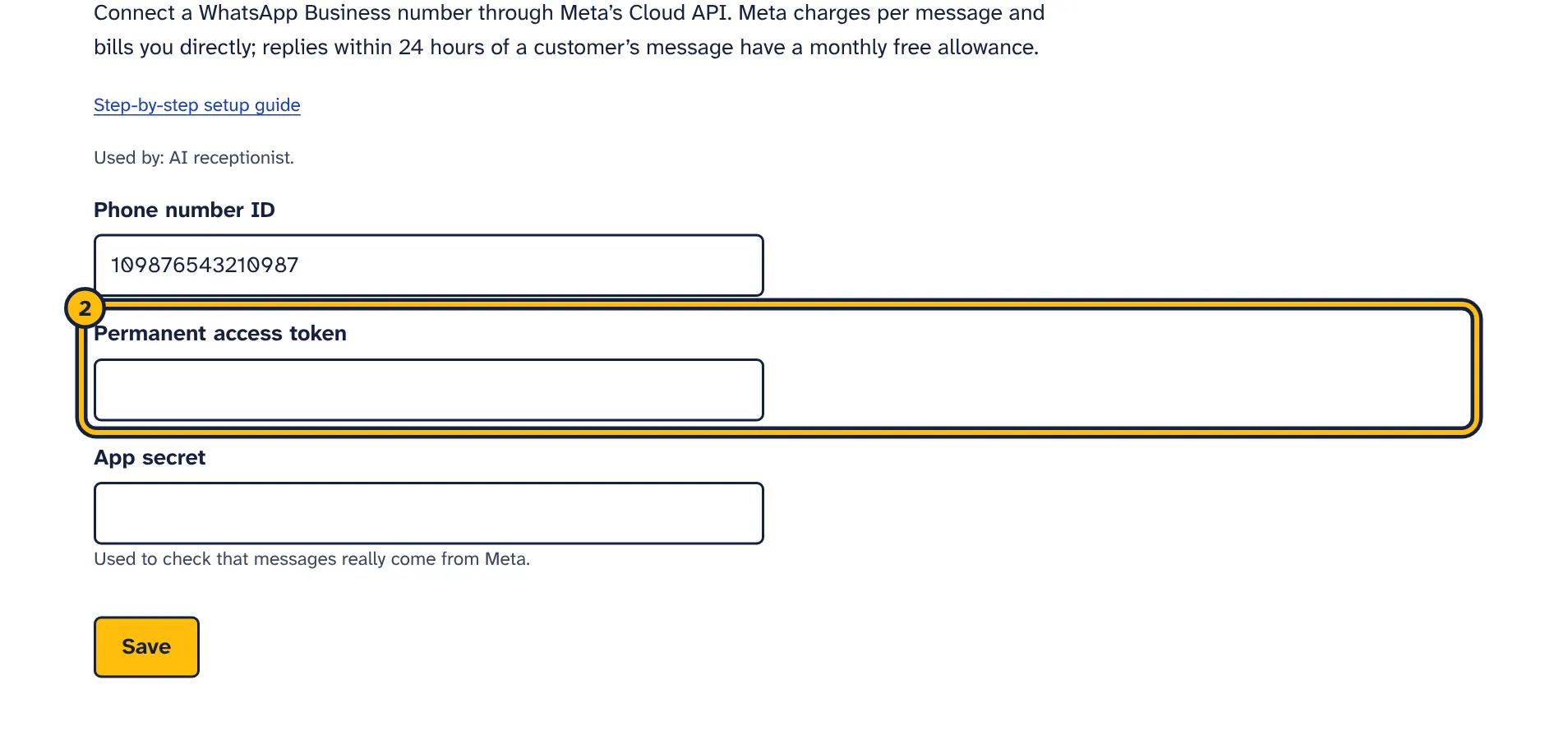
Step 2: Paste your permanent access token. -
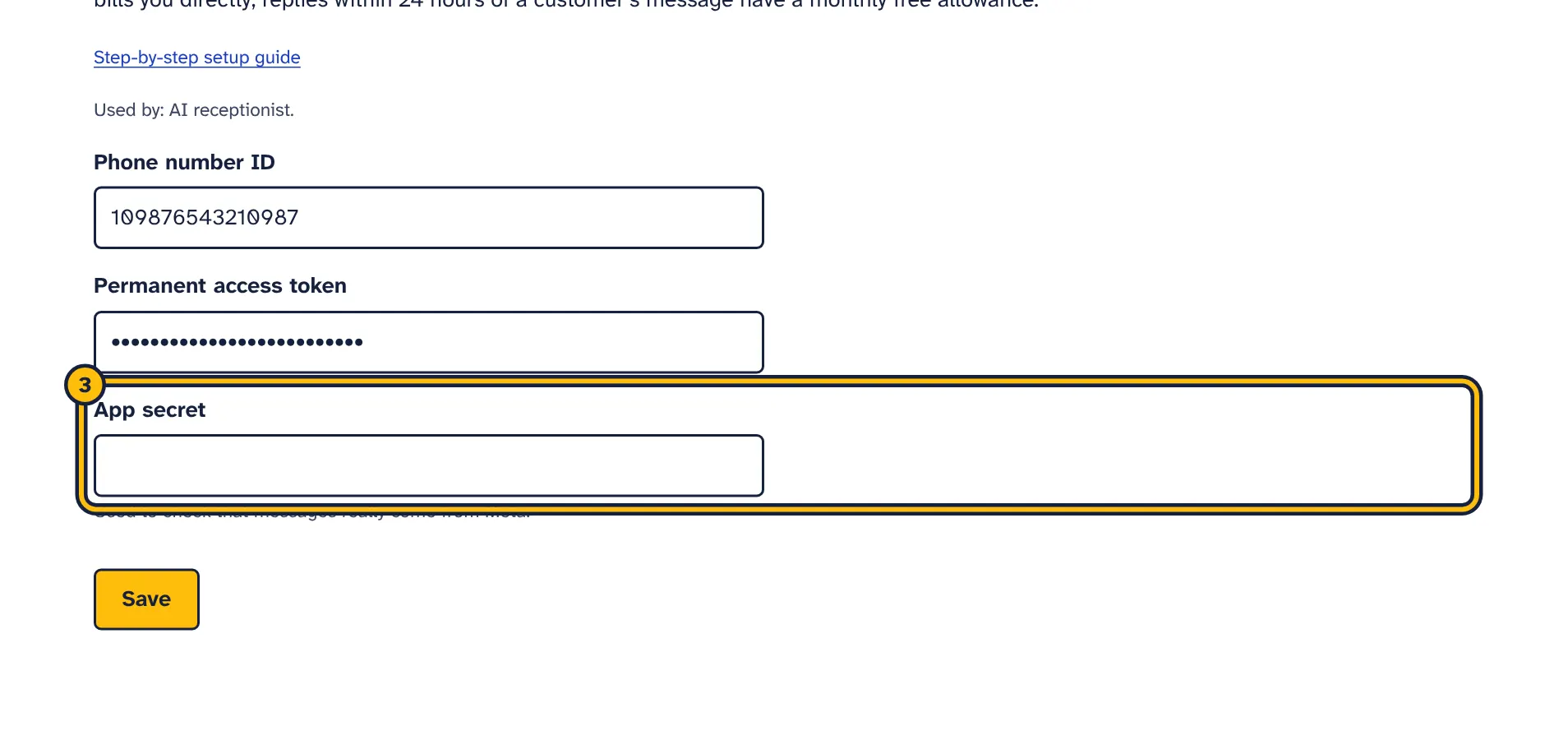
Step 3: Paste the App secret from App settings, Basic. -
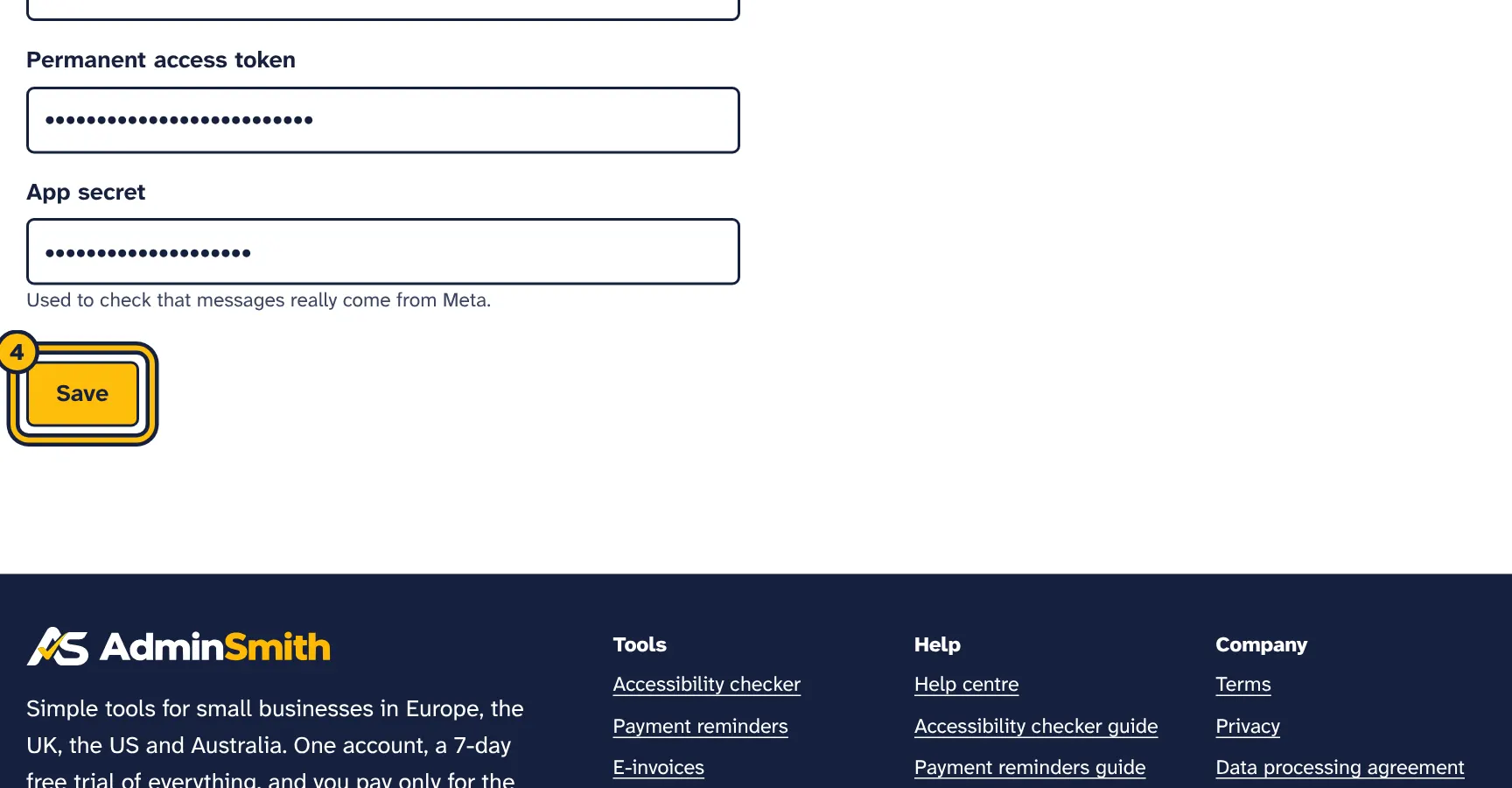
Step 4: Click Save. -
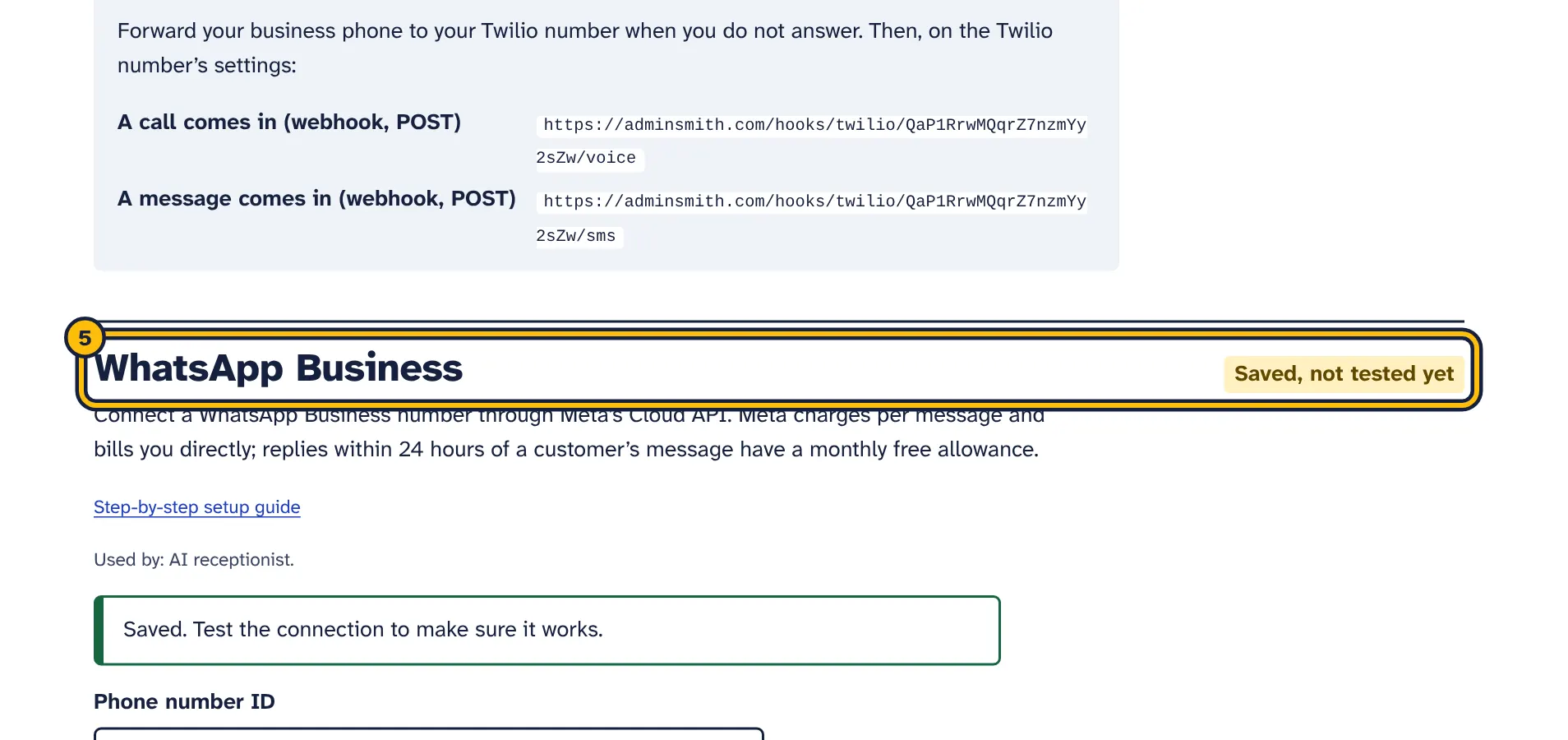
Step 5: Copy the callback URL and verify token shown here into the Webhooks settings of your Meta app.
Available on the Pro plan and in the free trial.
- Connect your WhatsApp Business number under Connections and finish the webhook setup in Meta’s app dashboard.
- Open your assistant, go to WhatsApp and missed calls and tick Answer WhatsApp messages with this assistant.
- Click Save, then send a WhatsApp message to your business number from another phone.
- The first reply in a new conversation says it comes from your AI assistant.
- A WhatsApp conversation stays the same until there is a day of silence; then a new one starts and is counted again.
- Voice messages, photos and files cannot be read; the assistant is told what was sent and usually asks for text.
- If Meta sends the same message twice, it is answered once.
- Only one assistant answers WhatsApp. Turning it on for one assistant turns it off for the others.
Missed-call text back
The same steps in pictures:
-
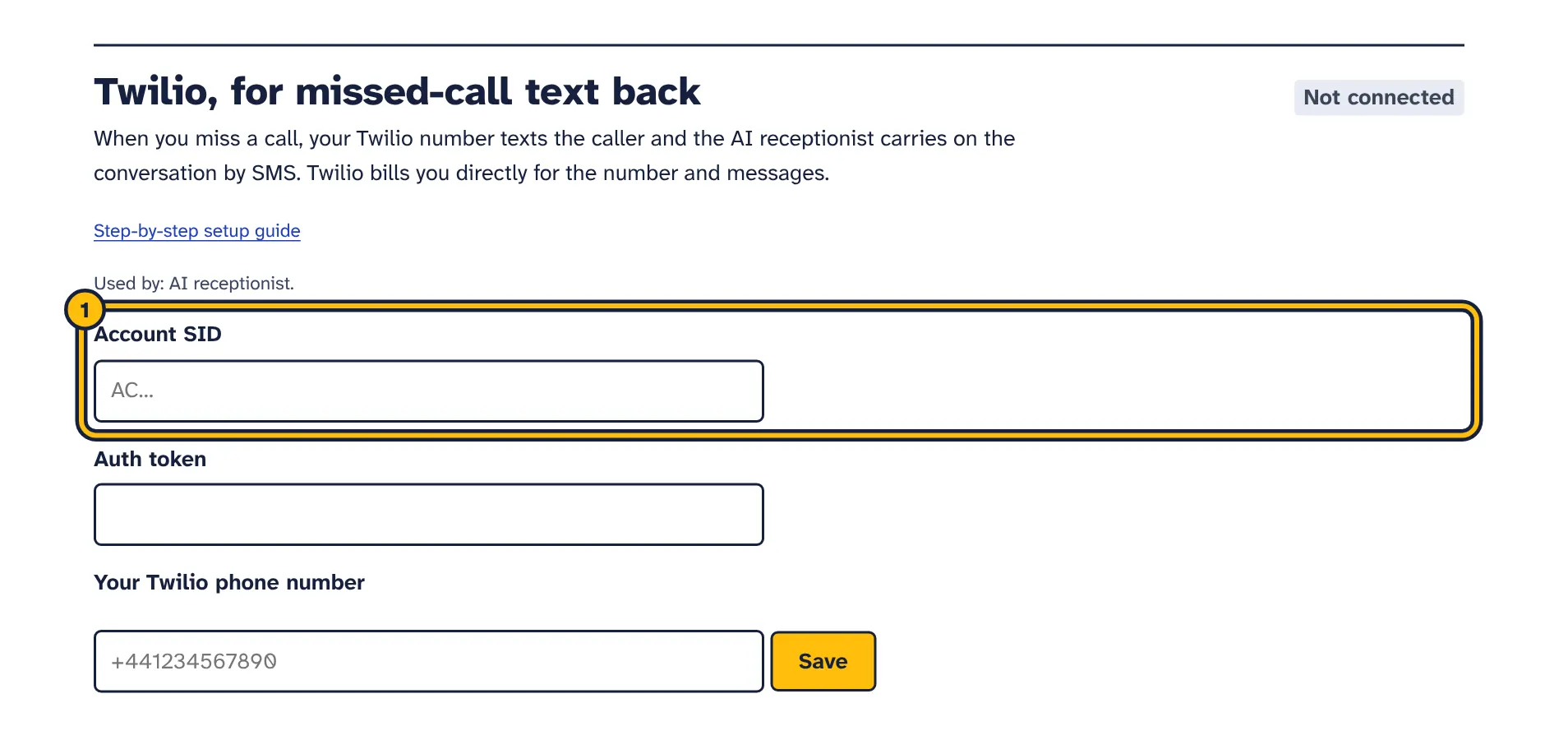
Step 1: Copy the Account SID from your Twilio Console and paste it here. -
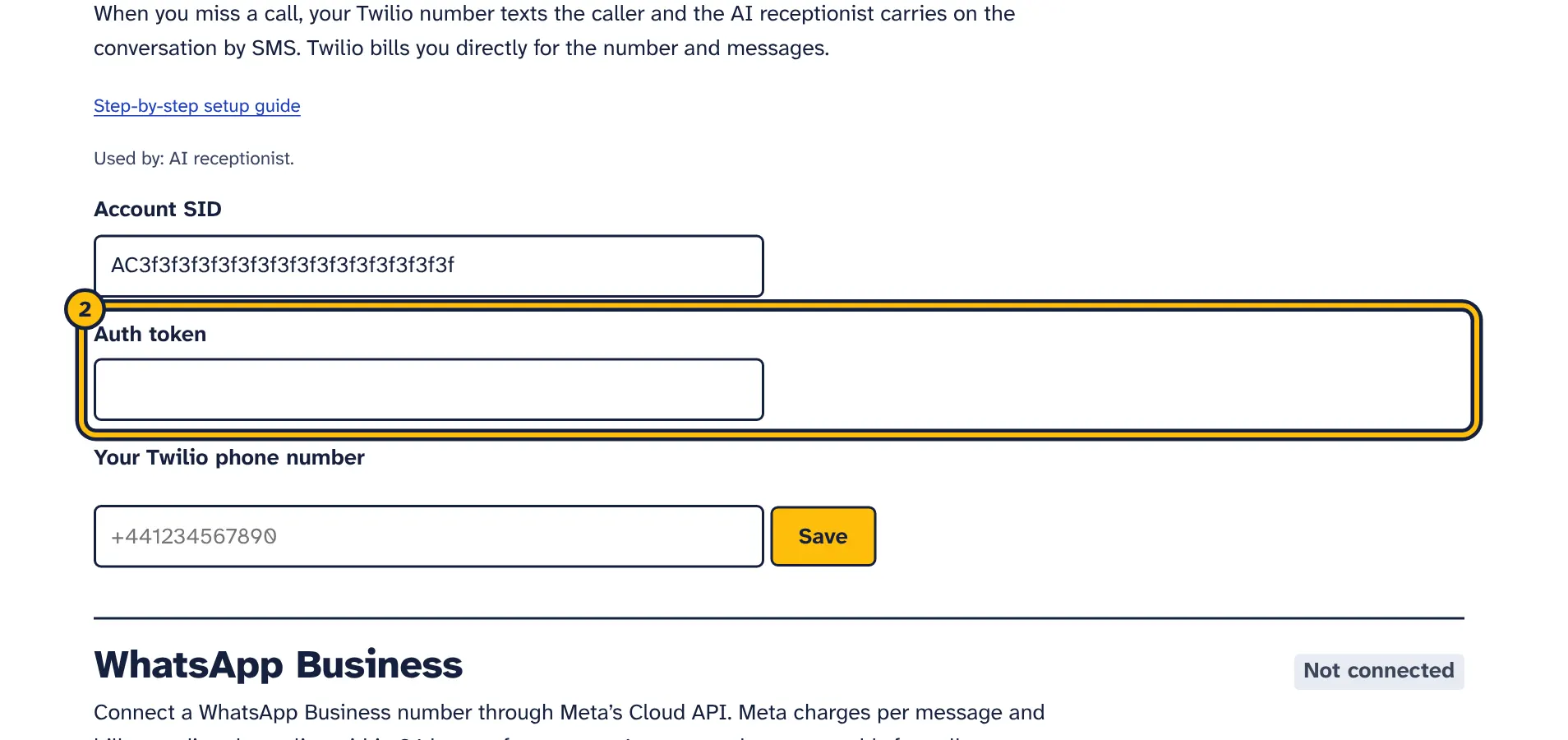
Step 2: Paste the Auth token from the same page. -
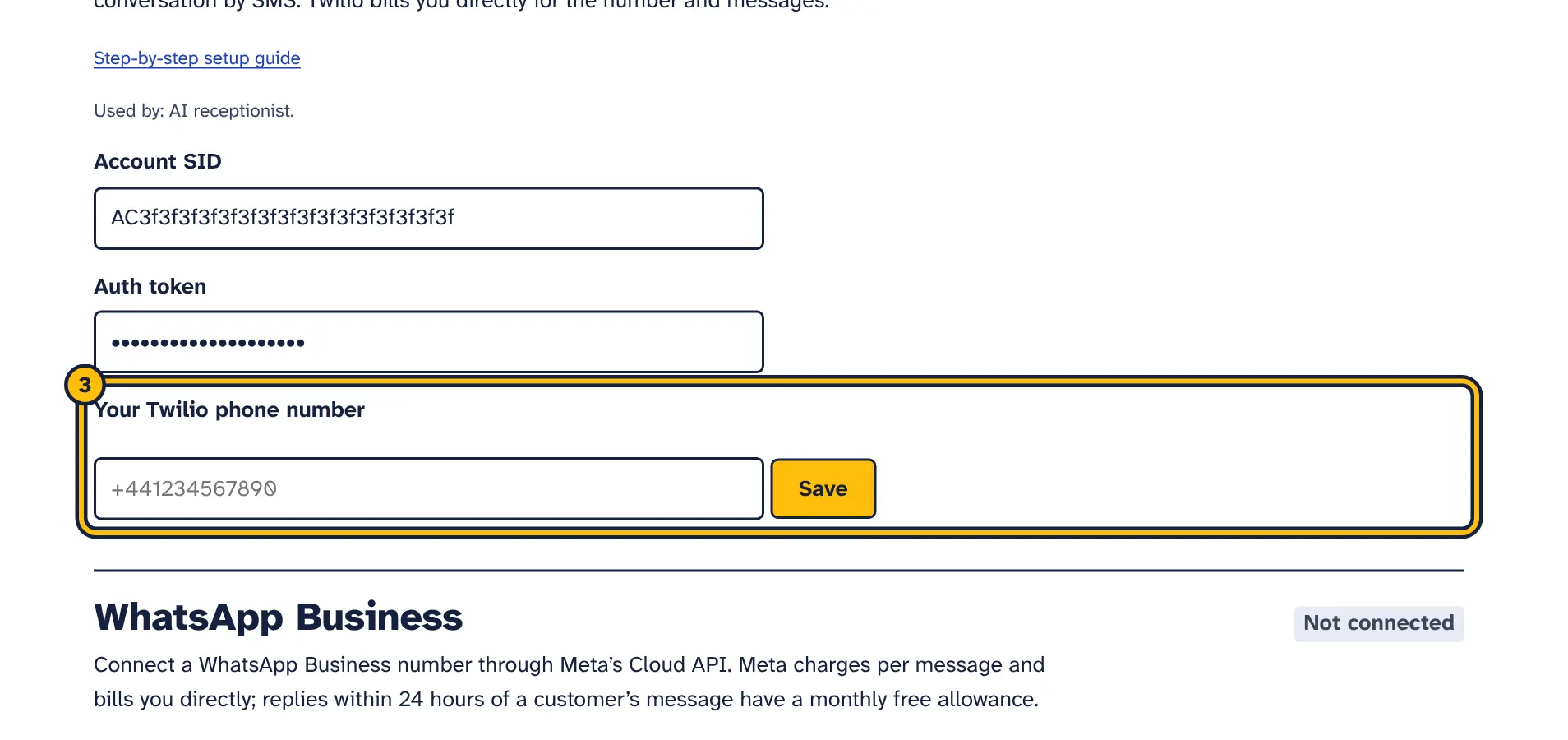
Step 3: Type your Twilio phone number with the country code. -
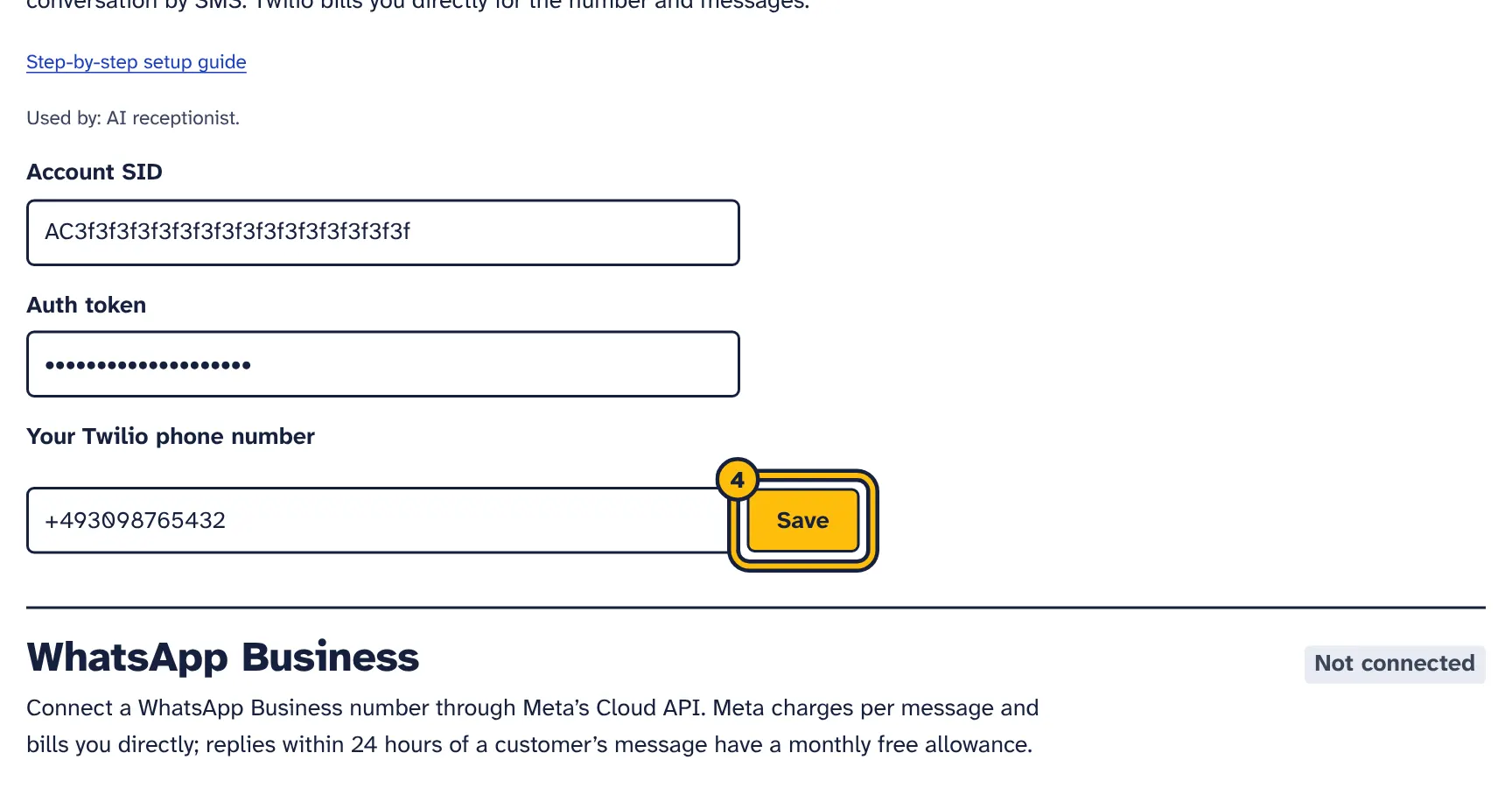
Step 4: Click Save. -
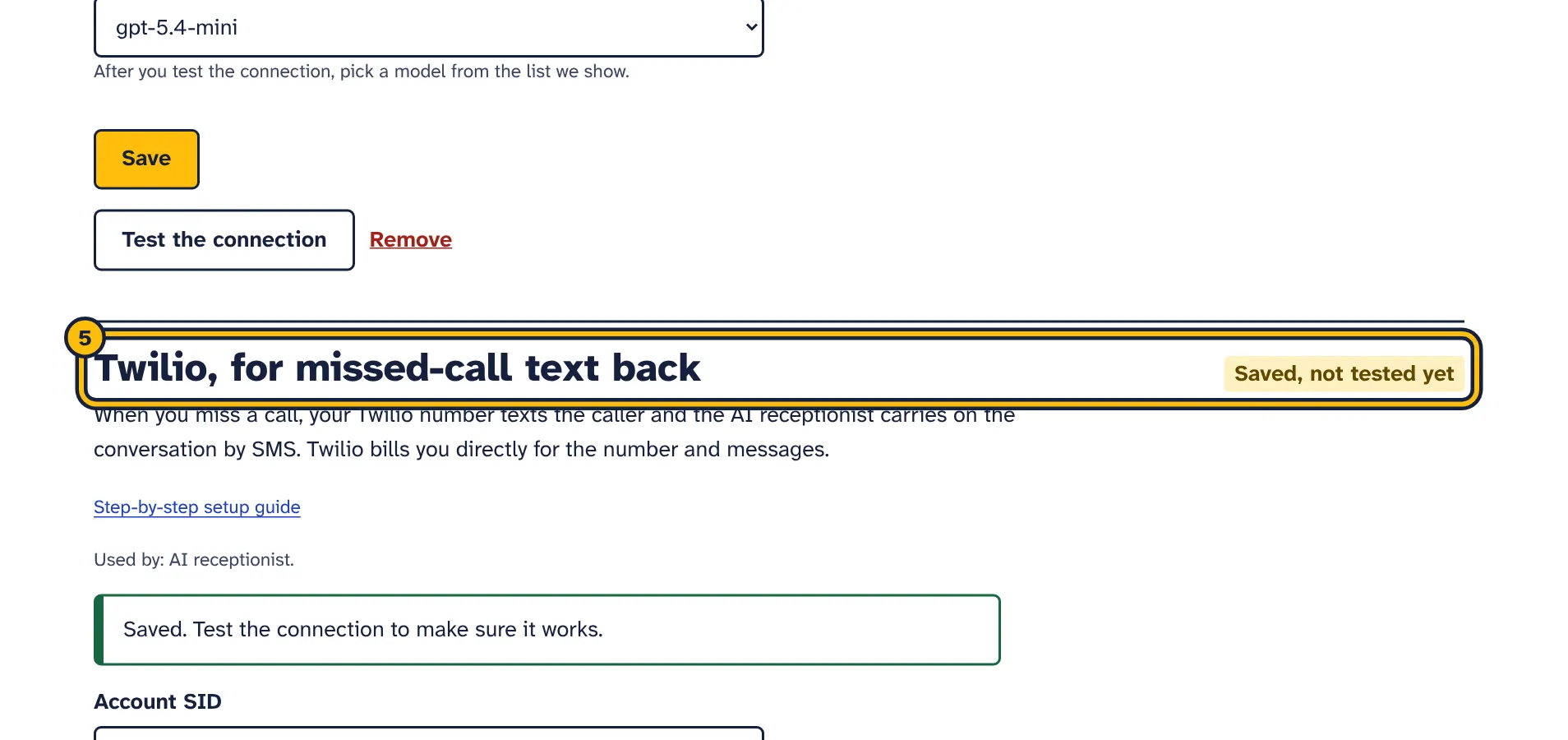
Step 5: Saved. Now copy the webhook addresses shown here into your Twilio phone number settings.
The same steps in pictures:
-
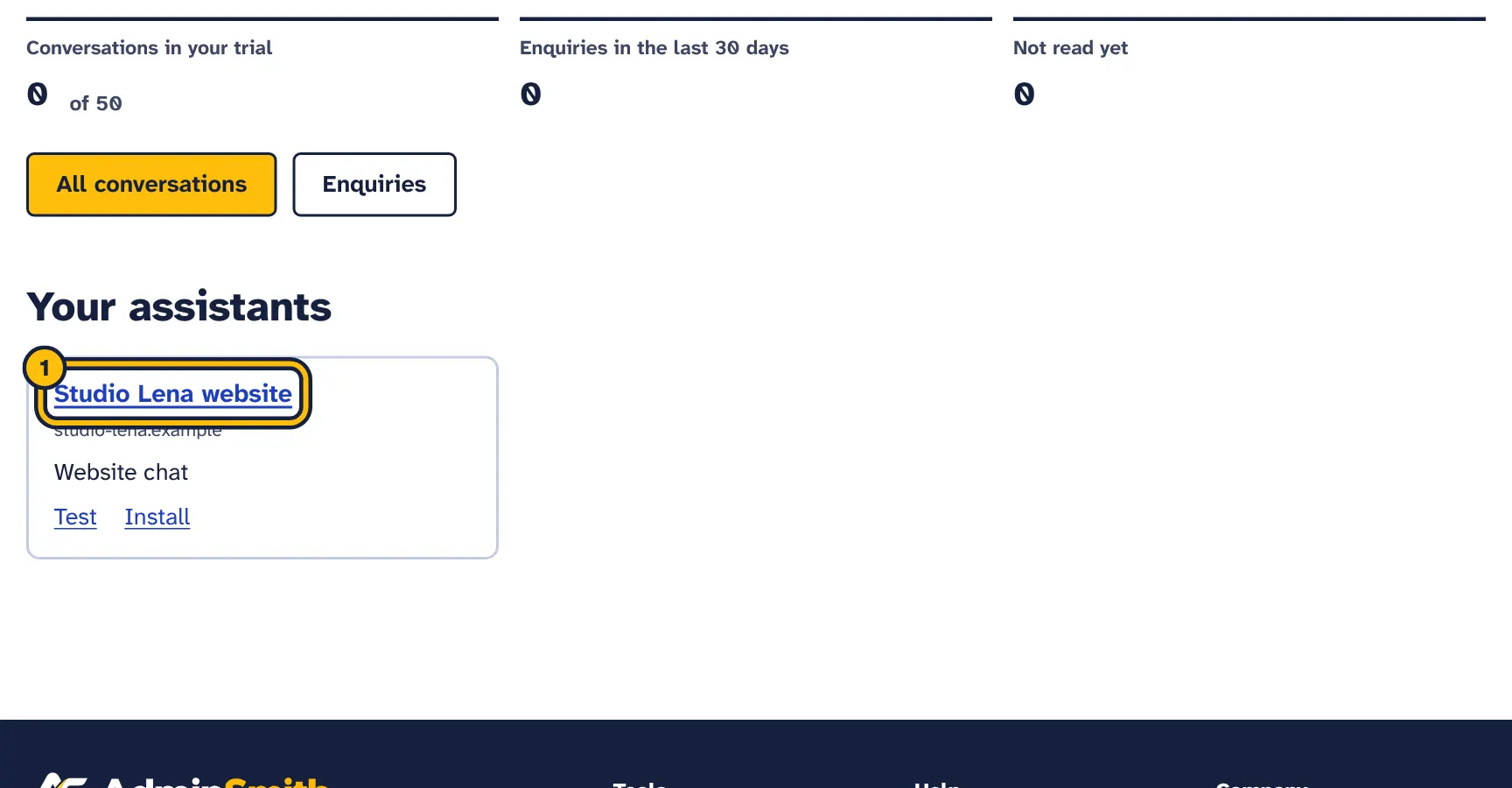
Step 1: Open your assistant. -
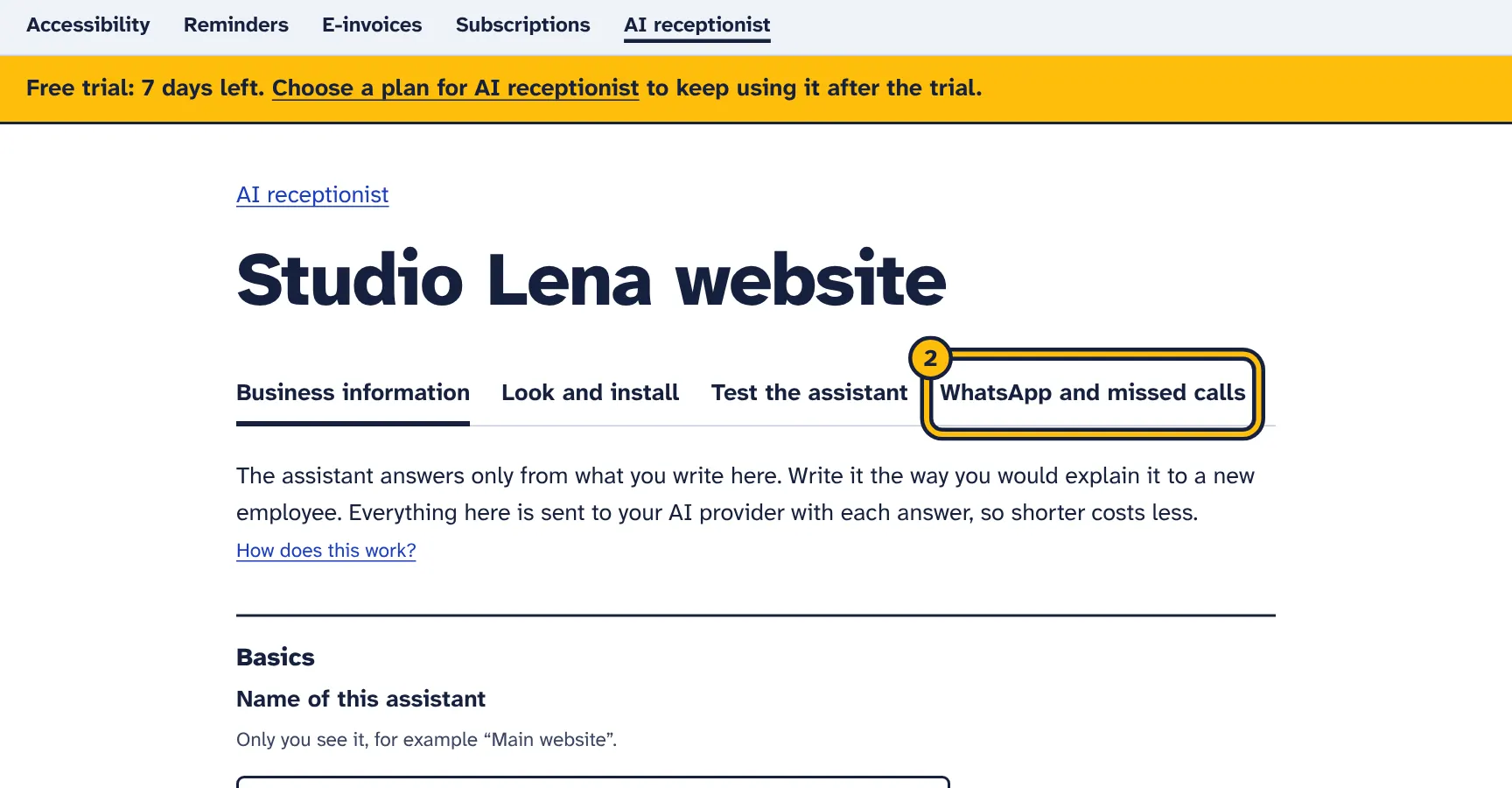
Step 2: Click WhatsApp and missed calls. -
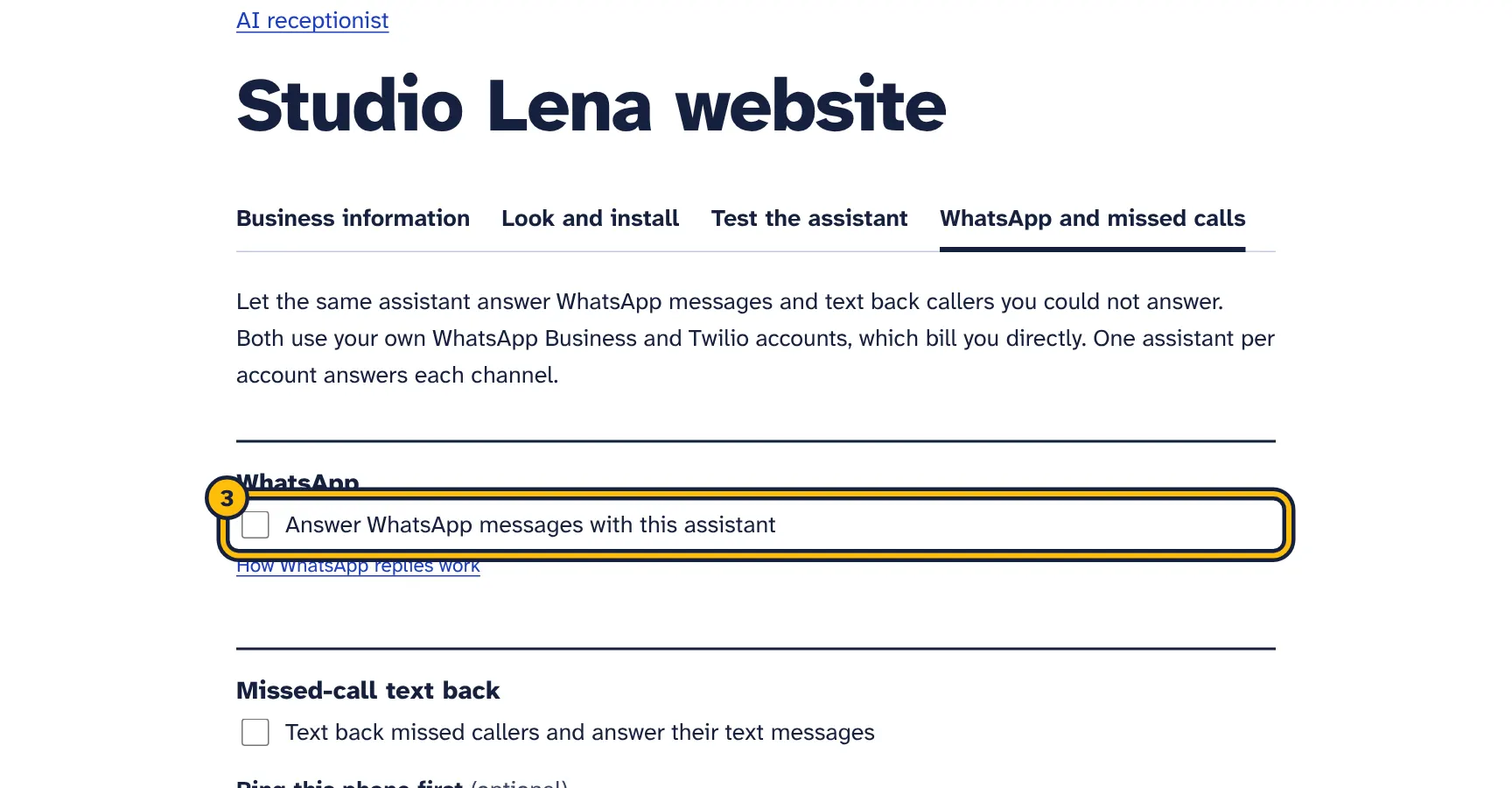
Step 3: Tick the box to answer WhatsApp messages. -
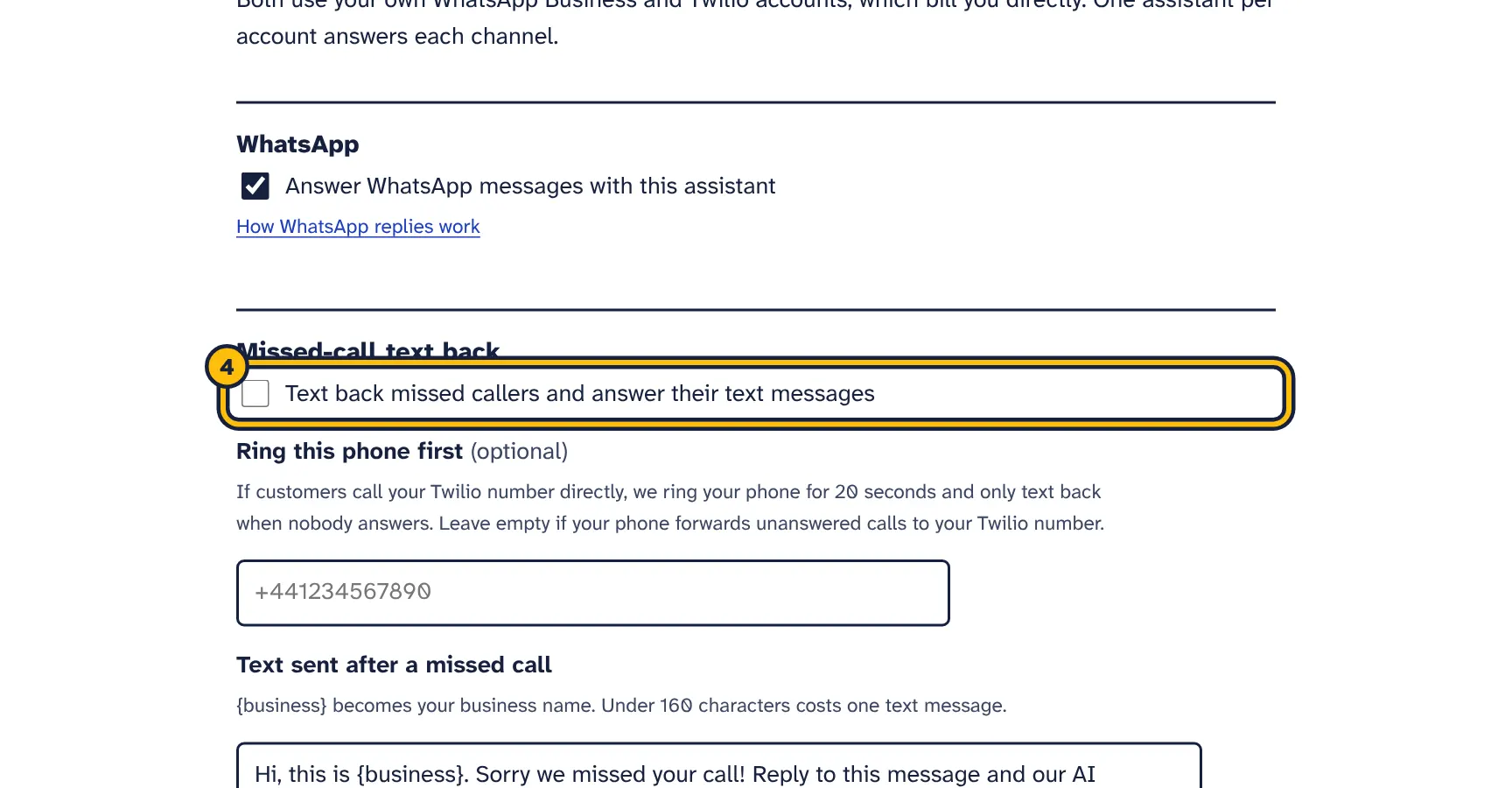
Step 4: Tick the box to text back people whose call you missed. -
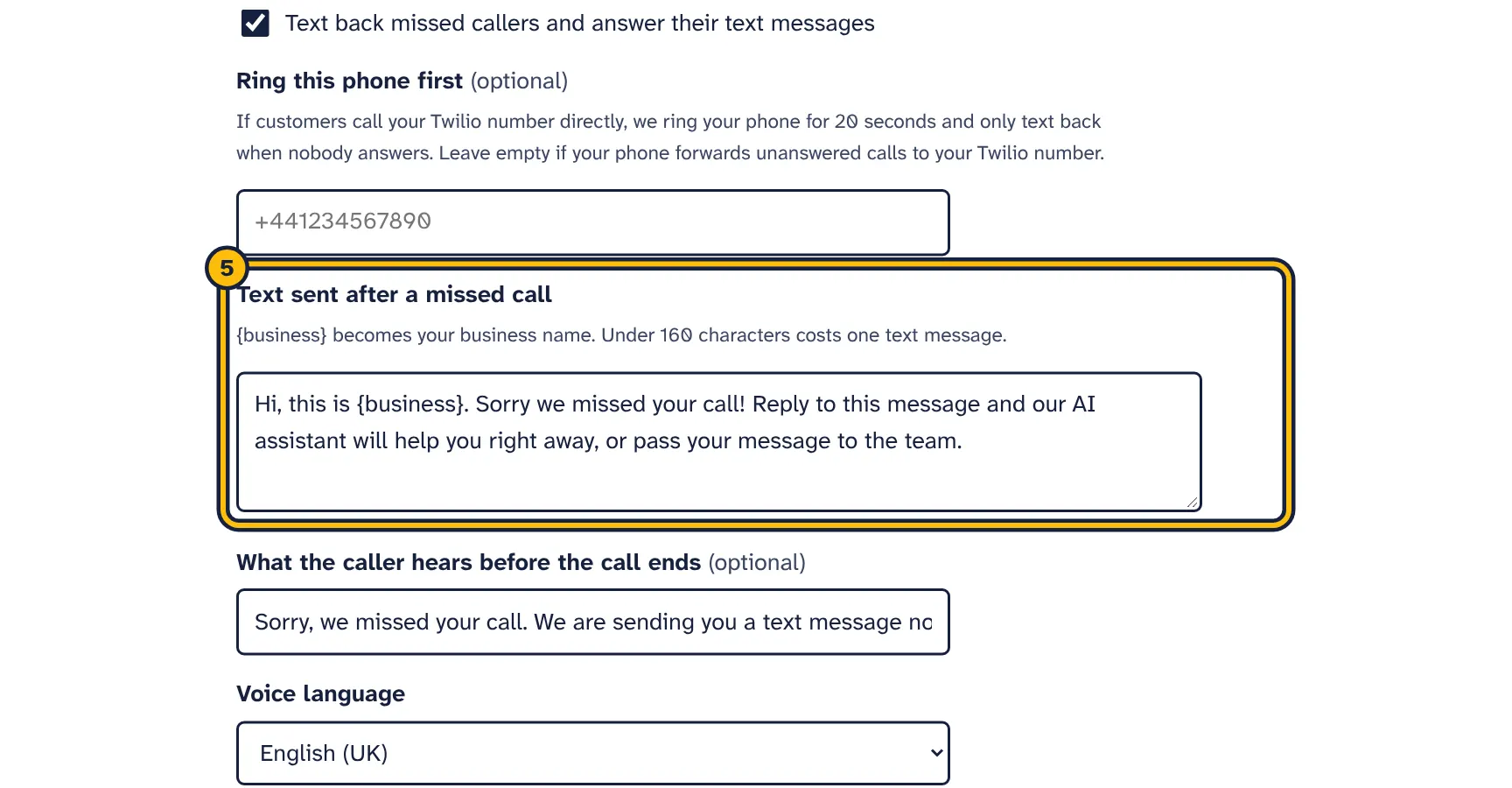
Step 5: Check the text callers get after a missed call. -
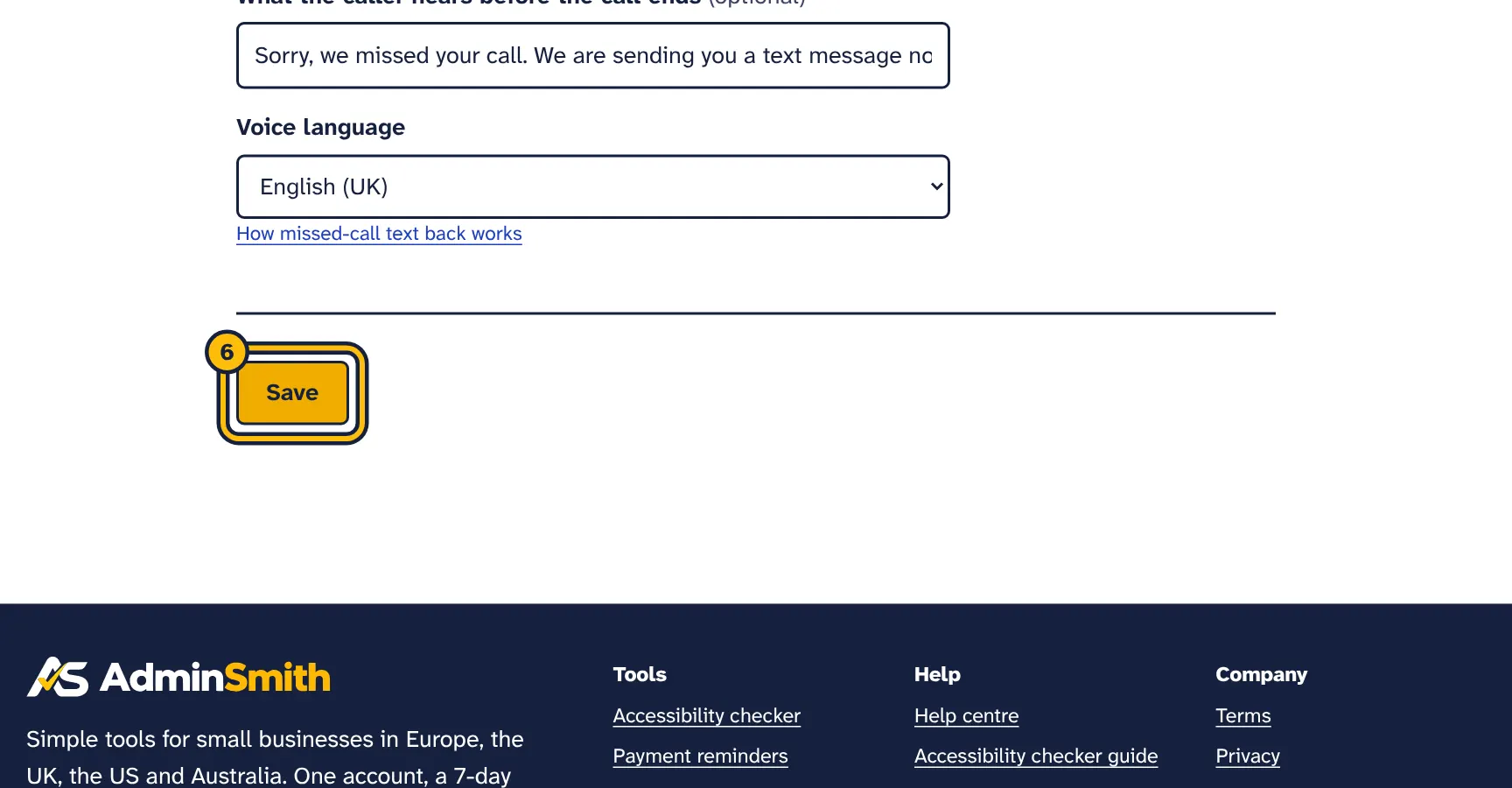
Step 6: Click Save.
Available on the Pro plan and in the free trial. It needs a Twilio number connected under Connections.
- Text back missed callers and answer their text messages
- Switches the feature on for this assistant. Only one assistant answers calls and texts.
- Ring this phone first
- Optional. If customers call your Twilio number directly, we ring this phone for 20 seconds and only text back when nobody answers. Leave it empty if your phone forwards unanswered calls to your Twilio number. Use international format, for example
+441234567890. - Text sent after a missed call
{business}becomes your business name. Under 160 characters is one SMS.- What the caller hears before the call ends
- A short spoken message. Leave it empty to end the call without a message.
- Voice language
- The language and accent of the spoken message.
- The same caller is texted at most once an hour.
- Withheld numbers cannot be texted.
- When the caller replies, the assistant answers by SMS in the same conversation, and you get an email about the missed call.
- Texting US numbers from a US local number needs A2P 10DLC registration with Twilio.
Conversations and enquiries
All conversations lists every conversation with a customer, newest first. Enquiries and requests for a person shows only those where a customer left contact details or asked for a person. Labels show New (not opened yet), Lead, Wants a person and You are answering.
Emails you get
- New enquiry: the customer’s name, contact details, what they need and the conversation.
- A customer would like to talk to a person: when someone asks for a person, complains or is upset.
- Missed call: when a caller was texted back.
- Your AI receptionist could not answer a customer: when a limit was reached or your AI provider returned an error, with the reason. At most one such email an hour per reason.
Emails go to the address in Send new enquiries to, or to everyone on your account if that is empty.
Replying yourself
- Open the conversation and write in Reply yourself, then click Send reply.
- On WhatsApp and SMS the reply goes from your number straight away. On the website, the customer sees it if the chat is still open.
- The assistant stops answering that conversation. You get an email when the customer writes again.
- Click Let the assistant answer again to hand it back.
WhatsApp allows free-form replies only within 24 hours of the customer’s last message. Delete conversation removes it for good.
Limits and costs
- Conversations per plan
- Your plan’s allowance per month (or for the whole trial). A conversation is counted once, when the assistant first answers it. Test chats are not counted.
- AI costs
- Your AI provider bills you for each answer, by the amount of text read and written (tokens). See AI usage.
- Most AI answers per day
- Set in Business information, from 10 to 5,000. Protects your AI budget.
- Per conversation
- Up to 30 customer messages, each up to 1,000 characters.
- Per visitor
- About 20 messages in 10 minutes from one internet address on the website chat.
- Websites
- Starter: 1 website chat. Pro: up to 3. Extra assistants beyond your plan are paused on websites.
When a limit is reached or your AI provider refuses an answer, for example because your prepaid credit there is used up, the customer gets a message in your chosen language asking for their name and phone number or email address, and you get an email with the reason. With your own AI key, your provider bills you for each answer. Twilio and Meta bill you directly for texts and WhatsApp messages.
Answer quality
Every answer is written by the model you chose under Connections. To change it, open Connections, pick another model from the list under Your AI account and select Save. A small, fast model is right for most businesses; try a larger one only if answers miss things that are in your information.
What each conversation used
Every conversation page shows AI use: the number of AI replies and the tokens read and written. The Usage page has the daily report and the report per model.
Privacy and the EU AI Act
- The chat shows “AI assistant” and a notice that customers are chatting with an AI assistant whose messages are saved for your business.
- Add Link to your privacy policy to show it in the chat. Your policy should mention the chat, what is stored, how long, and that your AI provider (and Meta or Twilio, if used) processes the messages.
- Choose Delete conversations after 30 days, 90 days, 6 months or 1 year. Deletion runs automatically.
- The chat sets no cookies on your website. It remembers the open conversation only in the visitor’s browser tab.
- We process conversations as your processor under the data processing agreement and do not use them to train AI models.
Read more about the EU AI Act and chatbots.
Troubleshooting
- The test page says to connect your AI account
- Add your AI key under Connections, select Test the connection and choose a model from the list.
- Customers get “Sorry, I cannot answer right now”
- The assistant could not answer or a limit was reached. The email “could not answer a customer” and the note in the conversation say why: key not accepted, out of credit at your provider, model not found, daily limit or plan limit.
- The chat button does not show
- Check the website address in Business information, that the code is on the page, and your browser console. Clear your site’s cache after adding the code.
- WhatsApp messages get no reply
- Check that WhatsApp is ticked for an assistant, that the webhook is verified and subscribed to messages in Meta’s dashboard, and that your access token has not expired.
- Missed callers get no text
- Check the Twilio webhooks, that forwarding reaches your Twilio number, that the caller’s number was not withheld, and for US numbers that A2P 10DLC registration is approved.
- An answer was wrong
- Add the correct information or a common question with the right answer, then test again.
Still stuck? Email support@adminsmith.com and tell us what you tried. See also Connecting your own accounts and Your account, plans and billing.