
Your account, plans and billing
Everything about your AdminSmith account: what the free trial includes, how plans and payments work, what happens to your data when a trial ends, and how to change your settings, keep your account safe or delete it.
This guide shows 3 tasks step by step, as a short video and in pictures. Look for the sections marked “video”.
The free trial
The same steps in pictures:
-
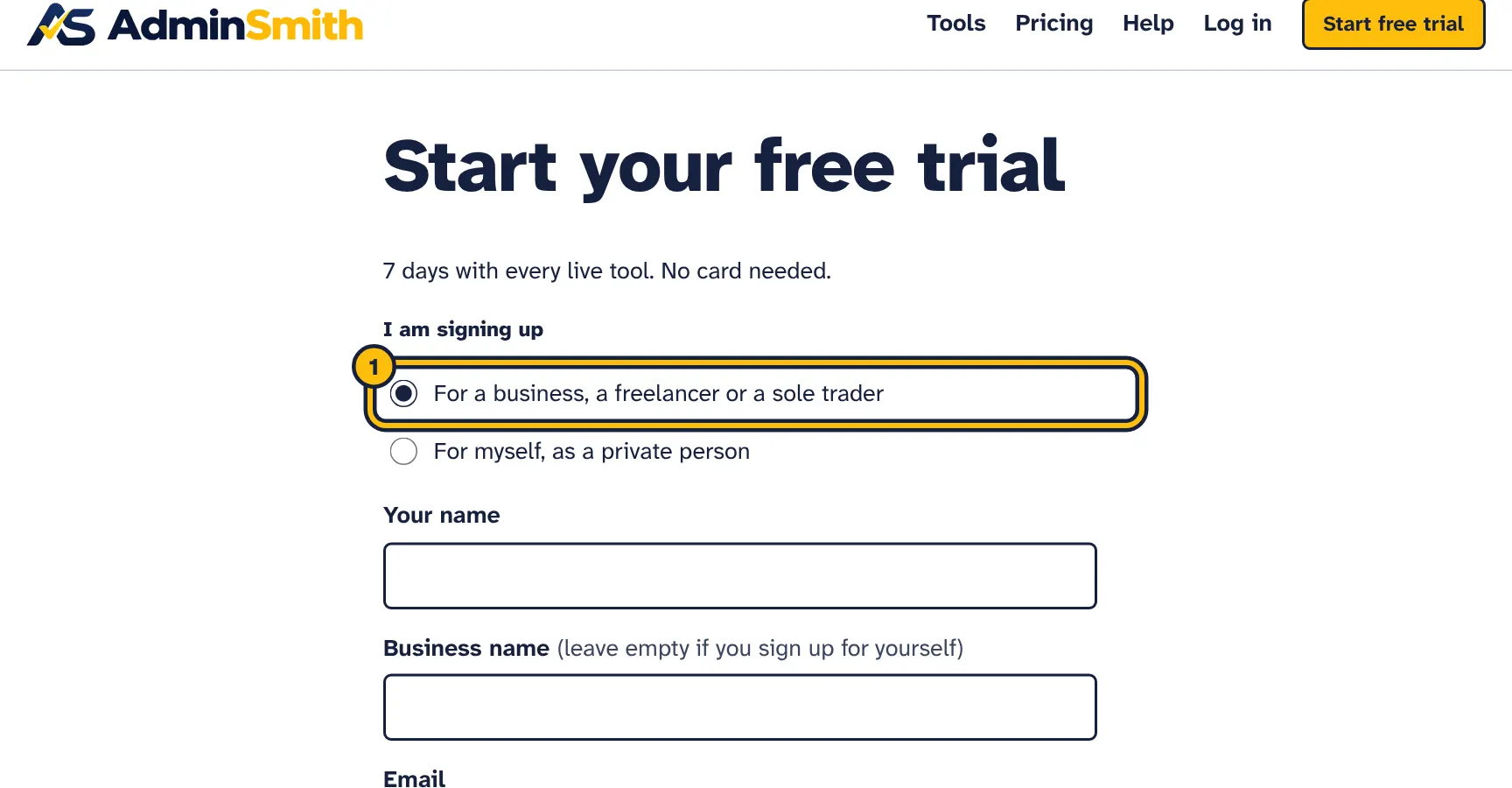
Step 1: Choose who you sign up for: a business, or yourself as a private person. -
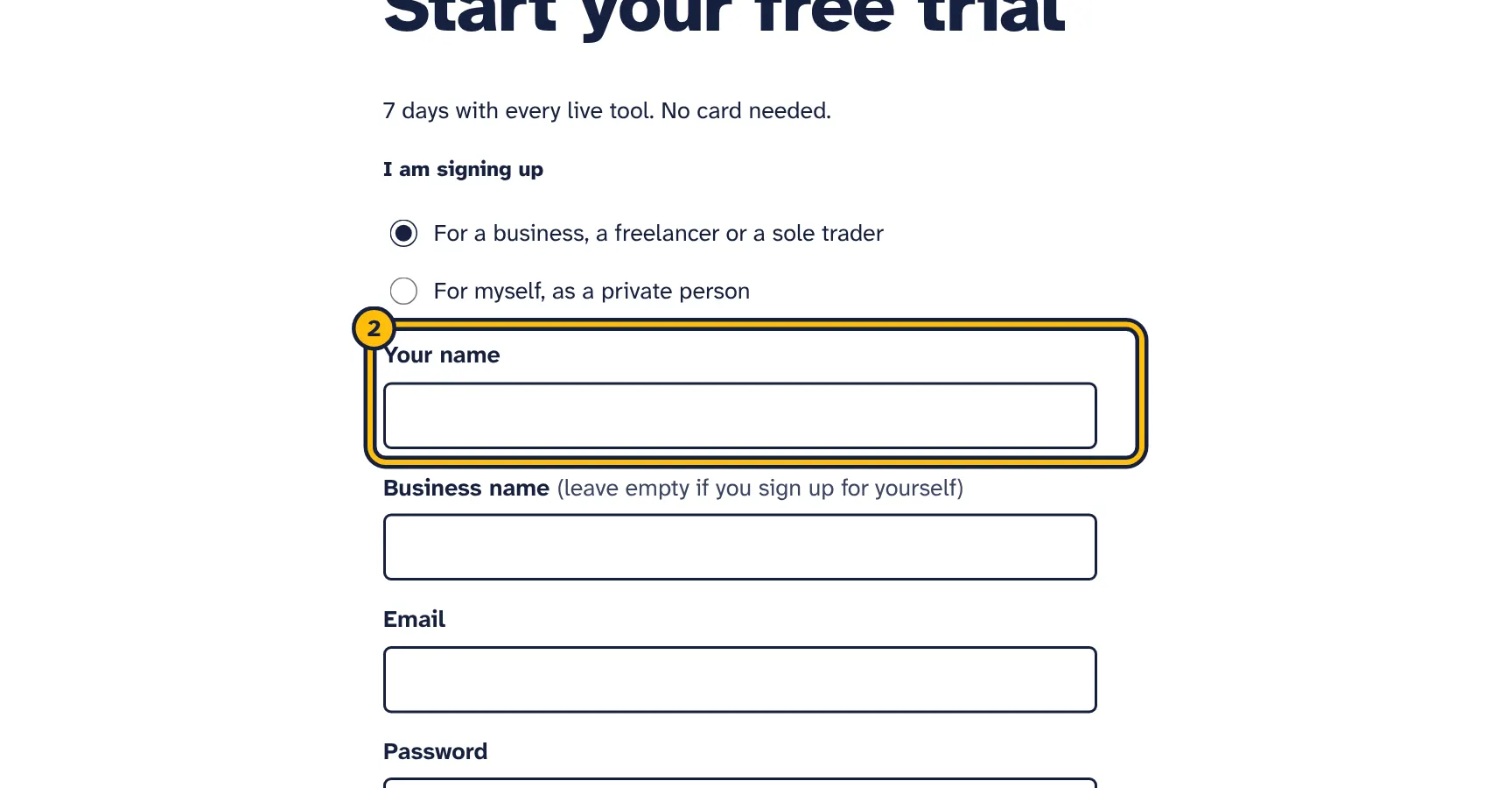
Step 2: Type your name. -
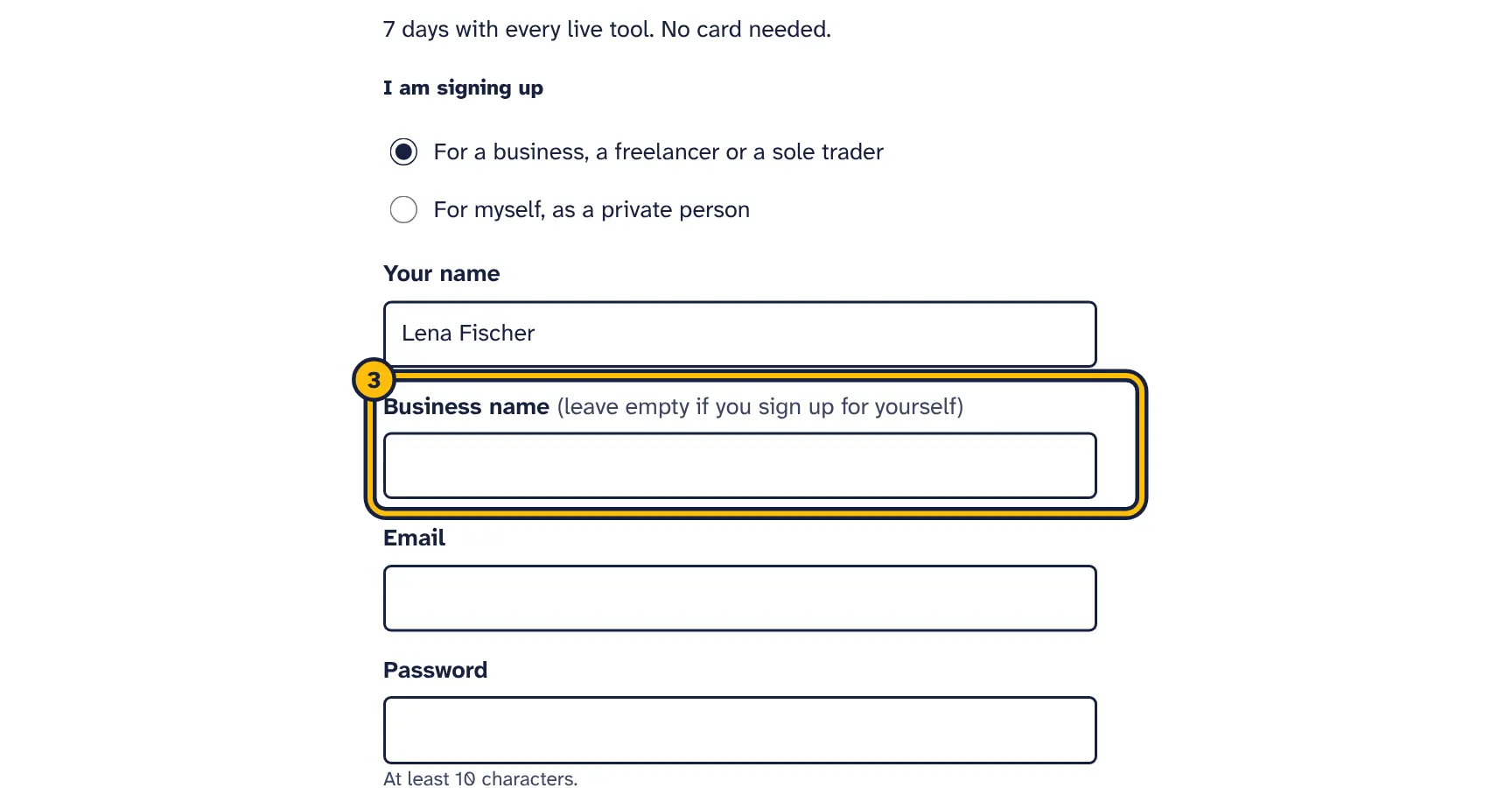
Step 3: Type your business name. Leave it empty if you sign up for yourself. -
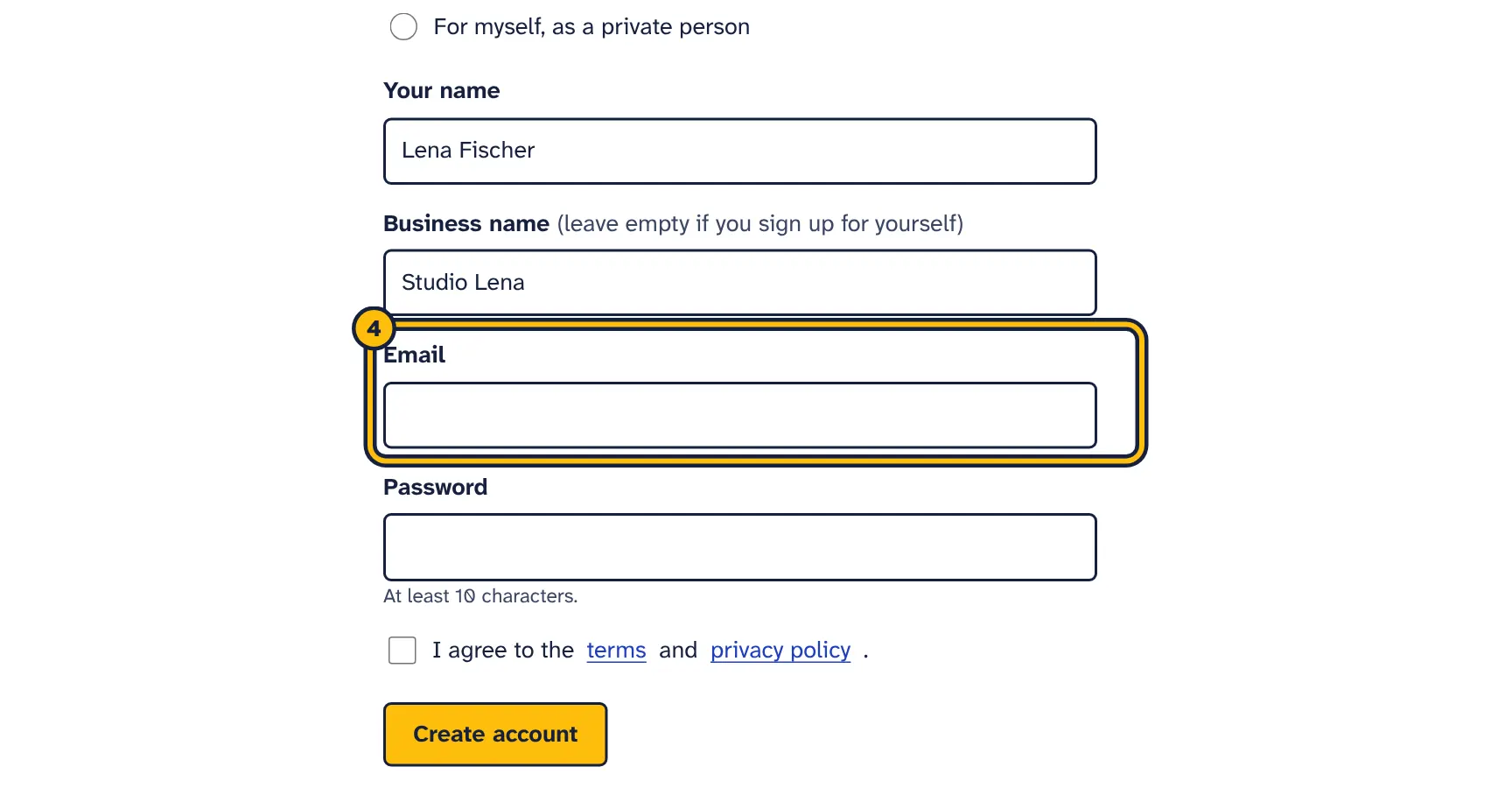
Step 4: Type the email address you want to log in with. -
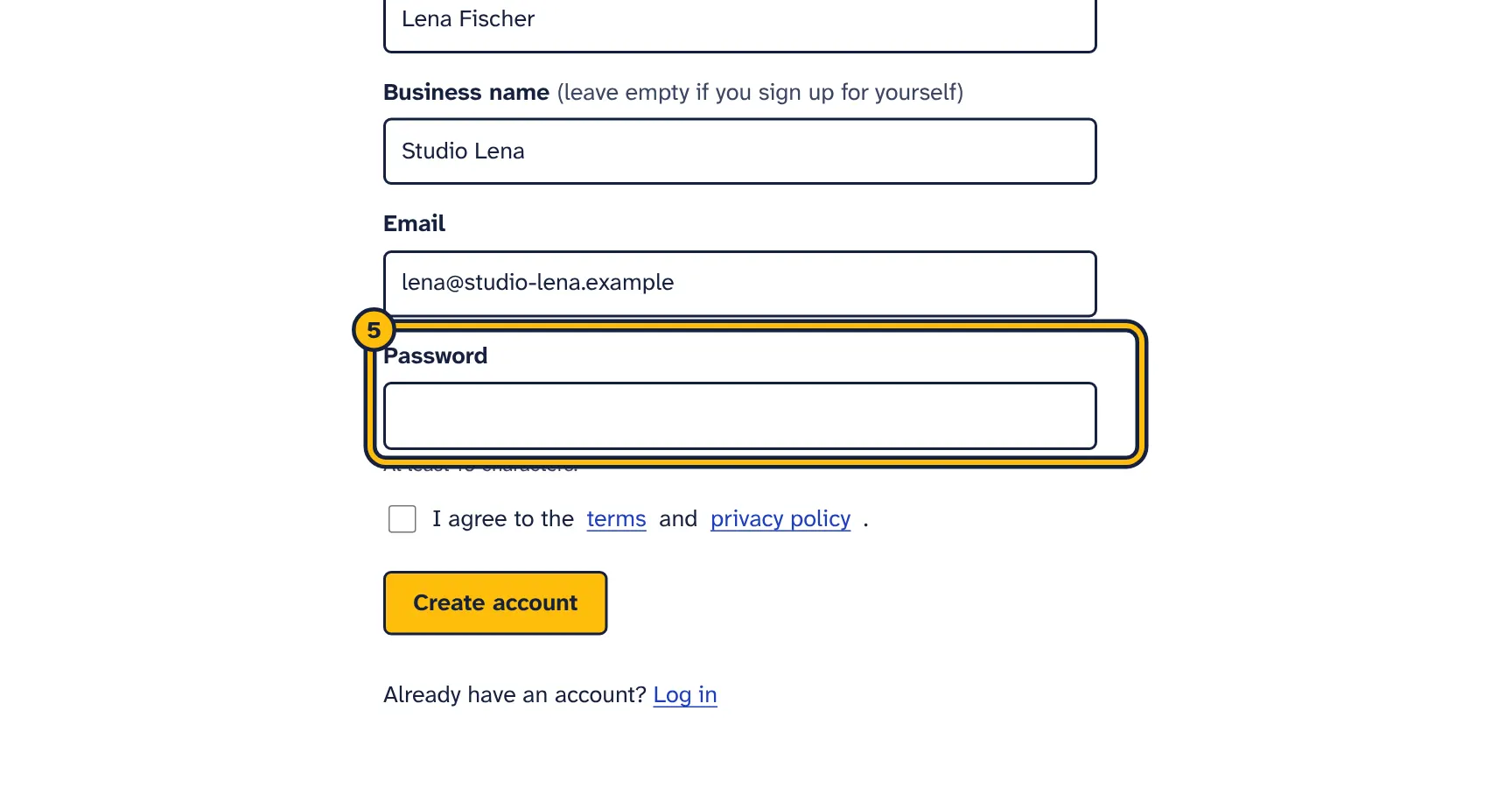
Step 5: Choose a password of at least 10 characters. -
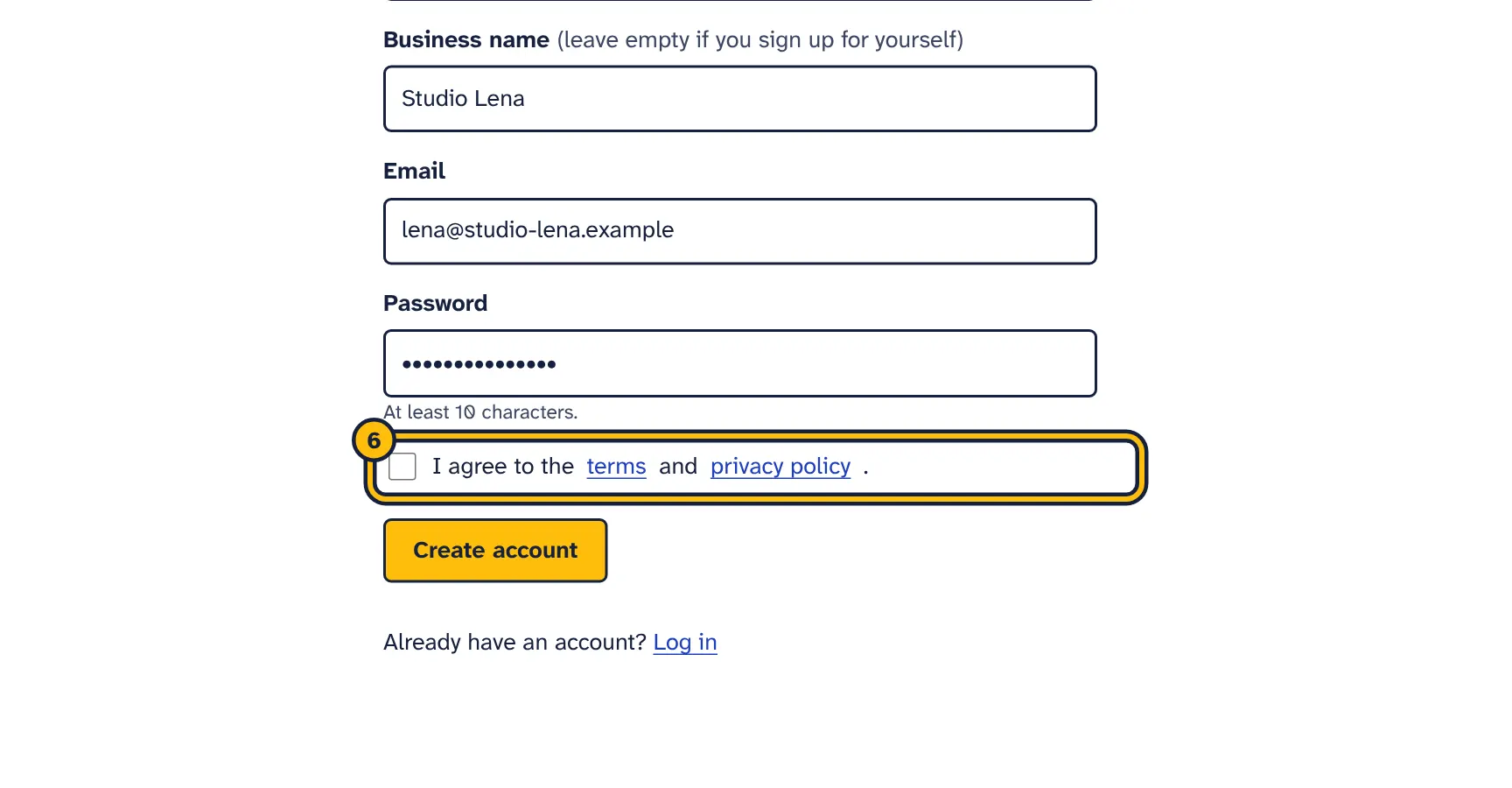
Step 6: Tick the box to agree to the terms and privacy policy. -
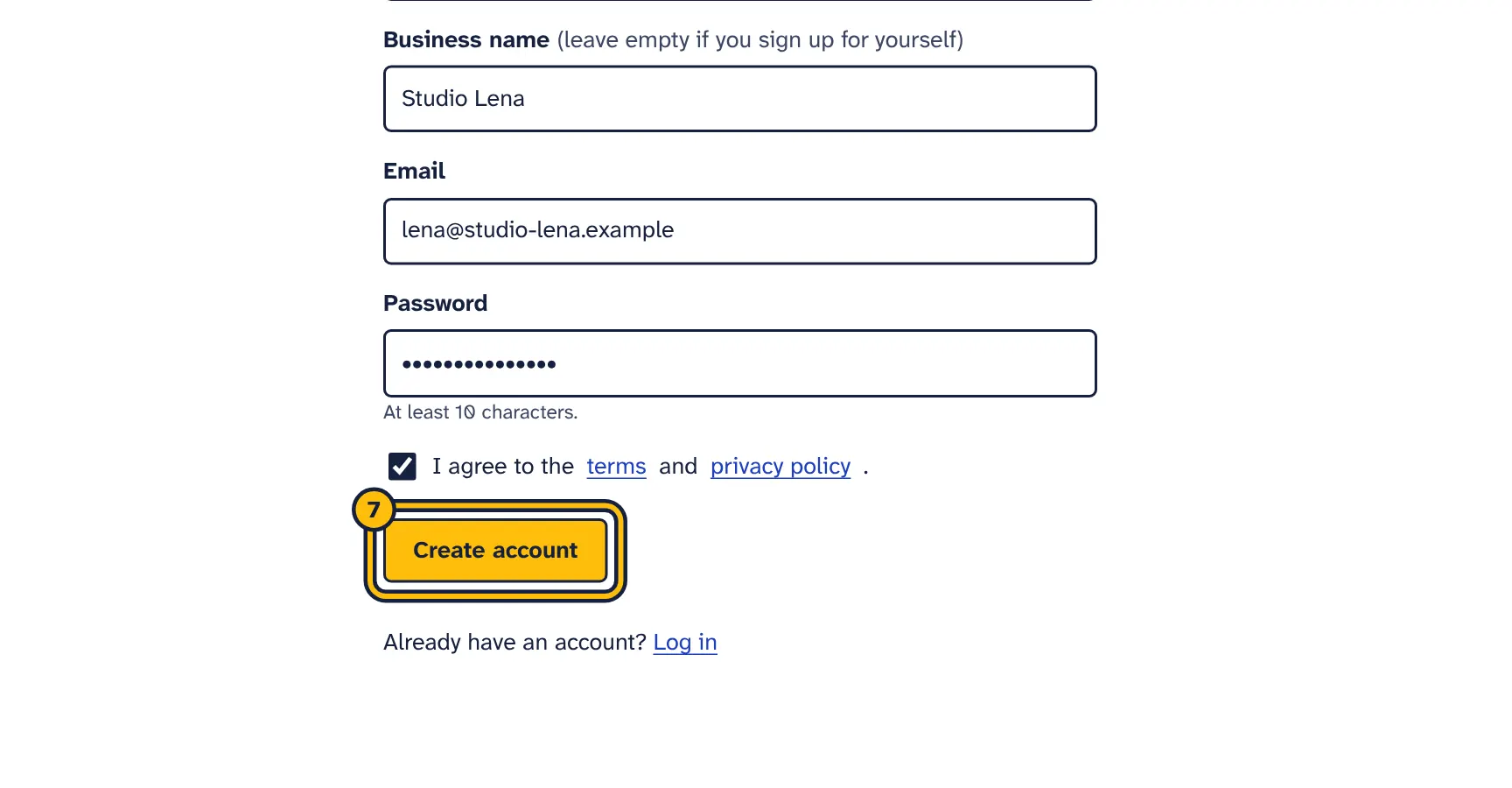
Step 7: Click Create account. Your free trial of every tool starts now. -
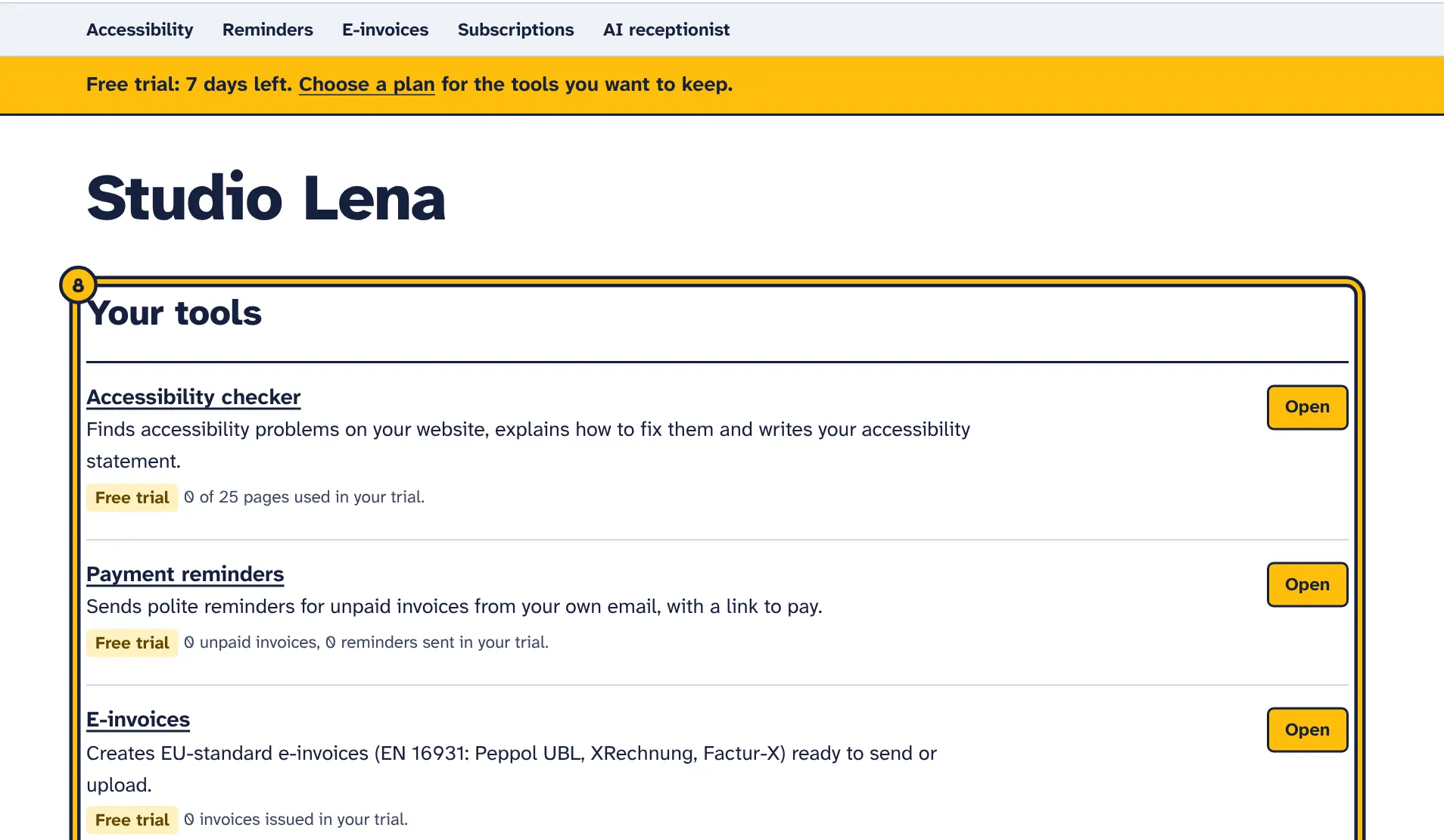
Step 8: This is your dashboard. Open any tool from here.
Every new account gets one free trial of 7 days. It starts when you create your account and covers every tool that is available, so you can try them all. No card is needed to start.
When you sign up, choose For a business, a freelancer or a sole trader or For myself, as a private person. A private account needs no business name; your name is used instead. You can change this later in Settings.
Each tool has trial limits, which count for the whole trial rather than per month:
- Accessibility checker: 1 website, 25 pages checked in total, up to 10 pages per check. Automatic re-checks are part of the paid plans.
- Payment reminders: up to 10 unpaid invoices at a time and 30 reminders in total. You can also write your own reminder texts.
- E-invoices: 5 e-invoices in total. Creating invoices from a CSV file is included.
- Subscription tracker: 1 bank account or card and 3 statement uploads in total.
- AI receptionist: 50 conversations in total, chat on 1 website, with website chat, WhatsApp replies, missed-call text back. Answers are written with your own AI key, so your AI provider bills you for them, also during the trial.
The strip under the menu shows how many trial days are left. Each tool’s page shows how much of its trial limit you have used.
Some tools send email or messages with your own accounts, such as your mailbox or your AI key. Those providers bill you directly, also during the trial. See Connecting your own accounts.
Plans: pay only for the tools you keep
After the trial, each tool has its own two plans, Starter and Pro. You choose a plan only for the tools you want to keep, and you pay for each one separately, every month. Prices and what each plan includes are shown under Plan and billing in the top menu.
- Monthly limits, such as pages checked, reminders sent, e-invoices issued, statement uploads and AI conversations, start again on the first day of each calendar month (UTC), not on your payment date.
- Some limits count what you have at one time, not per month: websites, unpaid invoices, bank accounts and website chats.
- When you reach a limit, the tool tells you and offers an upgrade. The AI receptionist asks customers for their contact details instead of answering, and emails you.
- Some features are part of one plan only. For example, WhatsApp replies in the AI receptionist are part of the Pro plan. Each tool’s plan page lists what is included.
- The AI receptionist writes its answers with your own AI key, so your AI provider bills you for AI use, not us. See AI usage.
Prices exclude VAT or sales tax, which is added at checkout for your country. Plans pay for the tools themselves. Where a tool uses your own AI, Twilio, WhatsApp or email account, that provider bills you directly. Unused allowance does not carry over to the next month.
All tools in one plan
If you use several tools, the All tools plan is cheaper: one monthly subscription gives every tool its Starter plan (All tools Starter) or its Pro plan (All tools Pro), with the same limits as when you buy the tools one by one. Find it at the top of Plan and billing. If you already pay for single tools, cancel those plans after you switch, so you do not pay twice.
AI usage and the Usage page
The same steps in pictures:
-
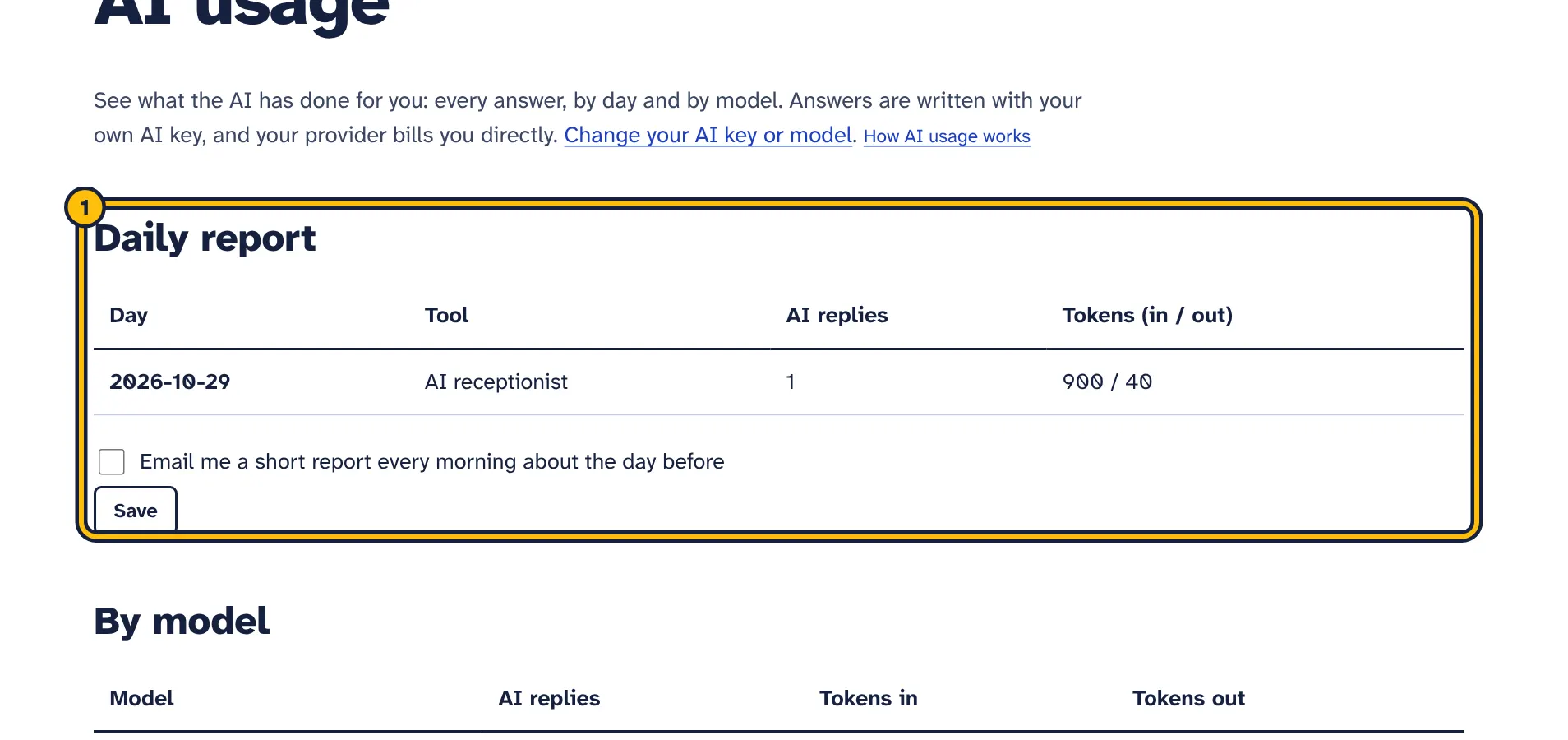
Step 1: Every AI answer, day by day: replies and tokens, which is what your provider charges for. -
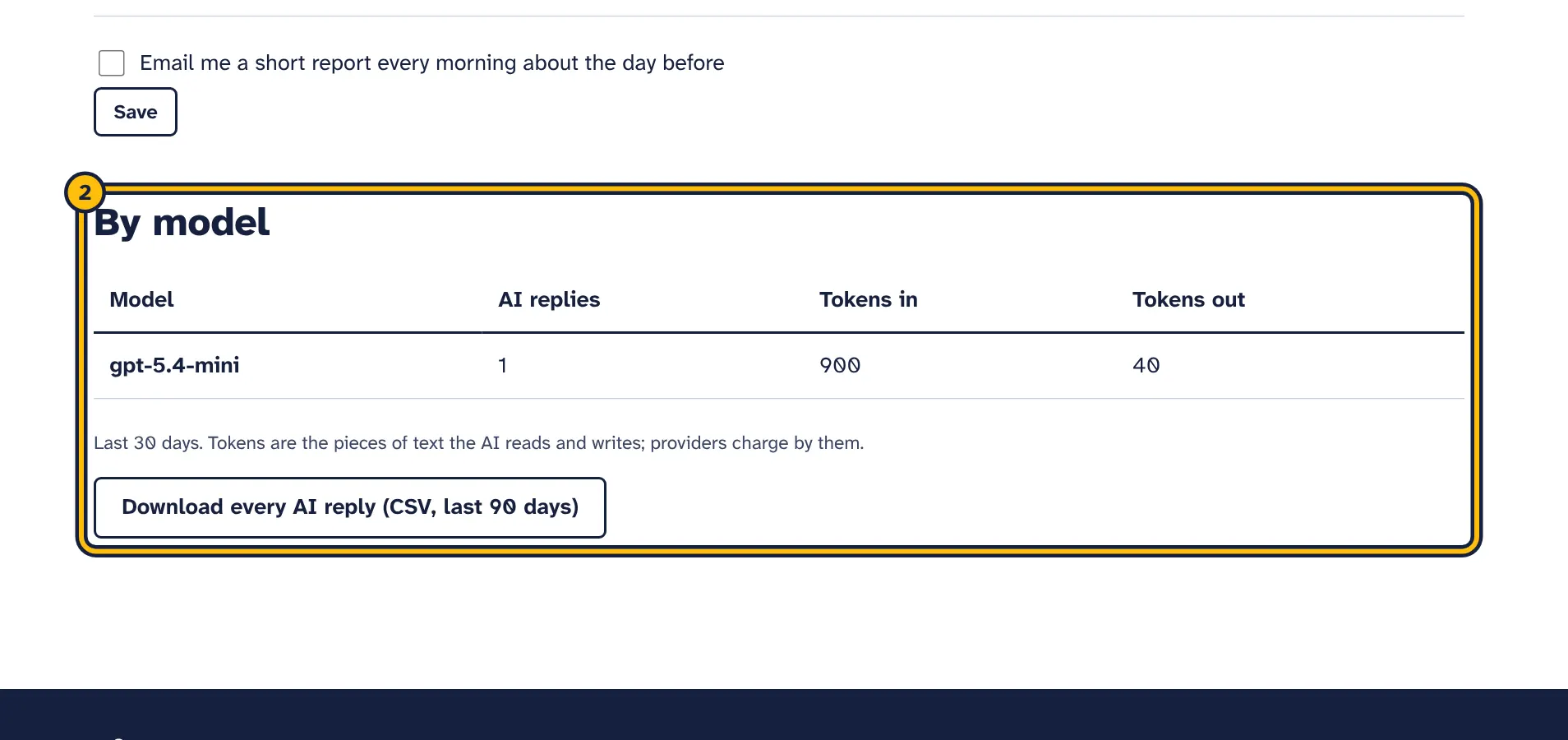
Step 2: Which model wrote your answers, and how much text each one used. -
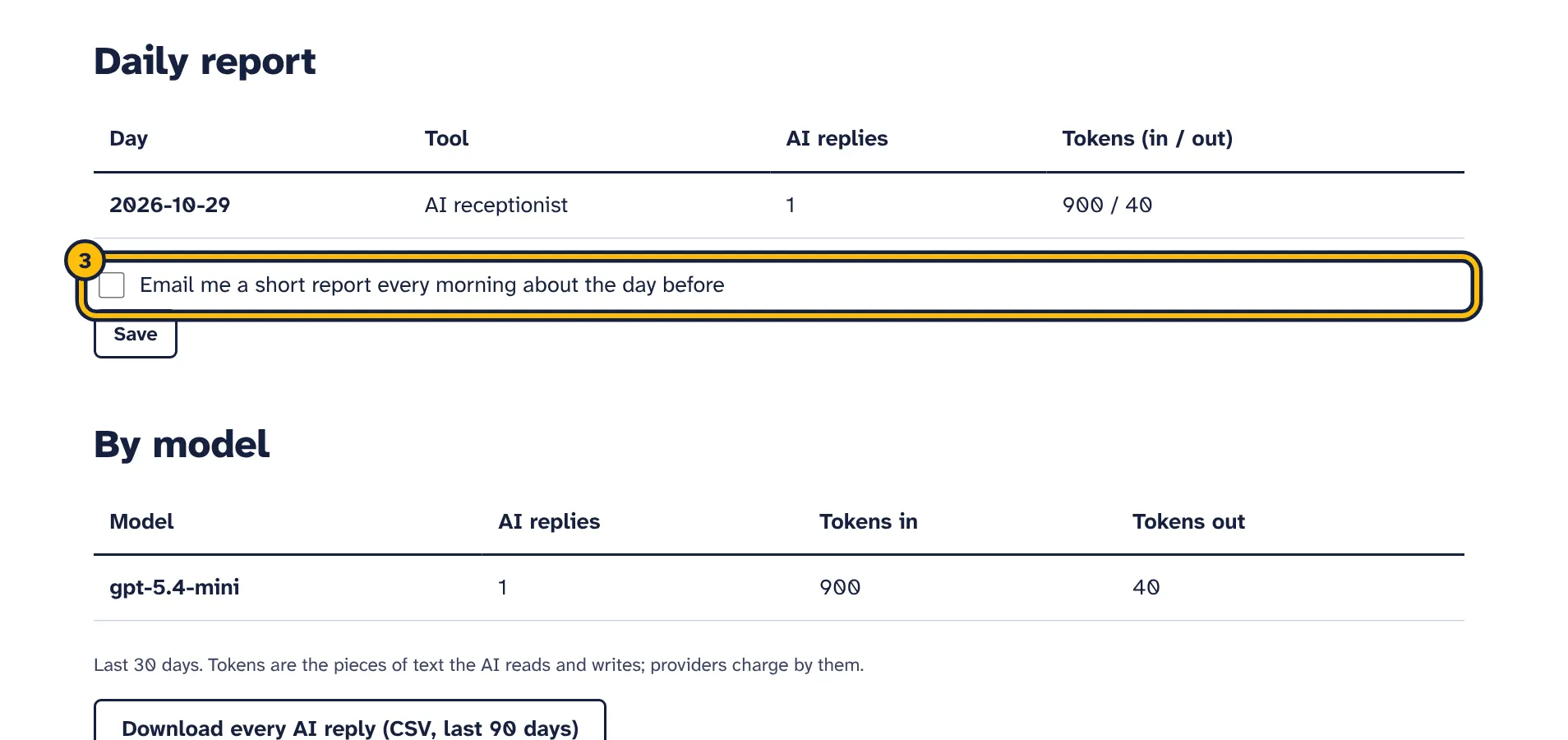
Step 3: Tick the box to get a short report every morning. -
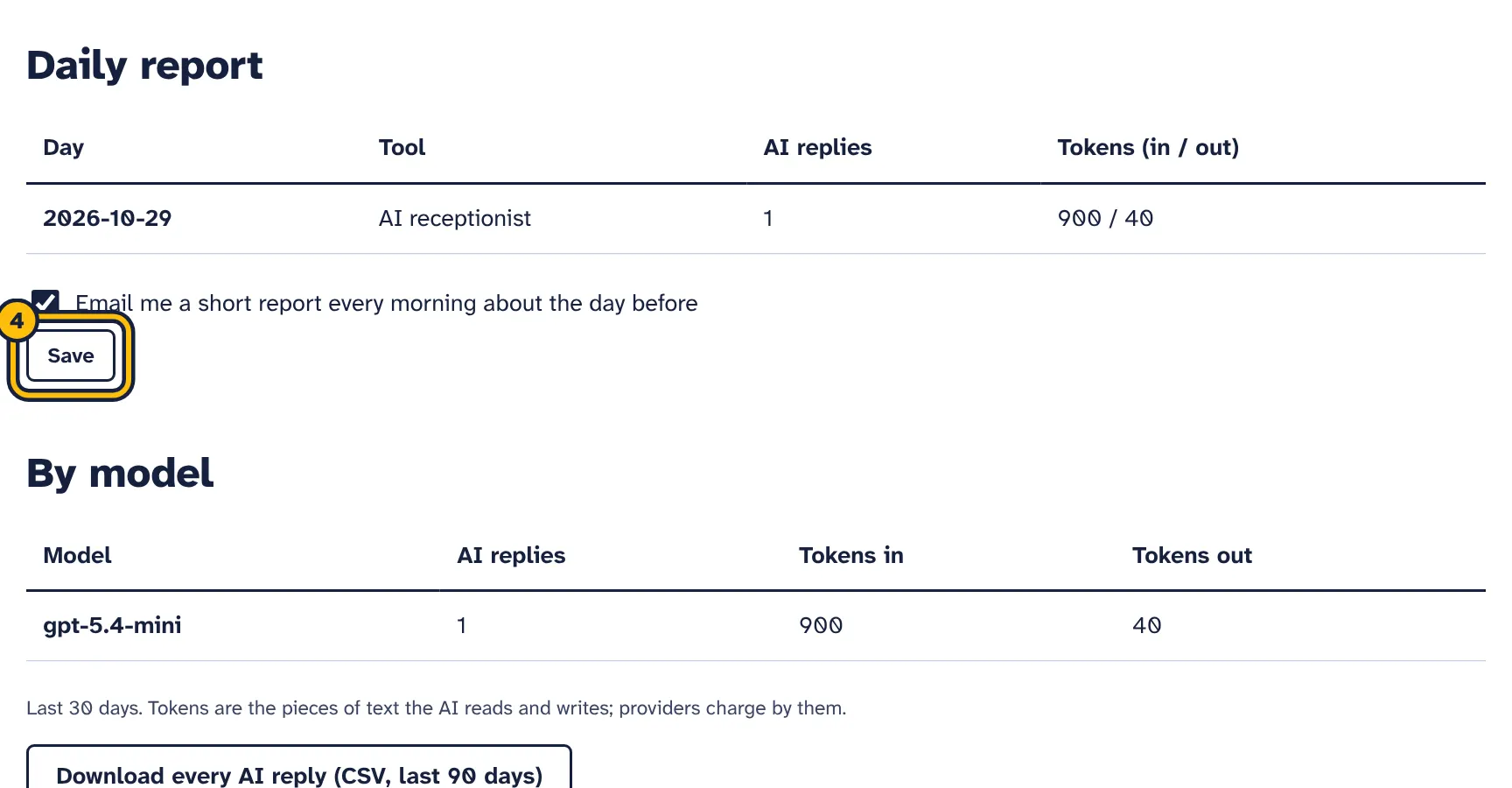
Step 4: Click Save.
The AI receptionist writes its answers with your own AI key, which you add under Connections (see Connecting your own accounts). Your AI provider bills you directly for every answer, at its own prices. We add nothing and do not see your provider’s bill.
- Answers in Test the assistant are written with your key too, so your provider bills them like any other answer.
- Set a spending limit or a low automatic top-up at your provider. If your prepaid credit there runs out, the assistant asks customers for their contact details instead of answering, and we email you the reason.
- In each assistant’s settings, Most AI answers per day limits how many answers it can write in one day.
- To change the model, open Connections, choose another model under Your AI account and select Save.
The Usage page
Open Usage in the top menu to see what the AI has done for you:
- Daily report: AI replies and tokens for each of the last 30 days. Tokens are the pieces of text the AI reads and writes, which is what providers charge for.
- By model: which models wrote your answers and how many tokens each used.
- Download every AI reply (CSV, last 90 days) for your own records.
- Tick Email me a short report every morning about the day before and select Save to get the report by email.
- Each conversation also shows how many AI replies and tokens it used.
Compare the numbers with your provider’s usage page to keep an eye on costs.
Choosing a plan and paying
The same steps in pictures:
-
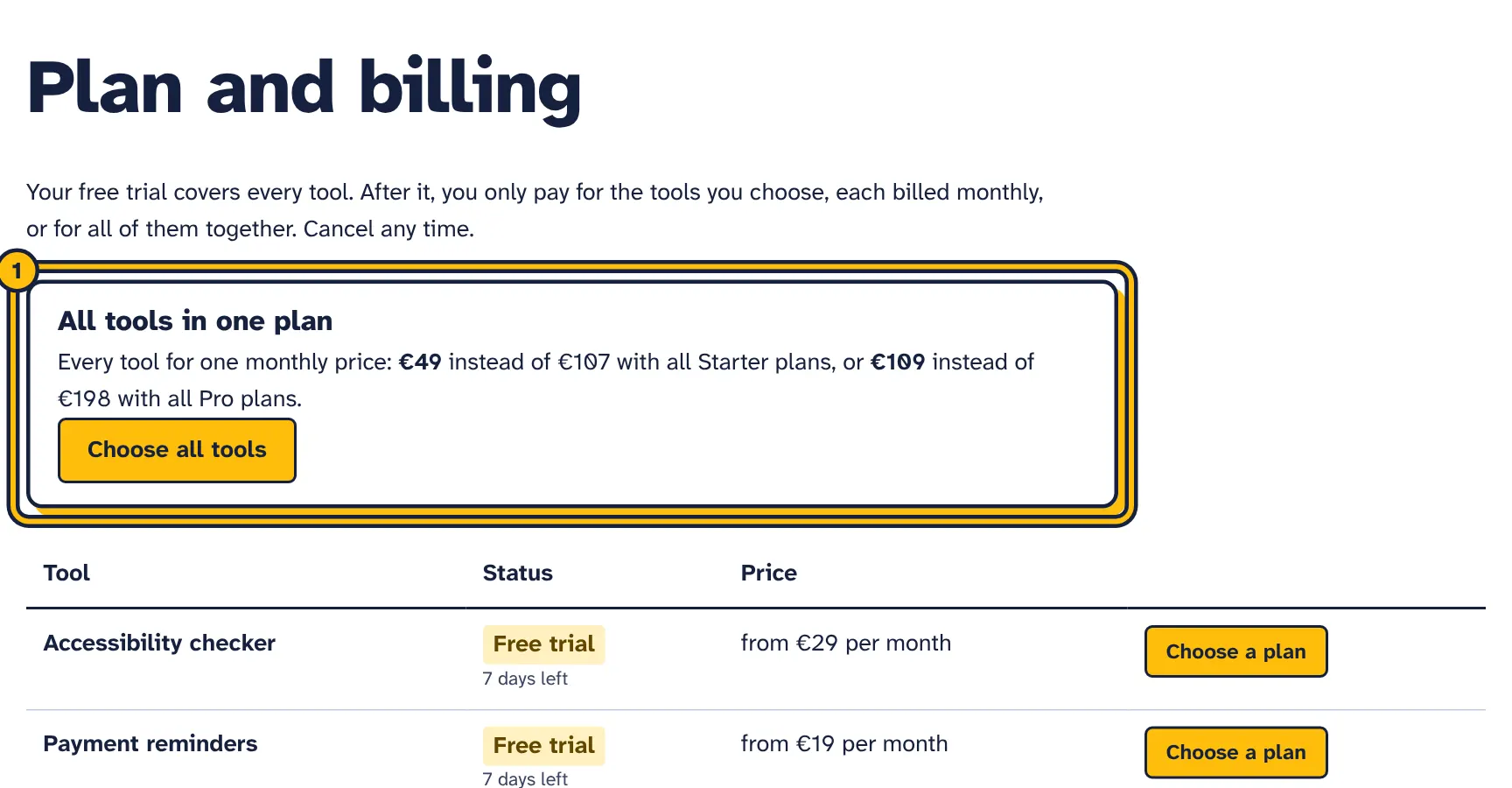
Step 1: Using several tools? All tools in one plan costs less than paying for each. Click Choose all tools. -
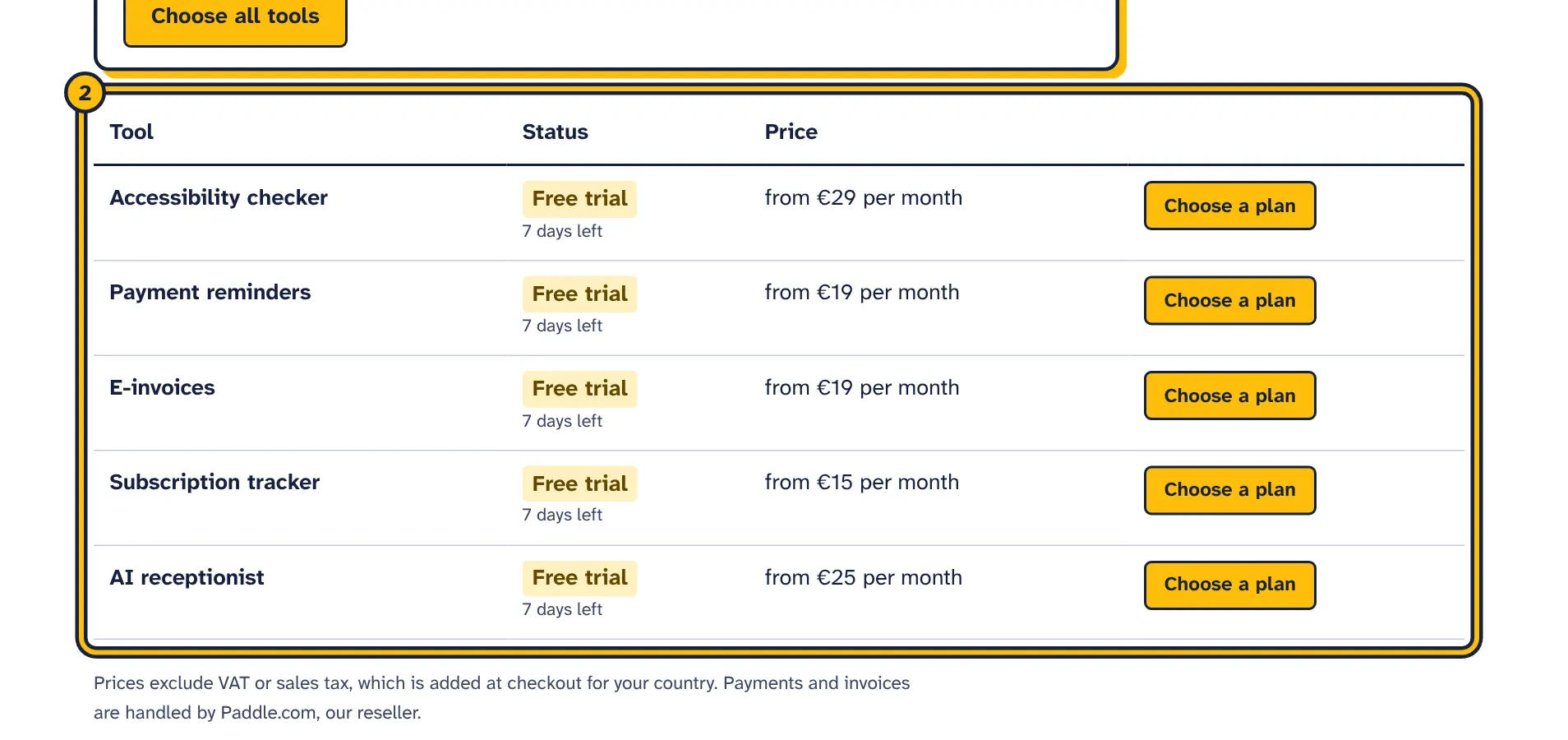
Step 2: Or choose a plan only for the tools you keep. -
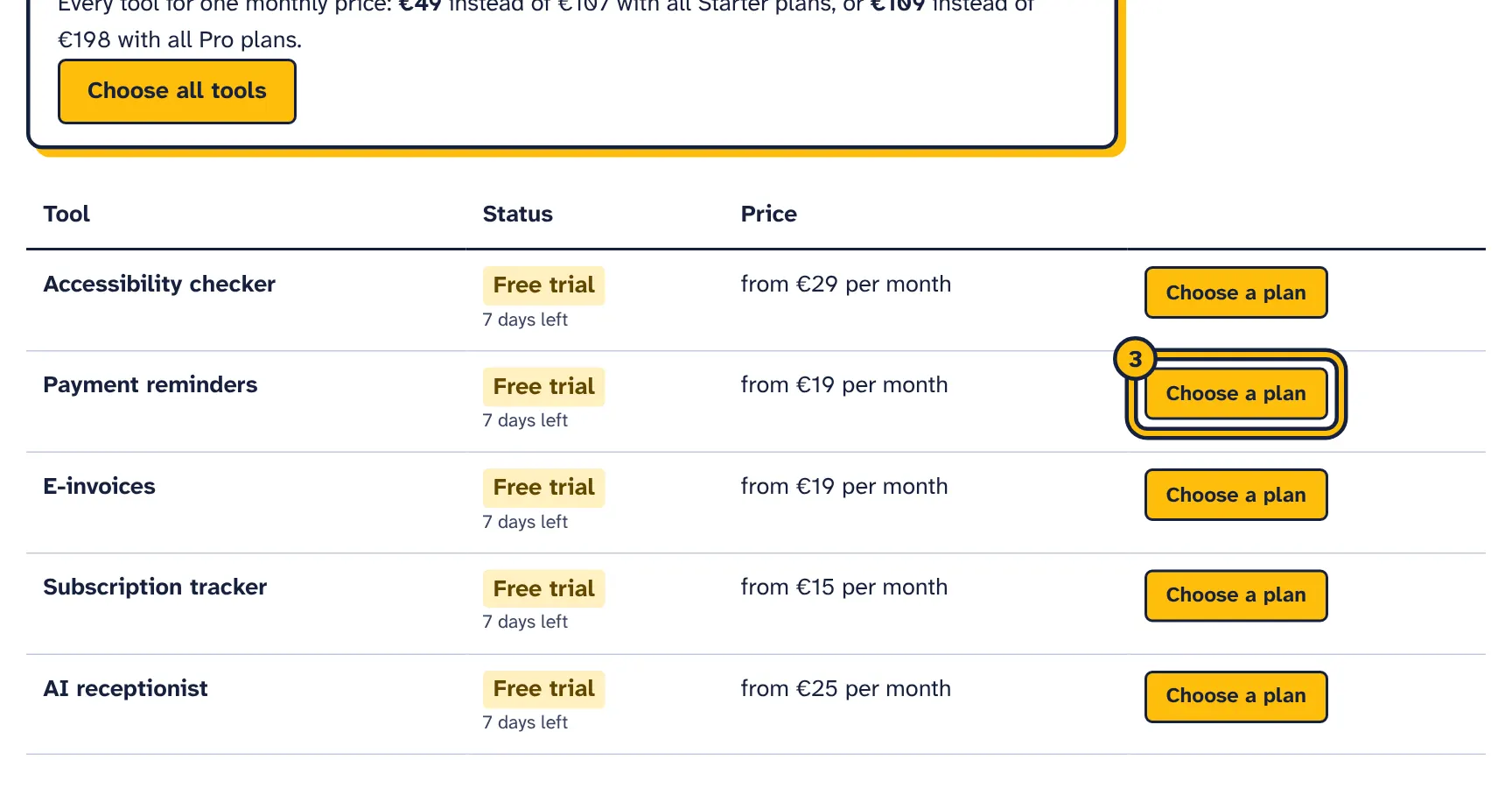
Step 3: Click Choose a plan next to a tool. -
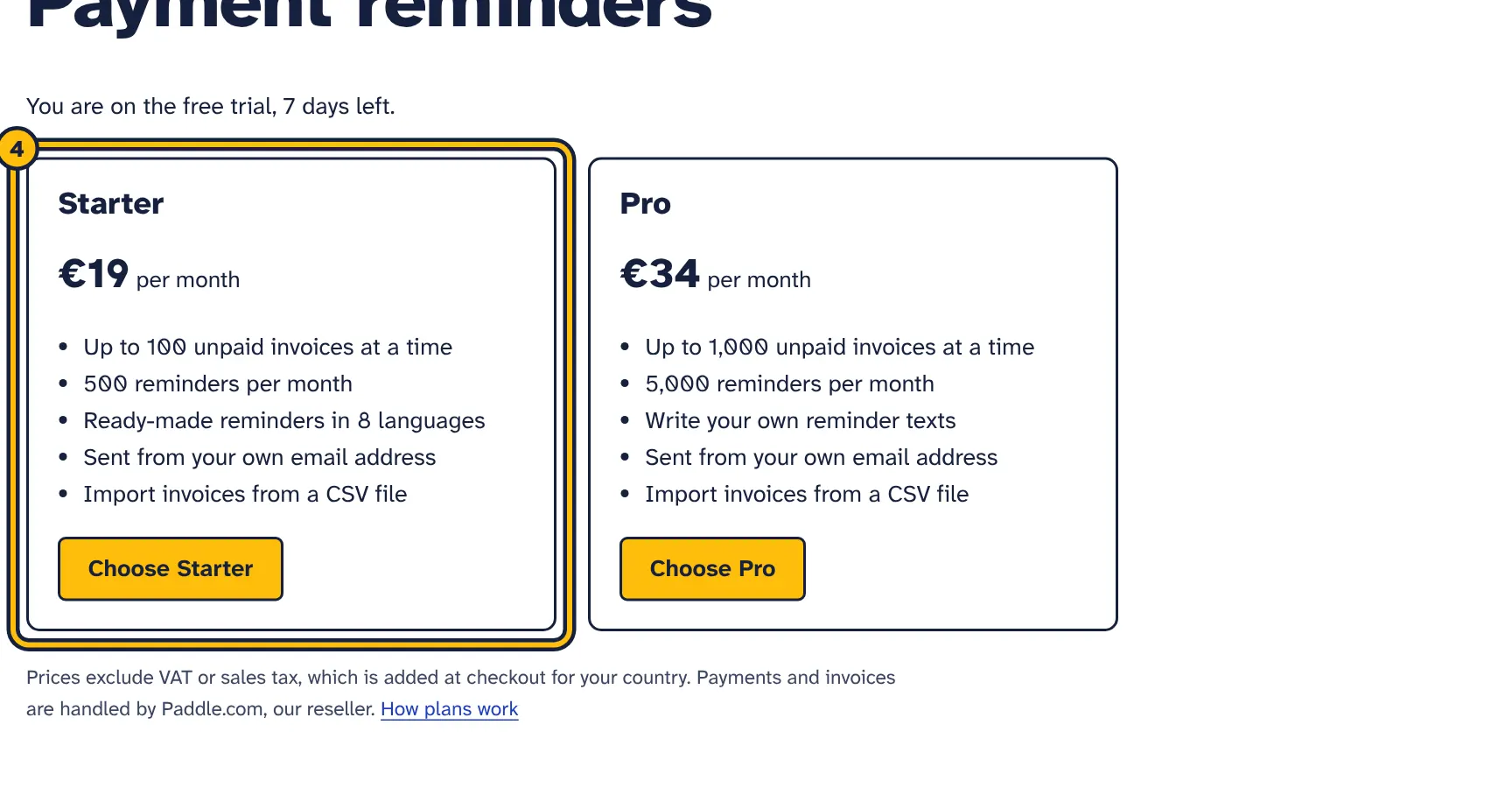
Step 4: Compare Starter and Pro, then click the button under the plan you want.
You can buy straight from our prices: select Choose under any plan on the home page, or Choose Starter or Choose Pro on a tool’s page. If you have no account yet, you create one in the same step and the secure payment window opens straight after. You can also start with the free trial and choose a plan later, like this:
- Open Plan and billing in the top menu. It lists every tool with its status: Free trial, Trial ended, or the name of your plan.
- Select Choose a plan next to the tool you want to keep, or Choose all tools for the all-tools plan.
- Select Choose Starter or Choose Pro. Paddle’s secure checkout opens on top of the page, with your login email filled in.
- Enter your payment details and your address. Paddle works out VAT or sales tax for your country and shows the total before you pay.
- After paying, you come back to the plan page. Your plan shows within a minute, as soon as Paddle confirms the payment.
Payments and invoices are handled by Paddle.com, our reseller. Paddle is the merchant of record: it sells you the subscription on our behalf, charges your card, takes care of VAT and sales tax, and sends you the receipts and invoices. Your card details go to Paddle, not to AdminSmith.
If the plan page says “Payments are not set up yet.”, plans cannot be bought at the moment. Use the Contact link at the bottom of the page.
If Payment failed appears next to a tool, Paddle could not take the last payment. The tool keeps working for now; update your payment method soon to keep access.
Cancelling or changing a plan
Cancel
- Open Plan and billing, select Manage next to the tool, and select Cancel plan. Paddle opens a page where you confirm.
- You can always cancel through Paddle: open the paddle.net link in the receipt email Paddle sent you, or go to paddle.net and find your purchase with your email address or order details.
- Or ask us, using the Contact link at the bottom of every page.
Under our terms, the plan stays active until the end of the period you paid for. The plan page then says until when, and Plan and billing shows Cancelled, ends with the date. Changed your mind? Select Keep my plan on the plan page before that date, and the plan renews as usual. After the end date, the tool shows Trial ended and works as described in After your trial or plan ends. Your data stays.
Update your payment method
Use Update payment method on the tool’s plan page if you see it, or the paddle.net link in your Paddle receipt email.
Change between Starter and Pro
On the tool’s plan page, the plan you do not have offers a button such as Switch to Pro. Select it and confirm. Paddle changes your existing subscription to the new plan and charges or credits the difference straight away, and emails you the invoice. You keep one subscription, so there is nothing to cancel.
Refunds
See our refund policy: your first payment for a plan can be refunded within 14 days. Refunds are paid by Paddle, our reseller.
After your trial or plan ends
When your trial ends and you have not chosen a plan for a tool, that tool stops doing new work. Your data is not deleted: you can still log in, open it and look at it, and if you choose a plan later, everything is where you left it.
- Accessibility checker
- You can open your websites and reports, download PDF reports and edit your accessibility statement. You cannot add websites or run new checks.
- Payment reminders
- Your invoices stay in the list, and you can mark them as paid. No reminders are sent, and you cannot add or import invoices.
- E-invoices
- You can open, download and email invoices you already issued. You cannot issue new invoices.
- Subscription tracker
- Your subscriptions stay in the list. You cannot upload new statements, and renewal reminder emails stop.
- AI receptionist
- The assistant is paused on your website, WhatsApp and text messages. Customers who write are asked to leave their contact details, and we email you. Conversations are still deleted after the period you chose in the assistant’s settings.
Your connections stay saved. To delete your data yourself, use the delete options inside each tool, or delete your whole account.
Settings
Open Settings in the top menu. It has three parts.
Account
- This account is
- Choose For a business, a freelancer or a sole trader, or For me as a private person.
- Your name
- Your own name. For a private account, it is also used as the account name.
- Business name
- Shown at the top of your dashboard, and suggested as the business name when you add an AI assistant. Required for a business account; for a private account, your name is used.
Select Save changes. The business name here is separate from the details you enter inside tools, such as your invoice details or your assistant’s business information.
Password
Enter your Current password and a New password of at least 10 characters, then select Change password. See Password and security.
Delete account
Deletes your account for good. See Deleting your account before you use it.
The email address you log in with cannot be changed in Settings. Contact us if you need to change it.
Password and security
- Your password needs at least 10 characters (and at most 200). A long phrase that you do not use anywhere else is a good choice. A password manager helps.
- We store only a scrambled form of your password (a hash), so nobody at our end can read it.
- You stay logged in on a device for up to 30 days. Use Log out in the top menu on shared computers.
- Changing your password in Settings logs you out on every other device. Use this if you think someone else has logged in to your account.
- Passwords, tokens and keys for your connections are stored encrypted.
- After many failed attempts to log in, you have to wait a few minutes before trying again.
If you forgot your password
- On the login page, select Forgot your password?.
- Enter your email and select Send reset link.
- Open the email and use the link within one hour. Each link works once.
- Enter a New password and select Save new password.
- Log in with the new password. Resetting your password logs you out on every device.
If no email arrives, check the spam folder and that you typed the email address you signed up with. For your privacy, the page looks the same whether or not an account exists for that address.
There is no two-step login yet, so a strong, unique password matters.
Deleting your account
Deleting your account cancels your paid plans at Paddle straight away. The rest of the current month is not refunded unless the law requires it, so if a plan has time left, you may want to wait until near the end of the month.
- Open Settings and go to Delete account.
- Type the email address you log in with in Type your email to confirm.
- Select Delete my account and confirm.
This deletes everything stored for your account straight away, and it cannot be undone:
- your login, business details and settings
- websites, accessibility reports and statements
- invoices, reminder history and uploaded files in Payment reminders
- e-invoices, customers and your logo
- bank statement data and subscriptions in the Subscription tracker
- AI assistants and all conversations
- your connections, with their saved passwords, tokens and keys
- usage counts, AI usage reports and the record of your plans
Things outside the platform are not deleted: emails and messages you already sent, copies in your own mailbox, and data held by your providers (your email provider, AI provider, Twilio and Meta). Paddle keeps its own records of your payments as the seller. Also delete the app passwords, API keys and tokens you created for us, and remove our webhook addresses from Twilio and Meta.
Privacy in short
- We store your login email, your name, your business name and the data you add to the tools.
- We do not store card details. Paddle handles payments.
- Connection passwords, tokens and keys are encrypted, and your login password is stored as a hash.
- When a tool sends email or messages, they go through your own provider accounts, under your agreements with those providers.
- The AI receptionist sends each conversation and your business information to your own AI provider, using the key you connected.
- You decide how long AI receptionist conversations are kept, and you can delete data in each tool or delete your whole account.
If your customers’ personal data passes through AdminSmith, tell them in your own privacy policy. The AI receptionist guide explains what to write for the chat.
Read our privacy policy and our data processing agreement for the full details. General information, not legal advice.
Contact us
Use the Contact link at the bottom of every page. It opens a short form, and your message is emailed to our support team. You can also write to us directly at the address shown there.
- Write from the email address you log in with, or mention it.
- Say which tool or connection your question is about.
- Copy the exact message you see on the screen, and say what you did just before.
- Never send passwords, app passwords, tokens or API keys.
For questions about a payment, a receipt or an invoice, you can also contact Paddle through paddle.net.
Still stuck? Email support@adminsmith.com and tell us what you tried. See all guides.